Split One Telegram Archive Into Subject Channels by Hashtag
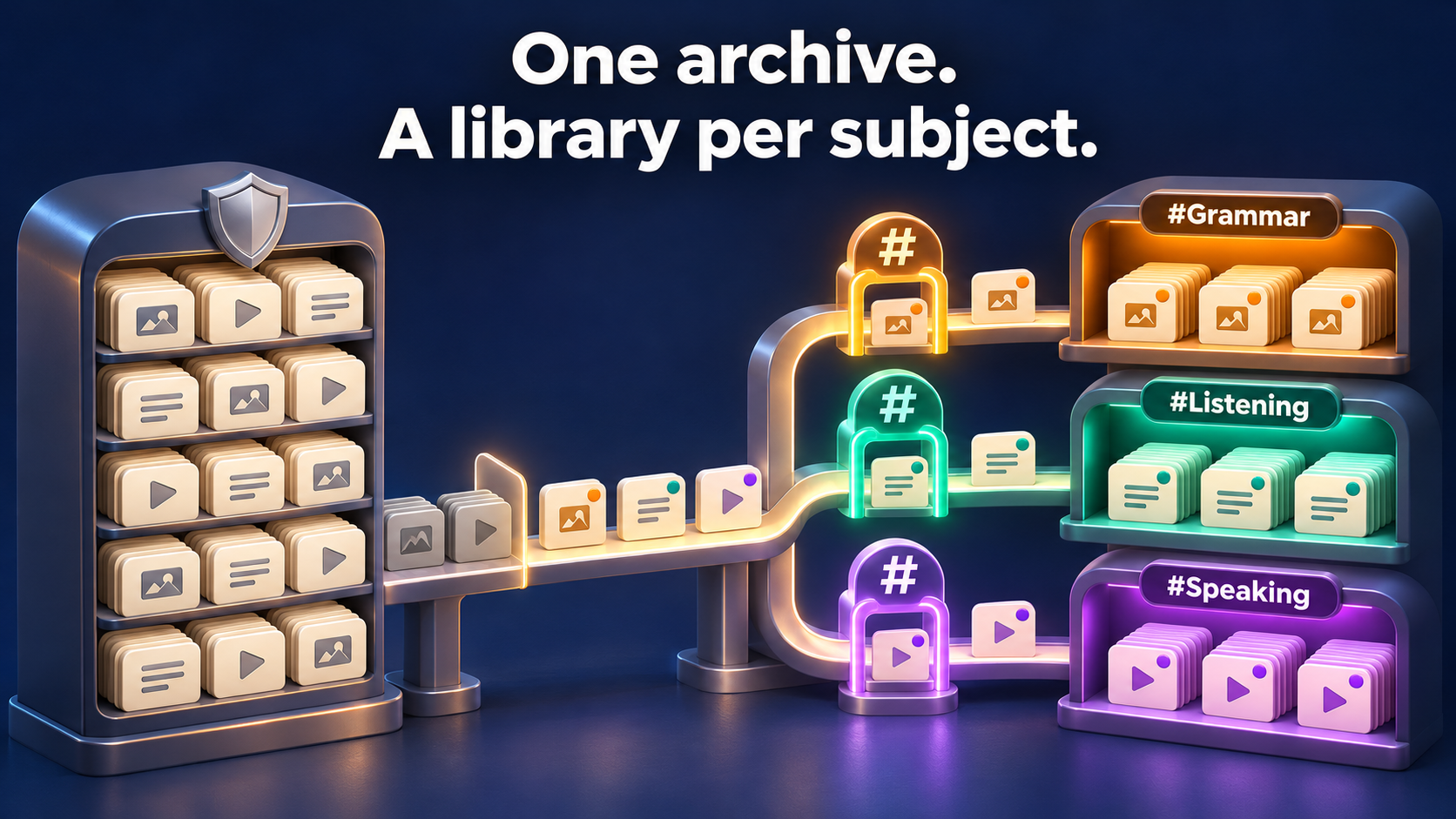
To split one Telegram archive into separate subject channels, clone the archive once per subject and give each run a whitelist that admits only that subject’s hashtag. The #Grammar run copies only #Grammar posts, the #Listening run only #Listening posts, and untagged posts stay out of every library. The original archive keeps every post, and you never scroll through years of history picking messages by hand.
Picture a language school with one private archive of nearly 4,800 lesson posts, each tagged #Grammar, #Listening or #Speaking. New students keep asking for “just the listening drills.” Instead of forwarding drills one by one, the school builds three subject channels from the tags it has been adding all along.
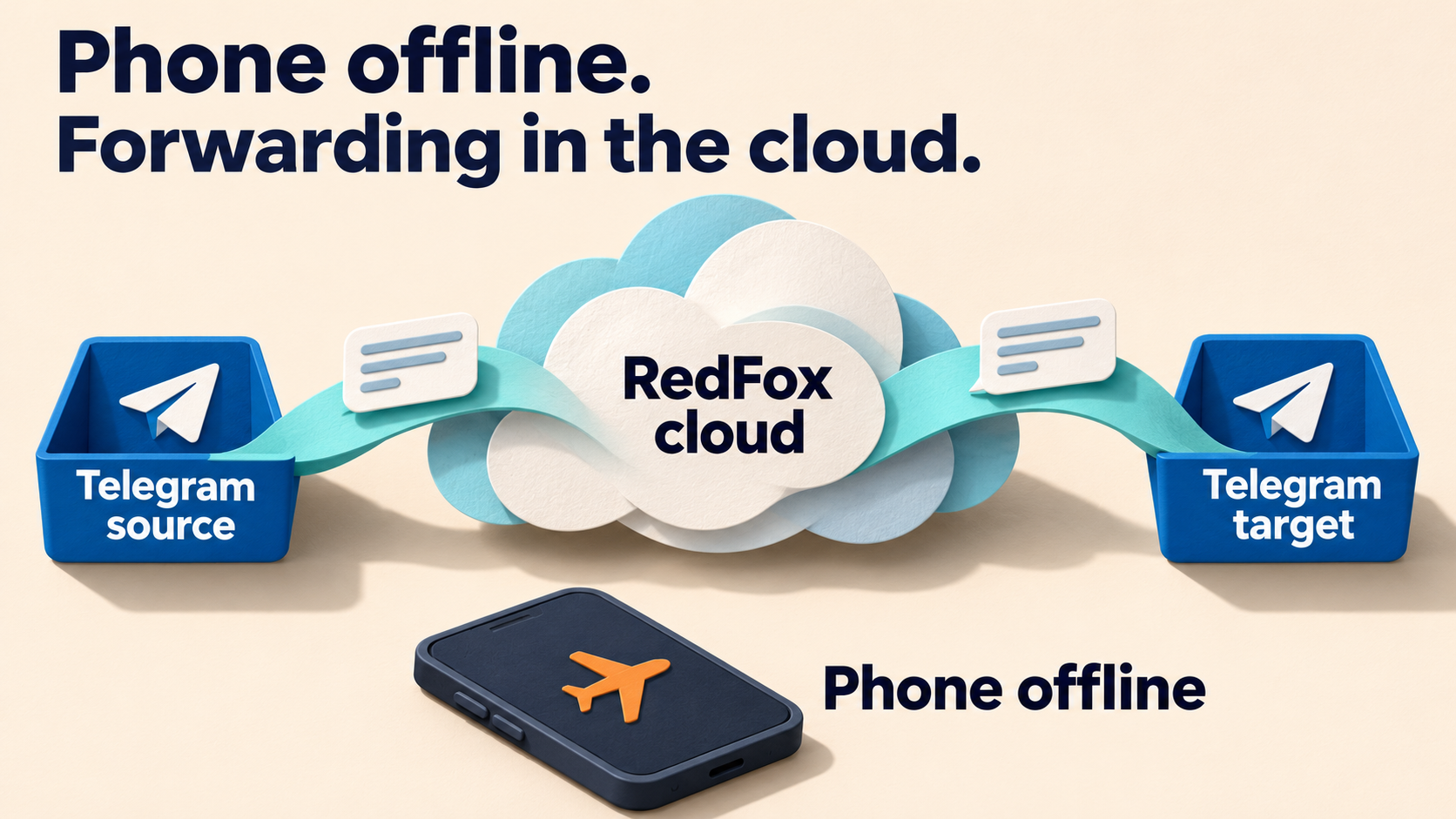
RedFox Auto Forward Telegram (@AutoForwardNew_Bot) runs the copying in its cloud: putting the app in the background is not meant to stop a clone that has been accepted. The previous bot has moved to @AutoForwardNew_Bot; use this current handle to access RedFox Auto Forward Telegram. Auto-Bot.io publishes this guide; RedFox develops and operates the product.
Start from the tags your archive already has
The split is only as clean as the tags in the archive, so spend ten minutes checking them before you configure anything. Telegram helps here: tapping a hashtag in a channel opens a search of every other post with that tag in the same channel.
- Find every spelling. Tap each subject tag and scroll the results. Note variants such as #grammar or #GrammarTips; you will decide below whether each one belongs in the subject.
- Spot posts with two subjects. A post tagged #Grammar and #Speaking will be copied to both libraries. That is usually what you want; if it is not, retag it before the run.
- Accept that untagged posts stay behind. Announcements, polls and chat that carry no subject tag will not reach any subject channel. Tag the ones you want, or leave them in the main archive where members can still find them.
- Check album captions. For a photo or video album, put the tag in the album’s caption so the rule can see it.
This works with a private or restricted archive too, as long as your connected Telegram account has joined it and you have the right to republish the content. RedFox’s product README says private and restricted channels work when your connected account has access; it is not a way around a chat you cannot read.
Turn each tag into its own whitelist
A whitelist tells RedFox to copy a message only if it contains at least one of the words or patterns in the rule. Create one whitelist per subject, so each clone run can use exactly one of them.
- Grammar Library: label
grammar, Basic content#Grammar,#grammar - Listening Library: label
listening, Basic content#Listening,#listening - Speaking Library: label
speaking, Basic content#Speaking,#speaking
In the Web App, open Whitelist under Features, choose Add New, enter the label, keep the type Basic, type the tags separated by commas and choose Create Whitelist. RedFox’s whitelist guide asks for labels without numbers, so grammar works better than subject1.
Three details decide what lands in each library:
- Basic rules match inside longer words. The whitelist guide explains that Basic syntax matches partially, so
#Grammaralso admits #GrammarTips. That is handy when sub-tags belong to the same subject. - Write down each spelling you want. Basic rules compare the text as written, which is why each rule above lists the lowercase tag as a second entry. Add any other variants you found in the audit.
- In a Regex rule, write
\#, not#. If a longer tag must stay out, use a Regex whitelist such as\#[Gg]rammar\b, which admits #Grammar and #grammar but not #GrammarTips, following the whole-word pattern in RedFox’s FAQ. RedFox’s current rule engine reads Regex rules in a mode where an unescaped#starts a comment, so#Grammaron its own can match every post. Our whole-word filter guide shows how to test a pattern before you rely on it.
Keep each subject whitelist off any “apply to all tasks” setting. Whitelists that are active together let a post through when it matches any one of them, so an extra rule would quietly mix two subjects in the same channel.
Give every subject its own Clone Profile
A Clone Profile saves a source, a target and the run settings so you can run the same copy job again later. One profile per subject keeps each run’s whitelist separate. You can build them in the Web App or in the iOS or Android app; the Clone Messages guide describes the flow.
- Prepare the subject channels. Create Grammar Library, Listening Library and Speaking Library, keep them private for now, and make sure the connected account can post in each one.
- Find the ID range. Copy the link of the first and last archive post you want to cover. The number at the end of each link is its message ID; in the example, the archive runs from ID 2 to ID 4800.
- Create the first profile. Go to Home → Clone, open Clone Profiles and tap New profile. Choose the archive as Source Chat Clone and Grammar Library as Target Chat Clone.
- Use an ID range. Under Clone mode, choose ID range and enter the start and end IDs. The end ID is included, and a range can cover up to 100,000 source IDs.
- Attach one whitelist. In the profile’s advanced settings, turn on only the
grammarwhitelist. Leave replacements, Cleaner options and header or footer text off for the first run, so you can see the selection by itself. - Keep a delay. Set Delay Clone to a few seconds rather than zero. RedFox’s clone command guide warns that sending many messages quickly can trigger temporary Telegram limits of 5 minutes to 1 hour on the account.
- Save and repeat. Tap Save profile, then build the Listening and Speaking profiles the same way, each with its own target and its own whitelist.
Whitelist selection in Clone is one of RedFox’s advanced clone options for Platinum accounts, and the whitelist guide marks Regex rules as Platinum too. Run the pilot and the full split on a full Platinum plan, because this workflow depends on the start and end IDs you enter. RedFox’s current plan descriptions say eligible new users can try Trial Platinum for 5 days with full Platinum features, but a Trial Platinum clone always starts at message ID 1 and is limited to 100 messages, whatever range you enter. The ID range and the 100,000-ID limit above do not apply to a trial run.
If you have a trial, use it only as a separate, private evaluation: clone into a throwaway test channel to see how a whitelist treats your earliest posts. That test is not the pilot below, it does not count as having covered IDs 2 to 300, and its copies do not belong in a subject library. Build the real libraries on Platinum in fresh subject channels, starting from the first ID of your range.
Pilot one subject on a short range
Before scanning nearly 4,800 IDs three times, prove the rule on a slice you can check by eye, using the full Platinum plan and the still-empty Grammar Library. This is a suggested check for your own account, not a test result we are reporting.
- Shrink the range. Edit the Grammar profile to cover IDs 2 to 300, save it, tap Run and let the run finish.
- Read the result. Every post in Grammar Library should carry a grammar tag. Untagged posts and pure #Listening or #Speaking posts should be absent.
- Compare with the source. In the archive, tap #Grammar and look at the results that fall in that first stretch of history. Each one should have a copy. A post you expected but cannot find usually has a spelling you have not listed.
- Fix the rule, not the channel. If untagged posts arrived, check that the whitelist is attached to the profile and that your plan includes whitelists in Clone. Add a missing spelling to the whitelist, or retag the source post. If the pilot copied posts you did not want, tighten the rule with the Regex form above. After any fix, point the profile at a fresh private channel and run IDs 2 to 300 again, so the library starts without the unwanted copies.
Move on only after a pilot that is right and has finished the whole 2-to-300 range. Then set the Grammar profile’s range to start at 301 so the posts you already copied are not sent twice. If the pilot was stopped or interrupted, do not restart from the last post you can see in Grammar Library: posts the whitelist skipped leave no copy, so the last copy does not show how far the run checked. Run the 2-to-300 pilot again into a fresh private channel instead. If it ended as Completed with issues, use Retry Missing as described below before you continue from 301.
Run the subjects one after another
The Clone Messages guide says only one clone operation can run for an account at a time, so run the subjects in sequence: Grammar, then Listening, then Speaking. Start the next profile after the current one finishes.
Do not estimate a run from the posts it sends alone. At a 5-second delay, 600 matching posts add at least 3,000 seconds—about 50 minutes—of waiting, but that is only the delay part. The run also reads and checks every ID in its range, including the posts the whitelist skips, and it pauses briefly on those skipped posts too. Each subject scans the whole range again, so three runs in sequence can take noticeably longer than their delay totals suggest. Posts the whitelist skips are not sent, so the final count is lower than the ID range; the guide notes that a range is an upper bound, not a promised message count.
- Watch the status card. If it looks out of date after you return to the app, open the profile and tap Click to Refresh.
- Use Retry Missing for gaps. If a run ends as Completed with issues, use Retry Missing to try only the messages that were not copied and are still retryable, rather than Clone Again, which starts the whole run from the beginning.
- Stop cleanly if needed. Stop ends an active run after the current message finishes. Deleting a profile removes the saved setup only; it does not delete messages from Telegram.
If a long run leaves posts missing for other reasons, such as deleted messages or albums crossing the end of the range, our guide to missing clone messages covers the checks.
Keep the libraries current after the split
A clone run copies history up to the end ID you chose. New lessons posted later still land only in the main archive, so pick one way to keep the subject channels up to date:
- Top up in batches. Note the end ID of each profile’s last completed run. Next month, set each profile to start one ID after that end ID and run the three subjects again.
- Forward new posts as they arrive. Create one forwarding task per subject, from the archive to that subject’s channel, and apply only the matching whitelist to that task. The whitelist guide explains how to apply a whitelist to a chosen task instead of all tasks, and our guide to routing one course feed to separate subject channels sets up those live routes step by step.
Either way, keep tagging. A new post without a subject tag will not reach any library, which keeps announcements in the archive and lessons where students look for them.
When a different archive job fits better
- You want a library by format, not subject: use Clone’s type filters, as in our video-only lesson library guide.
- Several archives should become one channel: label each archive’s posts as you combine them; see combining archives with traceable labels.
- Separate protected archives should share one group with topics: follow the protected archive topic library guide.
- Readers need to see when each lesson was first posted: add original-day headings to the copies.
For the wider map of forwarding, filtering and cloning options, start with our Telegram message automation guide.
Frequently asked questions
What happens to a post with two subject tags?
Each subject run checks the post against its own whitelist, so a post tagged #Grammar and #Speaking is copied to both libraries. If it should appear in only one, change its tags before you run the second subject.
Does splitting change the original archive?
No. Clone copies messages into the target channels; the posts stay in the archive. Deleting a Clone Profile later does not remove copies already sent.
Can one run fill all three channels?
Not in this design. A clone run has one target, and an account runs one clone at a time. Three saved profiles, run one after another, give each subject its own channel and its own rule.
Give each subject its own library
Audit the tags, create one whitelist per subject, save one Clone Profile for each and pilot a short range before the full run. After that, students can join the one channel they need, and the archive behind it stays whole.
Build the profiles in the official Web App, the iOS app or the Android app, or reach the product through @AutoForwardNew_Bot. Explore RedFox Auto Forward Telegram to choose your entry point.
One archive. A library per subject.
Clone each tagged subject into its own channel with a whitelist per run, and keep the original archive whole.
Manage on Web, iOS or Android