Telegram Forwarding With Your Phone Offline: Keep the Task Running
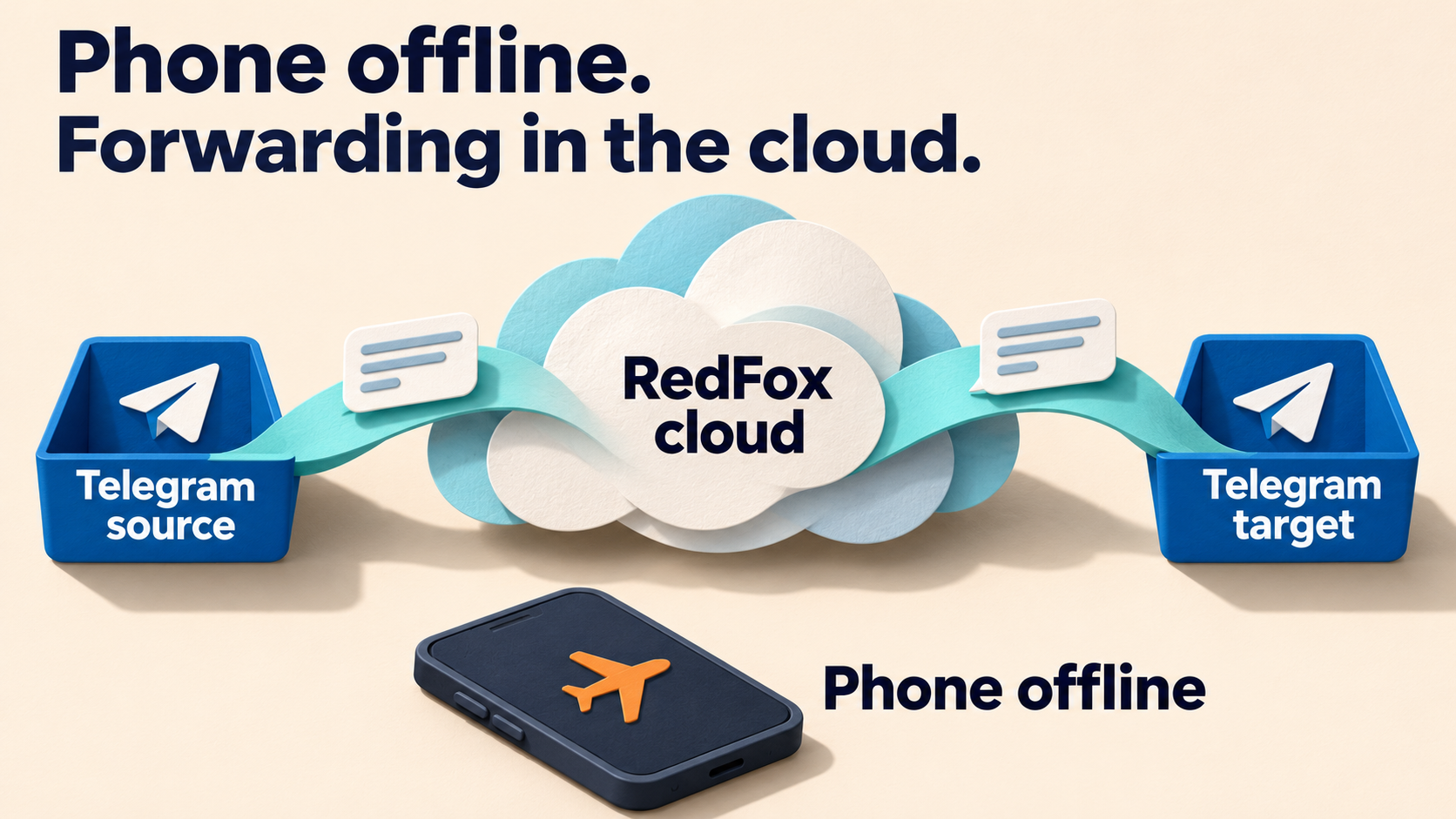
Yes—an active RedFox Auto Forward Telegram task can keep forwarding while your phone is offline. The task runs in RedFox’s cloud; your phone, Web app and mobile apps are management interfaces, not the machine that must stay on. You can close the interface or take your phone offline without rebuilding the route. Keep the task active and its authorized Telegram connection intact.
The important distinction is disconnecting your phone versus disconnecting the service. RedFox’s internet FAQ says you do not need to keep your internet on. Its product README explains that the apps and Web interface manage settings while processing runs on its servers.
This guide is for an already-configured Telegram-to-Telegram task: leave it running, check a short offline interval if needed, and investigate a missing post without deleting the setup. Auto-Bot.io publishes this guide; RedFox operates the product, available at @AutoForwardNew_Bot.
What can be offline—and what must keep working?
Think of two separate paths: you → management interface for viewing and changing settings, and Telegram source → RedFox cloud task → Telegram target for forwarding. Taking the first path offline does not intentionally pause the second.
| Action | What changes? |
|---|---|
| Close the Web tab or mobile management app | The active cloud task does not need the interface left open. You lose that screen’s live view, not the task itself. |
| Turn off your management phone, or disable its Wi-Fi and mobile data | That phone cannot send, refresh or observe new posts while offline. Cloud forwarding does not require its connection. |
| Pause or stop the task in Auto Forward | You are changing the task’s operating state. This is not the same as closing the app. |
Use the bot’s /profile → Logout | RedFox warns that this stops and removes information, data and running tasks, which cannot be recovered. Do not use it to go offline. |
| Revoke the Telegram session used by the service | RedFox warns that removing its required connection prevents the bot from working. This is not a phone-connectivity test. |
| Cloud service, Telegram access and destination permissions | These still matter. The task needs its authorized source access and a sender allowed to post to the intended target. |
The destructive warning above refers specifically to the product’s documented bot Logout action. It is not a claim that every button named “Log out” on every app deletes forwarding data. Telegram documents its own client logout behavior separately. For a short offline period, you do not need either action.
Cloud operation removes the need to leave your personal device running. It does not mean every message is guaranteed to arrive, nor does it remove task rules, configured delays, Telegram restrictions or service interruptions.
Before going offline: inspect the existing task once
Open the official Web app, iOS app or Android app—whichever you prefer. Web and mobile apps are the recommended fuller-management surfaces; the Telegram bot is a more limited entrypoint. Use the account that already owns the task, not a new connection created for this check.
- Identify the route: read its task label, source, target, any destination topic and selected sender. Similar chat names are not enough to distinguish routes.
- Read its current state: confirm that the task you want running is active. Leave intentionally paused tasks paused.
- Note intentional timing: check any delay, operating schedule or other timing rule before deciding when a new post should appear.
- Keep access unchanged: do not leave the source chat, remove destination posting rights or revoke the service connection as part of going offline.
- Avoid simultaneous edits: if someone else manages the route, agree that neither of you will change it during a continuity check.
The task settings guide describes source, target, delay and advanced controls. You are inspecting an existing configuration, not following a new-task wizard. If you have not configured a route yet, use the first forwarding-task guide instead.
Ready to leave the screen? Once the intended task is active, simply close the interface and disconnect the phone if you wish. When you need to manage it again, return through the Web app or an official mobile app. There is no need to create another forwarding task just because you changed screens.
Optional: check one offline interval on your own route
The first-party documentation already answers the cloud question: your phone does not need to stay online. This optional check is only for reassurance about a particular route—not a prerequisite for leaving an active task running.
- Choose a safe post: use the next authorized normal post, or an existing private rehearsal source and target you control. Confirm the route already works and that the post meets its author, keyword and message-type rules. Do not redirect a live task, send test chatter to subscribers or create a duplicate route for this check.
- Note the offline interval: record its start, end and timezone. Take only your management phone offline; leave the task, service connection and rules unchanged. Check that both Wi-Fi and mobile data are off. The source post must actually reach Telegram during that interval, whether from its normal author or a permitted separate online device—not sit in your offline phone’s send queue. Allow for the task’s saved delays and schedule.
- Reconnect and inspect the target: on the same phone, find the matching copy in the correct target and topic. Compare the target copy’s own posted time with your offline interval. You do not need a second device or live observer if that time is unambiguous.
Use the target copy’s time, not the forwarded original’s time. Telegram documents a message’s own date separately from the forward header’s originally-sent date. If your client clearly identifies the target copy’s posted time within the offline interval, that is evidence it was posted there while your phone was offline. Account for timezone and display precision; a rounded time at the interval boundary is not enough. A notification received after reconnecting does not tell you when the target copy was posted.
If the displayed time is ambiguous, you can instead arrange for a trusted person or an existing authorized online device to observe the target copy before your phone reconnects. Record when it was seen and the timezone; never share login codes, passwords or session files. Without a distinguishable target posted time or an observation during the interval, the copy’s presence afterward confirms it exists, but not when it appeared.
Keep only a short private note: source post identity and time, target/topic, offline start/end and timezone, target copy’s posted time or observer’s time seen, and relevant task delays. Evidence within the interval supports continuity for that post and route—not a universal delivery rate. Reopen the same task afterward; do not rebuild it to refresh your view.
If a post is missing, preserve the route and narrow the cause
Start with what you can actually observe. “The phone was offline” is a timing fact, not a diagnosis.
- The post never appeared in the source: check the posting device’s connection and send state. Cloud forwarding cannot copy a post that has not reached the source.
- The route was not working before you went offline: inspect task state, connected account, source access, target/topic and sender permissions. You have not isolated a phone-related difference.
- A post published during the offline interval is missing: check whether it met the same author, keyword and message-type conditions, whether another operator edited the task, and whether a configured schedule or delay applies. A single missing post does not identify which dependency failed.
- You first noticed the copy after reconnecting: check its own target posted time, not the forward header’s original time or notification time. If it was posted during the offline interval, it was already there. If the time is unclear or later, keep the available times and task settings; that alone does not prove reconnection repaired forwarding.
- The service connection was removed: this is a different starting condition. Review the service-session identification guide before deciding on reconnection. Do not keep an unexplained or unauthorized session merely for continuity.
- You used the bot’s product Logout: follow the documented destructive-action warning and ask support what options remain. Do not assume reconnecting restores removed tasks.
Keep your current configuration while checking, unless it is sending unwanted content—in that case, deliberately pause the affected task. Closing the app is not a pause. Avoid stacking speculative changes, repeated restarts or a new task on top of the old one; overlapping routes can make later observations harder to interpret.
For an unresolved result, send official RedFox support the affected task label, platform, timezone, offline interval, source/target observations and exact visible error. Keep chat details private and redact unrelated information. Never send login codes, passwords, bot tokens or session files. If access looks unauthorized, prioritize Telegram’s account-security guidance over keeping forwarding running.
Frequently asked questions
Must the Web app or mobile app stay open?
No. RedFox documents that its cloud service runs the task while the interfaces manage settings. You need internet to use those interfaces and see fresh information, not to keep an already-active task running.
Does airplane mode stop forwarding?
No—taking your management phone offline is not a task-stop command. The active cloud task can continue if its service connection, access and other dependencies remain available. The offline phone itself cannot send a new source post to Telegram or refresh its target view until it reconnects.
Should I remove an unfamiliar device entry before leaving?
Do not use session removal as routine offline preparation. RedFox’s connection FAQ warns that removing its bot-running connection prevents operation. A device name alone does not prove ownership or safety; use the linked session-identification guide if the entry is uncertain.
Will reconnecting my phone replay every missed message?
Normally, the active cloud task continues forwarding while your phone is offline; reconnecting refreshes the phone’s view, rather than being needed to resume forwarding. If a post is genuinely missing from the target, separately check that it reached the source and met the task’s rules. Reconnecting is not a documented guarantee that every missing item will be replayed. Reconcile actual gaps before considering any separate history-copy operation.
Keep the task running, not the screen
The practical handoff is simple: inspect the right active task, retain its authorized service connection, and close your management interface when you are done. If you want to check a particular route, use its target copy’s clearly identified posted time or an optional online observation—not an account reset.
Review the RedFox Auto Forward Telegram product and official access options, then return to your existing task in Web, iOS or Android. Your next useful action is to check that route, not rebuild it.
Leave the screen. Keep your cloud task running.
Review your existing route and official management options without deleting or rebuilding the task.
Manage on Web, iOS or Android