Multiple Telegram Accounts: Keep Forwarding Routes With the Right Owner
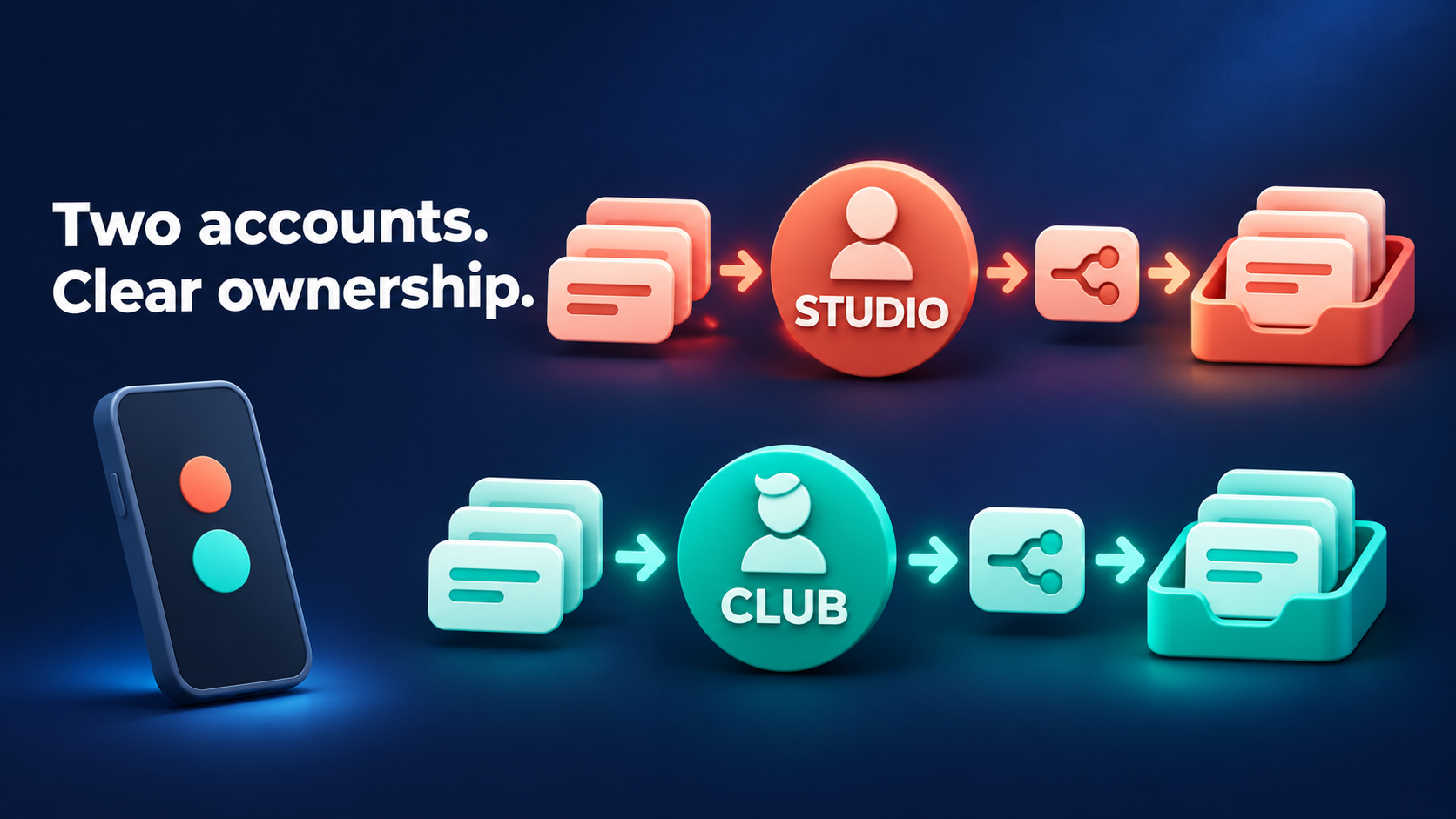
Use each Telegram account as a separate forwarding owner: confirm the account, then check its source, target and task before making a change. One phone can hold both accounts, but switching Telegram’s visible account is not a reason to assume an already-open forwarding app has switched too. Keep a short ownership worksheet and verify the product identity every time you move between them.
For example, you might manage a studio’s announcements and a club’s member updates from the same device. Both Telegram accounts are already authorized; the job is to keep the studio route with the studio account and the club route with the club account—not transfer either setup or combine their subscriptions.
RedFox’s multiple-account guide documents opening @AutoForwardNew_Bot from the additional Telegram account and connecting that account. This guide starts after authorization and gives you an everyday management routine. Auto-Bot.io publishes the guide; RedFox operates Auto Forward Telegram.
One device, two account contexts
Telegram says each phone number is a separate account, and you can switch between accounts without logging out. That lets you keep work and community chats available on one device. It does not make them one forwarding identity.
- Telegram account: the account currently selected in Telegram, with its own source access and chats.
- RedFox management session: the product account the current Web or app view is actually showing.
- Forwarding route: the task under that product account, with its saved source, target, topic, sender and rules.
Check all three. A familiar avatar, a folder named “Studio,” or a task count of two is not enough to establish ownership. Use a stable account identifier exposed by the product, such as its account ID or UUID, alongside your private account note. Do not use a login token as an identifier.
Make an account → source → target → task worksheet
Keep this in a private operations note. Record identifiers only where available in your normal interface; you do not need developer tools or an exported session. For chats with similar names, use a chat link or an available chat identifier as well as the name. Keep private invite links out of shared documents.
- Account owner: your label, such as Studio or Club; the Telegram account you recognize; and the matching RedFox account ID or UUID shown in the product.
- Source: exact chat and topic if used. Confirm that this connected account can read it and that you may redistribute the content.
- Target: exact destination and topic if used, its audience, and the configured sender’s permission to post there.
- Task: task label and available task identifier, current active/paused state, selected sender, and relevant filters, timing or content changes.
- Return check: when you last matched the account identity and route, plus the expected state when you return. Preserve deliberate pauses.
Illustrative Studio record: Studio account → Studio Notices source → Studio Team target → studio_notices_to_team, active. Record the real account and chat identifiers privately.
Illustrative Club record: Club account → Club Updates source → Club Members target → club_updates_to_members, paused until the operator’s next approved send window. Leave it paused when switching back.
These are example labels, not customer results. The point is to tie a route to an account you can identify, rather than remembering “the first account” or “the green folder.” A folder can organize tasks, but it is not a substitute for checking which account owns the task list.
Switch the view, then prove which account you are managing
- Finish your current observation. Note the current RedFox account identifier and the task’s state. Avoid leaving an unsaved task edit or an account-changing confirmation open.
- Select the other account in Telegram. Use Telegram’s account selector, not Telegram Logout. Check its own profile identity before opening the bot chat. The same bot handle can appear in both accounts.
- Open the official bot from that account if using bot access. For accounts already connected, do not repeat
/connectmerely to switch views. If the bot instead asks you to connect, reconcile the selected account and its existing connection before authorizing anything new. - Check the product identity on your chosen management surface. In Web or the mobile app, compare the account details shown in Profile or Settings with the worksheet. Do not assume that changing Telegram’s selected account changed a Web tab or an app session you already had open.
- Open one known task and compare the whole route. Match the source, target, topic, sender and state—not just the label. Only then make the intended account-specific change.
- Return and repeat the identity check. When you go back to Studio, first match Studio’s product identifier and route. Confirm that Club’s deliberately paused task has not become part of a “resume everything” action.
If the product still shows Studio while Telegram shows Club, stop before editing: you are viewing the wrong product account, not necessarily missing tasks. For the mobile app, RedFox documents Profile → Logout → SignIn to change the account shown. This is the app action, not the service bot’s /profile → Logout. If a confirmation mentions removing data, tasks or the Telegram connection—or its effect is unclear—cancel and ask support before proceeding.
At the app’s sign-in screen, follow the documented sign-in flow with Club’s Telegram phone number. The guide says the verification code arrives in Telegram: select Club in Telegram to read Club’s code, not Studio’s. Enter it only in the official app’s login flow; never send it to support or put it in your worksheet. After signing in, match Club’s product identifier and known route before editing. For Web, check the account shown and use its current sign-in controls; if their effect is unclear, ask support rather than borrowing a bot Logout command. Do not create replacements for Club’s tasks inside Studio.
Explore RedFox Auto Forward Telegram and its official management options when choosing where to manage your routes. Web and mobile apps offer the fuller management experience; the Telegram bot provides quick command-based access.
Account switching is not service Logout, Transfer or Reset
The word “logout” appears in different places. Identify the surface and consequence before selecting it.
- Telegram account switching: select another already-signed-in Telegram account without logging out. This is the ordinary way to move between its chats.
- Management-app sign-out: RedFox’s app account-change page describes Profile → Logout returning to SignIn. Treat that as an app-specific instruction, not a command to send to the service bot. If your current screen or confirmation mentions removing data, tasks or the service connection, cancel and clarify before proceeding.
- Service-bot Logout: the RedFox Logout FAQ explicitly describes
/profile→ Logout as stopping and removing information, data and running tasks irrecoverably. Do not use it to switch the account you are viewing. - Account Transfer or configuration restore: these change account-related state or configuration; they are not account selectors. If you already completed a transfer and the display looks old, use the separate post-transfer reconciliation guide.
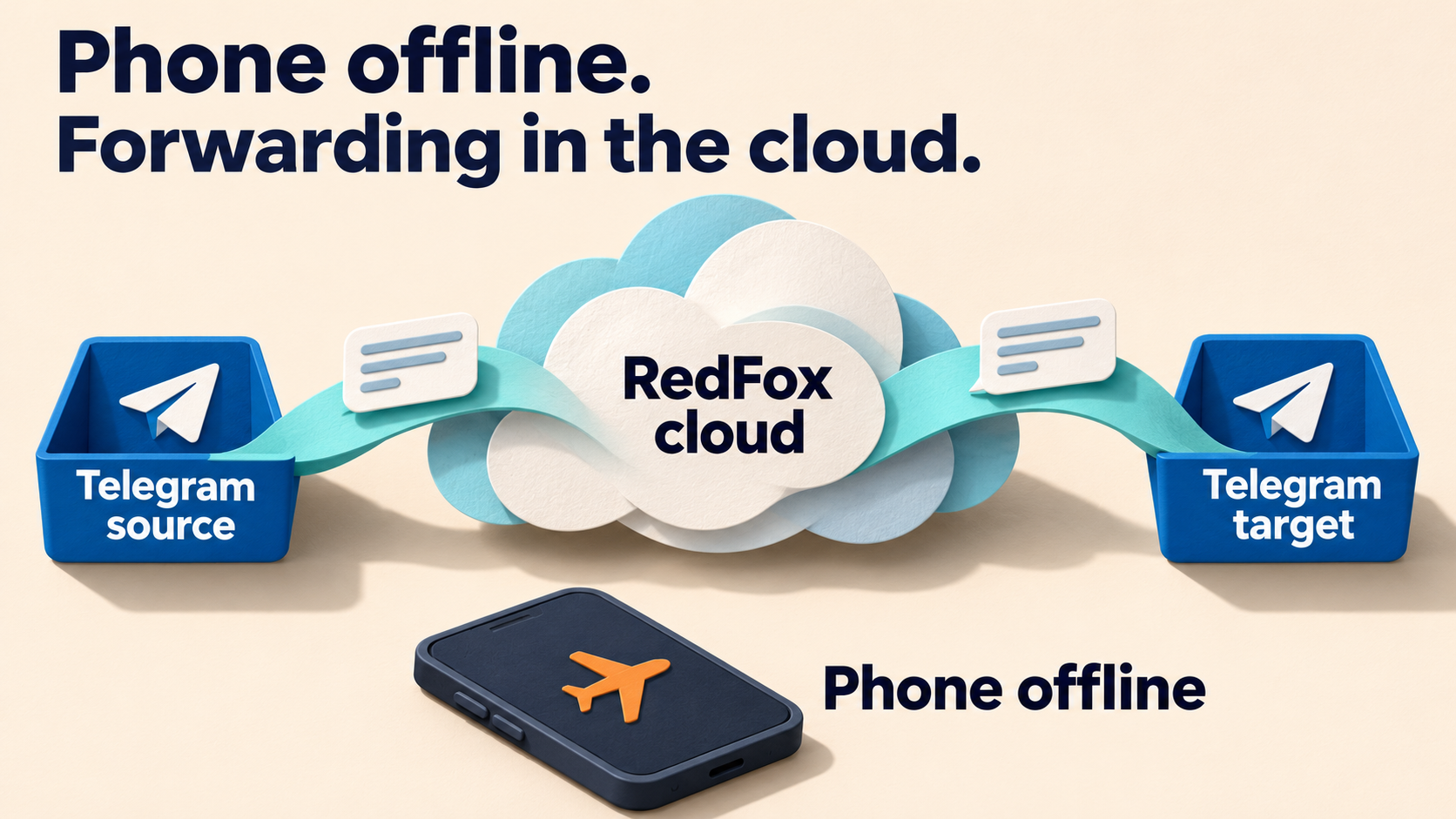
Do not remove the authorized Telegram service session just to leave a management screen. RedFox says removing its connection prevents operation; the service-session identification guide covers that separate decision. Closing the interface is different: active tasks run in RedFox’s cloud and do not need the management screen left open.
Verify one account’s route at a time
The worksheet comparison is read-only; an optional delivery check uses the existing private-route verification procedure, not a live audience or a deliberately paused production route. After matching each product account and saved task, use a different harmless, eligible test message per account, such as STUDIO_CHECK_01 and CLUB_CHECK_01, and inspect both controlled targets for unexpected copies. A forward header or signature alone cannot establish the account that owns a route, and a copy another overlapping task could have sent remains inconclusive. On returning to Studio, recheck its product identity and preserved task state; if you have no authorized private test route, leave delivery unverified rather than redirecting production.
When the worksheet and screen disagree
- Wrong product account: stop edits; reconcile the management sign-in. A Telegram account switch alone is not proof of a product-account switch.
- Right account, expected task missing: inspect the complete task list and current folder/search/status filters before creating anything. A filtered view is not evidence that a route was deleted.
- Right task, wrong endpoint: compare the saved source and target with your record. Plan a scoped correction; do not transfer accounts or apply a bulk change to solve one route.
- Correct configuration, no output: investigate that route’s eligibility and permissions. Our forwarding setup guide covers the underlying source/target checks.
- Identity or action remains unclear: use the official RedFox support route. Describe the surface, expected account, non-secret product identifier, task label, mismatch and time with timezone. Never send login codes, passwords, login tokens or session files.
Frequently asked questions
Does one phone combine the two accounts’ tasks or paid access?
No shared entitlement follows from using one device. Check the plan and feature access displayed for the account you are actually managing. Do not treat a plan visible under Studio as evidence of Club’s access, or use Account Transfer as an everyday switch.
Must I keep both account screens open?
No. Active forwarding tasks run in RedFox’s cloud, not in the open management screen. Keep each authorized service connection intact. For the separate phone-offline case, see keeping an existing task running with your phone offline.
What if both accounts can see the same chat?
Chat access alone does not establish which account owns the task. Match the RedFox account identifier first, then its saved route. Check for overlapping tasks if both accounts can forward the same source item to the same target; the destination copy alone may not distinguish them.
Make the next switch an identity check
Start with one worksheet row per route, then use the same routine every time: account → source → target → task → return check. This keeps studio and club work understandable without treating one device as one owner.
Choose the official Web app, iOS app or Android app for fuller management, or use @AutoForwardNew_Bot for quick access from the intended Telegram account. Review Auto Forward Telegram’s official entry points, then match the account identity before changing a route.
Two accounts. Clearly owned routes.
Choose your management surface, then match the account before changing its forwarding tasks.
Manage on Web, iOS or Android