Auto Forward Telegram to Discord: A No-Code Announcement Route
Product identity: RedFox is the team. RedFox Auto Forward Telegram (@AutoForwardNew_Bot) is the product. The historical @Auto_Forward_Messages_Bot has moved to @AutoForwardNew_Bot; use the current handle.
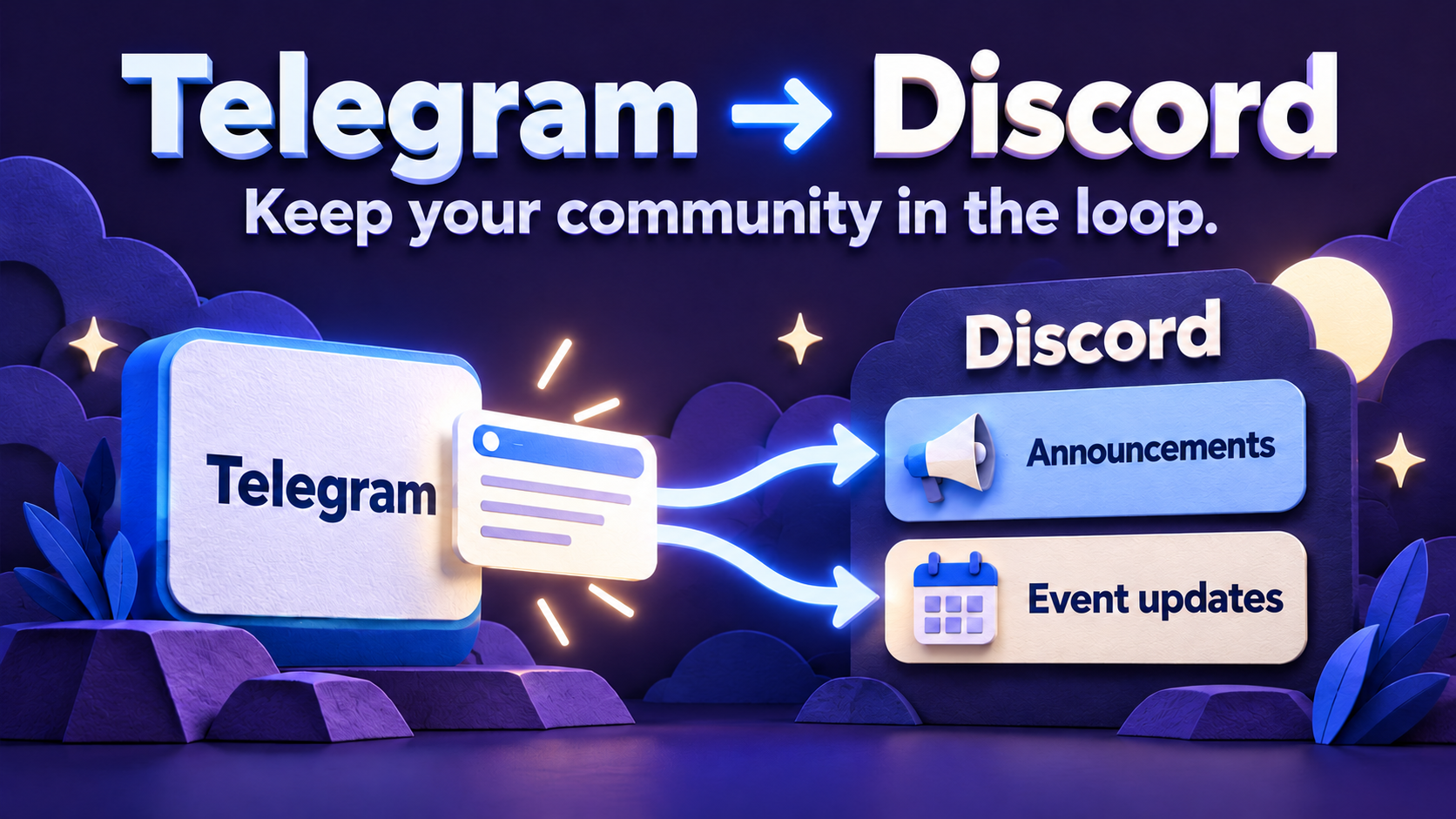
To auto forward Telegram to Discord, create a Discord Publish Task in RedFox Auto Forward Telegram: connect a Discord bot account, select the Telegram source, enter one or more destination Channel IDs and start publishing. You configure the route in the Web or mobile interface instead of maintaining a Python forwarding script.
This is for operators who publish in Telegram but do not want Discord members to miss the same announcement. It is a Telegram → Discord route, not the separate Discord-to-Telegram product and not a promise of two-way conversation mirroring.
Auto-Bot.io is a separate editorial publisher and does not develop or operate RedFox Auto Forward Telegram. This guide uses first-party documentation checked September 30, 2026 and owner-confirmed product facts. The examples are proposed workflows, not customer testimonials or a new hands-on delivery test.
What you need before you start
- A RedFox account connected to Telegram, with access to the source channel or group.
- An active External Publish addon.
- A Discord Bot Token for the account that will publish.
- The Channel ID for each destination, and permission for the bot to access it and send messages.
- Permission to republish the Telegram content. Source membership alone is not permission to redistribute it.
The first-party Discord Publisher guide documents these requirements. Follow the bot-token guide to create and invite your bot. In the documented AutoForward account form, format the credential as Bot YOUR_RAW_TOKEN: the word Bot, exactly one space, then your raw token, without quotes. This is a placeholder, not a real credential; enter your own value only in the protected account form.
Get the destination Channel ID manually: open the target Discord channel, copy its channel link and take the final numeric segment from https://discord.com/channels/SERVER_ID/CHANNEL_ID. The Channel ID guide documents this manual method as well as a separate /getid setup. You do not need that separate command setup just to extract an ID from a channel link. A server invite link is not a Channel ID, and a webhook URL is not a bot token. Confirm the bot has access to the actual destination channel.
Set up your Telegram-to-Discord route
- Open Home → Publish. Use Platform Accounts to add your Discord bot account. Enter the token only in the protected account form; never put it in screenshots, source messages or support chats.
- Verify the connection. Resolve account errors before creating the production route. A successful account check does not prove the bot can post to every server channel.
- Create a new Publish Task. Give it a name such as
Release notes → Discord announcements. - Select your Telegram source. Start with a source containing only announcements intended for that audience.
- Select the Discord account and enter the target Channel ID. The documentation supports one or more Channel IDs. For the first test, use one secondary channel where you have permission to post.
- Configure the message presentation. Header and Footer can add context or an approved call to action. Keep them short enough that the main announcement remains easy to read.
- Review change-handling and timing. Decide whether to enable Include edited messages and Include deleted messages. If you need scheduled operation, open Auto Post Schedule.
- Save and select Start Publish. Open Publish Detail to check status and retain the ability to Stop Publish.
Ready to try it? Open the RedFox Web app and set up one test announcement route. You do not need to start with a whole server or multiple destination channels.
Use this acceptance checklist—not just “the task is running”
| Sample | Check in Discord |
|---|---|
| A short new text announcement | Correct channel, readable text, correct publishing account |
| A post with your approved link | Link opens the intended destination; header/footer do not obscure it |
| A representative media post | Required attachment/representation is useful in your destination; check provider file constraints |
| An edited source post, if enabled | Observe the actual destination change; do not infer success from the toggle |
| A deleted source test, if enabled | Observe the destination result before relying on deletion handling |
Community questions show why the media check matters: a Telegram-to-Discord discussion asks how to handle files larger than Discord allows. A Telegram post existing at the source does not mean every file can be uploaded unchanged to Discord. Test your real media mix, not only a tiny text sample.
Three useful routes for community owners
Product release announcements
Use an owned Telegram release channel as the source and a Discord announcements channel as the destination. Add a short source label so members recognize the message. Keep community discussion native to Discord rather than forwarding every reply.
Event updates
Publish the confirmed time, location and registration link in Telegram. Route the announcement to the Discord event channel. If you enable edited-message handling, test a time correction before an event depends on it.
Several Discord communities, one editorial source
Use the documented multiple-Channel-ID option when the same content genuinely belongs in all selected channels. Give every channel a reason to receive it. Where audiences need different copy or timing, use separately managed routes rather than assuming one identical post is suitable everywhere.
If nothing arrives, check in this order
- Confirm the exact task is started, not stopped.
- Confirm the Discord account verifies successfully and has not been deleted or changed.
- Check the destination Channel ID and the bot’s access/send permissions in that channel.
- Check that the test is a new message from the selected Telegram source.
- Try plain text, then inspect media-specific failures separately.
- Review task errors and the documented Retry on rate limit and Skip on error settings. Retrying does not remove provider limits; skipping lets the route continue but does not establish delivery of the failed post.
FAQ
Does this require a webhook?
The RedFox setup described here uses a Discord Bot Token and Channel IDs. Other GitHub bridges may use webhooks; their instructions are not interchangeable with this flow.
Will Discord replies go back to Telegram?
This guide covers Telegram-origin publishing. Do not infer a reverse reply bridge from it. The existing Discord-to-Telegram guide covers the separate direction.
Can I use a private Telegram source?
Use an accessible source that your connected account is permitted to monitor and that appears in the selector. Keep the source-access check separate from permission to republish the content.
Start with the interface that suits you
Use the Web app, iOS app or Android app for visual route management. The current Telegram bot is another entry point. RedFox confirms that activated tasks run in its cloud: you do not need to leave the management screen open. Connected accounts and destination permissions must remain valid.
Your next step: open Publish, choose one destination and set up one clearly named route. Verify the output before expanding. The Auto Forward Telegram product overview explains the wider product.
Game community runbooks
For versioned game releases, use the Telegram-to-Discord patch-notes workflow with release templates, channel choices and media checks. For downtime, follow the game maintenance, extension and recovery runbook so players can distinguish a revised estimate from confirmed restoration.
Event and webinar runbooks
For confirmed event dates and a clear reminder sequence, use the Telegram event reminders to Discord and X workflow. If the date changes or the event is cancelled, follow the event reschedule and cancellation runbook to review old reminders and verify every affected destination.
Public security advisory runbook
For security educators and IT communities, use the public Telegram security advisory workflow for Discord and X to check disclosure permission, preserve official sources and affected versions, and verify updates or corrections without forwarding private incident material.
Creator and course content releases
For video, lesson and resource drops, use the Telegram creator updates to Discord workflow: release templates, a public/private/paid source matrix and audience/link checks. Keep private class invitations and paid files out of public announcement sources; access is not redistribution permission.
Shop offers and closure updates
For product offers, use the Telegram deals to VK and Discord runbook: labelled price-per-unit/deadline/link examples, audience selection and shop-written sold-out or expiry updates. Keep announcement distribution separate from inventory checks, orders and payments.
Already set up, but publishing failed?
Use the Telegram-to-Discord publishing troubleshooting tree for bot identity, per-channel access, partial destinations and destination-before-retry checks. Keep existing copies and evidence; do not reset a production route or repost an uncertain send as the first test.
Start with the interface that suits you
Open Publish, choose one destination and set up one clearly named route. Verify the output before expanding.
Current bot: @AutoForwardNew_Bot; former @Auto_Forward_Messages_Bot has moved.