Telegram Creator Updates to Discord: Release to the Right Audience
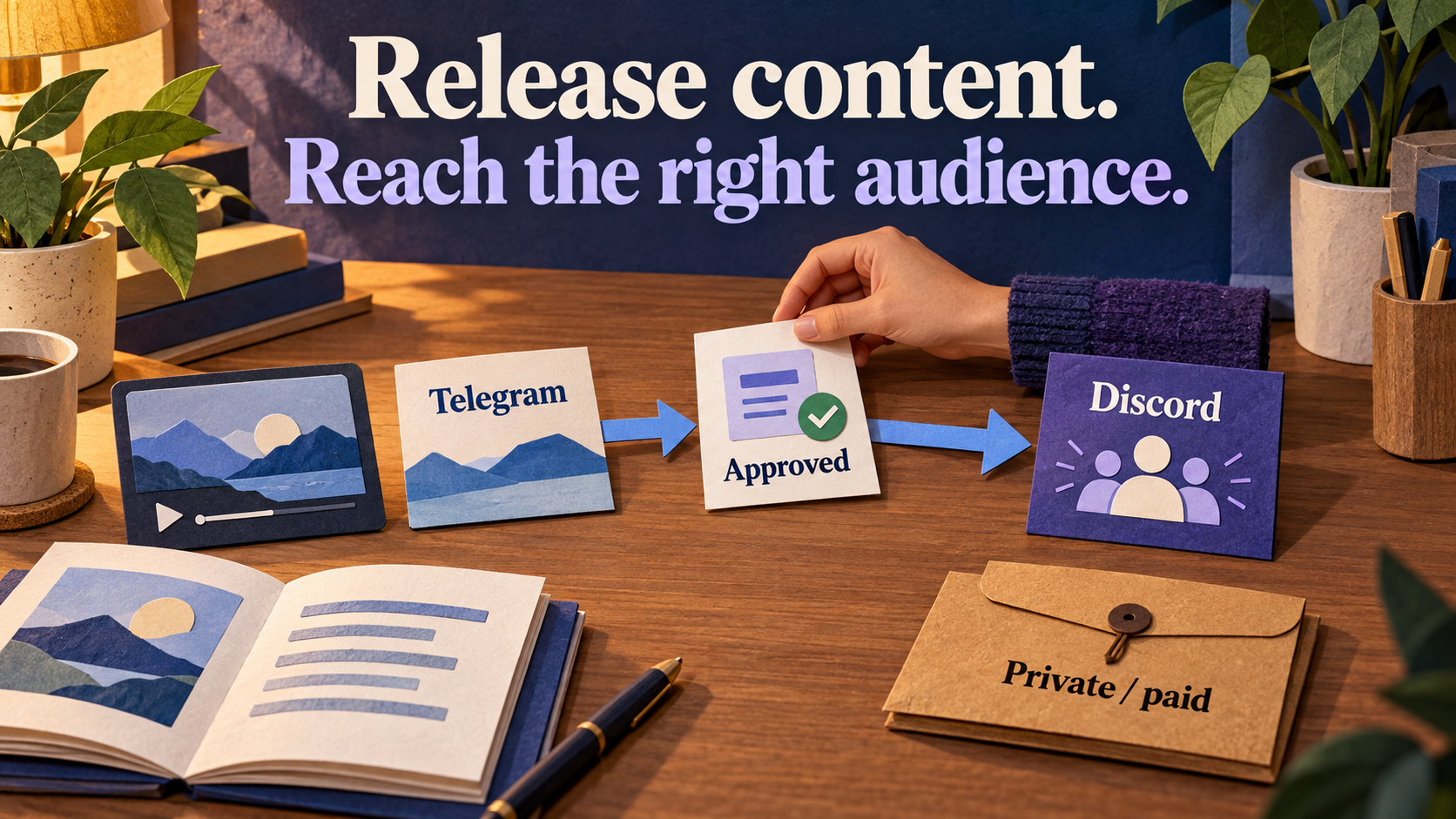
To send Telegram creator updates or course announcements to Discord, use a dedicated Telegram source containing only releases approved for that Discord audience, then configure one Discord Publish Task in RedFox Auto Forward Telegram (@AutoForwardNew_Bot). Keep the announcement public-ready when the destination is public; keep private class links, paid files and learner information outside that source. Being able to read a Telegram post does not give you permission to redistribute it.
Identity check: RedFox is the team; RedFox Auto Forward Telegram is the product. The historical @Auto_Forward_Messages_Bot has moved to @AutoForwardNew_Bot. Auto-Bot.io is a separate editorial publisher, not the bot’s developer or operator.
You have released a video, lesson or resource in Telegram, but some community members spend their time in Discord. A clean publishing route reduces repeated copying without turning your student discussion or paid-content archive into a broadcast feed. This guide covers content becoming available and the audience allowed to receive its announcement. For webinar reminders, changed dates or cancellations, use the separate event reminder guide and event-change runbook.
Product and Discord sources were checked on October 3, 2026. The examples below are fictional editorial templates, not actual creator releases, delivered messages or measured time-saving results.
Choose the audience before choosing the source
The Telegram source’s visibility is not the decision rule. A private channel can hold an announcement authorized for public reuse; a public post can contain a link or attachment you are not licensed to distribute. Check the exact message, embedded media, link and intended recipients, not just “public” or “private” in the channel name.
| Source material | Appropriate Discord announcement | Boundary to check before routing |
|---|---|---|
| Your released public video or blog post | A short summary, approved thumbnail and public viewing link in a general updates channel | You own or have permission to reuse the text and media; the URL works for an ordinary reader |
| A public preview of a paid course | The authorized preview and public course-information page—not the full paid lesson or download | The creator approves this promotional use; the preview does not expose private access links |
| A lesson available only to an enrolled cohort | A separately approved notice for the corresponding restricted cohort channel, linking to the normal course sign-in page | The recipient group and license match; your existing course service checks access. A Discord role name alone is not proof of current enrollment |
| A private class invitation, signed download URL or paid worksheet | Exclude it from the public source. Prepare a different permitted announcement if one is needed | Access to the original is not redistribution permission; a URL can grant access even when its label looks harmless |
| A learner question, submission, grade or staff draft | Do not route the raw discussion. Only use a separate, approved and appropriately consented summary | Remove personal or confidential details manually before approval; do not rely on automatic redaction |
RedFox’s private-source FAQ documents access when the connected user has joined the channel. That describes source access, not a license to republish. If permission is unclear, leave the material out while you obtain it from the content owner.
Useful default: keep a dedicated “Approved public releases” source for your general Discord channel. Keep cohort-specific notices in a separate source and route only if you have explicitly approved that audience. Do not mix public previews, private invitations and paid files in one source and expect Publish to classify them.
Write a release notice that stands on its own
Use a recognizable title, what is now available, who it is for, its access condition and one useful next step. A message saying “Lesson is up—see pinned” leaves a Discord reader dependent on Telegram. Link to the actual public page or the normal authenticated course entry point instead.
Illustrative templates only: “Northbank Studio” and all content titles below are invented. Replace every bracketed value and example fact before publishing. These templates do not create a real release, send a message, enroll anyone or configure access.
Public video release
Expected Discord output—not an observed delivery: a new message in your chosen public updates channel with the title, public link and a discussion instruction meaningful inside that server. If you attach a thumbnail, use one cleared for redistribution and check its caption and appearance at the destination. A video link is not a promise that the full video file will be uploaded or play inline.
Course lesson release for the right cohort
Use this only in a destination whose current audience has been checked by your course/community administrator. Do not replace the sign-in URL with a personal invitation, password, access code or expiring signed download. The course portal—not the announcement route—must decide who can view the lesson.
Public preview of paid material
A preview announces the offer without forwarding its protected contents. Use your real course terms; this example makes no claim about a discount, enrollment deadline or RedFox subscription.
Configure one Telegram-to-Discord release route
The first-party Discord Publisher guide documents Home → Publish, Platform Accounts, Create Publish Task and Publish Detail. It requires an active External Publish addon, a verified Discord account and a bot with access and send permission in the destination. No-code route management removes the need to build and host your own bridge; it does not remove Discord authorization.
- Prepare the approved source and controlled destination first. Use a source your connected Telegram account can access, with only messages permitted for the intended audience. Treat task creation as potentially activating delivery: do not save a live mixed-content source merely to explore the form.
- Open Home → Publish → Platform Accounts. Select the intended Discord bot account and verify its connection. If you need setup, follow the Telegram-to-Discord setup guide. Keep credentials in the protected form, never in source posts or screenshots. The token guide requires
Bot YOUR_RAW_TOKEN: “Bot”, exactly one space, then your own raw token, without quotes. That text is a placeholder. - Create a clearly named Publish Task. For example, “Approved creator releases → Discord test.” Select the approved Telegram source, the Discord account and one exact destination Channel ID. The product supports multiple Channel IDs; begin with one so the first result is easy to check. The Channel ID guide documents taking the final numeric segment from a copied channel link such as
https://discord.com/channels/SERVER_ID/CHANNEL_ID. Do not substitute an invite link. - Keep Header and Footer neutral. A short creator label can help. A fixed “Watch now for free” footer is wrong when the next notice is for enrolled learners. These fields add text; they are not a privacy review, automatic rewrite or audience classifier.
- Review change settings, save and inspect state. Decide whether to use Include edited messages and Include deleted messages. Start Publish when the safe test route is ready; verify a fresh harmless sample at the destination rather than treating a connected account or running task as delivery proof.
Next step: open RedFox Web, choose an approved release source and verify one permitted Discord destination. Once the test is correct, use the same source discipline for real releases; do not send a “test” to an unsuspecting public audience.
Check links and destination access as the intended reader
Discord’s permissions documentation explains server, category and channel permissions. A server administrator can see content ordinary members cannot, and channel permissions can override server permissions. Verify the destination itself; its name is not an access guarantee.
| Check | What passes | What does not prove it |
|---|---|---|
| Exact audience and destination | The correct server/channel ID; intended members can view it, unintended groups cannot where restriction is required; bot can post there | A bot connection check or a channel named “students” |
| Public link | The real URL opens without the creator’s login and contains the intended released content | The creator can open it while signed in |
| Cohort link | A permitted learner reaches the right lesson after normal sign-in; an unauthorized account is denied by the course service | Discord membership, a role label or possession of a copied URL |
| Text, thumbnail and attachments | The release title, access wording and action are readable; any redistributed media is approved and arrives usefully | A Telegram preview or an assumed native album/video representation |
| Mentions and notifications | No accidental @everyone, @here or learner ping; any intentional mention is separately tested with consenting recipients | A Telegram username automatically identifying a Discord member, or a message implying every member received a push notification |
For a public route, test the link in a signed-out browser. For an enrolled route, have the authorized administrator check permitted and nonpermitted access with existing test accounts. Do not create new accounts or use real learner credentials just for this check. Keep only the result and approved release reference in your log—not student data or tokens.
One more distribution boundary: Discord has a native Announcement Channel Publish/Follow mechanism that can distribute a published message to following servers. RedFox’s Start Publish starts your configured task; do not assume it also performs that native Discord action. An ordinary channel named “announcements” is not automatically a native Announcement channel. If you use native following separately, review its broader audience before publishing any restricted notice.
Handle a wrong link, missing release or private leak
- Wrong public URL: correct the authoritative page or source notice, then inspect the exact Discord message. If readers need to hear about the fix, release a clearly labeled new correction with the content title and current link. Do not silently assume a source edit repaired every attachment or old copy.
- Missing or uncertain output: open the intended destination before retrying. Check the exact task’s state, source, account, Channel ID, channel permissions and recorded error. A timeout may hide a successful post; blind resending can create duplicates. Skip on error is not delivery confirmation.
- Private or paid material reached the wrong audience: use Stop Publish on the affected route, inspect any late output and involve the authorized creator/community administrator. Correct or remove exact destination copies through authorized controls and revoke an exposed access link through the service that issued it when appropriate. Stopping the task does not remove old messages or guarantee cancellation of in-flight work.
The product documents edit/delete options; verify the exact outcome on your controlled route before relying on them. Neither a Telegram deletion nor a Discord removal recalls screenshots, downloads or outside reshares. Resume only after the source, access link and destination audience are checked. This is a human incident response checklist, not automatic leak detection or redaction.
What this route does—and what stays with your course tools
RedFox Auto Forward Telegram distributes your approved release notice into the configured Discord channel. Your creator team still approves publication rights and copy; Discord administrators own channel permissions; your existing course or membership service owns payment, enrollment and content access.
This workflow does not promise paywall enforcement, enrollment or Discord role synchronization, attendance tracking, DM subscription sync or automatic redaction. It also does not automatically summarize a long lesson, convert Telegram identities into Discord mentions or make every media type identical across platforms.
Can I announce a private lesson without sharing its file? Yes: prepare an authorized cohort notice, use the normal course sign-in entry point and select the checked cohort destination. The announcement tells learners what is available; it does not grant access.
Can one source serve public followers and paid students? Only if every routed message is suitable and authorized for both audiences. When copy or access conditions differ, use separately approved sources and clearly named tasks rather than expecting automatic segmentation.
How should I judge success? First record whether the exact notice appeared in the right channel with the right title, access wording and working link. Link engagement, course participation and paid conversion are separate outcomes requiring their own measurement; no such results were measured for this guide.
Start with one approved release and one Discord channel
Manage routes in the Web app, iOS app or Android app. Web/App is the primary visual-management path; the current Telegram bot is another entry point. Owner-confirmed active tasks run in RedFox’s cloud without leaving the management interface open; account access and destination permissions must remain valid.
Your next action: approve one release notice, exclude private invitations and paid files from the public source, then verify one authorized Telegram → Discord route in RedFox Web. Use the setup guide for connection details, the publishing hub for other destinations and the product overview for the wider product. Add the next audience only after its source, permissions and output have been checked.
Start with the interface that suits you
Open Publish, choose one destination and set up one clearly named route. Verify the output before expanding.
Current bot: @AutoForwardNew_Bot; former @Auto_Forward_Messages_Bot has moved.