Telegram OCR: Add Event Poster Text Before the Caption
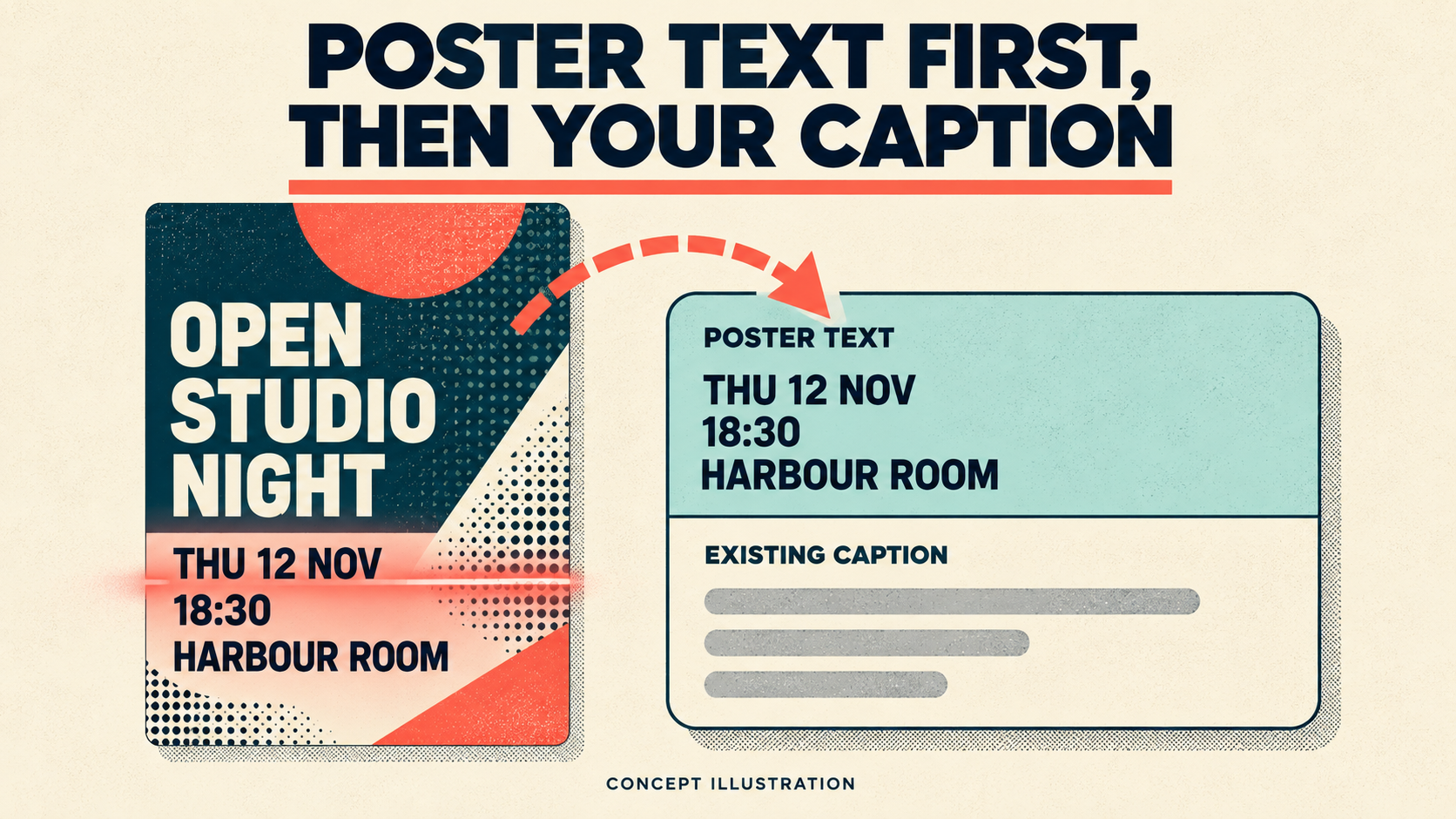
To make the key facts printed on an event poster selectable in Telegram, turn on OCR Image AI for one task, write a Custom Prompt that returns only the facts you need, and set Text Output Position to Prepend to Caption. In RedFox Auto Forward Telegram (@AutoForwardNew_Bot), the OCR Image AI guide documents exactly that: the extracted text is added before the message’s existing content, so recipients see it ahead of the caption you already write.
This guide is for a community or event operator who already forwards image announcements with a written caption, where the date, time or room appears only inside the poster. The goal is a short, checkable block of poster facts above your caption on one private task—not a routing system, a reminder schedule or an approval queue.
The previous bot has moved to @AutoForwardNew_Bot; use this current handle. RedFox supplies the product; Auto-Bot.io publishes this editorial guide and does not develop or operate the bot. Documentation was checked on October 26, 2026. The specimen, prompt and acceptance steps below are a proposed reader exercise: we did not run an OCR or forwarding test, and the featured image is a concept illustration, not product UI or a result.
1. What the setting does, and what you need first
RedFox describes OCR Image AI as extracting text from an image and including it in the forwarded message. The documented path is: select the task, open AI MODE, choose OCR Image AI, pick a model, switch the feature on, choose System Prompt or Custom Prompt, then choose the output position. The feature is off by default.
- Access. Confirm that your account can open OCR Image AI and that you have an image-capable model plus an authorized provider key with billing and quota. The OCR page specifies an OpenAI key with vision access; RedFox’s API key guide explains billing and notes that image reading uses more tokens than plain text. Check your account’s current feature access before rollout. For another provider, see the custom AI server guide; registering a model alone does not establish OCR support.
- Position. This guide uses Prepend to Caption to place poster facts ahead of the existing caption. RedFox’s dedicated OCR page describes other positions as future options, while its OCR keyword walkthrough explicitly instructs selecting APPEND TO CAPTION and its custom-server guide lists additional modes. Those pages differ; do not read that conflict as proof that another mode is available or absent in your version. Check the options your own task offers.
- Delay. AI image processing can add forwarding delay, so judge a result after it has had time to arrive.
- Not the same feature. Read Text in Stickers is a separate option on the same page, and a fixed sticker-to-text rule maps one known sticker to wording you choose. Leave both alone for this test.
The image goes to the AI provider behind your key. Use a poster that is already public, or a harmless specimen you may share; do not use attendee lists, tickets or anything private. Keep your existing filters, Cleaner rules and other task settings as they are during the test, because the OCR page does not describe how it interacts with them.
2. Ask for four facts, not the whole poster
A poster usually carries decoration, sponsor names and slogans. Recipients need a few facts they can copy. The documentation’s own examples show that a Custom Prompt can narrow the output, for example by extracting only numbers and email addresses. Use the same idea for an event notice:
Why these choices:
- Fixed labels make a missing field obvious and let you compare field by field.
- Two blank states separate “nothing printed” from “I could not read it”. The second is a signal to look at the poster, not a value to forward.
- “Exactly as printed” asks the model not to add a year or a time zone. It does not guarantee compliance. If your event needs a time zone, put it in the caption you write yourself.
- Short output. Telegram’s Bot API documents a photo caption limit of 0–1,024 characters after entity parsing. The RedFox page does not say how a longer combined caption is handled, or whether your sender is bound by that limit, so keep the prepended block to a few lines and test with a caption near your real length.
The prompt is a guardrail, not validation. Models can still misread; OpenAI’s vision guide lists small text, rotated text and incorrect output among its limitations. Start from a sharp, large, high-contrast poster and compare the result with the original.
3. Switch it on for one private task
Prefer the RedFox Web app, the iOS app or the Android app for fuller management than the limited bot entry point. Active tasks run in RedFox’s cloud, and its runtime FAQ says your own internet does not need to stay on. If you have no working route yet, start with the forwarding setup guide.
- Choose a test source and a private destination you control. Do not start on the live event feed.
- Write down the task’s current settings: label, source, target, Show Header Forwarder, Replace, Cleaner, filters and any existing AI Mode options. You will compare against this record.
- Establish an OCR-off baseline first. On the private task, send fresh harmless plain text and a poster-plus-caption specimen. Confirm both arrive at the intended destination before enabling OCR. Record the sender and which whitelist, blacklist, message-type and other conditions admit each specimen. If a rule depends on extracted OCR text, use a separately configured private test route without that dependency; do not loosen production protections. Keep the sender, source, destination, caption and applicable rule matches comparable in subsequent tests.
- Open the task, then AI MODE, then OCR Image AI. Select an image-capable model, switch OCR Image AI on, choose Custom Prompt, paste the prompt above and set Text Output Position to Prepend to Caption.
- Save. RedFox’s OCR use-case guide names the button Save & Apply. Reopen the task and confirm the model, prompt and position were kept.
4. Run three fresh specimens
Make a harmless fictional poster with a title, a date, a start time, a room and one web address, for example “THU 12 NOV”, “18:30”, “HARBOUR ROOM” and “example.com/studio”. Add a written caption such as “Doors open at 18:00. Bring a laptop; seats are limited.” After the task is saved, send each as a new source post:
- A. Poster plus caption. This is the case you care about.
- B. Plain text control. Send the same eligible text used in the baseline, such as “ROUTE CHECK B”, as a fresh post. Confirm it arrives as ordinary text. If it does not, first check task state, endpoints, sender/message eligibility and visible errors with the not-forwarding checklist. This result alone does not identify OCR as the cause or rule it out.
- C. Hard poster. Send a deliberately lower-resolution or partly covered copy in which one character of the time or address cannot be read with certainty.
Use a new post for each check so you know which configuration produced it. The documented shape of Prepend to Caption is the extracted text, a separator line, then the original content. For specimen A, expect something like this—a target layout, not an observed result:
Your actual destination message is the authority on separators and formatting. If your real posters sometimes have no caption, add a poster-only specimen as well; the documentation does not describe that case, so do not assume it.
5. Read the result against the poster, not the model
Open the original poster image next to the destination message and check each line:
- Digits and words. Compare the date, time and room character by character. A confident wrong digit is the most expensive error.
- The web address. Compare every character with the poster before anyone opens or forwards it. A near-miss address is worse than none.
- Your caption. It should be present and unchanged, after the extracted block.
- Specimen C. The unreadable field should say UNREADABLE. A guessed time or address is a fail, however plausible it looks.
Then decide what to do next:
- All fields match, caption intact, control arrives. Keep this configuration for that one task and repeat with one more real, public poster before you rely on it.
- A readable field is wrong. Make one change—tighten the prompt or pick another image-capable model—and retest with fresh, comparably eligible posts. Restore an unsuccessful adjustment before trying another; do not stack unexplained changes. If it is still wrong, do not use OCR for dates and times; type them into the caption.
- Nothing was prepended. Check that OCR Image AI is on, that a model and Prepend to Caption are saved, that your key has billing and quota, and that the post was a fresh image. Allow for processing delay before you change anything.
- The caption changed or vanished. Turn OCR off and compare the task with your recorded settings; another transformation on the task may be responsible. Restore the saved configuration before testing again.
6. Before you use it on a real event feed
- Prepended text leads the message. If a poster is outdated or wrong, the old facts appear before your correction. When plans change, post a corrected poster or pause OCR on that task, and follow the event change runbook. This feature does not create reminders, buttons or schedules from the text; the event reminder guide covers sending event notices to Discord and X.
- Caption and picture are different things. Words inside the image are not a caption; the photo caption guide shows how to tell them apart when a post arrives without text.
- Check the image after forwarding. The OCR page describes adding text to the message; it does not say what happens to the image itself. Look at your test result instead of assuming.
- Roll out narrowly. After the private checks pass, confirm the intended live task’s settings and eligibility, then inspect one approved fresh poster there. A private test does not establish live-route behaviour. Keep your recorded starting settings and turn OCR off again if a real post looks wrong.
FAQ
Can the text go after my caption instead?
RedFox’s documentation differs: the dedicated OCR page calls Append a possible future option, but the linked OCR keyword walkthrough explicitly uses APPEND TO CAPTION and the custom-server guide lists Prepend, Append and Replace. This tutorial covers Prepend only. Check your current task’s choices and confirm the intended result privately; these conflicting pages alone do not settle availability in your version.
Does OCR replace checking the poster?
No. It copies text a model believes it read. Dates, times, rooms and addresses still deserve a human comparison with the original, especially for a public event.
Why not use the default System Prompt?
RedFox describes it as a pre-configured prompt for clean, actionable output, but it does not state how long or what shape that output takes. A Custom Prompt lets you ask for four short labelled lines and check the same four fields every time.
Make the poster’s key facts selectable
Open the RedFox Auto Forward Telegram overview, then use the Web app or your preferred mobile app to set up OCR Image AI on one private task. The useful outcome is specific: a saved prompt and position, plus a three-specimen result showing whether the poster facts arrived correctly above your unchanged caption.
Test Poster Text Above One Caption
Set up OCR Image AI with a short Custom Prompt on one private task, then check every poster fact before using it on a live feed.
Documented AI Mode setup · Web, iOS and Android