Telegram AI Custom Server: Use Your Own Model on One Task
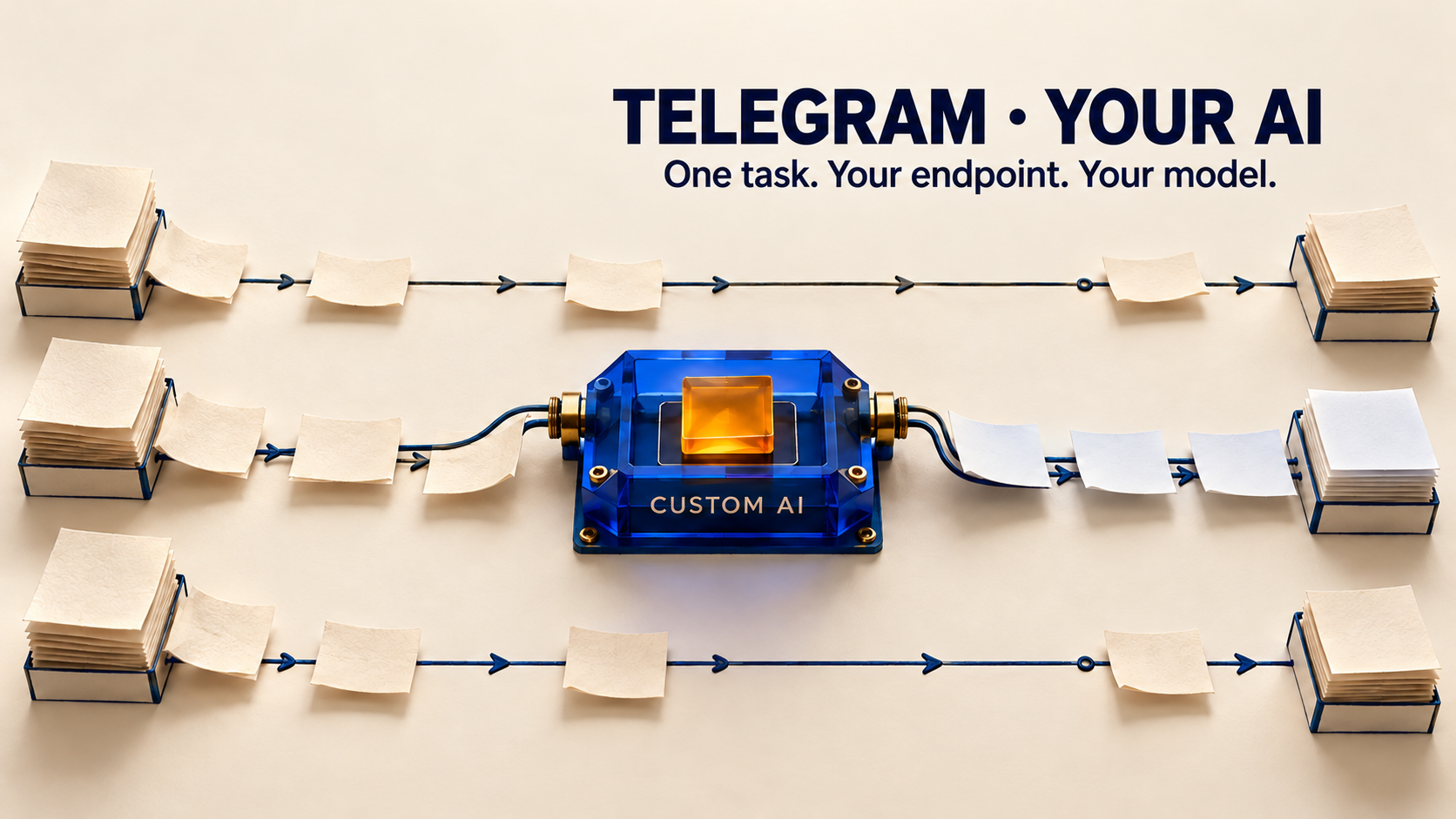
You can use your own AI endpoint and model on a Telegram forwarding task without making every route use the same AI setup. RedFox Auto Forward Telegram (@AutoForwardNew_Bot) documents AI Custom Server for personal provider keys, OpenAI-compatible APIs and self-hosted servers. Its task integration supports different providers, models and prompts per task. Start with one private text-rewrite route, confirm its saved model, and compare a fresh forwarded specimen with the original before changing an audience-facing feed.
This guide is for an operator who already has a working Telegram route and an authorized AI service to use. The job is to connect that service to one task—not to build a conversational Telegram chatbot or deploy an AI server from scratch.
RedFox supplies the product; Auto-Bot.io publishes this guide and does not develop or operate the bot. The previous bot has moved to the current @AutoForwardNew_Bot entrypoint. Use that handle when older documentation names the previous bot.
What AI Custom Server changes—and what it does not
The official AI Custom Server documentation describes custom endpoints, personal API keys, model selection and task-level AI integration. The practical benefit is choice: use an AI service your team already manages, and choose the model and prompt appropriate to that particular forwarding job.
- Endpoint: the AI service address. The documentation gives
https://your-ai-server.com/v1as an example, not a working service to paste unchanged. - Credential: the authorized AI provider key, where required. This is not your Telegram bot token or a Telegram login code.
- Model: the exact model identifier offered by that endpoint, not simply a familiar model name from another provider.
- Task: the forwarding route that will use the selected AI behavior. Other routes can retain their own providers, models and prompts.
A custom connection is not a guarantee of lower cost, private-only processing or identical support for every AI feature. Your provider's billing, data handling and model capabilities still matter. Do not send sensitive source content until you have approved where it will be processed.
1. Prepare one private route and its starting state
Open the Web App, iOS app or Android app. Choose the surface you prefer; Web and the mobile apps are recommended for fuller configuration management, while the Telegram bot is a quick entrypoint with more limited management access. Active forwarding runs in RedFox's cloud; closing the interface does not pause a task.
Use a test source and private destination you control, with harmless text you may redistribute. If you do not yet have a working route, follow the existing Telegram forwarding setup guide first. Do not change all your live tasks to diagnose an AI connection.
- Record the selected task: label, source, target and any target topic. Similar task names are not enough.
- Preserve its AI starting state: enabled or disabled, current provider/model and rewrite instructions. Keep credentials out of the worksheet.
- Check the provider prerequisites: authorized endpoint, valid key, exact model ID, available quota and permission to process the intended content.
- Keep the first check text-only: leave OCR and other unrelated changes alone so you can judge one transformation.
A self-hosted model also needs an approved network path from the service making the AI request. A server working in a browser on your laptop is not, by itself, proof that the cloud forwarding service can reach it. Ask the endpoint administrator to confirm the supported connection; do not expose an unauthenticated server just to make a test pass.
2. Connect the endpoint, then verify the model catalog
Use the current interface's AI provider/server configuration to add the authorized endpoint and credential. Follow its validation and save flow. The official custom-server page is a capability guide, not a complete screen-by-screen form walkthrough, so use the labels actually shown in your Web or mobile version rather than guessing a menu path.
Keep the endpoint's API base distinct from a specific request URL. RedFox's example ends in /v1; do not append /chat/completions unless the current field instructions require it. Ask your provider for the correct API base and authentication format when unsure.
The product documentation says supported models can sync from a connected endpoint when available; it also describes manual custom-model configuration for unsupported endpoints. After connecting:
- Check which provider/server record you saved. Avoid selecting a similarly named existing connection.
- Review the available models and match the exact identifier to the provider's documentation.
- If the expected model is absent, check the key's model access and the endpoint's catalog support before trying another name.
- If using the documented manual-model option, enter an identifier confirmed by the endpoint administrator. A manually entered name does not prove the model exists or can process your task.
A model appearing in a list is a selection check, not an output test. For example, vLLM's own serving documentation distinguishes a model-list endpoint from Chat Completions and states that chat requests require a suitable chat template. That illustrates why an OpenAI-compatible label alone does not establish every capability. It is not a claim that every vLLM deployment has been tested with RedFox.
3. Select the model on one task, not just in the provider list
The Smart AI Rewrite guide starts by selecting the task, opening AI Mode and choosing Smart AI Rewrite. It then calls for model selection, the rewrite toggle and optional instructions. Use those task controls to select your connected model, enable rewriting deliberately and save through the current interface.
Reopen the same task afterward. Verify the source and destination are unchanged, the intended model remains selected, and the instructions are saved. Adding a provider to the account is not the same as assigning it to the forwarding task. The custom-server documentation supports per-task choices; you do not need to move every route to the new connection.
For a text-only first check, try a narrow instruction such as:
Rewrite this notice as two short sentences. Preserve every date, time, number and URL exactly. Do not add facts. Keep the cancellation condition. Return only the rewritten notice.
This is an editorial example, not a guarantee that any model will obey perfectly. AI processing can add forwarding delay, as the rewrite documentation notes. A provider connection also does not establish image/OCR support; check those capabilities separately if your real task needs them.
4. Test a fresh notice through the complete route
Illustrative specimen—not an observed product result: send the following harmless notice to your controlled source only after the private task and model are ready.
Workshop moved to 29 October at 18:30. There are 12 seats. Details: https://example.com/workshop . If the room is unavailable, the workshop is cancelled.
Check the actual destination, not only a saved-model label. An acceptable rewrite should retain 29 October, 18:30, 12, the exact URL and the condition that the workshop is cancelled if the room is unavailable. Shorter wording that drops the condition is not a useful rewrite.
- Delivery: confirm the fresh specimen reached the intended private chat/topic, not a different route.
- Meaning: compare the rewritten notice with the source line by line. Reject invented facts, changed numbers, altered links or a lost condition.
- Connection evidence: inspect the task's saved model and any available provider-side request or usage record. Output style alone cannot prove which provider handled a request; do not publish raw logs containing secrets or private text.
- Unchanged controls: inspect another task's saved AI settings. If you also exercise a separate route, use only another controlled test source and destination—not a live audience.
- Decision: keep the new configuration only when its saved state and observed output satisfy the task. Otherwise leave that test route paused while you investigate, or deliberately restore its recorded previous AI settings.
Do not assume automatic provider failover or “forward the original on error.” Those behaviors are not established by the custom-server guide. Resolve the failure behavior you need before putting an audience-facing feed behind a new AI connection.
If the check fails, separate the layers
- Connection cannot validate: confirm the API base, authentication, quota and approved network access with the provider. Do not repeatedly paste keys into unrelated fields.
- Connection saves, but the model is missing: check catalog support and the exact permitted model ID. Use manual configuration only with confirmed details.
- Model saves, but no rewritten post arrives: recheck the selected task, rewrite toggle, normal forwarding eligibility and any visible error. Do not rebuild a working source/target route as your first response.
- Output arrives, but changes facts: revise the narrow prompt or choose another suitable model in the private trial. A successful request is not an editorial quality pass.
- Text works, but images fail: investigate the chosen model's image capability and the separate OCR settings. A text rewrite test does not certify OCR.
For official RedFox support, prepare the task label, provider name, non-secret endpoint description, model ID, error text and a harmless reproducible specimen. Share credentials only through the intended secure configuration flow, never in a public thread.
Frequently asked questions
Must every task use my custom model?
No. The current AI Custom Server guide documents different providers, models and prompts per task. Reopen each task you intentionally change; do not treat account-level provider registration as proof of task assignment.
Does using my own key make AI processing free?
No free-processing claim follows from bringing a key. Check your chosen provider's billing and quota, as well as access to the relevant RedFox feature in your account. This guide does not quote a price or promise that an existing subscription covers both services.
Does a custom server keep everything on my phone?
No. “Custom” means you choose an AI connection. Review the actual endpoint and its data policy. RedFox's cloud forwarding and a self-hosted AI server are separate parts of the workflow; neither the label nor this guide establishes an independently audited privacy guarantee.
Choose one task for your own AI connection
Explore RedFox Auto Forward Telegram, then open Web or the official mobile app to review one private task and the AI service you are authorized to use. Connect the endpoint, confirm the exact model on that task, and judge a fresh notice before extending the setup to an audience-facing route.
Source note: official RedFox and vLLM documentation checked October 25, 2026. The specimen and acceptance steps are proposed reader exercises, not an executed connection or forwarding test. The featured image is a concept illustration, not product UI.
Your AI Connection. One Forwarding Task.
Connect an authorized endpoint, confirm the exact task model and compare a fresh private notice before changing an audience-facing feed.
Task-level AI choice · Verify the output