Turn Telegram Status Stickers into Text When Forwarding
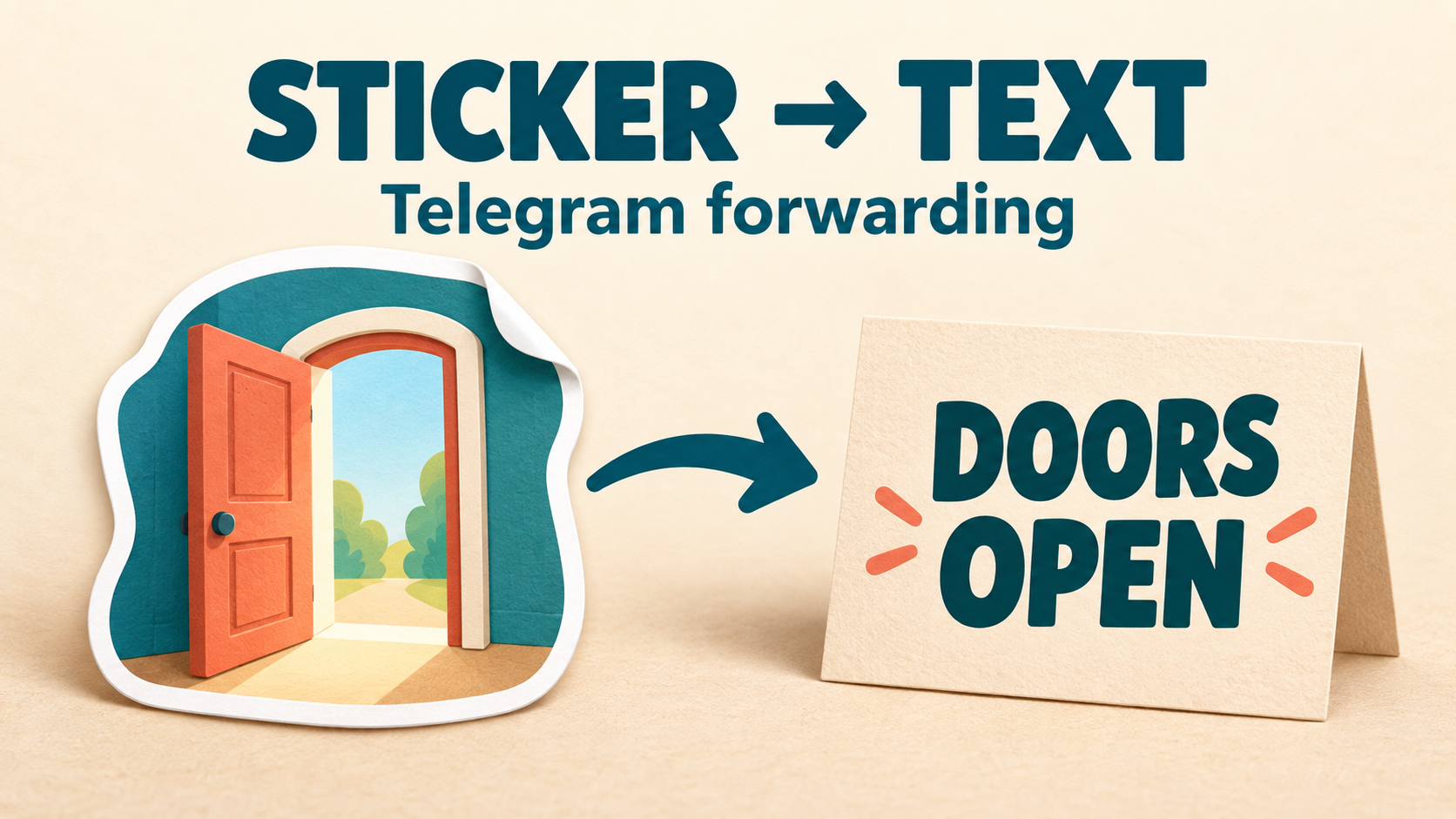
To turn a specific Telegram sticker into a text announcement while forwarding, use Sticker → Text in RedFox Auto Forward Telegram’s Replace feature. Match the source sticker by its file_unique_id, write the text you want recipients to receive, and apply the rule to the intended task. This is an exact sticker-to-text mapping—not OCR and not a way to interpret every sticker automatically.
This guide is for a team that already forwards its own Telegram announcements and uses a particular sticker to mean a particular status. The goal is to give the destination audience clear wording instead of an image whose meaning they may not know. RedFox’s Sticker Replace guide documents the workflow in its Web and mobile interfaces.
Check the product identity: RedFox Auto Forward Telegram uses @AutoForwardNew_Bot. The previous bot has moved to this current handle. Auto-Bot.io publishes this editorial guide; product instructions and support come from the official sources linked here.
Start with one sticker that has one agreed meaning
Imagine an event team with a Telegram announcement source and a separate attendee-updates destination. Staff use one designated doorway sticker when doors open. The team wants attendees to receive DOORS OPEN as text rather than relying on them to recognize that sticker.
This is a fictional example, not an observed customer result. The rule supplies wording chosen by the operator. It does not verify whether doors are actually open. Use it only where the source team has agreed what the sticker means; a casual reaction in a busy discussion is not a reliable announcement.
- Good fit: one known sticker consistently means one approved message.
- Different job: reading changing words or numbers inside images. A fixed replacement cannot extract those changing details.
- Wrong expectation: translating a whole sticker pack, every similar-looking sticker, or all uses of an emoji with one rule.
The documented rule matches an exact sticker ID. It does not use Regex or Ignore Case. Pick the precise sticker first, then decide the approved destination wording. Avoid adding a date, room, price or availability claim that the sticker itself does not reliably represent.
Prepare the route and the correct source ID
You need an existing forwarding task, the source sticker, and an account with access to Replace under its current plan requirements. Basic forwarding access alone does not establish access to this feature. If you have not made a route yet, use the official task-creation guide first. Choose a private test destination you control before adding a transformation to a live audience.
For management, use the official Web app, iOS app or Android app. Choose the surface you prefer; Web and mobile apps provide fuller management than the limited Telegram-bot entry point. Active tasks run in RedFox’s cloud, so the settings interface does not need to stay open.
The two sticker identifiers are not interchangeable:
file_unique_ididentifies the source sticker to match. This is what belongs in Source sticker ID.file_idis used for sending a sticker. It matters for Sticker → Sticker, not for the text output in this guide.
Telegram’s own Sticker object documentation makes the same distinction: file_unique_id cannot be used to download or reuse the file. Do not substitute a pack link, an emoji or the other ID just because it looks related.
- Open @FindMyIDs_Bot, the helper linked in RedFox’s Sticker Replace guide, and tap Start.
- Forward the exact sticker you want to match. Use a harmless sticker you are allowed to share; do not send a private conversation or credentials to an ID helper.
- Copy the response’s
file_unique_idvalue for that sticker. Preserve capitalization and do not add spaces or line breaks.
The guide also documents an information icon beside the ID field title that opens the instructions and bot link. If you obtain an ID from another tool, still check the field name rather than guessing from the value’s appearance.
Create a task-scoped Sticker → Text rule
Follow the documented form labels rather than creating a normal text-replacement rule with a sticker name:
- Open Replace, then the Create Replace form.
- Under Replace Type, choose Sticker → Text.
- Enter a descriptive Label, such as
event_doors_open. - Paste the sticker’s
file_unique_idinto Source sticker ID. - In New Words Replace(*), enter the approved output. For this example, use
DOORS OPEN. - Under (Optional) Apply For Task, explicitly select your controlled test task.
- Tap Create Replace, then reopen Replaces to inspect the saved rule.
Check the saved type, source ID, output text and assigned task. RedFox explicitly warns that an empty task selection should not be assumed to mean “all tasks.” A rule existing in the list and a rule applied to the right task are separate checks.
Output text must not be empty. The guide says spaces and line breaks are preserved, so you can use a short multiline announcement when needed. Start with plain wording: it is easier to verify than a long template with several changing facts.
Test the match, a non-match and ordinary text
Use new source messages after saving the rule. Keep the test in chats you control, and record the task’s current settings before changing them. Do not remove protective rules from a live feed just to get a passing example.
Suggested acceptance check—not an executed product test:
- Send the exact mapped sticker. Inspect the destination for
DOORS OPEN. Check the actual final wording, not just whether something arrived. - Send a different sticker. It should not be converted to
DOORS OPENby this exact-ID rule. Whether it otherwise arrives depends on the task’s other settings; a missing post is not automatically a successful non-match. - Send a plain-text control. Use
TEST NOTICE — unchanged text. Confirm that ordinary delivery still works and that this sticker rule is not being confused with another text-replacement rule. - Record what happened. Keep the source sample, task label, rule type, assigned task and destination result together. If the result differs, stop and inspect the saved configuration before adding more rules.
RedFox states that text produced by Sticker → Text continues through the task’s normal content-processing flow. Other configured transformations can therefore matter to the final message. A successful save is not proof that the destination received exactly the wording in the form.
An applicable Sticker Replace rule also takes priority over sticker OCR, according to the same guide. If you expected extracted text from that sticker but receive your fixed announcement, inspect the matching Replace rule first. Do not keep changing an OCR prompt to solve a deliberate exact-ID replacement.
If the sticker stays unchanged—or nothing arrives
- The original sticker arrives: verify Sticker → Text is the saved type, the source ID is
file_unique_id, and the rule is applied to this exact task. Test a fresh sticker message, not an old destination copy. - The output is different text: compare the saved replacement with the destination and inspect other content processing on this task. Do not assume the replacement rule is the last step.
- No sticker or text arrives: first check whether the plain-text control arrives. Then inspect task status and relevant filters or cleaners. The official not-forwarding checklist covers broader route diagnosis.
- The ID will not save: confirm it is nonempty, has no whitespace and is the correct ID type. Copy it again from the exact sticker rather than trying to repair the identifier by hand.
- The account reports a plan restriction: check its Replace entitlement. Recreating the same rule does not change feature access.
- Saving times out: reopen the rule list before trying again. The guide recommends checking whether the first save succeeded to avoid duplicate rules.
For support, share only the minimum sanitized example, task and rule details, observed times and visible error. Never include login codes, passwords or account tokens.
Roll out the wording without rewriting history
After the controlled check, apply the rule only to the intended live task and verify a fresh approved sticker there. Preserve the previous configuration so you can stop applying the rule if the source team changes its convention.
The guide documents task-level enable and disable actions in the Replace list. Stopping application keeps the saved rule; deleting it removes the rule from AutoForward, not the sticker from Telegram. Rule changes apply to new source messages, so do not expect existing destination stickers to turn into text when you save a rule.
Keep this rollout scoped to Telegram-to-Telegram forwarding. For another source or destination, consult the Telegram and Discord forwarding route guide and the documentation for that route rather than assuming the same sticker transformation applies everywhere.
Frequently asked questions
Does Sticker → Text read the words printed on the sticker?
No. This workflow matches the sticker’s exact ID and supplies the output you entered. It is useful when the meaning is fixed in advance, not when you need to extract changing content from arbitrary artwork.
Can I replace a sticker with another sticker instead?
Yes. RedFox documents a separate Sticker → Sticker mode. Its source still uses file_unique_id, but its replacement requires file_id that works with the task’s sending account or bot. An ID obtained from one bot may not work with another sender. Follow that mode’s instructions rather than putting a sticker ID in the text field.
Can this turn ordinary text into a sticker?
The current Sticker Replace guide says Text → Sticker is not supported. Do not reverse the two fields to try to create that behavior.
Will one rule match other stickers that look the same?
Do not rely on visual similarity. The documented match uses the exact source ID, not the artwork’s meaning or an associated emoji. Check the ID of each sticker you intend to map.
Make one status clear at the destination
Choose one sticker with an agreed meaning, map it to one useful sentence, and check both a matching and non-matching example. That gives your audience explicit wording without asking them to decode your team’s sticker convention.
Explore RedFox Auto Forward Telegram, then open Replace in the official Web or mobile app and test one task-scoped Sticker → Text rule. The goal is not just a saved rule: it is the right message in the right destination.
Give One Sticker a Clear Text Meaning
Choose the exact source sticker, apply a Sticker → Text rule to one task, and inspect the destination wording.
Exact sticker ID · Task-scoped replacement