Telegram Forwarding Hours: Schedule One Task On and Off
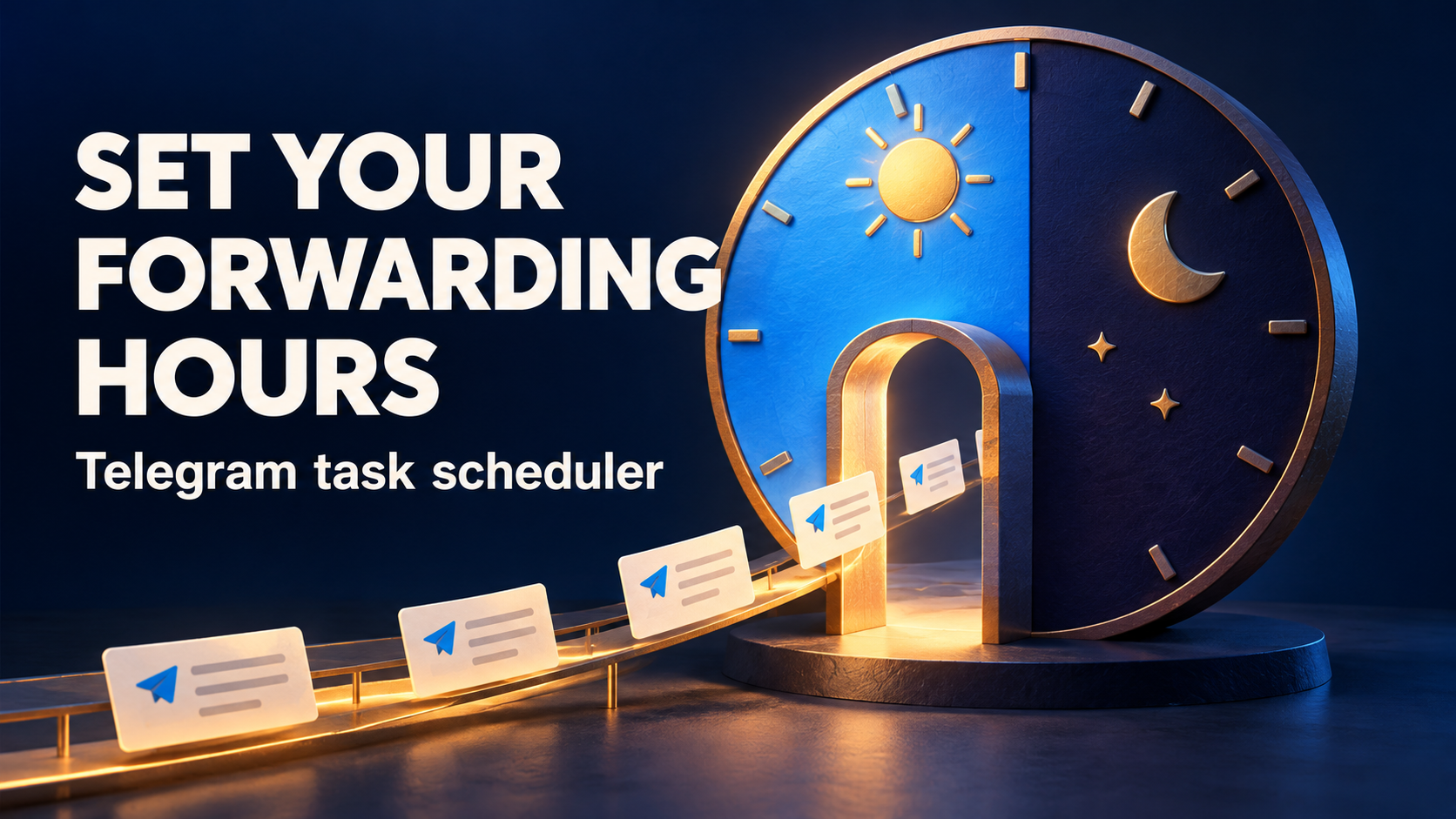
To give an existing Telegram forwarding task an opening and closing time, use Scheduler Power On/Off—not the scheduler for reposting selected messages. RedFox Auto Forward Telegram (@AutoForwardNew_Bot) documents a task-level time range such as 07:00 - 20:30. It is a way to schedule the task’s on/off state; it is not a documented promise to collect every off-hours post and deliver it later.
This guide is for a community operator whose routine Telegram-to-Telegram route already works, but should not remain active throughout the evening. Think workshop notices or non-urgent reading recommendations—not emergency alerts. The goal is to change when one route runs without stopping unrelated tasks or accidentally creating a recurring repost.
RedFox is the product team. Auto-Bot.io publishes this guide and does not develop or operate the bot. The older bot entrypoint has moved to the current handle linked above; use that exact handle when following the documentation’s bot-menu instructions.
Choose task hours, posting times or quiet notifications
“Schedule Telegram messages” can mean several different jobs. Choose the control by the outcome you need:
- Switch one forwarding task on and off at chosen times: use Scheduler Power On/Off. Its documented input is an opening/closing time range for the selected task.
- Repost a selected source message at a time or interval: use Auto Post Scheduler. That guide covers Interval, Fixed Time and Repeat modes, plus source-message selection. This is a different job from setting a task’s operating hours.
- Space out posts that arrive together: inspect the source-delay mode. Our forwarding-delay guide explains the documented distinction between waiting and spacing. A longer wait alone is not an opening/closing schedule.
- Deliver a message without a notification sound: Telegram’s Silent Messages explanation says the message still arrives and the recipient still gets a notification. Silence is not the same as turning a forwarding task off. This is a Telegram distinction, not a claim about a RedFox silent-send setting.
For this workflow, the reader decision is the first one: keep a useful route, but give that route an operating window. If the real requirement is “save everything overnight and publish a complete morning digest,” settle that separately before choosing this control.
Start with one task, not the whole account
Open the Web App, iOS app or Android app to review your routes. Choose the surface you prefer; Web and the mobile apps are the recommended places for fuller task management. The official power-scheduler page gives the specific bot-menu path used below, rather than a current screen-by-screen Web walkthrough.
- Identify the route: record its task label, exact source, target and any target topic. Use only content you may redistribute to that destination.
- Preserve the starting state: note the existing time range, task state, source delay and any Auto Post Scheduler settings before changing anything.
- Keep the first trial private: use a source and destination you control, with harmless test posts and no live audience. If you need the basic route first, follow the private-channel setup guide.
- Choose a non-urgent feed: decide whether missing immediate access to off-hours notices is acceptable. Do not put urgent operational messages behind an unverified schedule.
Do not substitute the account-wide Stop BOT control for a one-task schedule. The System Settings documentation says Stop BOT stops all forwarding tasks. Its Disconnect Account action is a separate destructive operation, not a scheduling remedy. There is no reason to disconnect an otherwise working account to change one route’s hours.
Set the documented opening and closing times
On the current bot entrypoint, follow the official Scheduler Power On/Off instructions:
- Send
/settingsin the bot chat. - Choose Manage Forwarding Task.
- Select the task whose hours you want to change. Check its label and endpoints before continuing.
- Open Advanced Configuration, then set scheduler.
- Select Scheduler Power On/Off and choose Set time.
- Enter the start and stop times using the documented range format, for example
07:00 - 20:30. Follow the interface’s confirmation flow, then reopen the setting to verify the saved range.
That example is copied from the feature documentation, not a recommended schedule for every community. Choose your own hours around when routine content is useful. Check that the feature is available to your account; this guide does not assign it to a particular plan or invent an add-on requirement.
Verify the clock before relying on the window
Record the timezone you intend the window to follow and check the account’s displayed time settings. Do not assume that moving your phone to another timezone changes the task’s schedule.
The Auto Post Scheduler guide explicitly describes account-timezone behavior for scheduled posts. The separate Power On/Off page does not explain its timezone basis, daylight-saving transitions or weekday selection. Do not transfer those details between controls without checking. Use a controlled transition to establish how the saved times behave for your task; if the intended clock remains unclear, ask product support before using the window with a real audience.
Start with a simple same-day opening/closing range. If you need an overnight window, weekdays only or multiple separate windows, confirm the exact configuration for that requirement rather than improvising syntax from the single-range example.
Check the off period and the next opening
The following is a reader-run verification plan, not an executed product test. Use fresh, distinguishable text posts so you can tell a new forward from an older delayed copy. Keep other scheduled posting disabled on this controlled route, recording anything you change.
- Establish an active-window control. During the intended on period, send a harmless source post such as “HOURS A — active-window check.” Confirm that the correct private target receives it. If ordinary forwarding already fails, diagnose the route before judging the schedule.
- Observe the closing boundary. At the configured stop time, inspect the task state. After that boundary, send “HOURS B — off-window check.” Record whether it appears in the target and when. Separately note any earlier posts that arrive late; do not mistake an old delayed copy for a new off-window forward.
- Observe the next configured opening. Check the task state again, then send a fresh “HOURS C — reopened-window check.” Confirm whether that new post reaches the intended destination. A saved range alone is not evidence that the route reopened as intended.
- Account for the off-window specimen. Look specifically for HOURS B after reopening. Record what actually happened instead of assuming it was either queued or discarded. If catching up every off-hours message is required, obtain explicit product guidance for that requirement.
- End the trial deliberately. Record the result and restore or pause the test task as intended. Do not leave test schedules or duplicate routes running when returning to production.
Keep a compact record: task label, source and private target, saved range, intended timezone, observed task states, source-post times, destination results and other active timing controls. If Telegram’s displayed timestamps are too coarse to distinguish the boundary, record that limitation rather than claiming second-level accuracy.
Acceptance for this routine feed: the fresh active-window posts arrive, the task’s on/off behavior matches the intended window, and any off-window or delayed output is understood. If those observations disagree, keep the route private while resolving the discrepancy. One successful trial does not establish every media type, timezone change or combination of scheduling settings.
If output appears outside the intended hours
- A new post appears after closing: compare its source time with its target time, then inspect the saved range and task state. Check whether another task reaches the same destination. Do not repeatedly toggle the whole account to investigate one route.
- An older post appears after closing: inspect source-delay and other timing settings. The Power On/Off page does not define how already-pending work is handled at the boundary; do not assume that switching off cancels it.
- The task does not behave as expected at opening: check the exact saved time range, intended clock, task state and any account-wide stop before changing source or target IDs.
- A selected announcement repeats unexpectedly: inspect Auto Post Scheduler separately. If it selects the wrong source post, use the Message ID 0 guide. A reposting selector and a task-hours window answer different questions.
- The time-window behavior is unclear: send support the non-sensitive settings and observed boundary sequence. Include visible errors, but keep login codes, passwords and private source content out of public reports.
Once the controlled result is understood, apply the intended range to the real task and check its first closing and opening. Leave unrelated tasks unchanged. Active forwarding runs on RedFox’s cloud servers, as the official product site describes, so closing the Web App or putting your phone away is not how you stop a route.
FAQ
Will off-hours messages become a morning digest?
The power-scheduler documentation promises task on/off scheduling, not an overnight collection-and-digest workflow. Do not rely on automatic catch-up, summarization or retention of every off-window message based on this setting alone.
Does this switch off all my forwarding tasks?
The documented setup selects one task before configuring its scheduler. Account-wide Stop BOT is a different control that the System Settings page says stops all tasks. Verify the selected task rather than using the global stop as a shortcut.
Must I leave the management app open?
No. The product’s active forwarding runs in the cloud. Use the task’s configuration and state to manage it, then check actual destination results; an open or closed management screen is not a delivery receipt.
Give one routine route a clear operating window
Explore RedFox Auto Forward Telegram, select one non-urgent forwarding task and inspect Scheduler Power On/Off. Keep the working source and destination, verify a private opening/closing cycle, and return to the audience only when the saved window and observed output agree.
Source note: official RedFox and Telegram documentation checked October 22, 2026. The boundary checks are proposed reader exercises, not claims of an account test. The featured artwork is a concept illustration, not product UI.
Give One Forwarding Task Its Own Hours
Explore task controls, set an opening and closing window, and verify one private route before applying it to your audience.
Documented task scheduling · Reader-run checks