Telegram Scheduled Post Changed? Check Message ID 0
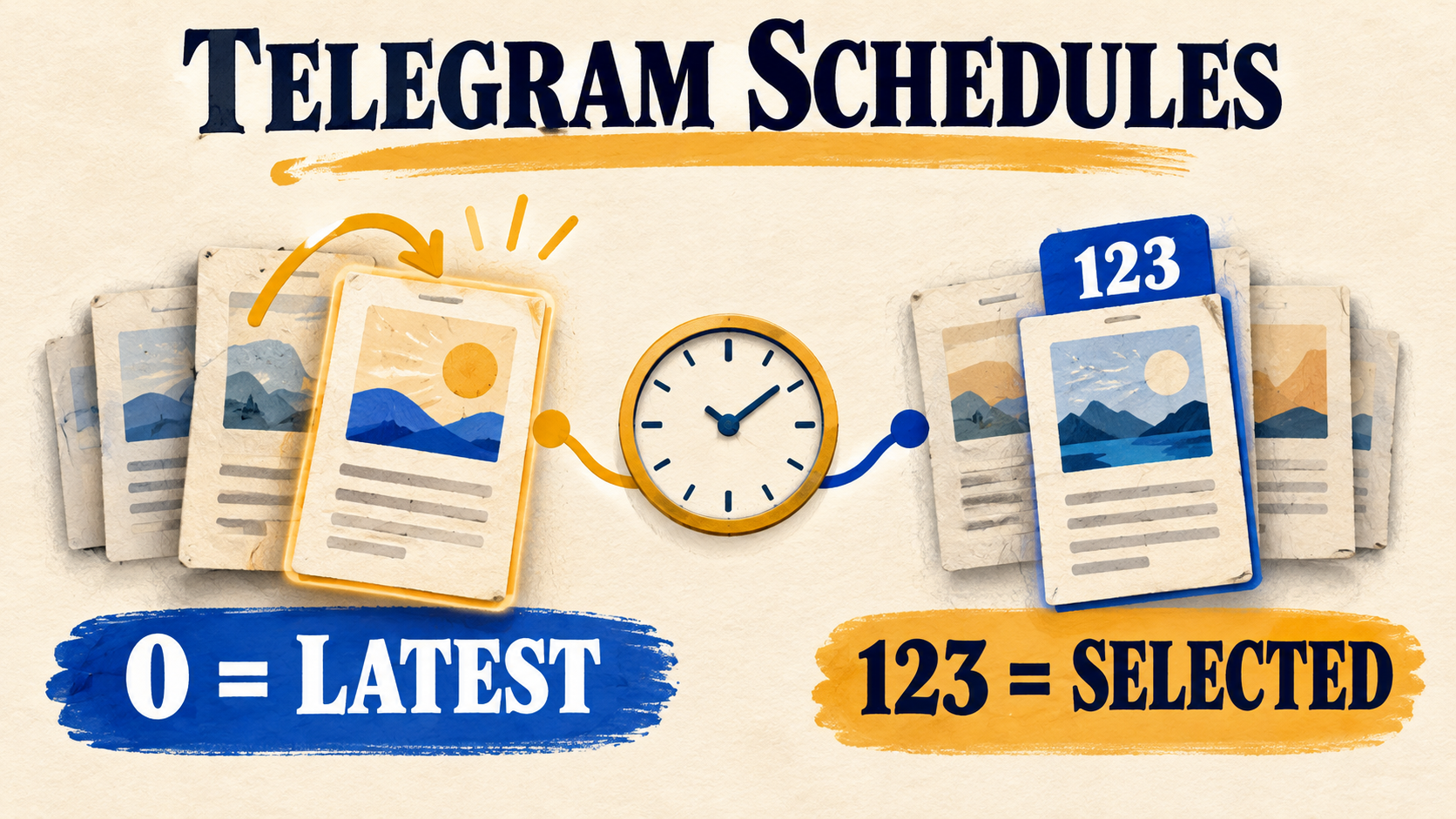
If an Auto Post Scheduler job sends a different Telegram post than the one you approved, check its Message ID first. In RedFox Auto Forward Telegram, 0 means “fetch the latest message from the source chat.” It does not mean “keep using the post that was latest when I configured the schedule.” For one particular announcement, use that message’s own ID instead.
This guide is for a task that already reaches the correct destination but selects the wrong source post. It covers the documented Interval and Fixed Time workflows—not a delivery outage or a complete scheduling setup.
Use the current bot: the previous bot has moved to @AutoForwardNew_Bot. Use that handle to access RedFox Auto Forward Telegram. For fuller task management, choose the Web App, iOS app or Android app.
Choose the latest post or a selected post
The official Auto Post Scheduler guide documents a single message ID, a list of IDs and the special value 0. That makes the content choice separate from the time choice: a correct posting time can still select the wrong announcement.
- Use a specific ID for a named announcement: for example, one approved welcome message that should remain the selected source post even after other messages are added.
- Use
0for a latest-update feed: the newest source message is deliberately the content you want selected when the schedule runs. - Use a list only when several posts belong in the schedule: in Interval Mode, Posting Order determines whether that list is Random, Sequential or All. A list is not a substitute for selecting one approved message.
A specific ID fixes the reference, not a content version. Do not treat it as a frozen copy of the wording you reviewed. If exact approved wording matters, keep that source post unchanged and compare the delivered content with your approved record.
Example: a staff note becomes the latest message
Imagine a training team schedules a welcome announcement from a source channel it controls. These IDs and messages are illustrative; they are not a product test.
- The team approves message
123: “Welcome to the workshop. Read the joining instructions.” - An operator enters
0in the schedule because message123is currently the latest post. - Before the scheduled time, someone adds message
124: “Internal note: check tomorrow’s handout.” - Under the documented latest-message rule,
0now points to the newer staff note, not the earlier welcome announcement. Selecting123instead keeps the reference on the welcome post.
The clock did not choose the staff note; the selector did. Moving the posting time alone does not repair that choice. An approved-only source channel reduces this risk, but it does not turn 0 into an approval queue.
Inspect one task before changing it
- Pause the affected task before editing. Record its current source, target, schedule mode, times or interval, Message IDs and forwarding pause/resume settings. Leave unrelated tasks alone.
- Open the approved post in its actual source chat. The scheduler guide recommends copying the Telegram message link and using the number at the end as the message ID. Check that the link opens the intended post, not merely a similarly named channel.
- Check the task’s source list. The docs require scheduled IDs to belong to source chats configured in that task. A number without its source-chat context is not enough. For the diagnostic route, use one source so there is no ambiguity.
- Read the active scheduler mode. Check the Interval Message ID(s) field or the relevant Fixed Time entry. Do not change a different mode or add another schedule alongside the old one.
- Read the account timezone. The docs say schedules use the connected account’s configured timezone, not the phone or computer timezone. Note it for your test; do not change an account-wide setting casually to repair a content-selection problem.
New to task setup? Use the existing setup guide first. For recurring timing and content rotation, see the recurring scheduling guide. This diagnostic keeps the question narrower: which source message is this schedule selecting?
Set the selector for the intended outcome
Interval: one announcement or a changing update
Open the task’s Auto Post Scheduler settings and select Interval. For one announcement, enter its single ID in Message ID(s). For a deliberately changing latest-update feed, enter 0. Check Post every and any future Schedule Start Time, then save with Done.
With a single selected message, you do not need a multi-message Posting Order strategy. If you are intentionally using several IDs, the docs place Random, Sequential and All under Interval Mode. Do not copy those controls into a Fixed Time procedure just because an older overview discusses scheduling broadly.
Fixed Time: inspect the ID on the affected time entry
In Fixed Time, each entry pairs a posting time with a message ID. Edit the entry that produced the wrong post and replace 0 with the intended message’s ID if the announcement should stay selected. Review every other entry separately: correcting one slot is not evidence that the others use the same ID.
If creating a new entry, the documented control is Add Schedule; if correcting an existing one, edit that time entry instead of adding a second copy. Save with Done and inspect the saved values before resuming.
Prove the selection in a private test route
Use a source and destination you control. Do not use internal notes from a real staff chat as test material or send these specimens to your audience. This is a proposed check, not a claim that we executed your task.
- Start with one paused test task, one source and one private target. Record the original settings so you can restore them. Use an available future test time or a manageable interval; keep real destinations out of the route.
- Create two harmless source posts. Give them distinctive text: “Sample A — approved welcome” and then “Sample B — newer note.” Copy each post’s actual ID. The sample numbers
123and124in this article are not values to paste into your own task. - Test the specific-ID choice first. Select Sample A’s ID, save, inspect the configuration and enable the test task. At the chosen posting opportunity, check whether the private destination contains Sample A rather than newer Sample B. Record the target message and task posting history.
- Pause before testing
0. Change only the selector on the same test route, arrange a new future posting opportunity if needed, save and verify. With Sample B still the latest source post, check whether the selected output is Sample B. - Stop the test after observing the result. Keep both source links, saved selector values, timezone, expected content and actual target result. If they disagree, preserve that evidence rather than repeatedly resuming the task.
Inspect Pause Real-Time Forwarding as part of the test. The docs describe it as pausing real-time forwarding while scheduled posting is active. Otherwise a real-time copy of Sample B can be mistaken for the scheduled result. Also record any resume-after-schedule setting so your test does not silently leave the route in a different state.
If the result is still wrong, separate the symptoms
- A newer post appears instead of the selected announcement: recheck the saved selector, affected time entry and source chat. Then check whether another task or real-time route sent that post.
- The right source post appears with different wording: check the source content and the task’s content-modification settings. A specific ID is not a version archive, and choosing an ID does not disable transformations.
- Nothing appears: confirm that the selected source message still exists, the connected account can access it, the target is correct, the task is active and the posting time is in the expected account timezone. Check posting history before retrying.
- The same post appears more than once: inspect duplicate schedules, other tasks and real-time forwarding. Do not assume
0means “only messages that have not been posted before”; its documented meaning is latest-message selection.
If the selection still disagrees with the saved configuration on the controlled route, give product support the source links, mode, IDs, timezone, expected post, observed post and relevant task history. Keep credentials, login codes and private message content out of public support threads. Avoid deleting the source or rebuilding every task before preserving the evidence.
Before returning to the real destination
- The reader-facing announcement is selected by its actual source ID, or latest-message selection is an intentional editorial choice.
- The source is permissioned and suitable for that destination; a dedicated approved-post channel is preferable to a mixed staff discussion.
- The saved mode, selector, account timezone and next posting opportunity have been checked together.
- The private target result matches the intended source, and the origin of any extra copy is understood.
- Test schedules are stopped, original pause/resume choices are restored as intended, and no duplicate real schedule has been introduced.
Once configured, scheduled tasks run in RedFox’s cloud without keeping the management interface open, as the official scheduler FAQ explains. You still need the task active and the relevant feature available on your account. A saved schedule is not proof of a completed send: verify the first real destination result after enabling it.
FAQ
Does Message ID 0 mean the last approved message?
No. The docs define it as the latest message from the source chat. Approval is your editorial process, not a property of the value 0. Keep non-publishable notes outside a latest-message source.
Does a specific ID preserve the exact wording forever?
Do not rely on an ID as a frozen content snapshot. It identifies a source message. Keep the approved source unchanged and retain an approved record if wording must be audited.
Should I use this procedure for Repeat Mode too?
The source-selection examples here are bounded to the documented Interval and Fixed Time behavior. The official guide has a separate Repeat procedure. Use that procedure for its recurrence settings instead of assuming every option behaves identically across modes.
Choose one schedule, then validate its source
Explore RedFox Auto Forward Telegram to manage source-to-target tasks and scheduled posting. Then open the Web App or your preferred mobile app, inspect one affected task and validate its selector on a private route before resuming your audience feed.
Source and illustration note: this guide is based on the official scheduler documentation checked on October 17, 2026. Its examples and featured image are conceptual, not product screenshots or executed forwarding tests. Auto-Bot.io publishes this guide separately from the product operator.
Choose the Post Your Schedule Should Use
Explore scheduled posting, then inspect one task’s source and Message ID. Validate the selected announcement in a private destination before resuming your audience feed.
Source-aware selection · private test plan