Telegram Forwarding Still Bursts? Check the Delay Mode
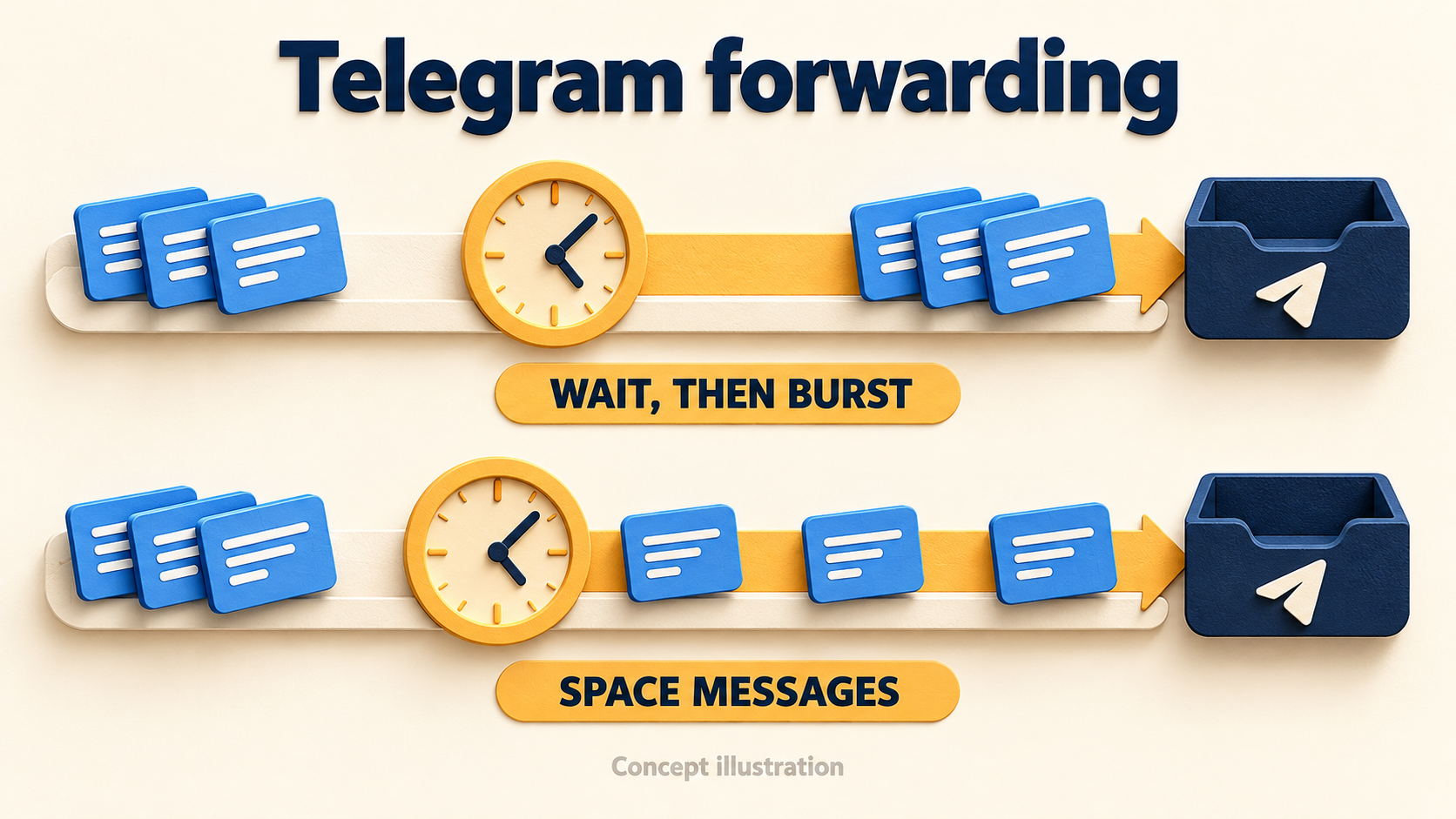
If Telegram messages still arrive together after you add a forwarding delay, check the delay mode—not just the number of seconds. In RedFox Auto Forward Telegram, the documented Delay Mode postpones messages relative to when they are received. A burst can therefore remain a burst, only later. Spread Mode is the source-delay option documented to space messages from the previous one.
This guide is for an existing Telegram-to-Telegram task that delivers the right posts to the right destination, but delivers them too close together. The goal is a readable stream of routine announcements, not a promise of exact arrival times or a way around Telegram restrictions.
Use the current bot: the previous bot, @Auto_Forward_Messages_Bot, has moved to @AutoForwardNew_Bot. Use this current handle to access RedFox Auto Forward Telegram. Choose the Web App, iOS app or Android app for fuller task management. Auto-Bot.io publishes this guide separately from RedFox, the product operator.
Why a delay can preserve the burst
The official Delay For Source guide makes the distinction explicit: its example says that messages received together in Delay Mode are delayed together. In Spread Mode, the configured delay separates messages from the previous message. Raising a delay value without changing the mode can move the same crowded delivery later instead of making it easier to read.
Imagine a community source publishes three routine workshop notices almost together: A is the agenda, B is the reading list and C is the room reminder. You want readers to notice each post individually.
- Waiting: hold each notice for a while after receipt. If A, B and C arrive together, their planned forwarding times can still be together.
- Spacing: give the notices separate places in a paced stream. B follows A after the configured gap, and C follows B.
These are illustrative messages, not results from an executed forwarding test. The featured artwork shows the same conceptual contrast; it is not product UI or a delivery measurement.
Choose the control that matches the crowded delivery
Before changing anything, identify whether the crowding is several source posts in one destination or one source post being sent to several destinations. Those are different timing decisions.
| Your intended outcome | Relevant documented control |
|---|---|
| Separate consecutive source messages instead of releasing them as a burst. | Delay for Source → Spread Mode. |
| Wait after each message is received, without requiring a paced stream. | Delay Mode or the independently delayed behavior described for Separate Mode; verify the selected mode on your task. |
| Stagger one message across several target chats. | Delay for Target, described in the separate target-delay guide. |
| Cap the number of forwards within a time window. | Forward Rate Limit addon, which has its own unlock and pause/resume settings. |
| Repost selected content at a chosen time or interval. | Auto Post Scheduler, rather than a source-burst pacing change. |
The source-delay docs also list Normal Mode as following the Boost Performance configuration. They do not give a standalone pacing rule for it. For this specific problem, choose the explicitly documented Spread behavior rather than guessing what Normal means.
Separate Mode is not the same as Spread Mode. The docs illustrate Separate Mode with one message received at 9:00 and sent at 9:05, and another received at 9:01 and sent at 9:06. That describes an independent wait for each message; it does not establish a minimum gap between posts that arrive together. The docs do not fully explain every difference between Delay and Separate Mode, so this guide does not invent one.
For fan-out, use the Delay For Targets instructions. For quantity caps, use the current Forward Rate Limit documentation. A volume cap and message spacing are not interchangeable: one controls how much the task forwards within a window; the other controls the intended gap between source messages.
Record one task before editing its delay
- Pause the affected task and preserve its settings. Record its label, exact source and target chats, current delay mode, seconds and other active timing controls. Leave unrelated tasks alone.
- Confirm which route produced the burst. Check the destination posts against the source. Look for a second task or scheduled route sending the same content; changing one task will not pace another task’s output.
- Check feature availability. Use the controls available to your account. Do not assume that a basic forwarding plan includes every advanced setting or addon. The Forward Rate Limit addon has a separate purchase prerequisite; this guide does not require buying it to understand source-delay modes.
- Use a controlled test route. Work with a source and private destination you control, without a real audience. If you need to establish that route first, follow the existing forwarding setup guide rather than rebuilding production while diagnosing timing.
Preserving the original values gives you a clear rollback. Pausing is not evidence that pending work has disappeared. Before resuming a real destination, inspect what the task reports and what has already arrived; do not repeatedly pause and resume to try to flush unknown work.
Set source spacing, not just a longer wait
First record and test the original mode on your controlled route using the baseline steps below. Then, for the Spread comparison, follow the documented app/Web route:
- Open AutoForward for Telegram and select the forwarding task.
- In its detail screen, choose Set Delay Feature.
- Choose Delay for Source.
- Select Spread Mode, enter the delay in seconds and save with Done.
- Inspect the saved mode and value before enabling the controlled task.
For a small demonstration, 10 seconds is a convenient value to observe—not a recommended production speed, Telegram-safe threshold or delivery guarantee. Choose your real spacing from how long routine content remains useful and how much output readers can reasonably follow.
Keep the first check simple: one source, one target and distinct text-only messages. Leave media processing, albums and multiple destinations for separate checks after the basic source-spacing result is understood. Do not disable safeguards on the live task just to make a test easier.
Check the difference with a private three-post burst
This is a proposed validation procedure, not a claim that we ran your account or reproduced a customer incident.
- Establish the current behavior. On the controlled route, record the saved mode and seconds. Enable it, then send three fresh, harmless source posts close together, labelled “PACE A”, “PACE B” and “PACE C”.
- Record the destination outcome. Note which labels arrived, their order and the spacing you can actually observe. Use task history or finer-resolution timestamps if available. If your view only shows minutes, record “gap not measurable here” rather than claiming an exact ten-second result.
- Pause and change only the source-delay mode. If the baseline used Delay Mode, select Spread Mode while keeping the same seconds and endpoints. Save, inspect the setting and enable the controlled route again.
- Send a new labelled set. Use “PACE D”, “PACE E” and “PACE F”, with the same simple content type and similar source burst. Do not reuse old posts as your only comparison.
- Compare the shape of delivery. Did the baseline remain clustered after waiting, while the Spread test separated the posts? Did every expected label arrive? If the behavior differs from the saved configuration, preserve the evidence instead of stacking more setting changes.
- Stop the test. Restore the controlled route as intended. Keep the labels, source links, saved settings and actual observations for any support follow-up.
A compact record is enough:
The success criterion is correct content with understood pacing, not simply “the bot waited.” This check does not establish media timing, album behavior, ordering across multiple sources or interactions with every other task setting.
Spacing trades a quieter feed for later messages
Once you deliberately space a burst, later posts take longer to reach the front of the stream. In an idealized example with three posts and ten-second gaps, there are twenty seconds between the first and third sends. Seven posts with the same gaps span sixty seconds from first to last. These are arithmetic illustrations, not measured product timings; they exclude the initial wait, processing and Telegram delivery conditions.
If source posts keep arriving faster than the chosen pace, waiting work can grow. A longer gap may improve readability while making routine information stale. Do not solve that tradeoff by assuming undocumented priority bypasses, automatic expiry or queue-draining behavior. This guide establishes none of those features.
- Routine announcements: check whether the last post in a busy period is still useful when it arrives.
- Time-sensitive notices: decide whether intentional spacing is appropriate at all. Do not mix them into a slow stream and assume the system will recognize urgency.
- Excessive source volume: narrow the intended content or revise the publishing plan, rather than increasing delay indefinitely.
Before returning to production, choose an acceptable freshness window for your own content. Observe the first real burst and pause for review if later posts become misleading or obsolete.
If delivery still looks wrong
- Everything waits, then arrives together: reopen the saved source-delay mode. A larger Delay value alone does not establish spacing.
- One post reaches many targets together: check target delay. The source-spacing test did not validate fan-out timing.
- Posts stop after a certain quantity: inspect task status and any active Forward Rate Limit window, cap and auto-resume setting before changing source delay.
- Only a particular media type is late: compare it separately with the text control. Do not infer a mode failure from media work you did not isolate.
- The wrong content appears on a schedule: inspect the scheduler’s source selection. See our Message ID 0 troubleshooting guide; changing spacing does not fix a latest-message selector.
- There is a Telegram wait or sending error: preserve the error and respect the required wait. Do not keep resending, switching accounts or lowering delays to defeat a restriction.
Telegram’s own Slow Mode explanation describes a separate group setting that limits how often members can send. An Auto Forward delay setting is not permission to ignore group rules, and no delay value guarantees freedom from Telegram limits.
If a controlled text-only route still contradicts the saved Spread setting, send product support the task label, mode, seconds, sample source links, expected spacing, actual observations and visible error. Exclude login codes, passwords and private customer content from public reports. Avoid deleting the task before preserving those details.
FAQ
Will increasing the delay always stop a burst?
No. In the documented Delay Mode, a burst can simply move later. Spread Mode is the source-delay behavior intended to separate messages from the previous one.
Should I change Delay for Source or Delay for Target?
Use source Spread Mode for consecutive source posts arriving too close together. Use target delay for one post distributed across several destinations. Start with one source and one target so the first test answers only one question.
Does Spread Mode guarantee exact arrival times?
No exact delivery guarantee is established here. The docs define the intended spacing behavior, while your observed destination timing also needs checking. A source-backed configuration explanation is not a latency benchmark or account-safety certification.
Inspect one route, then return to your audience
Explore RedFox Auto Forward Telegram, then open the Web App or your preferred mobile app and inspect one task’s source-delay mode. Keep the working content route and validate spacing privately. Pause before changing endpoints, verify the exact production source and destination chats, and retain the original settings for rollback. Restore the real destination only when the saved configuration and observed output agree.
Active tasks run on RedFox’s cloud servers, as the official product site describes; the management interface does not need to stay open. Closing it is not a substitute for pausing a test task. Confirm the first real destination result after any change.
Source note: official source-delay, target-delay, rate-limit and Telegram documentation checked October 18, 2026. Mode behavior is documentation-backed; the test plan and message examples are editorial guidance. The featured image is a concept illustration, not a product screenshot or executed test.
Give Routine Posts Room to Be Read
Explore source-to-target forwarding, then inspect one task’s delay mode. Validate message spacing privately before returning routine announcements to your audience.
Documented modes · private validation plan