Telegram Posts Forward, but Comments Don’t? Check These Settings
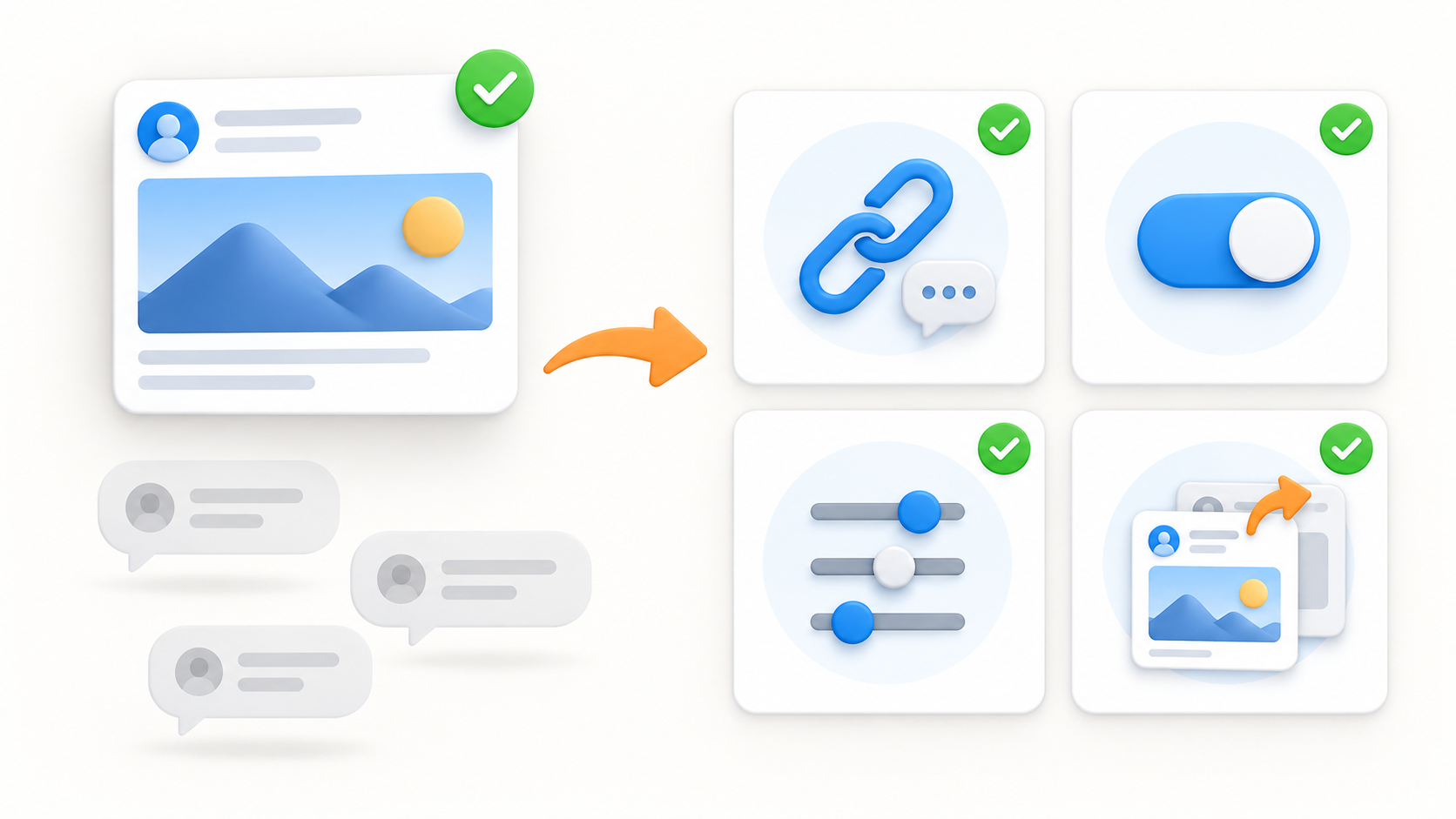
If posts arrive without their comments, check the linked Discussion Group, addon and task setting, source-comment visibility, target send access, then the parent-post test sequence.
If Telegram posts forward but comments do not, check the linked Discussion Group, addon activation, task-level comment setting, route access, and whether the matching parent post was forwarded first. Do not rebuild every task immediately: each check answers a different question.
This checklist follows RedFox's official Channel Comments Forwarding documentation, retrieved September 20, 2026.
Start with the symptom you actually see
| What happened? | Most useful next check |
|---|---|
| The channel post did not forward | Check the normal task route and source-to-target access before focusing on comments. |
| The post forwarded, but no comments appear | Check the linked Discussion Group, addon status, task setting, and a new comment on a new post. |
| A comment arrived as a standalone message | Confirm that the matching parent post was handled by the same task before the comment. |
| You cannot find a comment option on the source post | Fix Telegram's channel-to-Discussion-Group link first. |
1. Confirm that Telegram comments exist at the source
Telegram channel comments require a Discussion Group linked to the source channel. In Telegram, use Channel Info → Edit / Manage Channel → Discussion → Add a Group to create or select that link, then publish a fresh test post. If you cannot see a comment option under that post, fix this Telegram discussion link before diagnosing the forwarding route.
Keep the channel as the task source. The official guide says the linked Discussion Group does not need to become the normal forwarding source.
2. Check the addon before the task
Channel Comments Forwarding is a separate addon. In the same account that runs the task, use Menu → My Addons, then check Active or search in All. If it is not active, the documented path is Unlock, followed by the displayed credit-cost and duration confirmation. Then return to the task; an active addon does not automatically mean every task is configured to use it. For the full activation and route setup, follow the setup sequence.
3. Turn on comment forwarding for the intended task
Open the task that moves the source channel to the target. Confirm its source and target, then enable Channel Comments Forwarding if the option is available in task settings. Confirm that the task account can access the source and see its discussion comments, and that it has permission to send to the selected target. If the target is a channel where readers should see comments, confirm that target channel also has its own linked Discussion Group.
If the task setting is missing, first check Menu → My Addons in that same task account and confirm that Channel Comments Forwarding is active. If it is active but the setting is still unavailable, contact official RedFox support with the route details rather than treating the missing option as proof that the feature is unsupported.
A route can look correct while the relevant feature remains disabled on that particular task, so keep access and enablement as separate checks.
4. Check the parent post before checking the comment
The original post here means the new post published in the source channel that this task should forward—not an older target copy or the linked Discussion Group's automatic discussion message. The addon needs that source channel post to be handled so it can associate later comments with the corresponding target post. Test in this order:
- Publish a new, harmless source post after the task is ready.
- Confirm that the post appears in the intended target.
- Add a new source comment to that specific post.
- Check the target post for a reply associated with it.
Correct: Source Post A → Forwarded Target Post A; a new comment on Source Post A → a reply under Forwarded Target Post A. Not the intended result: the comment arrives in the target as a separate standalone message. Do not use an unrelated old post as the only test; it cannot demonstrate the current post-to-comment relationship for the route you just checked.
5. Isolate one change at a time
Record the task you tested, then change only one condition: discussion link, addon status, task setting, route access, or test sequence. Retest with a fresh post and a fresh comment. Changing every setting at once can make a later success impossible to explain.
When to contact support
If all five checks are correct but the controlled route still does not preserve the comment relationship, record the approximate test time, source and target types, task status, and what happened to the new post and comment. Do not share private chat links, account credentials, session files, or unredacted messages. RedFox lists @RedFoxHelp for help in its September 20 announcement.
Next step
Review the feature overview, follow the setup sequence, then use the replies-and-albums guide or the route-planning guide as needed. Once the controlled route works, expand deliberately rather than changing multiple production routes at once.
Continue in the Exact RedFox Auto Forward Telegram Bot
Verify @AutoForwardNew_Bot, then use the current RedFox documentation while configuring your workflow.
Check current plans and limits in the bot