How to Forward Telegram Channel Comments to the Right Post
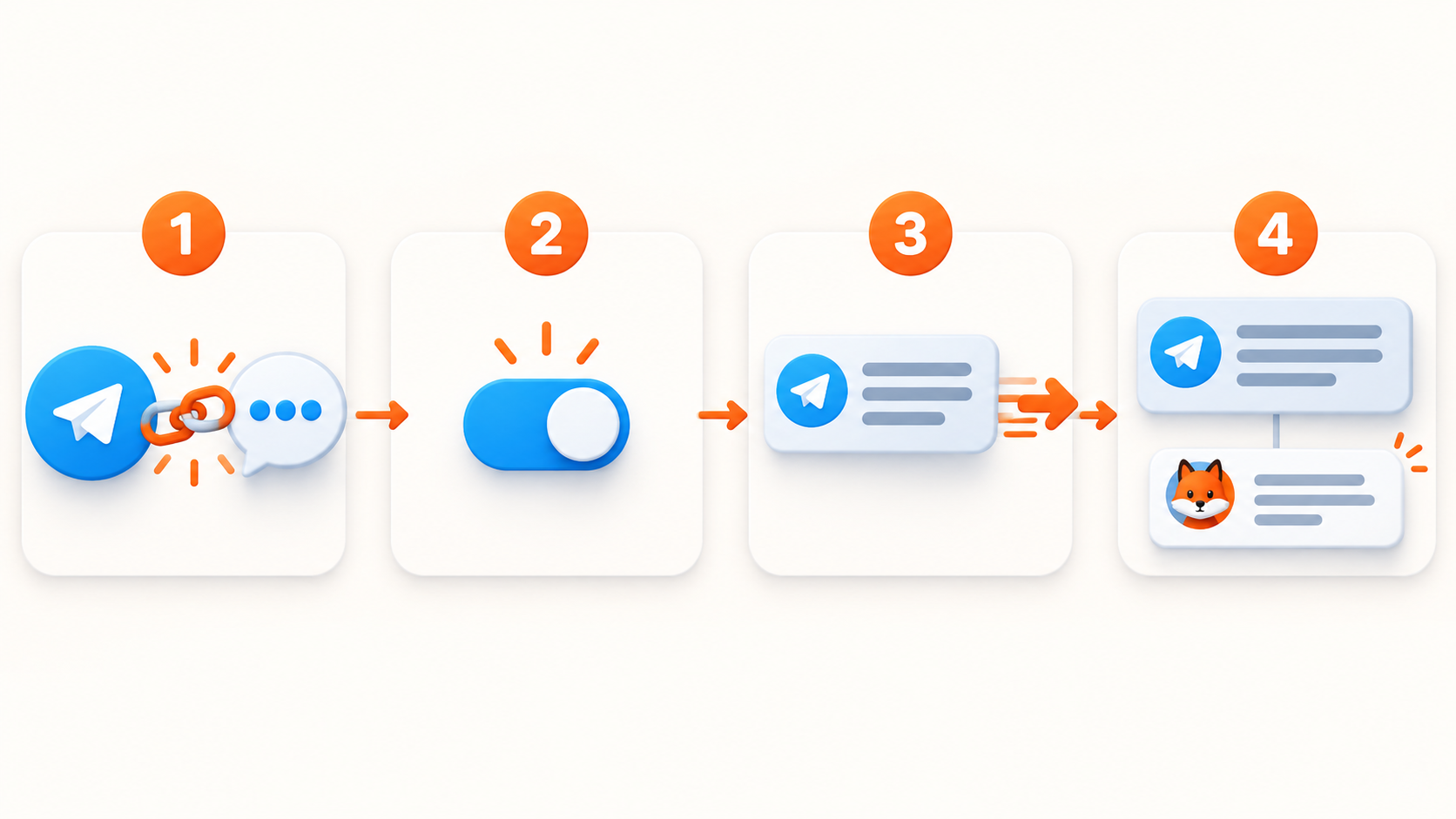
Keep the channel as the forwarding source: link its Discussion Group, activate the Channel Comments Forwarding Addon for the account that runs the route, enable the task setting, then test one new post and one new comment. The addon can then place the copied comment as a reply to its matching forwarded post.
These steps follow RedFox's official Channel Comments Forwarding guide, retrieved September 20, 2026. Menu wording can change, so use the live product screen for the final control names.
Before you start
- Source setup: the source is a Telegram Channel, not the Discussion Group itself. Its linked Discussion Group is in place and a new source post shows a comment option.
- Target setup: choose the target channel or group for the normal task. If the target is a channel and you want replies to be visible under its forwarded posts, link a Discussion Group to that target channel too.
- Permissions for the task account: it can access the source channel and its linked discussion, access the target, and send in the target discussion or group where copied comments will appear.
- Permissions for Telegram setup: use an administrator of the source channel when creating or linking its Discussion Group. That administrator role is for changing the discussion structure; it is separate from the task account's route access.
- The Channel Comments Forwarding Addon is active for the same account that runs the task.
1. Link a Discussion Group to the source channel
Telegram stores channel comments in a Discussion Group linked to that channel. In Telegram, open the source channel's management area, choose Discussion, then add or select the group that should host comments.
Publish a fresh test post after linking the group. If Telegram shows a comment option below the post, the channel-side discussion structure is ready. Do not use the Discussion Group as the ordinary forwarding source just because that is where Telegram technically stores the comment messages.
2. Activate the addon
Open RedFox Auto Forward Telegram on Web, iOS, or Android, using the account that will run this route. The documented path is Menu → My Addons. Find Channel Comments Forwarding in All or search for it; if it is not already active, choose Unlock, review the displayed duration and credit cost, and confirm. Then use Active to verify that this account has the addon.
Do not stop at account-level activation: the addon and the task setting are separate checks. If your task uses a different account, verify activation for that task account rather than assuming an addon owned by another account applies.
3. Configure the normal forwarding task
Create or open the task with Source: your source channel and Target: your chosen target channel or group. Do not select the source Discussion Group as the ordinary source; Telegram uses it for the source channel's comments.
Enable Channel Comments Forwarding in that task if the option is shown in its settings. The original channel post must be handled by this same task before a later source comment can be associated with the correct forwarded post.
4. Run a new-post, new-comment check
- Publish a new, harmless post in the source channel.
- Confirm that the task forwards that post to the selected target.
- Open the source post's discussion and add a new comment.
- Open the forwarded target post and check whether the comment appears as its reply.
Use one controlled source and target first. This verifies the relationship readers need to see, rather than only confirming that a post moved.
What success should look like
| At the source | At the target |
|---|---|
| Channel Post A | Forwarded Post A |
| A comment on Post A | A reply associated with Forwarded Post A |
The key check is association. A comment that appears as an unrelated destination message is not the intended contextual result.
If the comment is not in the right place
Check the source channel's linked Discussion Group, addon activation, task-level option, source visibility, target send access, and whether the original source post was forwarded by that same task. Keep the route unchanged while you isolate one check at a time. For a detailed diagnostic order, use the troubleshooting guide.
Keep your next step simple
Start with a single authorized route, then repeat the same controlled check before expanding. Read the feature overview, how reply and album context works, and how to plan multiple routes when those needs apply.
Continue in the Exact RedFox Auto Forward Telegram Bot
Verify @AutoForwardNew_Bot, then use the current RedFox documentation while configuring your workflow.
Check current plans and limits in the bot