Forward Telegram Channel Posts—and Keep Comments Together
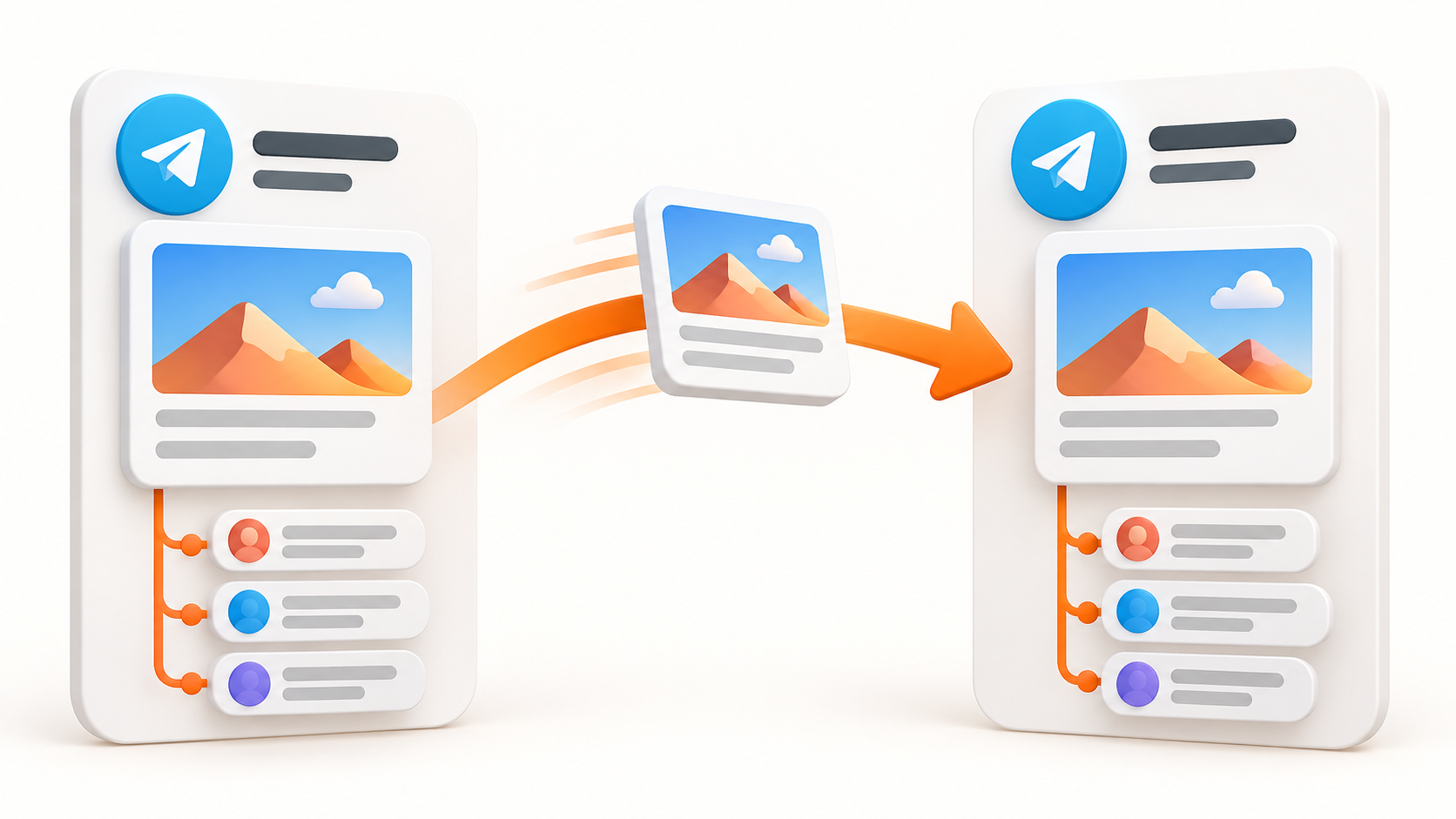
Forward the source channel post first, then Channel Comments Forwarding places each source comment as a reply under its matching target post.
RedFox Auto Forward Telegram offers a Channel Comments Forwarding Addon that forwards source-channel comments as replies associated with the corresponding forwarded post. The result is simple: a target reader can see the post and the discussion that belongs under it, instead of receiving comments as unrelated messages.
RedFox announced the addon on September 20, 2026. Its official guide explains the source-channel discussion setup and task configuration.
Why forwarding the post alone is not enough
A channel post can be useful on its own, but many updates gain their meaning in the comments: questions, corrections, reactions, and follow-up details. If those comments arrive separately at the target, readers have to guess which update they belong to.
- Source post → forwarded target post
- Source comment → reply to that target post
That parent-and-reply relationship is the point of Channel Comments Forwarding. It is not the same as forwarding a discussion group as a stream of standalone messages.
What Telegram needs before comments can exist
Telegram channel comments are powered by a Discussion Group linked to the source channel. After the link is in place, Telegram displays messages in that discussion thread as comments beneath the matching channel post.
- Create or choose the source Telegram channel.
- Create or choose a Discussion Group.
- In the source channel, open its channel-management area and link that group as the discussion group.
- Publish a new test post and confirm that Telegram exposes a comment option below it.
Keep the channel as the normal forwarding source. The official guide specifically says that the Discussion Group itself does not need to be configured as the normal source for this workflow.
How the addon keeps the conversation in context
First, the forwarding task handles the original channel post. When a comment is added to that post's linked discussion, the addon associates it with the corresponding forwarded post and sends it as a reply there. For the setup sequence, use the step-by-step setup guide.
This is useful when a target channel or group needs to preserve the reading order of a source discussion. It does not make every route a two-way conversation, and it does not replace moderation or publishing decisions for the target audience.
Use it with a small, controlled route first
- Choose one source channel and one target you are authorized to manage.
- Confirm the source channel has a linked Discussion Group and visible comments.
- Make sure the Channel Comments Forwarding Addon is active.
- Enable Channel Comments Forwarding for the intended task.
- Publish a new harmless source post, add a new comment, and check whether it appears under the matching forwarded post.
Check one route at a time. A successful post forward alone is not the same thing as verifying comment context.
Where to manage the setup
Start in AutoForward Web, or choose the iOS app or Android app. These are the recommended management surfaces; the current Telegram bot remains available at @AutoForwardNew_Bot.
For the feature's detailed prerequisites and examples, use the Channel Comments Forwarding guide. If you need help after recording the route and test details, RedFox lists @RedFoxHelp as a support contact in the September 20 announcement.
Next step
Next, use the setup guide to build the route, the troubleshooting guide if context is missing, the replies-and-albums guide for a deeper discussion, or the route-planning guide when you need several destinations. Activate the feature only for a route where the destination readers should receive both the post and its discussion.
Continue in the Exact RedFox Auto Forward Telegram Bot
Verify @AutoForwardNew_Bot, then use the current RedFox documentation while configuring your workflow.
Check current plans and limits in the bot