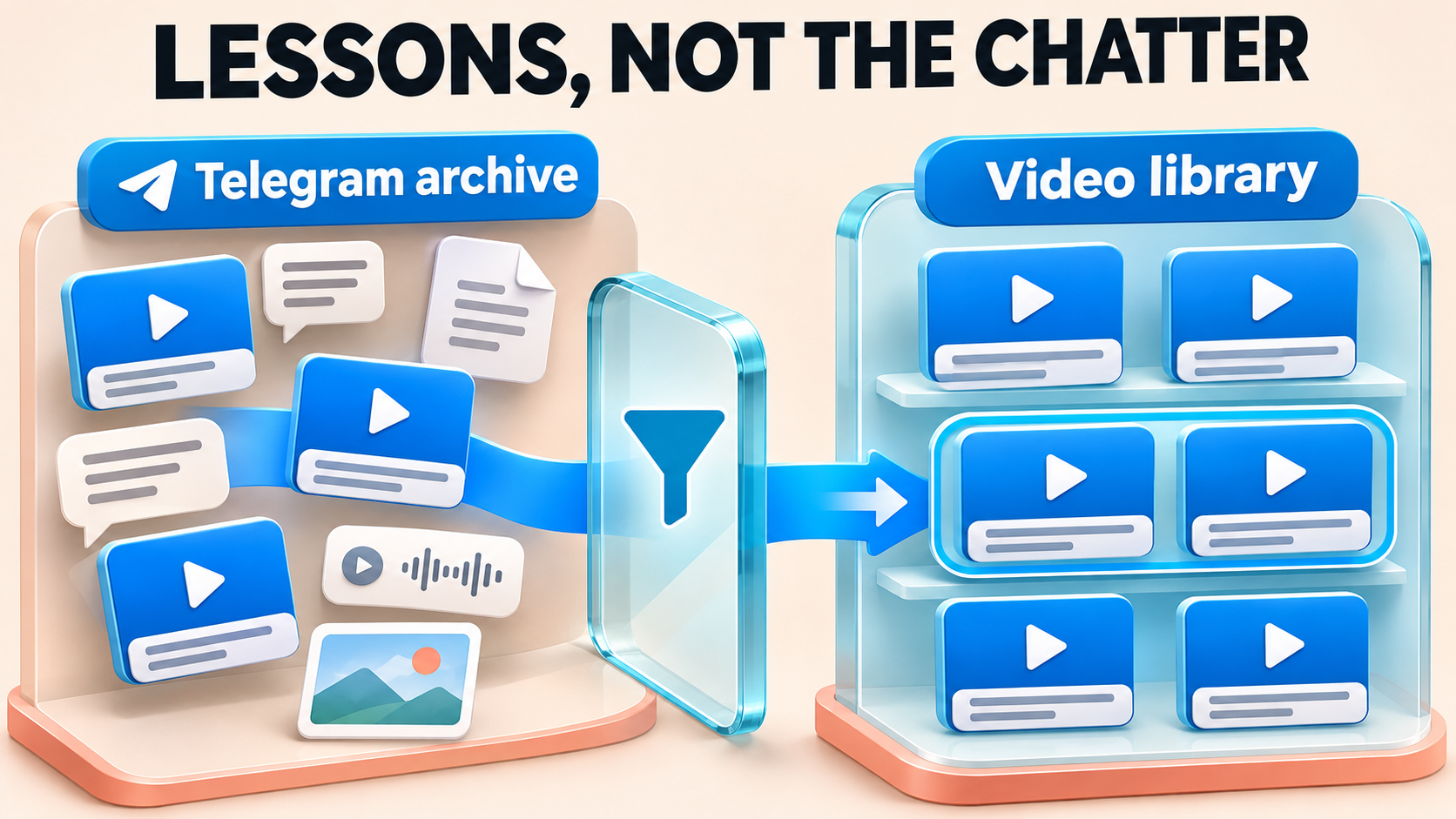
Build a Lightweight Telegram Briefing With File-Size Filters

A useful Telegram briefing does not need every large recording or attachment from its source. With RedFox Auto Forward Telegram, you can block oversized videos and documents before they reach a briefing destination while keeping ordinary text and smaller media eligible. Use two media-size Blacklist rules—one for Video size and one for Document size—rather than a whitelist that only admits matching media.
The result is a mixed feed built for quick updates, not another full-file repository. You decide which payloads belong in that destination instead of asking every reader to work around the same oversized uploads. RedFox develops the product; Auto-Bot.io publishes this guide. The current Blacklist documentation and Whitelist documentation were checked November 4, 2026.
Define a briefing policy, not a download preference
Imagine a community operations channel containing text announcements, short update videos, small PDFs and occasional full workshop recordings. Your team wants a separate briefing channel with the notices and compact attachments, while the original source remains the place for larger files. A size-based exclusion policy removes the repeated job of deciding whether each ordinary upload is too heavy for the briefing.
First decide which problem you are solving:
- “Do not automatically download large media on my phone.” Use Telegram’s own automatic-download settings. Telegram documents controls by chat type, media type and file size in its automatic-download announcement. That is a reader’s device preference, not a rule for what your destination channel publishes.
- “Do not publish oversized videos and documents to this briefing channel.” Apply RedFox media-size Blacklist rules to the forwarding task for that destination. Readers then receive a deliberately selected feed, rather than the same posts with different personal download settings.
This guide covers the second job. “Lightweight” means a destination with a chosen per-item video and document policy. It is not a promise about total daily traffic, every media type or a reader’s mobile-data bill. The filter selects posts; it does not compress a file into a smaller copy.
Use two size rules so videos sent as files are covered
RedFox distinguishes the Telegram media type from a file’s name. Video size checks ordinary Telegram videos. Document size checks files sent as Telegram documents, including a recording uploaded as a file. A filename ending in .mp4 is not a reason to assume the Video size rule covers it.
Here is an example editorial policy for a compact briefing. The thresholds are choices for this example, not RedFox limits or recommended settings for every channel:
- Video size → greater than 10 MB: keep ordinary Telegram videos above the chosen threshold out of the briefing.
- Document size → greater than 5 MB: keep larger PDFs, other documents and videos sent as files out of the briefing.
Ordinary text does not match either of these media-size rules. Smaller videos and documents remain eligible too, provided no other task rule excludes them. Photos and other media are not given a new size ceiling by these two rules. If you need a broader content policy, decide those types separately rather than describing this as a cap on every Telegram post.
For this mixed feed, leave the test task without a restrictive whitelist. A Video size whitelist alone would not mean “everything except oversized video”: it admits matching videos, not ordinary text notices. The media Whitelist guide also says whitelist rules use OR, and a matching blacklist takes priority. Adding an allow rule will not rescue a post that matches the oversized-file blacklist.
Running time answers a different question. A short high-quality clip can be a larger file than a longer compressed recording. If your real goal is a lesson library selected by minutes, use the separate video-duration feed guide, not file size as a proxy.
Configure the rules on one briefing route
Use a source you own or may redistribute and a private test destination you control. Keep a record of the current source, target, sender and active rules before making changes. If you are starting from scratch, follow RedFox’s task creation guide: choose the source, choose the target and assign a clear task label. A newly created task is activated, so point it at the test destination rather than a real audience while you configure it.
Media-rule access: the current docs require an active Platinum or Trial Platinum plan to create or edit these filters. RedFox’s October 26 media-filter announcement identifies Web and Telegram Bot as configuration surfaces. Use Web for the setup below; general mobile-app availability does not establish the same editor on every mobile build.
- Open the AutoForward Web App, then Blacklist → Add New. Choose a media filter, not a Basic keyword rule. Give it a recognizable label such as
briefing_large_video. - Choose Video size in Filter type. Select
>, enter10and chooseMBfor the example policy. Check the rule preview describes a video-size comparison, not a duration condition. - Select only the intended test task’s Forward connection and choose Create Blacklist. If linking a saved rule afterward, check its activation for that exact task. Do not use Apply For All Tasks for a destination-specific policy.
- Create a separate Document size rule. For the example, use label
briefing_large_document, operator>, value5and unitMB. Link it to the same test route. - Read back both saved conditions and their task associations. Each media rule has one comparison. RedFox supports decimal values and KB, MB or GB; the media type stays fixed when editing, so create a separate rule to change the type.
The operator matters: > means greater than, whereas >= includes equality. Select the boundary you actually want. For a file close to your threshold, check its underlying size metadata and the saved preview rather than relying on a rounded size label in Telegram.
Explore RedFox Auto Forward Telegram and its official entrypoints if you need to connect an account or review the wider workflow first. For organizing several routes and their rules, the Folder Tasks and advanced-filtering guide provides the surrounding management pattern.
Keep the small posts you meant to retain
Check the task’s existing exclusions before interpreting missing content. In RedFox’s Filter By Type controls, turning a type filter on means excluding that type. Turning on Video or Document would reject even the small items you intended to keep. A Text exclusion can also defeat the point of a mixed briefing.
On the controlled test route, keep wanted types eligible and isolate unrelated keyword, user and whitelist conditions while checking the two size rules. Preserve the live audience route unchanged. Add the other necessary restrictions back deliberately after the size policy is understood.
Also separate eligibility from delivery capacity. A file below your editorial threshold is not guaranteed to arrive if the sender, destination permissions or transport cannot handle it. The separate Sender Bot large-file guide addresses capacity when a file should be delivered. Increasing capacity does not override an intentional Blacklist exclusion.
Decide whether whole-album rejection fits the briefing
A blacklist match on any member blocks the entire album. RedFox documents albums as whole groups: every photo or video must pass the filters, and albums are never split. An album containing a small update video and an oversized recording will not deliver just the small video under this policy.
For a briefing, that can be a useful editorial choice: keep the complete large package in the source rather than publish an incomplete selection. But it can also hide a useful small item bundled with the larger one. Check the source’s actual album patterns before enabling the rule for members.
The size conditions apply to the relevant items, not the sum of an album’s file sizes. Do not treat them as a combined album-size ceiling or expect them to extract a “light” subset. If the small update must always reach the briefing, arrange an authorized standalone update rather than depending on an album being split.
Check the policy with a small, readable sample set
Establish a working baseline first: with the new size rules off, confirm that representative owned text, video and document posts can reach the private destination using the same source and sender. Keep unrelated conditions comparable. Then enable both size rules and post fresh samples. That distinguishes a deliberate exclusion from a route that could not deliver the file anyway.
For the example thresholds, record each source post, its actual media type and size, the saved rules and its destination result. Use samples comfortably away from the boundary for the first check:
- A text-only announcement: remains eligible under the size rules. Confirm that it arrives, not only that larger files disappear.
- An ordinary 8 MB video and a 14 MB video: the smaller video remains eligible; the larger one matches the Video size blacklist.
- A 2 MB PDF and an 8 MB PDF: the smaller document remains eligible; the larger one matches the Document size blacklist.
- An 8 MB recording sent as a document: it matches the 5 MB Document size exclusion, even though an ordinary 8 MB video would remain eligible.
- An album whose members do not match either exclusion: remains eligible under these size rules. Inspect the complete group in the target.
- An album containing a video above the chosen limit: the entire album should be blocked, not just its oversized member.
These are expected outcomes for the stated policy with the relevant metadata available, not a substitute for observing your route. RedFox says a media rule does not match if its required metadata is unavailable. A size blacklist is therefore not a fail-closed guarantee that every unknown-size item will be rejected.
If the smaller control also fails, check the task, permissions and other active rules before blaming size. If only an intended exclusion arrives, inspect the Telegram media type, operator, unit and exact task association. For an unclear result, restore the test configuration and resolve the single discrepancy rather than stacking changes on a live feed.
Roll out the briefing without changing the source archive
Once both the accepted and rejected samples behave as intended, apply the reviewed rules only to the audience route that needs this policy. Retain its previous configuration. Check the first real text notice, smaller attachment and excluded large post against their source identities; inspect complete albums separately.
Keep the distinction visible in your own operating note: the source is the fuller stream; the briefing is the size-curated destination. A size rule does not summarize an excluded attachment or turn its caption into a replacement notice. If members still need an essential announcement, publish an appropriate authorized standalone notice rather than assuming the filter will create one.
This is an ongoing-forwarding policy. Enabling it is not an instruction to remove files already forwarded, replay previously skipped posts or rebuild the destination’s history.
Frequently asked questions
Why use Blacklist instead of a small-file Whitelist?
Because the briefing should retain ordinary text and other eligible posts, not only matching videos or documents. Blacklist rejects the oversized matches. A media-only whitelist changes which posts qualify at all; it is a different policy.
Why did a video follow the document threshold?
It may have been uploaded as a Telegram document. RedFox’s Document size rule explicitly includes videos sent as documents. Check the actual media type, not only the file extension or what the recording depicts.
Will this guarantee lower mobile-data usage for everyone?
No. It controls which matching posts are forwarded to this destination. Readers’ download preferences, other chats, other media types and the amount of material published still affect their traffic. Use Telegram’s client settings for personal automatic-download control.
Which plan is needed to create these media rules?
The current Blacklist and Whitelist media sections specify active Platinum or Trial Platinum for creation and editing. Eligible new users can try Platinum free for five days with full features. Confirm the account’s active entitlement before configuring the workflow; basic forwarding access alone does not establish media-rule eligibility.
Give the briefing its own publishing policy
Start with one source and one controlled destination in RedFox Auto Forward Telegram. Choose separate video and document thresholds, keep ordinary text eligible, and verify a smaller positive control alongside the oversized exclusions. That turns a vague “less heavy media” preference into a repeatable rule for what the channel publishes.
Use Web for the announced media-rule editor. You can choose the official iOS app or Android app for broader product management where the needed controls are available. Web and apps provide fuller general management than the limited Telegram-bot entrypoint. Active tasks run in RedFox’s cloud without keeping the management interface open. The current bot is @AutoForwardNew_Bot, replacing @Auto_Forward_Messages_Bot.
Give Your Telegram Briefing a Clear File Policy
Choose video and document thresholds, retain ordinary notices and check one controlled route before rolling the policy out.
Media rules require active Platinum or Trial Platinum