Telegram to WhatsApp Not Working? Fix It Step by Step
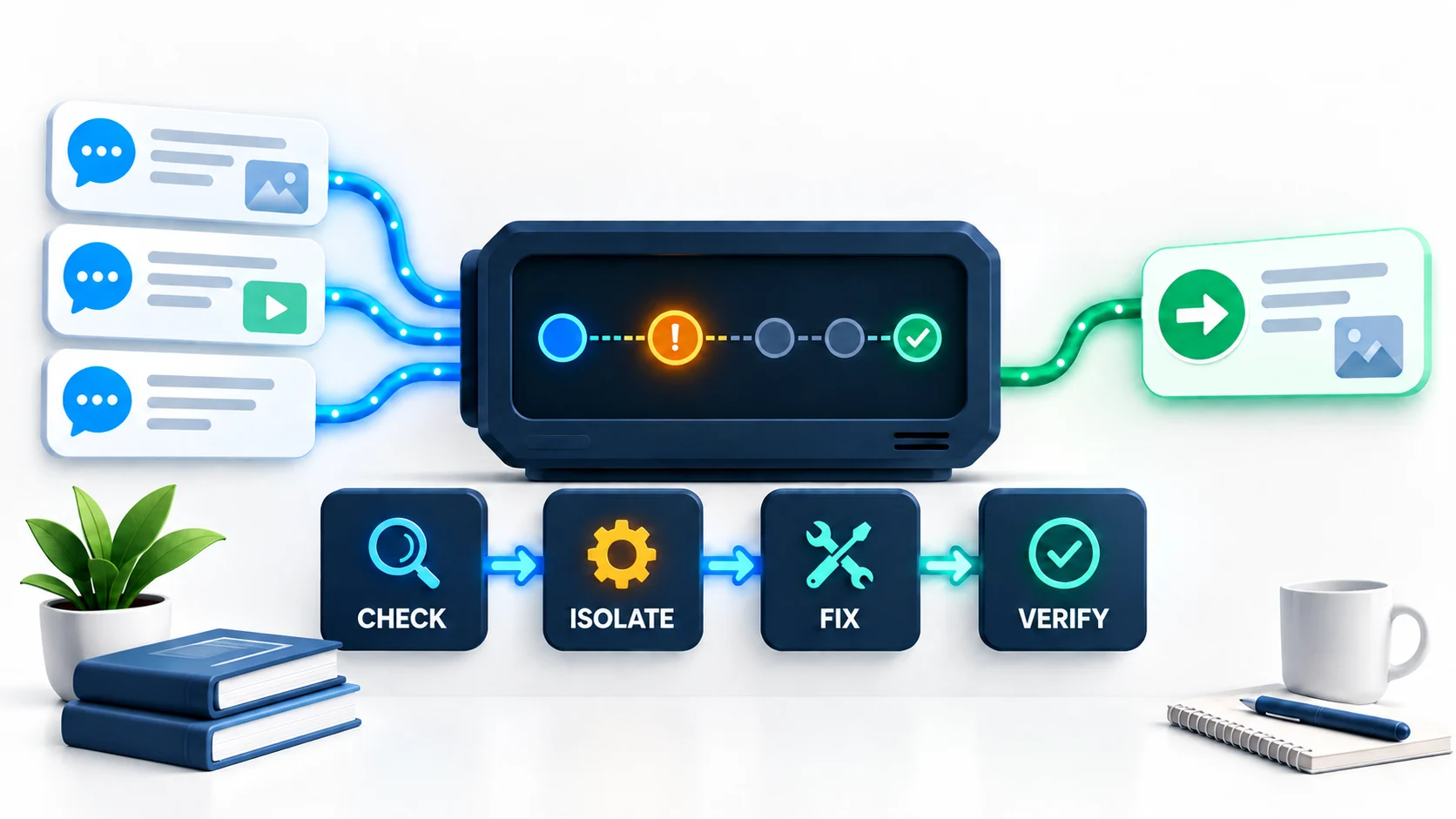
If Telegram-to-WhatsApp forwarding is not working, do not delete and rebuild everything first. Check five layers in order: the WhatsApp connection, the Publish Task state, a fresh plain-text test, the selected source and destination, and finally any schedule or content rules. Move to media troubleshooting only after plain text works.
This order matters because a missing message can look identical at the destination even when the cause is completely different. An expired linked session, a stopped task, an old source message, the wrong destination, a delay, and a filtered content type all require different fixes.
Auto-Bot.io is an independent editorial site. It does not develop or operate RedFox Auto Forward Telegram. Product behavior below reflects the first-party WhatsApp setup guide and dated implementation observations checked on September 17, 2026. The first-party page is used here for addon, menu, status, QR, destination, and task-flow evidence; its binary-media sentence is not treated as current media proof. These observations do not establish current production uptime or delivery rates.
The shortest safe fix path
Before reconnecting: verify that you recognize and authorize the third-party service asking to link the account. A WhatsApp linked-device flow, an unofficial third-party WhatsApp client or session, and the official WhatsApp Business Platform are materially different. Do not scan a fresh QR until you understand which mechanism is being used.
Entitlement preflight: confirm that the External Publish addon is active for the signed-in AutoForward account. If Publish is locked or asks you to unlock the addon, complete that flow and return to Publish before diagnosing the WhatsApp session or task.
- Confirm the External Publish addon is active.
- Open Publish → Manage Accounts. The WhatsApp connection should show Connected, not Pending or Reconnect required.
- Open the Publish Task. Its status should be Running.
- Send a new plain-text message after the task is running, from one exact Telegram source selected in the task.
- Confirm the task still points to the intended single WhatsApp Contact, Group, or Channel. RedFox labels a Channel destination Newsletter.
- If the baseline still fails, record the current settings and isolate schedule, filter, cleaner, and duplicate rules one category at a time.
A green or Connected label is only one checkpoint. It does not by itself prove that the source event, task eligibility, route, content preparation, and destination publication all succeeded. The controlled test closes that gap.
Match the symptom to the next check
| What you see | Most useful next check | Do not do yet |
|---|---|---|
| Publish is locked or External Publish is inactive | Verify the signed-in AutoForward account and complete the addon unlock flow, then return to Publish. | Do not keep reconnecting WhatsApp; entitlement and session health are separate layers. |
| QR code expired | Generate a fresh QR with Retry or Reconnect and scan it from WhatsApp Linked devices. | Do not publish or send a screenshot of the QR. |
| Reconnect required | Reconnect the existing WhatsApp account, wait for Connected, then refresh the task connection. | Do not create multiple replacement accounts for the same saved connection. |
| Destination list is empty | Confirm Connected, reopen the picker, clear search, choose All, and refresh. | Do not assume a missing destination proves it is unsupported. |
| Task is Stopped | Select Start Publish, wait for Running, then send a new test. | Do not expect messages sent while stopped to appear later. |
| Old Telegram post did not arrive | Send a new disposable message after task creation. | Do not use historical posts as a new-message test. |
| Plain text arrives, one media type does not | Keep the route unchanged and test that exact format in a controlled destination. | Do not reconnect and change media, source, and destination at the same time. |
| WhatsApp says the account is restricted or banned | Stop the task and use WhatsApp's in-app review process if it is offered. | Do not try to evade the restriction with repeated reconnections or third-party promises. |
The five-step diagnostic ladder
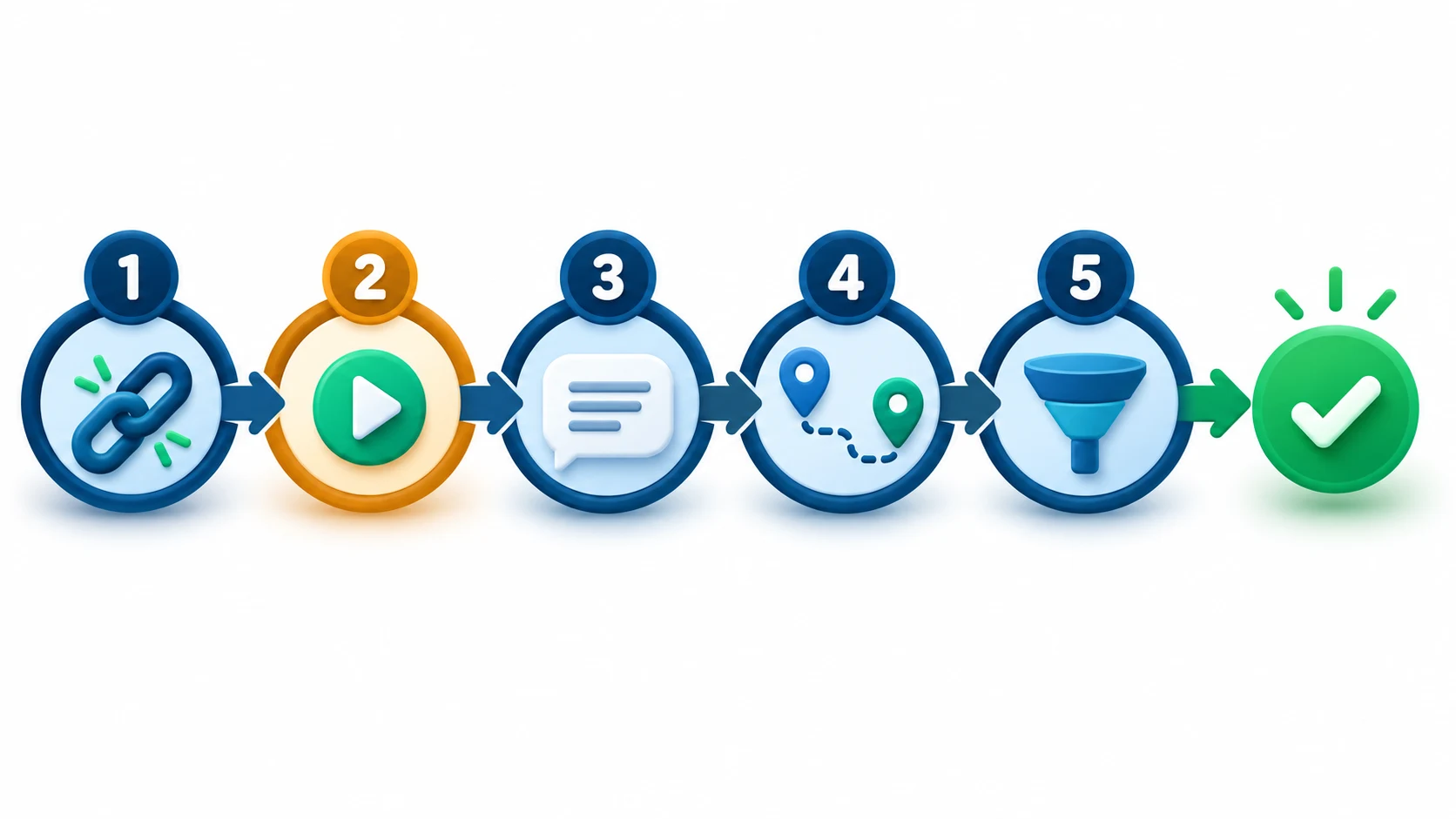
The ladder starts with the broadest dependency and ends with the most configuration-specific one. If a step fails, fix and repeat the same harmless test before moving forward. That keeps the evidence attributable to one change.
1. Check the WhatsApp connection
Open Publish → Manage Accounts and inspect the saved WhatsApp account. In the current first-party flow, the useful states are:
- Connected: continue to the task-state check.
- Pending: pairing has not finished; keep the QR screen open and complete the scan on the primary phone.
- Reconnect required: generate a fresh QR, scan it, and wait for Connected before refreshing the task.
If the QR code expired or will not scan
- Use Retry or Reconnect so the screen shows a fresh QR.
- On the authorized primary phone, open WhatsApp → Linked devices → Link a device.
- Keep the complete QR visible and let the camera focus.
- Wait for RedFox to show Connected.
Treat a live QR as a temporary credential. Do not put it in a support ticket, article comment, public chat, or screenshot. WhatsApp recommends reviewing Linked devices and removing devices you do not recognize.
If the session was logged out or replaced
The inspected runtime treats logged-out, connection-failure, and replaced-stream events as connection failures rather than a usable session. Reconnect the saved account only after confirming that you recognize and authorize the linked-device relationship. A fresh QR repairs the connection layer; it does not change a wrong source, destination, or filter.
Evidence boundary: the menu names above come from the linked first-party setup guidance reviewed on September 17, 2026. The connection-event behavior is a dated implementation observation, not a permanent public product contract. A successful reconnect still does not establish destination delivery.
2. Confirm the Publish Task is running
Open the relevant task and check its status. Running means the task is eligible to monitor new source events. Stopped means it is paused; select Start Publish, wait for Running, and then create a new test event.
The first-party setup guide lists an active External Publish addon as a prerequisite, and the inspected implementation also requires an enabled external-publish configuration. If the addon is inactive, complete the unlock flow and return to Publish. If access disappeared unexpectedly, verify that you are signed in to the intended AutoForward account before changing the route. Connection health, entitlement, and task health are separate checks: a linked WhatsApp account can be Connected while the addon is inactive or the task is stopped or disabled.
If the task page exposes recent event or send status, use it to locate the break:
- No Telegram event detected: investigate the selected source, source access, and new-message trigger.
- Event detected but no send attempt: investigate task state, schedule, filters, cleaners, and duplicate handling.
- Send attempted but nothing arrived: investigate the linked WhatsApp session, resolved destination, and provider-side acceptance.
If the UI does not expose this detail, do not invent it. Record the exact test time and include it in a redacted support packet.
Do not test with an old message
This publish flow is for new messages after the task exists and is running. It does not establish automatic history backfill. Forwarding an old post manually, editing an old Telegram message, or deleting and recreating content does not test the same event path. Send a fresh, harmless line such as Route test 2026-09-17 A from a selected source instead.
3. Send a fresh plain-text baseline
Plain text is the fastest useful baseline because it removes download, MIME type, filename, caption, album ordering, and representation changes from the first test. Use one new message with no link preview, formatting experiment, attachment, reply, edit, or delete.
- Keep the task Running.
- Choose one selected Telegram source that you control.
- Send one new text-only message with a unique timestamp or short identifier.
- Open the exact selected WhatsApp destination.
- Record whether the message arrived and its visible time; do not infer a general delivery speed from one sample.
Use a new unique marker for every attempt. Reusing identical test text can be confused with duplicate handling, so make this check before changing filters or media.
If the text arrives, preserve the connection and route. Your next branch is content-specific: media preparation, filtering, cleaner behavior, scheduling, or representation. If text does not arrive, continue to route verification before touching media.
4. Verify the Telegram source and WhatsApp destination
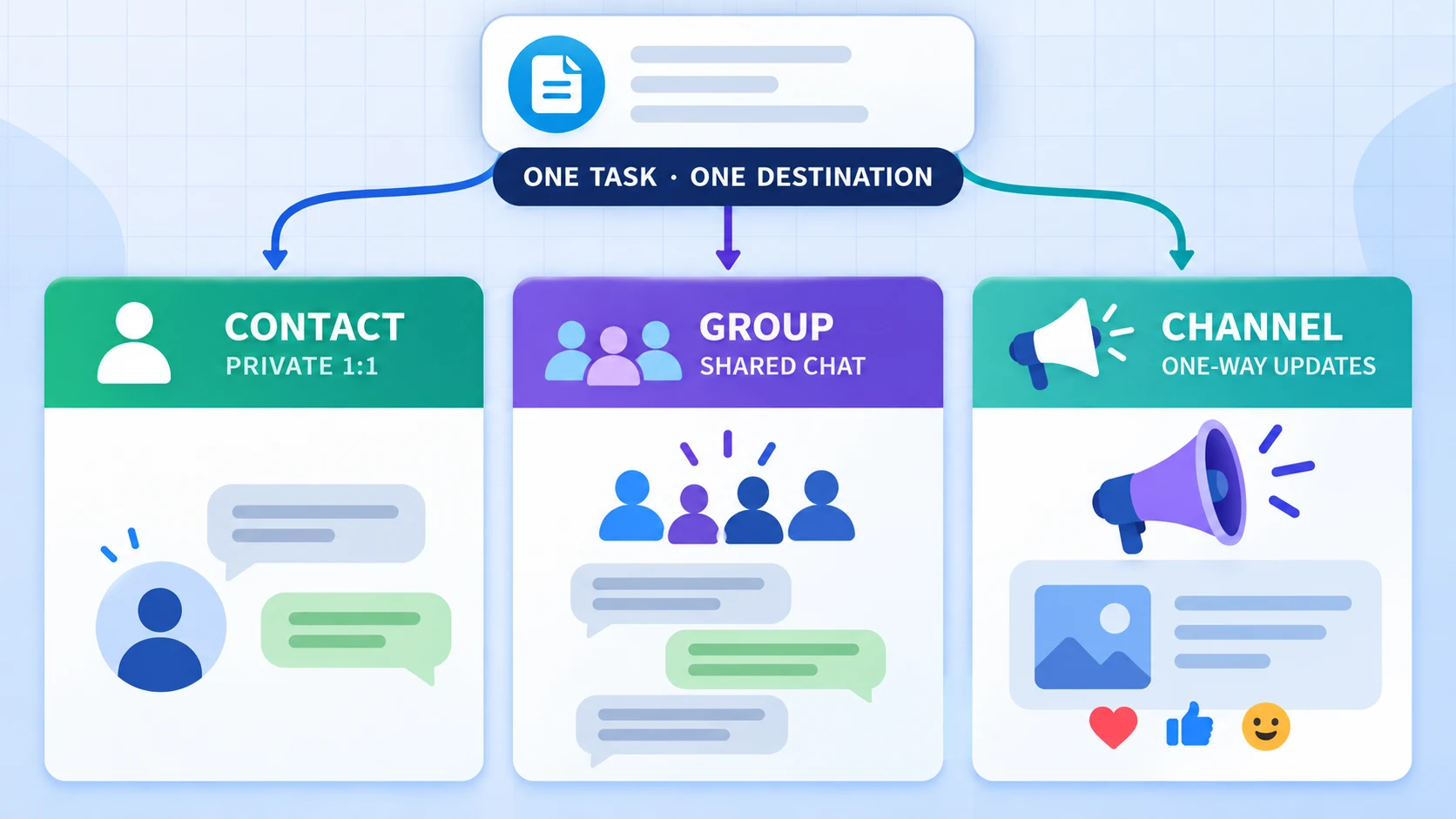
A RedFox WhatsApp Publish Task stores one destination: Contact, Group, or Newsletter. Newsletter is the product/runtime label for a WhatsApp Channel destination. Reopen the task review screen and verify both ends of the route.
Source checks
- The exact Telegram chat, group, or channel used for the test appears in the selected source list.
- The connected Telegram account can still view that source.
- The test was created in the source itself, not in a look-alike chat with a similar name.
Source visibility is not proof that the automation received the new-message event. Use a fresh message in that exact source to test the trigger path; if the account cannot receive the relevant channel or group event, destination changes will not repair the route.
Destination checks
- The task shows the intended Contact, Group, or Newsletter.
- The chosen destination is still available to the linked WhatsApp account.
- The selected destination type matches the route you intend; a Group and a Channel are not interchangeable.
If the picker is empty, return to the connection check, confirm Connected, clear any search text, set the filter to All, and refresh. If you are unsure which destination fits the audience, use the Contact vs Group vs Channel decision guide before changing the task.
5. Inspect schedule and content rules
RedFox's external-publish task contract can feed schedule, delay, message-type filters, cleaners, and duplicate controls into the shared pre-send pipeline. A route can therefore be healthy while a rule intentionally delays, transforms, or excludes the test.
Use a controlled rule-isolation sequence
- Record the current task settings before changing anything.
- Check for an active schedule or delay. If one exists, test within its intended window or temporarily neutralize it on a controlled task.
- Check message-type filters. A text, photo, video, audio, document, animation, sticker, poll, forward, link, album, reply, or button rule may affect a matching test.
- Check cleaners. A cleaner can remove text, links, mentions, hashtags, previews, emoji, or media components before publication.
- Check duplicate rules if a repeated test is missing. Use a unique text identifier rather than resending the identical message.
- Change one category, send one new test, and record the result before the next change.
Do not permanently remove production safeguards merely to make a test pass. The goal is to identify which configured rule owns the outcome, then restore or revise that rule deliberately.
When text works but media does not
A successful text baseline narrows the issue but does not prove that every Telegram object will appear as the same native WhatsApp object. The inspected path accepts text or one prepared media item per publication part. Albums can be published as ordered parts, and structured Telegram content may become a readable text equivalent.
Keep the same source, destination, connection, and task settings. Then test exactly one content type:
- Use a small, disposable example you are allowed to redistribute.
- Add a short caption when the format supports one.
- Check whether the file, caption, readable representation, or ordered parts appear.
- Record the Telegram type, visible WhatsApp result, destination type, and test date.
Use the Telegram-to-WhatsApp supported-media matrix for format-by-format evidence and representation notes. Its dated controlled readbacks are bounded observations, not a promise for every file, account, destination, client, or future provider state.
Account restrictions and safe recovery
If WhatsApp itself reports that the account is restricted or banned, stop the Publish Task. Do not keep reconnecting, rotate accounts to continue the same behavior, or pay a third party that claims it can remove the ban.
WhatsApp says banned accounts may receive an in-app Request review option. Use that official route when available. WhatsApp also says third parties cannot ban or unban an account. Review the official account-ban guidance and the WhatsApp Messaging Guidelines.
For future operation, send only to audiences and destinations where you have authorization. Avoid repeated unwanted contact, spam, harmful automation, and content you do not have the right to redistribute. Access to a Telegram source does not automatically grant permission to republish it on WhatsApp.
Prepare a safe support packet
If the controlled ladder still fails, preserve useful evidence without exposing account access:
- task label and current task status;
- connection status, without the QR or linked-device details;
- test date and timezone;
- whether the fresh plain-text baseline arrived;
- source type and destination type, using generic labels rather than private names;
- which single rule category was changed and what happened;
- a redacted screenshot with phone numbers, avatars, chat names, IDs, QR codes, message content, and linked-device information removed.
Contact RedFox through its verified product surface and provide the smallest reproducible case. Do not post credentials, session files, live QR codes, private invite links, or unredacted logs. If support requests broad access, verify the request and grant only the minimum permission you intentionally approve.
Frequently asked questions
- Why is my Telegram message not appearing in WhatsApp?
- The most common diagnostic branches are a disconnected WhatsApp session, a stopped or disabled Publish Task, an old message used as the test, the wrong source or destination, or a schedule/filter/cleaner/duplicate rule. Start with a fresh plain-text message and move through the five checks in order.
- Why does RedFox say Reconnect required?
- The saved linked session needs a new pairing. Open Publish → Manage Accounts, reconnect the existing WhatsApp account, scan the fresh QR from WhatsApp Linked devices, wait for Connected, and then refresh the task. This repairs the connection; it does not change task routing or rules.
- Can a Connected WhatsApp account still fail when External Publish is inactive?
- Yes. The linked session, External Publish addon, and Publish Task are separate checks. Confirm the addon is active for the signed-in AutoForward account, then confirm the task is Running before testing a new message.
- Why is the WhatsApp destination list empty?
- First confirm that the WhatsApp account is Connected. Reopen the picker, clear the search field, select All, and refresh. Also confirm that the intended Contact, Group, or Channel is available to the linked WhatsApp account.
- Why does text work but a photo, video, file, or album does not?
- That pattern points to content preparation, a message-type rule, or a representation difference rather than the basic route. Keep the route unchanged, test one exact format, and compare it with the supported-media matrix. An album may arrive as ordered parts rather than one native grouped object.
- Should I delete the task and create it again?
- Not as the first step. Record the route and rules, repair the failed layer, and repeat the same controlled test. Delete or rebuild only when the task configuration itself is no longer needed; otherwise rebuilding can erase the evidence that identifies the cause.
Start or reconnect safely
If setup was never completed, return to the full Telegram-to-WhatsApp setup guide. If the task exists, use the five-step ladder above before changing production settings.
Open the current product: review the RedFox Auto Forward Telegram product page, use @AutoForwardNew_Bot, or continue in the Web app, iOS app, or Android app.
Connect only an account you are authorized to use, test with a harmless private route, and verify the result before enabling a production audience.
Continue in the Exact RedFox Auto Forward Telegram Bot
Verify @AutoForwardNew_Bot, then use the current RedFox documentation while configuring your workflow.
Check current plans and limits in the bot