Auto Forward Telegram to WhatsApp | RedFox Guide
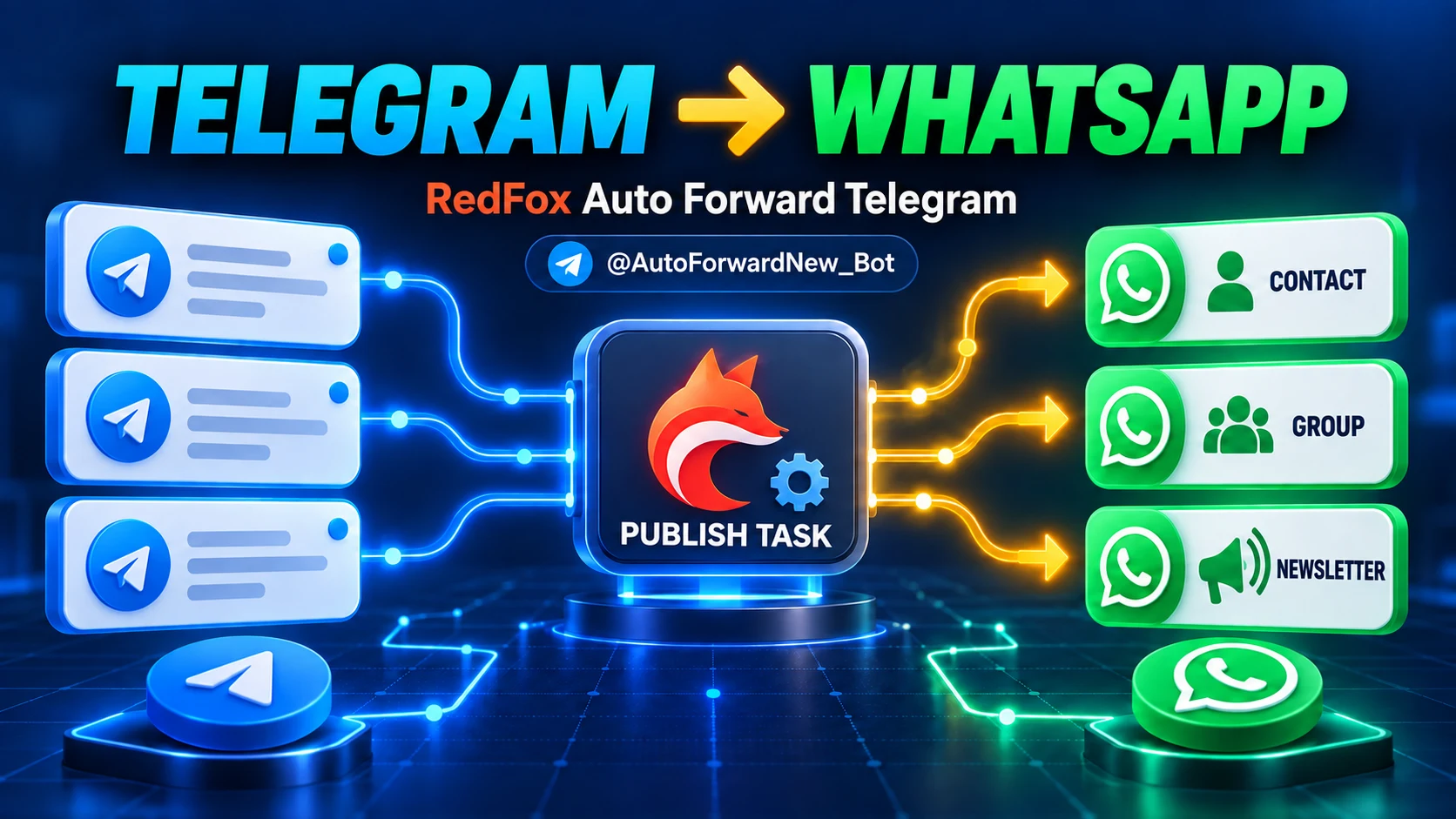
Yes—you can automatically publish new messages from one or more Telegram sources to a WhatsApp Contact, Group, or Channel with RedFox Auto Forward Telegram. In the RedFox interface, a WhatsApp Channel is labeled “Newsletter.” Connect the account by scanning a QR code, choose your sources and one destination, create a Publish Task, then verify it with a new test message. This QR-based connection does not require a WhatsApp Phone number ID or access token.
That last detail matters: this is not the manual Share button, and it is not a promise to copy your old Telegram history. The task watches for new messages after creation. Each task uses one WhatsApp destination, while separate tasks can serve different Contacts, Groups, or Channels.
Auto-Bot.io is an independent editorial site. It does not develop or operate Auto Forward Telegram. Last verified September 16, 2026: vendor documentation supports the setup steps; WhatsApp documentation supplies the platform guidance; and the bounded media observations are identified separately below. Product and platform behavior can change, so run the controlled test in this guide before using a production destination.
Key facts before you start
- Connection: RedFox asks you to authorize its QR-based connection from WhatsApp's Linked devices screen.
- Credentials: no Phone number ID or access token is needed for this flow, but scanning the QR code still authorizes a linked session.
- Sources: select one or more Telegram chats, groups, or channels you can access.
- Destination: choose one WhatsApp Contact, Group, or Channel per task; RedFox labels the Channel option “Newsletter.”
- Timing: new messages only; older Telegram messages are not automatically reposted.
- Changes: Telegram edits and deletes are not mirrored to WhatsApp.
- Access: an active External Publish addon is required.
- Operation: according to RedFox product guidance, after activation the task runs in RedFox's cloud; you do not need to keep the management screen open. The linked WhatsApp session must remain valid. This statement does not measure delivery time or success rate.
- Platform status: the QR flow is not presented here as an official WhatsApp Business API integration. Read WhatsApp's linked-device warning before using an important account.
If your main question is simply “Can I forward a Telegram channel to a WhatsApp group automatically?”, the answer is yes: select the Telegram channel as a source, choose the WhatsApp group as the task destination, create the task, and send a new controlled test message. Do not use a production group as your first test.
Open the Web app to follow the steps below, or review the Auto Forward Telegram product overview before choosing Web, iOS, Android, or the current bot.
How Telegram-to-WhatsApp publishing works
The workflow has three parts:
- Telegram source layer: one or more selected chats, groups, or channels provide new messages.
- Publish Task: RedFox monitors those selected sources and prepares supported content for the external destination.
- WhatsApp destination: one Contact, Group, or Channel receives the published output. RedFox calls the Channel option “Newsletter.”
This design is useful when the same update must reach communities on both platforms. A news operator might watch two Telegram announcement channels and publish to one WhatsApp Channel. A support team might route a Telegram incident feed to a private WhatsApp Group. A creator might send channel updates to a WhatsApp Contact used for a controlled archive. In every case, the operator must have permission to access the source and send to the destination.
The task is directional: Telegram is the source and WhatsApp is the destination in this guide. Nothing here establishes two-way synchronization, historical migration, or mirroring of later edits and deletes.
What you need
- An Auto Forward Telegram account that is signed in and connected to Telegram.
- Access to every Telegram source you plan to select. For a private source, the connected Telegram account must already be able to view it; see the separate guide to forwarding from a private Telegram channel safely.
- An active External Publish addon.
- An active WhatsApp account on the primary phone that will authorize the linked session by scanning the QR code.
- Permission to send content to the chosen WhatsApp Contact, Group, or Channel.
- A harmless test source and destination that you control.
Do not begin with a customer group, paid community, trading feed, or high-volume announcement channel. A small controlled route makes it easier to distinguish a connection problem from a source, destination, or content-format issue.
Connect WhatsApp by QR code
1. Open Publish and add an account
From the Auto Forward Telegram home screen, open Publish, select Manage Accounts, and choose Add Account. Select WhatsApp as the platform, enter a descriptive account name such as Main WhatsApp, and choose Add connection.
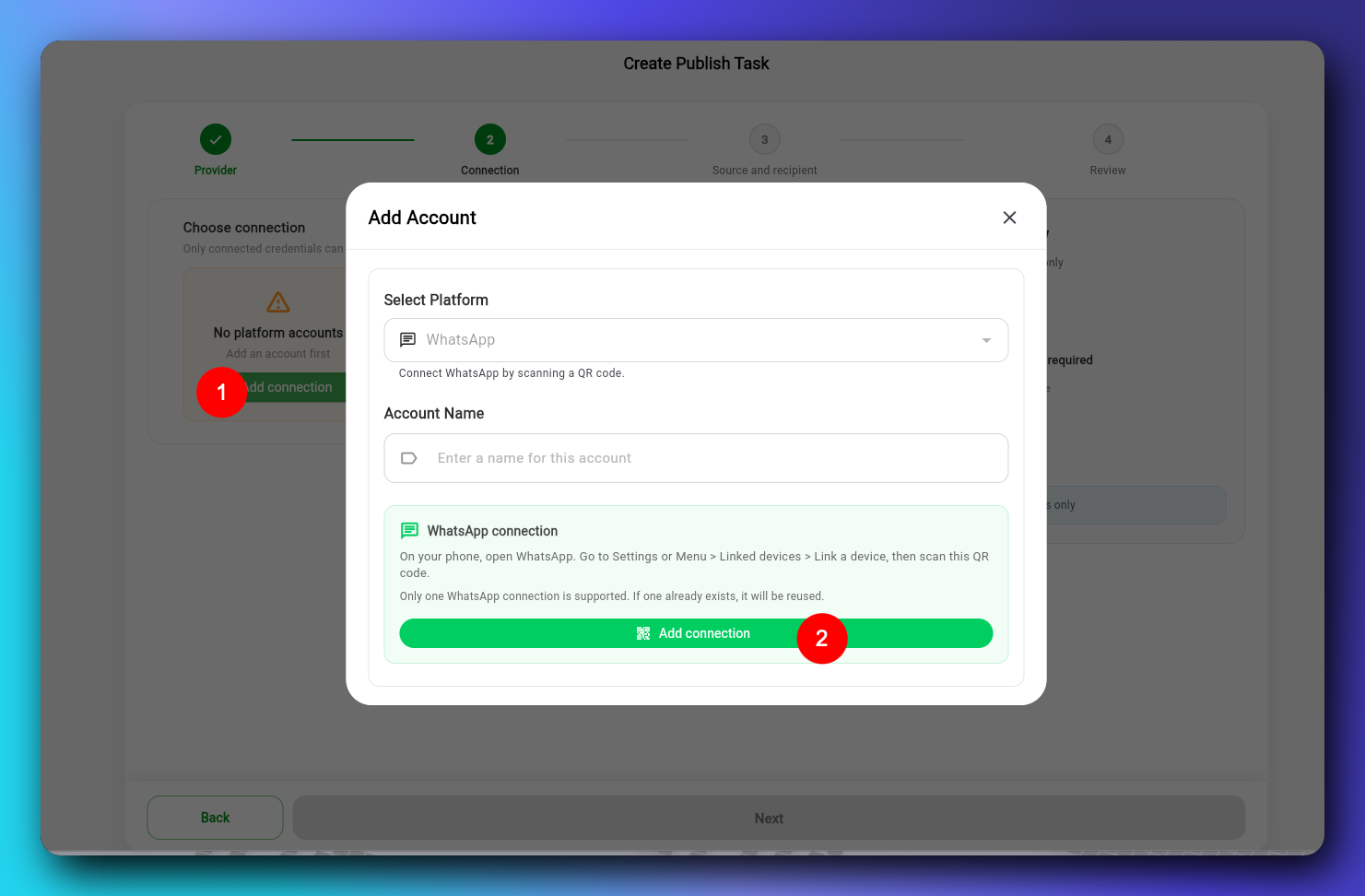
Last verified September 16, 2026: the current RedFox flow supports one saved QR-paired WhatsApp account/session for this connection path. If that connection already exists, the product reuses it instead of creating a second one.
2. Open Linked devices on your phone
Keep the Auto Forward QR screen visible. On your primary phone, open WhatsApp and go to Linked devices → Link a device. On iPhone this is normally under Settings; on Android it is normally available from the main menu. WhatsApp may ask you to confirm your identity on the phone before the scanner opens.
Before scanning: WhatsApp's supported-device list does not by itself verify RedFox's endpoint. WhatsApp separately warns that linking through unofficial apps or websites can expose an account to security, privacy, restriction, or ban risk. Continue only if you understand that distinction and are testing an account you can afford to disconnect.
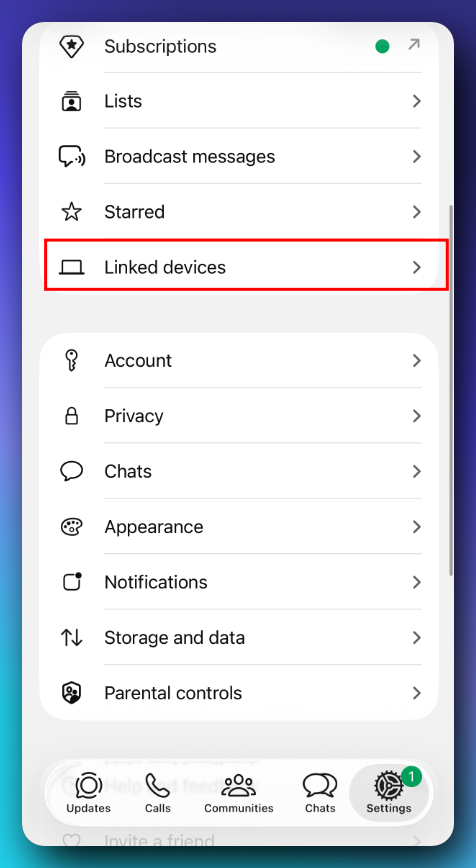
3. Scan and wait for Connected
Point the phone at the QR code displayed by Auto Forward Telegram. Wait until the connection status changes to Connected before returning to the task wizard.
If the QR code expires, use Retry or Reconnect to display a new one. Do not publish, share, or archive a live QR code: treat it as a temporary session credential.
For the official phone-side sequence and supported-device warning, see WhatsApp's linking instructions and About linked devices. For RedFox's QR, connection, source, destination, and task screens, use the first-party setup guide and the RedFox Official video tutorial. The guide's older text-only media wording does not describe the later runtime evidence used for the content map below, so it is cited here for setup steps—not as media-support proof.
Create and test a Publish Task
Step 1 — Choose WhatsApp as the provider
On Create Publish Task, select WhatsApp under Provider. The summary should identify WhatsApp as the provider. If it says Reconnect required, reconnect before continuing.
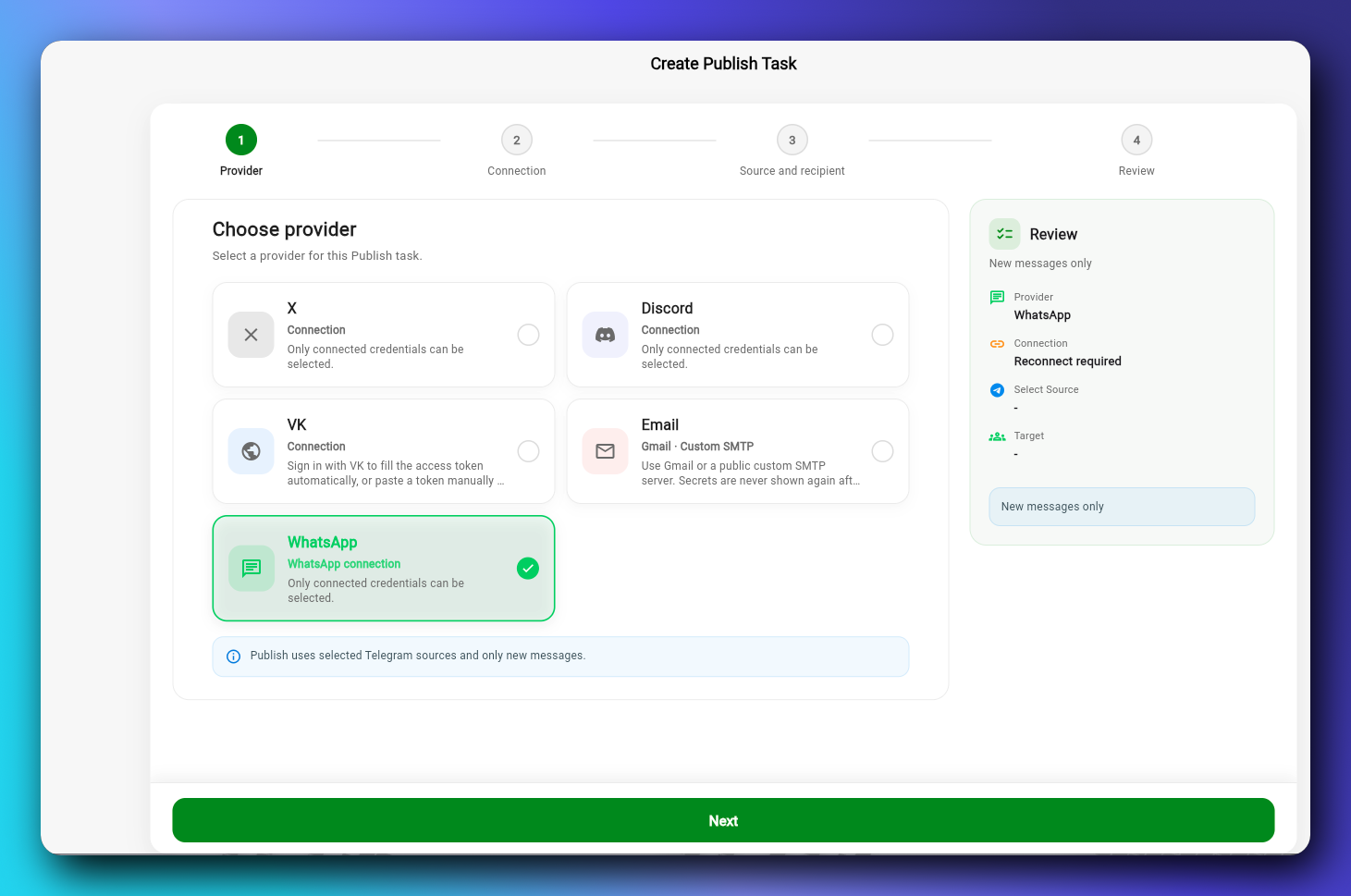
Step 2 — Choose the connected account
Select the account whose status is Connected. If no account appears, add the WhatsApp connection first. If the saved account needs attention, reconnect it and refresh the connection list.
Step 3 — Select Telegram sources and one destination
Open the Telegram source selector and choose one or more sources. Then choose one WhatsApp destination:
- Contact for a one-to-one destination.
- Group for a collaborative or community destination.
- Newsletter in the RedFox interface for publishing to a WhatsApp Channel.
Use destination search or filters when the list is long. Confirm the selected row with Use this destination. A task stores one WhatsApp destination; create a separate task for another destination.
Step 4 — Review and create
Give the task a recognizable name, then check the provider, connection, Telegram source count, source names, target, and New messages only rule. Choose Create Publish Task only when the summary is correct.
Run a controlled test
- Confirm that the task status is Running.
- Send a new plain-text message to one selected Telegram source.
- Open the chosen WhatsApp destination.
- Confirm that the message appears once and is readable.
- Test one supported media type at a time before enabling a production route.
If the task is Stopped, start it before sending the test. A message sent before task creation or while the task is stopped is not a valid new-message test.
What content can be published
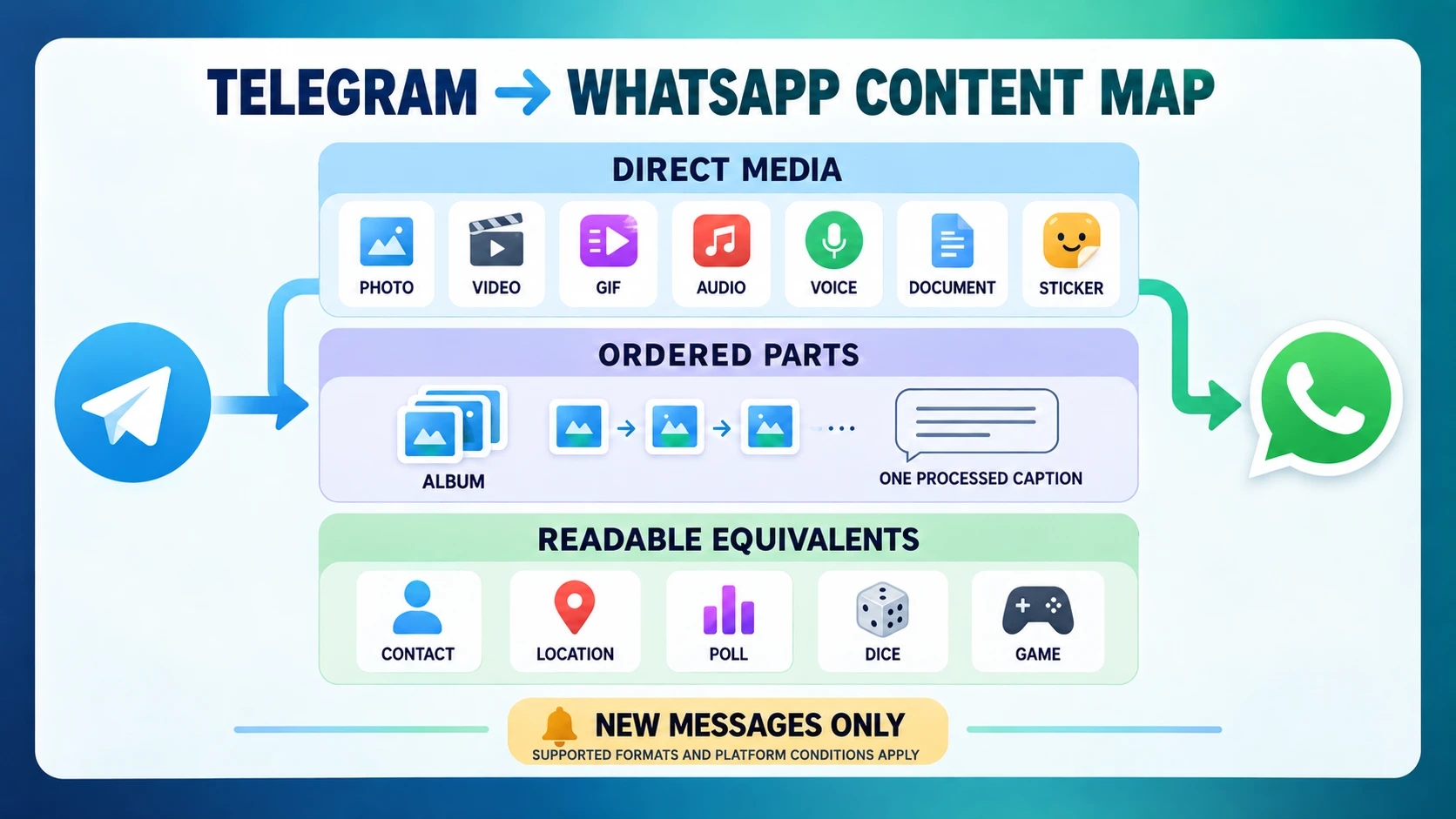
Evidence scope: on September 16, 2026, Auto-Bot.io inspected the released RedFox publication path and reviewed a retained controlled provider-readback receipt from September 8, 2026. The receipt used a controlled test WhatsApp Channel, its existing paired session, and neutral test files. Provider readback recorded video, GIF, audio, voice, sticker, document, and a two-part video album; downloaded bytes matched for the tested files, and the album retained ordered part receipts with one processed caption. This was a bounded engineering test—not a public WhatsApp capability statement, an authenticated-client visual audit, natural Telegram-ingress test, repeated reliability study, or success-rate benchmark. It does not establish a numeric provider limit, identical behavior for every client and format, or successful delivery for untested variants.
| Telegram content | Current handling | What to verify |
|---|---|---|
| Text | Published as message text; long messages may be split into multiple WhatsApp messages. | Paragraphs, links, and any formatting your workflow needs; no fixed provider threshold is claimed here. |
| Photo | The inspected RedFox runtime contains an image-publication path. | Test the exact image format, caption, and destination display. |
| Video | The controlled readback recorded video; Telegram video notes use the video path. | Test format, preparation time, and final playback in the target client. |
| GIF / animation | The controlled readback recorded a GIF converted to an animation/video representation. | Test animation behavior in the selected WhatsApp destination. |
| Audio and voice | The controlled readback recorded both audio and voice-note paths. | Test playback, file identity, and voice-note presentation. |
| Document | The controlled readback recorded a document publication. | Test filename, type, and successful download from the destination. |
| Sticker | The controlled readback recorded a static WebP sticker; other sticker preparation can be conditional. | Test the exact sticker format; TGS animation is not claimed. |
| Album / media group | A two-video test album was published as ordered parts with one processed caption. | Test order and caption placement. Do not expect this to appear as a native WhatsApp album object. |
| Contact, location, venue, poll, dice, game | The inspected runtime can prepare readable text equivalents. | For example, a poll can arrive as text describing the question and choices rather than as an interactive WhatsApp poll. |
| Preparation-dependent or rich content | May require preparation or may not be unconditional passthrough. | Test the exact paid media, story, rich-message, or uncommon format before production. |
The important distinction is between supported handling and identical native representation. A poll represented as readable text is not a live WhatsApp poll. An album sent as ordered parts is not proof of a native grouped album. Use the Telegram-to-WhatsApp supported-media matrix for the evidence status, representation change, and staging check for each content type. For a deeper Telegram-side explanation, see Telegram Album Delivery Modes Explained.
Choose Contact, Group, or Channel
| Destination | Best fit | Main check |
|---|---|---|
| Contact | Controlled one-to-one delivery, private operations, or a test destination. | Confirm you selected the intended person/account and have permission to send. |
| Group | Team coordination, support, community discussion, or a private shared feed. | Review group rules, audience expectations, and sending permission. |
| Channel (labeled “Newsletter” in RedFox) | One-to-many announcements where WhatsApp Channels are available to the linked account. | Confirm the correct Channel and test how media and captions render to followers. |
Choose by audience behavior, not by label alone. A Group invites conversation; a Channel is oriented toward broadcasting; a Contact is the safest place for a first isolated test. If you need two destinations, create two tasks so each route remains explicit and independently testable. Use the WhatsApp Contact vs Group vs Channel decision guide for the detailed interaction, privacy and authorization comparison.
Limits and behavior to know
- New messages only: the task starts with new source events after creation. It does not automatically backfill old Telegram history.
- One destination per task: select one Contact, Group, or Channel. Use separate tasks for separate destinations.
- One WhatsApp connection: the current QR path reuses one saved paired account/session rather than creating another connection.
- No edit/delete mirroring: later Telegram edits and deletes are not synchronized to the WhatsApp copy.
- Representation can differ: structured Telegram messages may become readable text, and albums use ordered parts.
- Conditions apply: formats, preparation, account state, client behavior, permissions, and platform rules can affect a route.
- Not an official-API claim: no Phone number ID or token is required for this QR path, but this article does not claim official WhatsApp Business API status or immunity from account restrictions.
These boundaries are useful design inputs, not defects to hide. If your workflow requires historical import, bidirectional sync, mirrored deletes, or a native interactive equivalent for every Telegram object, this specific publish flow does not establish that requirement.
Troubleshooting decision tree
| What you see | What to do next |
|---|---|
| QR code expired | Select Retry or Reconnect, wait for a fresh QR code, and scan it from Linked devices. |
| Reconnect required | Open Publish → Manage Accounts, reconnect the existing WhatsApp account, wait for Connected, then refresh the task wizard. |
| No destination appears | Confirm the connection is Connected, reopen the destination picker, clear search, select All, and refresh. |
| Next button is disabled | Check that both a Telegram source and a WhatsApp destination have been selected. |
| New test message did not arrive | Confirm the task is Running, the message was sent after task creation, the source is selected, and the destination is still correct. Test plain text first. |
| Old message did not arrive | This is expected in a new-messages-only flow. Send a new disposable test after the task is Running. |
| Media behaves differently than expected | Test the exact media type and format in a controlled destination. Check whether the content is represented as ordered parts or a readable equivalent rather than a native object. |
| Task is Stopped | Select Start Publish, wait for Running, then send a new test message. |
| Linked session was logged out | Stop the Publish Task, remove the stale session from WhatsApp Linked devices, then decide whether to reconnect after reviewing WhatsApp's platform warning. |
| WhatsApp account is restricted or banned | Stop the Publish Task and remove the linked session. Do not try to evade the restriction. If WhatsApp offers Request review in the app, use that official process. |
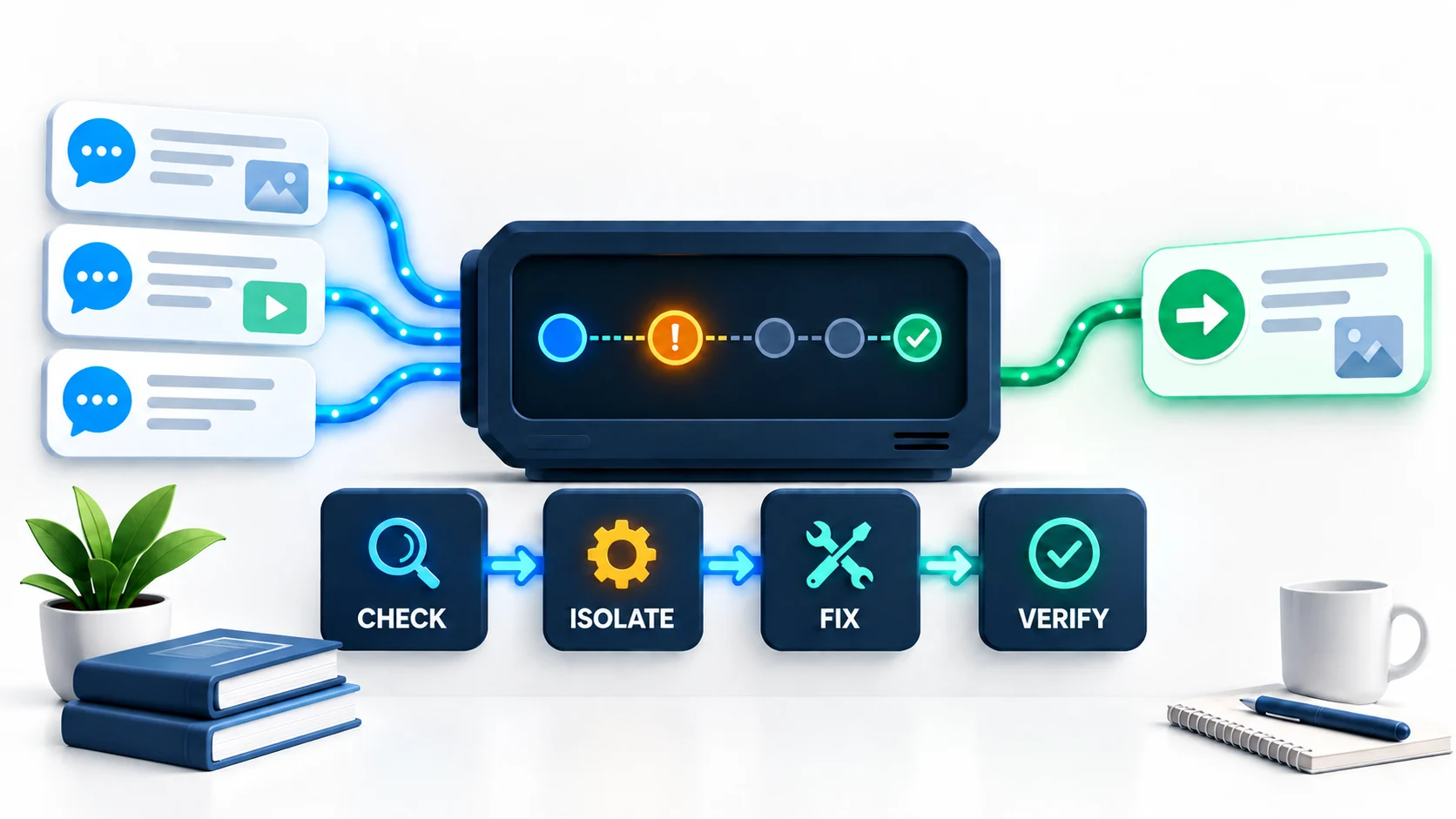
Change one variable at a time. Reconnecting the account, changing the source, replacing the destination, and testing a new media type simultaneously makes the failure harder to isolate. WhatsApp explains its in-app review process in About account bans; third parties cannot remove a WhatsApp ban.
For a route that is already configured but still does not deliver, use the step-by-step Telegram-to-WhatsApp troubleshooting guide to check External Publish entitlement, session state, task status, a fresh text baseline, routing, and rules in order.
Security and privacy checklist
- Use only Telegram sources and WhatsApp destinations you are authorized to access.
- Treat a live QR code as a temporary credential. Never publish or send it to another person.
- Do not interpret “no API token” as “no authorization.” Scanning the QR code authorizes a linked session that can act on the connected account.
- Before sharing screenshots, remove phone numbers, chat names, profile images, IDs, message content, and linked-device details.
- Use a harmless test message and a controlled destination before routing production content.
- Review WhatsApp Linked devices periodically and remove any device you do not recognize.
- Read WhatsApp's linked-device warning and Messaging Guidelines. Avoid spam, unwanted bulk contact, and any use that harms WhatsApp or its users.
- Respect source-content rights, community rules, and audience consent. Access to a Telegram chat does not automatically grant redistribution rights.
Frequently asked questions
- Can I auto forward a Telegram channel to a WhatsApp group?
- Yes. Select the Telegram channel as a source, choose the WhatsApp Group as the single task destination, create the task, and send a new test message after the task is Running.
- Can one task send to several WhatsApp destinations?
- No. The current flow stores one Contact, Group, or Channel per task. Create separate Publish Tasks for separate destinations.
- What does “Newsletter” mean in RedFox?
- RedFox labels its one-to-many WhatsApp destination “Newsletter.” WhatsApp's current public product term is Channel. In this guide, both labels refer to that destination choice; confirm the selected Channel before creating the task.
- Do I need a Phone number ID or access token?
- No for the QR-based connection described here. You authorize the session from WhatsApp's Linked devices screen. No token does not mean no authorization, and it does not make this an official WhatsApp Business API integration.
- Is this an official WhatsApp Business API integration?
- This article does not establish that. The documented RedFox flow uses a QR-based linked session rather than a WhatsApp Phone number ID and access token. WhatsApp warns that linking through unofficial apps or websites can put an account at risk, so test with a non-critical account and review the official platform guidance before production use.
- Will it forward photos, videos, documents, voice, and albums?
- The current RedFox runtime supports the media families described in the content map, subject to supported formats and platform conditions. Albums are published as ordered parts with one processed caption; test your exact media before production.
- Will Telegram edits and deletes update WhatsApp?
- No. This flow processes new messages and does not claim edit or delete mirroring.
Start with the current RedFox product
For the fullest management interface, start from Web, iOS, or Android:
- Open Auto Forward Telegram on Web
- Install or update the iOS app
- Install or update the Android app
- Open the current Telegram bot @AutoForwardNew_Bot
Use the step-by-step video alongside the official guide for QR and task setup. Treat the media matrix in this article as later, bounded runtime evidence rather than as a restatement of that guide. Then create a small test route, confirm one plain-text message, and expand to the exact media your audience needs.
Continue in the Exact RedFox Auto Forward Telegram Bot
Verify @AutoForwardNew_Bot, then use the current RedFox documentation while configuring your workflow.
Check current plans and limits in the bot