Telegram Staff Bulletin: Require the Author and Release Marker
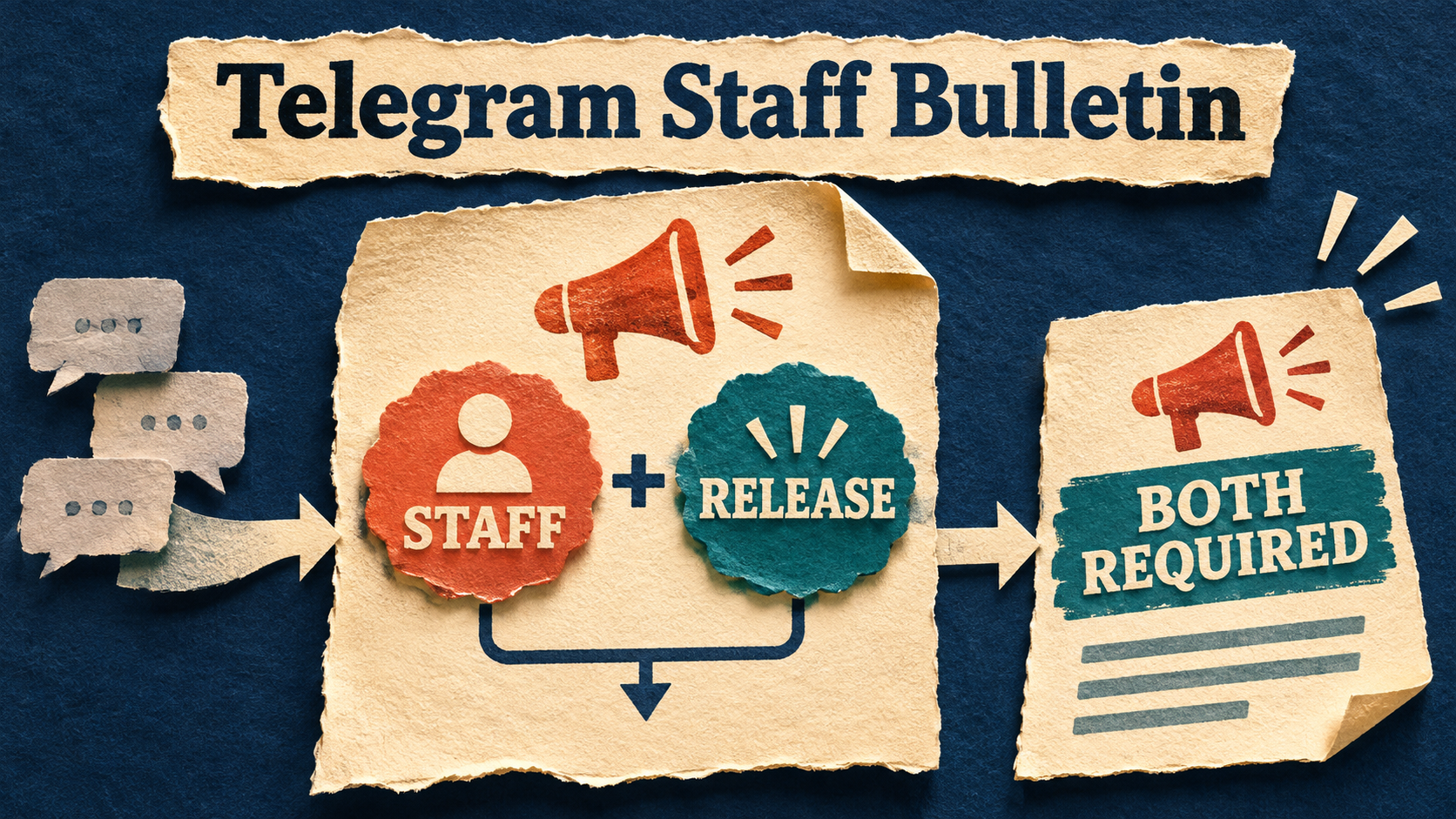
A staff bulletin should not copy everything staff say—or every message that contains an announcement word. In RedFox Auto Forward Telegram (@AutoForwardNew_Bot), build one combined Whitelist By User rule: the source author must be on your approved list and the message must match your release pattern. Keep both conditions inside the same rule. Two separately attached whitelists are alternatives, not a reliable way to require both.
The practical result is a discussion group that can also feed a focused announcement channel: staff keep talking normally, but deliberately marked notices become eligible for the bulletin. This walkthrough uses ordinary new, plain-text group posts from identifiable personal accounts. Anonymous-admin posts, channel identities, forwarded origins, replies and media need separate checks.
Define what counts as a publishable notice
Imagine a project group with two release coordinators and other team members. The coordinators also discuss drafts and meetings. Your bulletin should carry a coordinator’s finished notice, but not their casual discussion or a member’s imitation of the announcement wording.
- Author condition: the message comes from either approved coordinator’s confirmed Telegram User ID.
- Content condition: the message begins with
RELEASE:, followed by a space or tab and some non-whitespace content. - Scope: one source group, one bulletin task and an audience authorized to receive those notices.
Choose a different workflow if you want every message from a contributor: our sender-only guide deliberately allows their ordinary wording. If anybody in the group may publish a marked update, the keyword-selected group bulletin is the simpler policy. Here, neither identity nor wording is sufficient alone.
A marker is an agreed publishing convention, not an approval queue or a guarantee that a notice is accurate. An approved author who uses it has made the post eligible. Decide who may do that before configuring the route.
Use one combined rule—not two independent whitelists
RedFox’s Whitelist documentation distinguishes Basic, Regex and Whitelist By User, plus AND/OR conditions. For this bulletin, the author list belongs in a user-type rule; the release expression is an AND condition inside that rule. Do not create one sender whitelist and another keyword whitelist and assume their task associations produce an intersection.
With separate applicable whitelists, a matching rule can admit the message. A sender-only rule would therefore let staff discussion through; a marker-only rule could admit a nonstaff imitation. Both are exactly the messages this policy is meant to exclude. Check all-task rules too: an overlooked global whitelist can provide another matching route through selection.
The combined rule’s underlying content has this shape: USER_ID_A,USER_ID_B==AND==RELEASE_PATTERN. The comma separates approved authors; ==AND== begins the content condition. Keep the user list first and the content condition last. The interface’s additional-user and AND fields assemble this value; do not paste the entire combined string into a single User ID field.
Prepare one controlled route and confirm access
User filtering is Platinum-only in the Users Filter guide. The current product plan page, checked November 5, 2026, offers eligible new users a five-day Trial Platinum with full Platinum features. Confirm your active entitlement before configuring this rule. Basic Free routing is not a promise that this combined workflow is included.
Start with a private test group and destination you control, two consenting approved authors and one consenting nonstaff author. Use harmless original text, not confidential chat history. If you have never established basic delivery, follow the first-route setup guide first. The official task guide says a newly created task activates immediately, so choose the controlled target before creating it.
- Record the task label, source, target, current state, configured delays and existing whitelist, blacklist and type-filter associations.
- Verify each approved author’s numeric User ID against an ordinary message they wrote. Do not substitute a display name, group ID or destination ID. If using a helper lookup, share only a harmless authorized specimen and check whose identity it actually returns.
- Keep one delivery path into the test target. Another unfiltered task or manual repost can make an excluded message appear to have passed this rule.
- Use a new rule exclusive to this task. Do not repurpose a rule shared by other feeds or choose Apply For All Tasks.
Configure the author-plus-release gate in Web
Use the RedFox Web App for the advanced configuration below. The official guides document Features → Whitelist → Add New on Web and Dashboard → Whitelist → Add New in the mobile app. Work with the actual rule type and saved associations rather than relying on identical layouts across surfaces.
- Name the new rule
staff_bulletinand choose Whitelist By User. Keep this a post-based rule, not Reply or Reply Regex. - Enter the first confirmed User ID in the user input. Use Add more users for the second coordinator, with one confirmed identifier per user input.
- Add one AND content condition after the author inputs. In that condition, enter
\ARELEASE:[ \t]+\S. Do not add a separate Regex whitelist and do not choose OR. - Select only the controlled task in Apply For Task, then choose Create Whitelist. If association is managed from the saved rule instead, activate it for that one task.
- Reopen the saved rule and task. Verify both authors, the AND expression and the exact task association. Check that no other applicable whitelist admits messages outside this policy.
For illustration only, if the approved IDs were 123456789 and 987654321, the assembled user-rule content would be 123456789,987654321==AND==\ARELEASE:[ \t]+\S, with a stored user-rule label ending in _user. Those numbers are placeholders: replace them with confirmed author IDs. Renaming a Basic rule to look like a user rule is not this setup.
What the expression asks for: \A anchors the marker to the start of the message; RELEASE: is the uppercase literal; [ \t]+ requires a space or tab; \S requires content after it. It does not select an ordinary sentence merely containing “release,” or a marker appearing only on a later line. Begin with unformatted text, and check the actual task before extending the convention to formatted posts or captions.
The Telegram bot remains an entrypoint to the product, but use the Web rule builder for this combined setup rather than transplanting an older bot command. For the broader feature history, see Folder Tasks and advanced filtering; this guide turns that capability into a specific bulletin policy and acceptance check.
Prove both requirements with a crossed acceptance matrix
Run the following fresh specimens into the controlled target. These are expected eligibility decisions under the stated policy, not recorded delivery results. Use distinct harmless wording, keep the relevant settings fixed and allow for configured delays. Record the actual author and destination result for every row. In the table, Staff A and Staff B are approved; Other is not.
| Author and specimen | Decision |
|---|---|
| Staff A RELEASE: Cedar build is ready | Eligible: author and content match. |
| Staff A Cedar build is still being discussed | Exclude: approved author, no release marker. |
| Other RELEASE: Birch build is ready | Exclude: marker matches, author does not. |
| Other Birch meeting moved to Friday | Exclude: neither condition matches. |
| Staff B RELEASE: Maple review can begin | Eligible: verifies the second approved ID. |
| Staff A Draft: RELEASE: Elm review can begin | Exclude: marker is not at the start. |
| Staff B release: Oak review can begin | Exclude: lowercase does not meet this uppercase convention. |
| Other RELEASE: Pine build is ready — approved by the coordinator | Exclude: an attribution in the body is not the author identity. |
The decisive pair is staff without the marker and nonstaff with the marker. If either arrives through this task, the combined boundary has not been demonstrated. If neither positive specimen arrives, absence of the negatives proves nothing about a working gate.
Keep a small private acceptance record: source author ID, specimen text and source time/link, task label, saved rule, expected decision, configured wait and actual target copy or absence. Do not log phone numbers, login codes or private history.
Keep admission separate from exclusions and transformations
A combined whitelist makes a message eligible; it does not remove other task conditions or guarantee delivery. The Filter By Type guide says enabling a filter excludes that category. Inspect the specific competing control instead of switching every filter off.
- Blacklist: blocks matching messages. Do not add a sender blacklist when the policy is to select approved authors.
- Without Username: can exclude ordinary group authors who have no public username even when you selected their numeric IDs. Use the no-username diagnostic if that is the observed pattern; a public username is not your trust policy.
- Text, Reply, Forwards or media exclusions: can affect their respective categories. This plain-text check does not validate a photo, album, reply or forwarded-origin workflow.
- Cleaner and Replace: change message content. They are not substitutes for selecting the author or requiring a marker. Do not assume the release marker will be removed from the target copy.
- Outgoing sender: chooses the account or bot publishing at the target. It does not establish which source author qualified.
If an unexpected message arrives, first inspect extra task/global whitelists and parallel delivery paths. If an expected notice is missing, check identity, saved association, other exclusions, task state, access and delays. Change one explained condition at a time in the controlled route; restore an unexplained change rather than layering more exceptions.
Give the bulletin an operational owner
After the matrix succeeds, assign one operator to the approved-author list and one agreed release convention to the writers. The same person may own both roles. Keep the previous task associations available and change only the intended production route after checking its destination audience.
- Staff changes: remove departed authors, confirm replacement IDs and rerun a positive and negative author check. Do not rely on a familiar display name. Before saving an edited rule, confirm every approved ID is still listed and that all author inputs come before the single AND condition (remove and re-add the AND condition, or create a fresh rule, if a new author lands after it); then recheck a marked notice from every approved author.
- Marker changes: notify writers before changing the expression; rerun marked, unmarked and near-match specimens.
- Unexpected publication: coordinate a pause of the affected route, preserve the specimen and review its rule associations. A pause is not proof that queued work was cancelled or an existing copy was deleted.
- Rollback: restore only the recorded association or value you changed, read it back and recheck a known eligible notice plus a retained exclusion. Do not delete shared rules to undo one feed.
Changing selection for new posts does not replay previously skipped notices or retract old copies. Reconcile a missed or incorrect bulletin separately before an authorized repost or removal.
Turn deliberate staff notices into a focused bulletin
Your next step: confirm the approved authors, create one user-plus-AND rule in Web and run the crossed matrix privately before changing the audience-facing task. Review RedFox Auto Forward Telegram for the supported routing options and current plan access.
Choose Web, the official iOS app or Android app for ongoing management. Web/App provides fuller management than the limited Telegram-bot entrypoint. Active tasks run in RedFox’s cloud without keeping the management interface open; closing it does not stop the bulletin.
RedFox develops the product; Auto-Bot.io publishes this guide. The former @Auto_Forward_Messages_Bot has moved to @AutoForwardNew_Bot. Use the current handle.
Build a bulletin for deliberate staff notices
Confirm Platinum access, combine author and release conditions in one rule, and check the private acceptance matrix.
Choose Web, iOS or Android for fuller task management