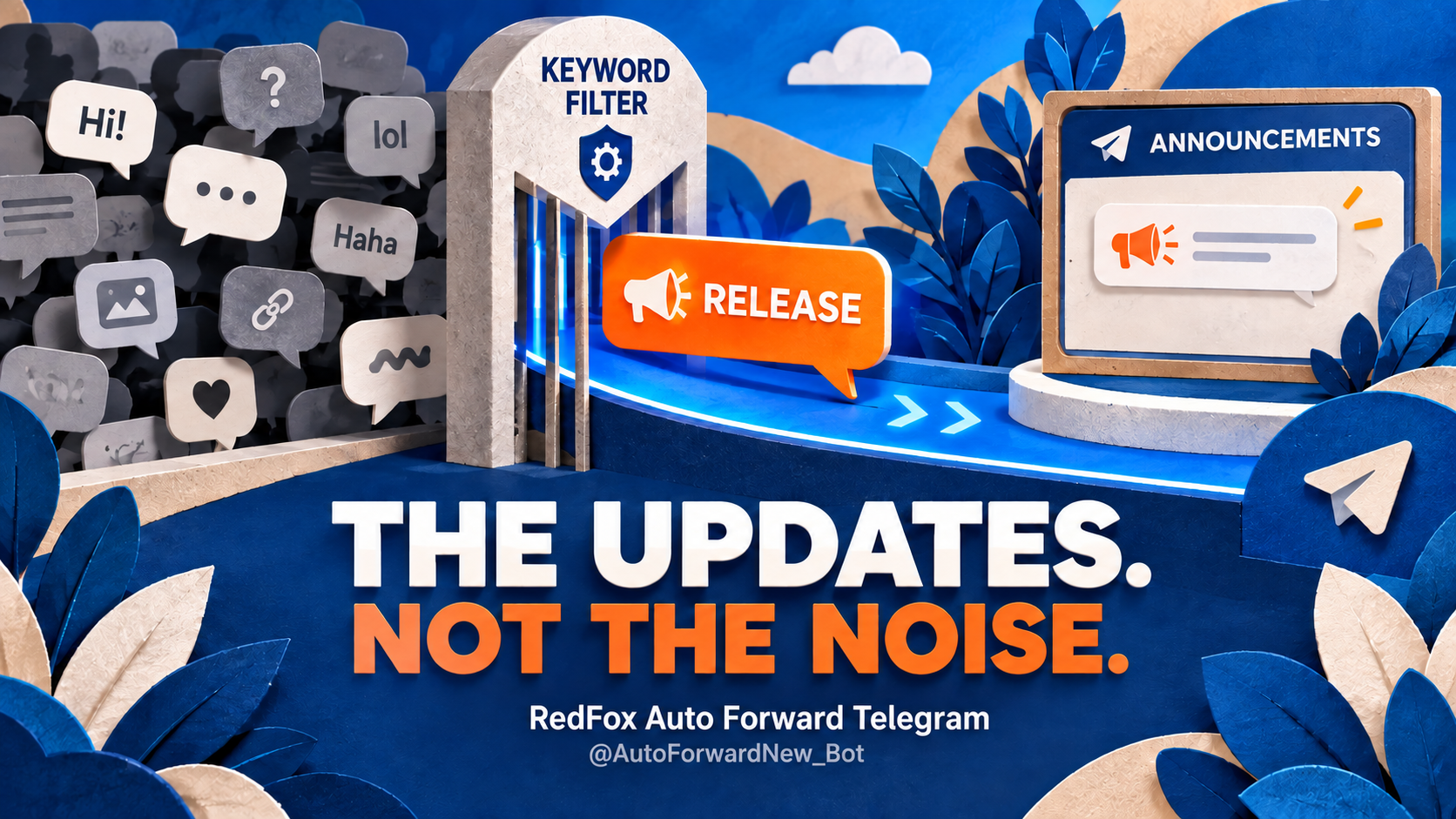
Concept illustration: a configured keyword rule selects updates for a bulletin.
A private group is a useful source of updates, but a poor bulletin board if every reply is copied. RedFox Auto Forward Telegram can route new posts from a group your connected account can access—including one with Protect Content enabled—to a team channel or another group. Start with one group-to-destination task, then use a plan-eligible rule to select the announcements worth sharing. Standard protected-source forwarding is included on every plan, including Free; selective word or sender rules have separate plan entitlements.
For a project team, that means the update channel can carry a release notice without inheriting the source group's scheduling chatter, reactions and side conversations. Open the Web App to prepare your group route; the RedFox plan page distinguishes basic Free routes from Diamond's allow/block lists and Platinum's user lists.
Define the signal before selecting the group
Imagine an agency team running a private Project Room and a read-only Delivery Bulletin channel. The team agrees to begin its formal updates with the word RELEASE. A message reading “RELEASE: client build is ready for review” belongs in the bulletin; “Can we move our meeting?” does not.
| Source message | Desired result | Why |
|---|---|---|
| RELEASE: review build is available | Include | Matches the agreed announcement marker. |
| Can we move our meeting? | Exclude | Ordinary discussion should stay in the source room. |
| Release notes are still being drafted | Check before relying on the rule | A simple word matcher may include prose you did not intend; refine the message convention or choose a documented pattern rule. |
The cleanest practice is to have your team use a distinctive marker for actual announcements. A keyword rule matches text; it does not understand intent. The source can be private and protected at the same time; neither setting selects your important messages for you. Telegram restricts ordinary native forwarding from protected groups, while RedFox's built-in account-connected route is the product workflow used here.
Confirm access, destination and plan
Before creating the task: connect an account that already belongs to the source, use group content you own or are authorized to share, and choose a destination and posting identity with permission to publish it. Reading a private group is separate from posting to a channel. RedFox's account-access FAQ explains private-source membership; its sender guide explains personal-account and bot sender choices at the target. A bot selected to publish in a channel needs the appropriate channel posting permission, but the connected reader is not automatically required to administer the source group.
Protect Content handling is included on every plan, including Free. The current plan page lists Diamond for allow/block lists and Platinum for user lists. The users-filter documentation marks whitelist-by-user Only Platinum Plan. Choose the plan that includes the specific rule you need; protected-source forwarding and filtering are separate plan questions.
Create a base Group → Channel task
Set up the ordinary route to a controlled bulletin first, before adding a filter. RedFox's task-creation guide gives the following navigation:
- Open the Web App or official mobile app with the Telegram account that can read Project Room. Go to Forwarding List → Create Task +.
- On Select Source Forward, choose Group, select Project Room, then Next Step. If it is missing, check account membership and the Group/All picker; All displays available types rather than selecting all conversations. Use the documented Reload once when a recently joined group has not synced.
- On Select Target Forward, choose the intended Delivery Bulletin channel, then Next Step. Check its audience and posting permission before creation: RedFox says the task activates when created.
- Label the task
project_bulletinand select Create Task. There is no separate Protect Content purchase or Start click for this basic route.
On an owned test group and destination, send a disposable announcement after task creation and verify it appears. Then pause or isolate the controlled task while preparing the selection rule, so unrelated group chatter is not delivered to the eventual audience during setup. Do not apply a rule to all tasks to solve one team's bulletin.
Add one whitelist rule and test both sides
With the appropriate allow-list entitlement, RedFox's Whitelist guide documents Mobile: Dashboard → Whitelist and Web: Features → Whitelist, then Add New; it also lists Basic for words/phrases, a label, Content Whitelist and Create Whitelist. Use a simple RELEASE marker, give the rule a clear label, and apply it to project_bulletin specifically. The guide also describes an Activate/Deactivate For Task control; Apply For All Tasks is a different, global action. If the team needs a stricter beginning-of-message match, the documented Regex option can express a more precise pattern, but validate the pattern against real sample text before relying on it.
- Positive check: after the task and rule are active, send “RELEASE: review build is available” from the controlled source. Confirm the bulletin contains the expected text.
- Negative check: send “Can we move our meeting?” from the same group. Confirm it stays out of the bulletin. If both arrive, verify that the whitelist is active for the specific task and that another unfiltered route is not posting there.
- Ambiguity check: send a casual message containing “release” in ordinary prose. If it passes, use a distinct marker convention or refine the rule; a simple substring or word match is not an editorial classifier.
If you need only one named person's messages, that is a different rule: RedFox documents Whitelist By User and explicitly assigns user filtering to Platinum. Select a stable sender ID where available rather than treating a display name as identity. Do not mix “from the group” with “from this user” when evaluating whether a message should appear.
Keep the bulletin useful after launch
Review a few real updates and refine the team's posting convention if too much chat slips through or useful notices are missed. Topic routing and duplicate suppression solve different problems; if repeated posts rather than irrelevant chat are the problem, use our duplicate-message guide. See the existing Telegram forwarding overview for broader route patterns, and RedFox's type-filter guide when you specifically need to exclude a message format. Turning on a type filter excludes that type—it does not make every remaining message an announcement. Check plan entitlement for optional controls before enabling them.
Ready to turn a group into a focused update feed? Build your Group → Channel route in the RedFox Web App, then add only the rule your plan includes and test one matching and one nonmatching post. Manage the route in the official Android or iOS app too. The current bot is @AutoForwardNew_Bot; the former @Auto_Forward_Messages_Bot handle migrated there.
Auto-Bot.io is an editorial publisher covering RedFox Auto Forward Telegram, not its developer or operator.