Mask Contact Fields in a Telegram Support Feed
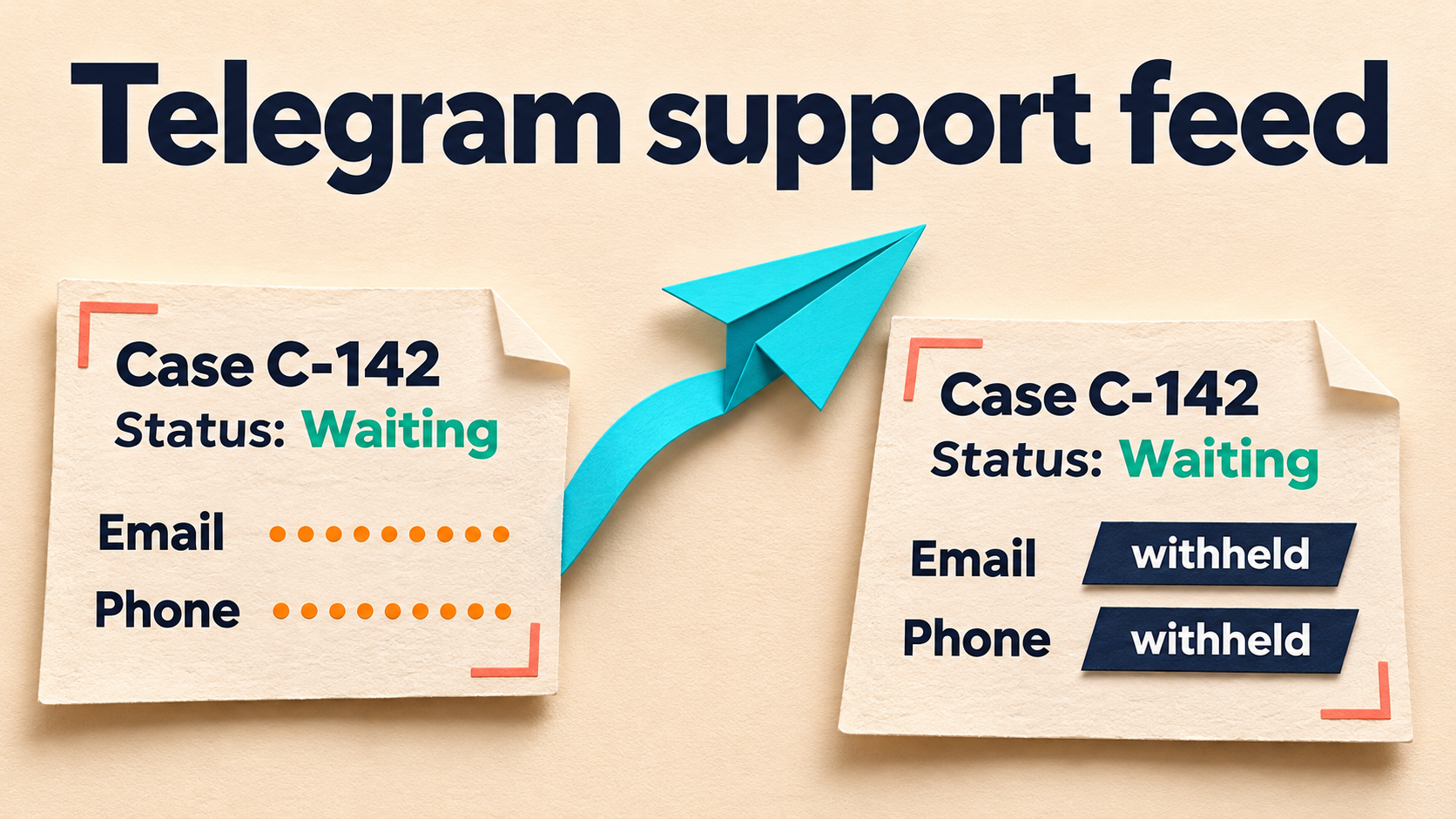
Your support team may need the case number, current status and next action—not another copy of the customer’s email address and phone number. RedFox Auto Forward Telegram’s Use Regex replacement can mask the values in known contact fields before a structured alert reaches a second Telegram chat, while leaving the useful case update in place.
The key is to match the field labels your source actually produces, rather than trying to recognize every email address or every string of digits. This guide builds one narrow rule for plain-text alerts with two fixed labels: Customer email: and Customer phone:. It is field masking, not automatic anonymization of an arbitrary conversation.
RedFox develops the product; Auto-Bot.io publishes this guide. The instructions follow the Use Regex guide and Replace management documentation, checked November 17, 2026.
Define what the status feed should contain
Imagine a support operation whose own system posts structured case alerts into a restricted Telegram source. A separate internal coordination chat needs to know who owns the next action. It does not need the customer’s contact fields copied into every update.
Start by agreeing which information that coordination audience may receive. Keep names, account links, private notes and attachments out of this source template unless they are independently appropriate for the destination. A replacement rule should reduce repetitive editing inside an approved workflow, not become the permission boundary between a private inbox and a public channel.
Here is a fictional source alert. The contact values are harmless test placeholders:
The intended destination version keeps the operational facts and makes the omitted fields explicit:
This does not change the source alert. It changes the text prepared for the forwarding task’s destination. The case reference remains useful for an authorized colleague to look up the record in your support system; masking two contact fields does not make that reference anonymous.
Use a field rule, not an everything-that-looks-sensitive rule
For this exact plain-text template, enter the following expression in Original Words under Use Regex:
(?m)^(Customer[ ]email|Customer[ ]phone):[^\r\n]*Enter this in New Words Replace, including the backslash:
\1: [withheld]The parent Replace Content guide includes capture-group replacement examples. Here, the first group captures either field label; \1 puts that label back, followed by the fixed value [withheld].
(?m)^starts the match at the beginning of a line, not at an incidental mention in the middle of a sentence.Customer[ ]email|Customer[ ]phoneselects the two exact labels.[ ]explicitly matches the ordinary space between the words. Keep[ ]when adapting the labels: RedFox’s Regex guidance says spaces must be escaped or represented with\s. A plain space can make a label stop matching.:requires the colon immediately after the label.[^\r\n]*consumes the rest of that line, stopping at a line break. It does not need to know whether the value is an address, a phone placeholder or an empty field.
Do not substitute .* for the last part: a line-limited expression makes the intended boundary explicit. Keep the labels unformatted and at the start of their own lines. This recipe intentionally does not match customer email:, an indented label or Customer email :. Normalize the source template rather than assuming those variants are covered.
Masking the whole value also means losing anything else placed on that line. If someone writes Customer phone: TEST-PHONE-A; next action: call before 16:00, the next-action phrase is masked too. Put the action on its own approved line, as in the example. Do not fix that problem by forwarding the contact line unchanged.
Configure one controlled task before customer traffic
Use the official Web app, iOS app or Android app. Choose the surface you prefer; Web/App provides fuller management than the limited Telegram-bot entrypoint. The current bot is @AutoForwardNew_Bot.
This walkthrough requires advanced Replace access. The official plan overview places advanced Replace under Platinum. Eligible new users can evaluate the full features with the five-day Platinum trial. Confirm that Use Regex is available on your account and that you have capacity for the intended task; ordinary forwarding access is not proof that this transformation is available.
- Prepare an operator-controlled source and destination. Use synthetic alerts, not real customer records. Keep the source quiet while configuring. RedFox’s task creation guide says a newly created task is activated, so creation is not a safe draft stage. Pause the controlled task while finishing its settings if needed.
- Open the exact task’s settings. Check its source and only the intended test destination. Turn Show Header Forwarder off: the Replace documentation says Replace does not work with that native forwarding header enabled. If your content requires native attribution, settle an acceptable copy-and-attribution policy before proceeding.
- Create the rule. On mobile, open Dashboard → Replace; on Web, open Features → Replace. Choose Add New, set Replace Type to Use Regex and give it a label such as
contact_mask. Paste the pattern and replacement above into their separate fields. - Scope it deliberately. Select only the controlled task in Apply For Task, then choose Create Replace. The management guide warns that leaving the task selection blank applies the rule to all tasks. Do not use Apply For All Tasks for this rehearsal.
- Verify the saved configuration. Reopen the rule and check its pattern, replacement and task assignment. Where the Regex options are shown, use Replace All so both contact fields are handled, and leave Ignore Case off for this exact-case template. Check the task’s header state and other active transformations too.
- Preview, then inspect an actual delivered copy. Use Full Content Original if available to check the sample. Enable the intended controlled task, post a fresh synthetic alert and wait through its configured delay. Read the destination message from beginning to end. A highlighted match is not proof of the final forwarded result.
Leave unrelated tasks and shared rules alone. Do not add translation, AI rewriting, new headers or another cleanup rule at the same time. The first check should establish what this one field rule does, including whether both occurrences are replaced.
Check what changes—and what must stay
Use several harmless specimens, not just the attractive before-and-after. These checks distinguish a narrow working rule from a misleadingly reassuring preview.
- Complete alert: send the C-142 sample above. Both contact values should become
[withheld]; the case, status, next action and16:00 UTCshould remain. Check changed fields and retained facts together. - Different contact values: change both test values while keeping the labels exact. The new values should still be masked. This checks that the rule follows fields, not one memorized address or number.
- Status-only control: send a harmless post containing only Case, Status and Next action lines. All three should arrive unchanged. An alert without contact fields should not be damaged merely because the rule is active.
- Mid-line mention: send
Ask about Customer email: TEST-ADDRESS. It should remain unchanged. The line-start anchor is narrow; it is not a detector for contacts mentioned anywhere. - Template drift: try
customer email: TEST-ADDRESSor indent the label. This recipe does not mask those variants. That is a launch blocker, not a safe rejection: the unmatched words can still be forwarded. - Mixed-purpose line: put a harmless next-action phrase after the phone value on the same line. The whole value area, including that phrase, should be masked. Keep useful instructions on separate lines in the source template.
Record the source specimen, saved task/rule, expected result and actual destination text. Verify that the original source still contains its test values. Also inspect any header, footer, reply context and buttons in the delivered message: a separate setting that inserts original text or sender details can put information back into the copy.
Never treat “no match” as “safe to send.” This rule changes matching text; it does not establish a hold-for-review queue or reject every unfamiliar template. If either expected contact value survives, pause the affected route before using it for real traffic. Correct the rule or source format in the controlled setup, then repeat the changed-field and unchanged-fact checks.
Keep the boundary honest before widening the audience
The best source is a deliberately minimal alert generated upstream: a case reference, an approved status and a next action, with no contact fields included in the first place. Use task-level replacement when you need to adapt an existing, stable format—not as a reason to send arbitrary support conversations into a wider chat.
- Other text is still text. Names, addresses in notes, account-specific URLs and contact values under a different label are outside this pattern. Review all fields the destination receives.
- Formatting changes the matching problem. RedFox’s special-formatting guide warns that bold text, links and other formatting can affect matching. This recipe is for plain text. Do not send real private alerts to a public regex tester or helper bot to inspect them; reproduce the structure with harmless content.
- Media is a separate disclosure path. A contact in a screenshot, document, filename or voice note is not removed by replacing these two text fields. Keep this source text-only; admit another content form only after a separate review of what the destination receives.
- Sender privacy is a different setting. Telegram’s Anonymous Forwarding explanation concerns linking a forwarded message to its author’s profile. It is not a substitute for removing contact details written inside the message body.
For an ordinary short operational bulletin, keeping selected useful lines may be the simpler job. That method keeps the whole matching line, however; it does not mask an unwanted value on it. For fixed names or links, use the separate Replace Power rebranding guide. A hidden clickable contact link needs its own formatted-link inspection, not this plain-text recipe.
Launch with a source contract and a correction owner
Before real alerts reach the intended coordination audience, record the exact source/target, rule assignment, accepted plain-text template and person responsible for changes. Review destination membership. Keep the source quiet or the task paused while applying and reading back the live configuration; a test target’s result does not certify a different audience or task.
Check the first authorized real update in the intended destination, including both contact fields and all remaining text. Agree that a source-template or plan/Regex-access change requires fresh controlled checks before resuming this route. An unavailable transformation must not be treated as a hold-for-review safeguard. If the destination must never receive any customer-identifying detail, do not depend on this rule alone: prepare a minimal source upstream or use a separately reviewed publishing step.
If a detail slips through, pause the affected forwarding task, preserve the relevant message references privately and have an authorized moderator correct or remove the destination copy. Changing the rule is not retroactive cleanup. RedFox also documents a Delete option in task settings that removes forwarded target messages when their source messages are deleted; it does not work with Show Header Forwarder enabled. Check the option’s state for the affected route rather than assuming it covered older copies. Verify the destination after any removal, and check for alerts already delivered or processing when you paused.
RedFox’s runtime FAQ says forwarding does not require keeping your internet on. Active tasks run in RedFox’s cloud without leaving the management interface open. Use the task controls when you need to stop the route; closing the app is not your stop procedure.
Frequently asked questions
Will this mask every email address or phone number?
No. It masks the value area after two exact plain-text field labels at the start of a line. A contact anywhere else is outside the recipe. That narrowness helps preserve case references and times, but it requires a stable source format.
Why not delete the two lines instead?
If the destination does not need to see that the fields existed, whole-line removal can be appropriate. Here the labels and [withheld] make the omission clear, so a coordinator does not mistake a missing value for an incomplete source record. Choose the destination’s reading requirement, not the most complicated rule.
Does saving the rule clean up older forwarded alerts?
Saving the rule does not revisit copies already delivered. Treat older destination copies as a separate correction/removal job. Verify future behavior with a fresh source message rather than replaying customer history to test the rule.
Build a useful status feed, not another contact list
Explore RedFox Auto Forward Telegram, confirm advanced Replace access and rehearse one controlled support-alert task. The useful result is specific: both known contact values are masked, the case and next action remain actionable, and the destination receives only information its members may see.
For the initial connection and source-to-target setup, use the Telegram forwarding tutorial. For broader route planning, continue with the Telegram automation overview.
Keep support status useful, limit copied contact fields
Prepare one task-scoped Regex rule for a stable plain-text alert format, then inspect the complete destination copy.
Manage on Web, iOS or Android