Turn Long Telegram Order Updates into a Dispatch Feed
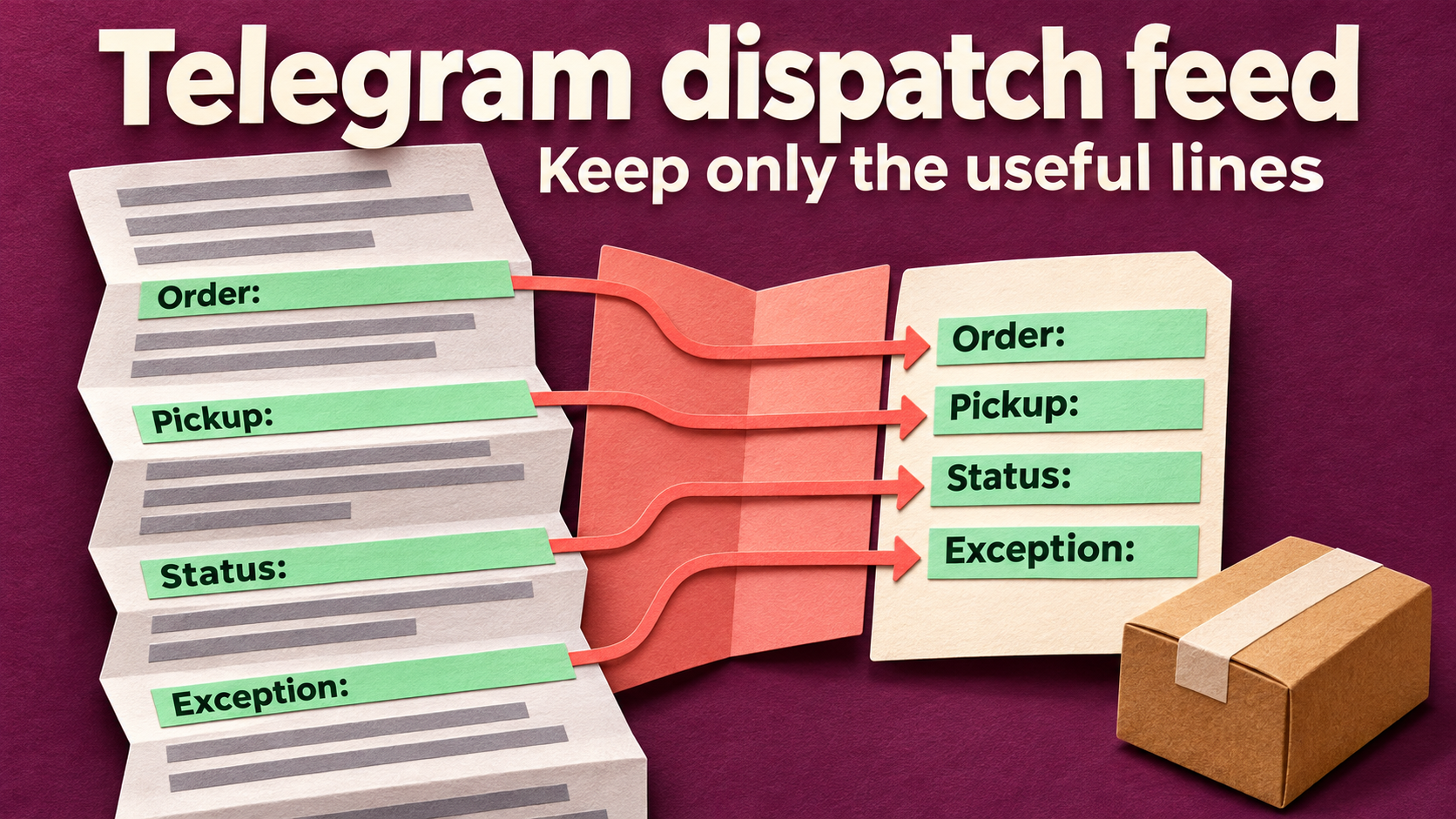
To turn long Telegram order updates into a short dispatch feed, use Replace → Keep The Line Containing The Keyword in RedFox Auto Forward Telegram. Give the rule the field labels your dispatch team needs—such as Order:, Pickup:, Status: and Exception:. Matching lines stay in their original order; other lines are removed from the forwarded copy.
This works best when you control a structured source template. A rental desk, for example, can keep its full packing update in one channel while the collection team gets just the order, pickup window, release status and exception. Nobody has to trim the same update by hand each time, and the retained wording does not need an AI rewrite.
RedFox develops and operates the product; Auto-Bot.io publishes this guide. Instructions follow the current keep-lines documentation, checked November 13, 2026. The current product entry point is @AutoForwardNew_Bot; the previous bot has moved to this handle.
Choose the fields before choosing keywords
Start with the receiving team's decision: Which order is this, where and when is collection, may it leave, and what could stop it? Those questions define the source fields. Do not begin with a generic keyword such as ready: that would keep a line about an item being ready but could lose a separate warning.
- Order: include the identifier and enough description to distinguish it.
- Pickup: include the place, date, complete time window and timezone.
- Status: state whether release is permitted, including any “not,” “until” or other condition.
- Exception: include the blocker, uncertainty or explicit absence of a blocker.
Put each complete field on one newline-separated line. A phone wrapping a long line on screen does not mean the author inserted a newline. If a condition is essential, keep it on the same source line as the field it qualifies, or give it another explicit label and add that label to the rule.
The feature matches text, not meaning: it does not know that a paragraph below Status: changes the release decision. It also does not check that all four fields exist. Treat this as a convenient reading copy of an already-approved update, not an order-management or dispatch-approval system.
One full update, one shorter reading copy
Here is a fictional rental-desk update. The line breaks shown are part of the source message.
With Order:, Pickup:, Status: and Exception: entered as separate keywords, the documented rule gives this target text:
The useful part is not just that the message is shorter. The HOLD, its condition, the pickup window and the unresolved battery issue remain together.
The entire matching line stays. If the source says Order: R204 — camera kit; internal remark: call manager, the internal remark stays too. This feature is not confidential-data redaction. Send only content the destination audience may receive, even if a template or rule changes.
Set up one task-scoped keep-lines rule
Use the Web App or an official mobile app for fuller management. RedFox's product guide places replacement among Diamond features, with Platinum including the full plan feature set. Eligible new users may have a five-day Trial Platinum with full features. Check your active plan and available Replace controls; basic Free routing does not by itself include this workflow.
- Prepare a quiet source and private target. Use a harmless source you control and a destination the eventual operators are authorized to read. If you need a task, follow the task-creation guide: Forwarding List → Create Task +, select the source and target, label the task and choose Create Task. Creation activates it, so do not connect a busy source to a public destination while still configuring the rule.
- Confirm ordinary delivery first. Post one disposable structured update before adding transformations. Keep AI Rewrite, Cleaner and other text-changing rules off this private pilot so you can judge the keep-lines behavior alone. Do not alter unrelated live tasks.
- Turn off Show Header Forwarder on this task. The Replace management guide says Replace will not work while it is enabled. Keep any required source credit in a labelled source line and include that label in the rule; do not silently discard required attribution.
- Create the rule. Open Features → Replace on Web, or Dashboard → Replace on mobile, then Add New. Set Replace Type to Keep The Line Containing The Keyword and use a distinct label such as
dispatch_fields. - Add each keyword separately. Enter
Order:, then use + New Keyword forPickup:,Status:andException:. Each keyword gives another way for a line to be kept; a line does not need all four labels. - Select the exact task under Apply For Task, then Create Replace. Do not leave the task field blank: the management guide says that applies a rule to all tasks. Reopen the saved rule and verify its association. Do not choose Apply For All Tasks for this one feed.
Use a new rule rather than repurposing one another route needs. Editing a shared saved rule and activating a rule for one task are different operations. The Replace overview documents task activation, editing and deletion separately.
Check the template's weak points
Send fresh harmless examples through the private task and compare the complete source and destination text. Use both routine updates and counterexamples before relying on the feed.
- Normal and HOLD updates: require the correct order, location, complete time window, negation and exception to survive. A short copy that loses “do not release” fails the dispatch job.
- Reordered fields: move Pickup above Order. The retained lines should follow that new source order; the feature does not rearrange them into your preferred layout.
- New labels: try a real variation such as
Collection:instead ofPickup:. Standardize the source wording or deliberately add the extra keyword. Check spelling, spaces and capitalization against your actual samples rather than assuming a match. - A separate continuation: put
Status: HOLDon one line andDo not release until the replacement arrives.on the next. The continuation has none of the selected labels, so this format is unsuitable. Move the condition onto Status before using the feed. - Missing fields: omit Exception. A matching Order line does not make the message complete. Require authors to supply
Exception: none reportedor the actual unresolved detail before they post an approved update. - No matching labels: try an unstructured note. The guide does not specify the final delivery behavior of an empty text result, so inspect it rather than treating absence as proof of a working approval gate. Keep such notes out of the structured source.
If the entire update disappears, confirm task status, source access, target permissions and the ordinary-delivery baseline before broadening the keywords. A Whitelist or Blacklist decides whether a message is eligible; a keep-lines Replace rule changes its text. Our keyword-selection guide explains that separate decision.
For this first workflow, use plain-text posts. A successful text example does not prove what happens to photos, albums or their captions. If the real source relies on an attachment for a collection instruction, preserve the complete route until that specific input and output have been checked.
When keeping lines is the wrong tool
- You want the whole message except one recurring promo: use Remove Lines By Keywords instead. If a saved row number trims the wrong field after a layout change, see the wrong-line Replace guide.
- Authors write free-form updates with no stable labels: keep the full message or consider Smart AI Rewrite with its own fact-preservation checks. This line rule does not infer the important sentence.
- You want one recap of many messages: that is a News Digest job, not per-message line retention.
A keep-lines rule is especially useful when unwanted notes vary but the required fields stay consistent. You maintain the small set of labels to preserve, instead of adding a new removal rule for every possible aside.
Keep the source template and rule in step
After the private examples work, use the agreed template for approved updates and coordinate the change to the intended production task. Verify its source, target, Show Header Forwarder setting and exact rule association before relying on the next fresh copy. Keep the full source available to the receiving team for context and corrections.
When an author introduces a new field, decide whether dispatch needs it before adding its keyword. Changing a reusable rule can affect every task assigned to it. To stop trimming only this feed, use Activate/Deactivate For Task in the Replace list; the saved rule can remain for other uses. Check a fresh update afterward and handle any already-delivered incomplete copy separately.
RedFox runs active tasks in its cloud, so closing Web or the mobile app is not a way to pause delivery. Use the task's pause control when you need it. The runtime FAQ confirms your own internet connection does not have to remain on.
Frequently asked questions
Does the rule require every keyword to appear?
No. A line stays when it contains one of the keywords. The rule does not validate that Order, Pickup, Status and Exception are all present. That completeness requirement belongs in your source-authoring process.
Will it keep only the label or the value?
It keeps the entire matching line, including the label, value and any other words on that line. It does not extract a field value or redact an extra remark.
Can the source be private or protected?
RedFox supports sources the connected account can access, including ordinary Protect Content sources. For a private channel, the source-access FAQ requires that account to have joined. Use only content you may redistribute to the target audience; this does not grant access to an unreadable chat or make advanced replacement Free.
Build one useful dispatch reading copy
Choose the fields your team actually uses, put complete instructions on those labelled lines, and apply one keep-lines rule to one controlled task. Once the examples preserve the decisions—not merely the keywords—you have a smaller feed without rewriting every order update.
Explore RedFox Auto Forward Telegram, then configure Replace in the official Web App, iOS app or Android app. Choose whichever suits you; Web and the apps provide fuller management than the Telegram-bot entry point. For the wider workflow map, see our Telegram message automation guide.
Give your team the lines they need
Retain labelled order details in a compact dispatch reading copy, with one rule assigned to the intended task.
Manage on Web, iOS or Android