Telegram Replace Removes the Wrong Line? Check the Source Layout
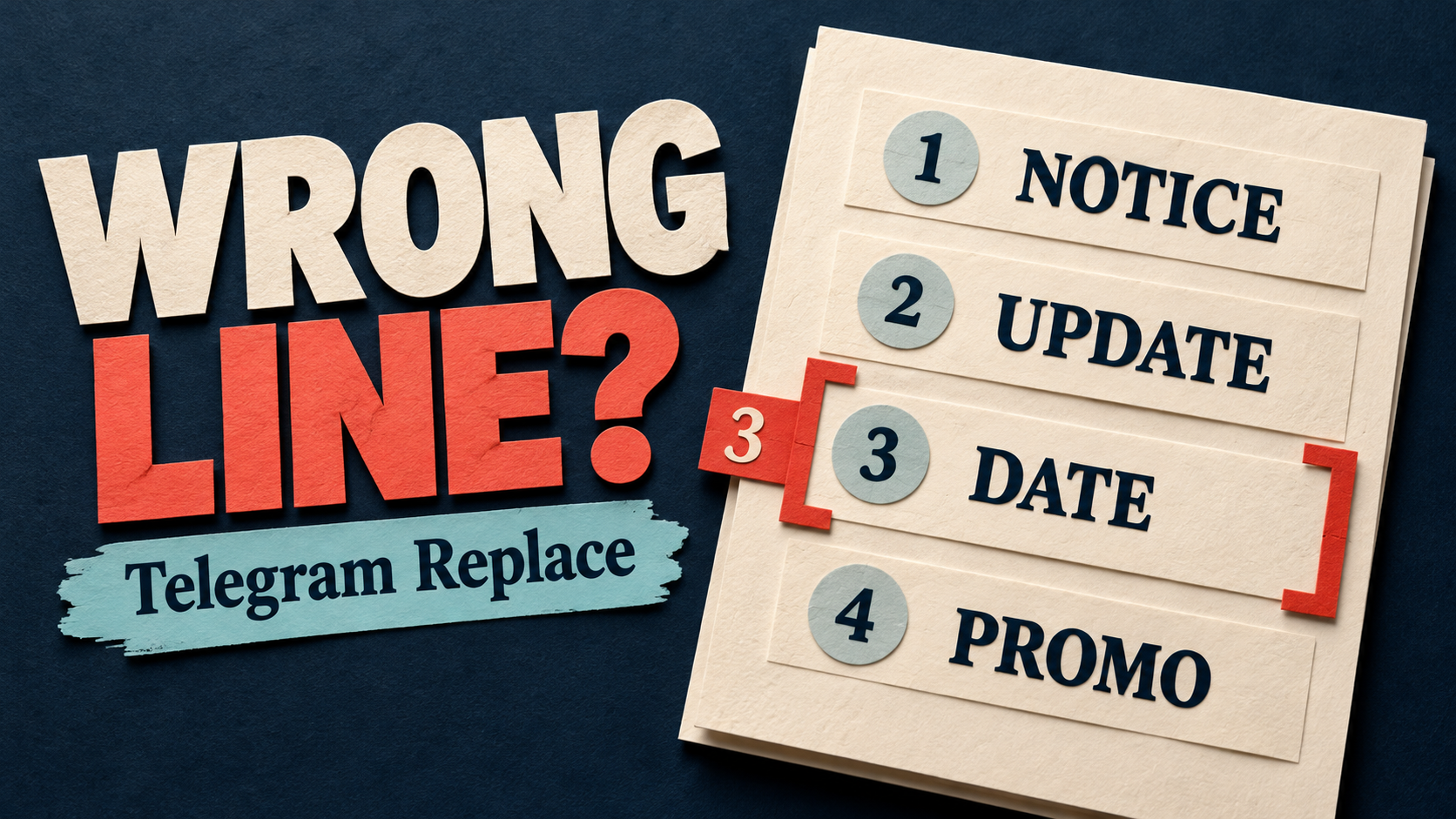
If a Telegram Replace rule removes the date instead of the unwanted promo line, check whether the source layout changed. Remove Lines By Line Number targets a position—not the meaning of that line. Adding a notice above the message can move the promo down while the saved number still points at useful information. Do not fix this by deleting more numbered rows.
This guide is for an existing RedFox Auto Forward Telegram (@AutoForwardNew_Bot) task that delivers messages but trims the wrong part of their text. RedFox develops and operates the product; Auto-Bot.io publishes this guide. The previous bot, @Auto_Forward_Messages_Bot, has moved to @AutoForwardNew_Bot.
Documentation checked October 30, 2026. The examples and private test procedure are editorial guidance, not a forwarding test we executed. The featured image is a conceptual wrong-row selection, not product UI or a measured before-and-after result.
A row number does not identify a field
The official Replace guide describes Remove Lines By Line Number as removing lines based on their order. Its Line Order field accepts comma-separated positions. The same guide lists separate types for Remove Lines By Keywords, Remove Empty Lines and Basic word or phrase replacement. They answer different questions.
Consider two fictional source messages. Each displayed break below is a real newline in the message; the labels outside the boxes are not part of the text.
Old layout: the promo occupies the third line.
Changed layout: a notice was added at the top.
In the changed layout, line 3 is the date and line 4 is the promo. A positional rule aimed at 3 no longer identifies the unwanted content. This is a simple illustration of the documented positional rule—not proof that every missing date has this cause.
Before diagnosing your task, inspect the actual source text. A long sentence wrapping onto two rows on a narrow phone is not two newline-separated lines. Blank lines, captions and other active transformations also need separate checks. Do not infer their treatment or processing order from this example.
Record the source, rule and delivered copy together
Keep one original message and its corresponding destination copy side by side. Save the task identity, source and destination, Replace rule label, type, literal Line Order value and current task associations. Note any other Cleaner, Replace or AI transformations that could change the same text, along with filters and delivery delays.
- Useful text is missing but the rest arrives: compare the selected position with the current source layout.
- The entire post is missing: investigate eligibility and task state rather than assuming a line-removal rule caused it. The footer-filter guide separates whole-post exclusion from editing delivered text.
- The words arrive but a link still opens the wrong page: use the hidden-link destination guide; a text row and an embedded address are different targets.
Check whether the rule is shared before editing it. The Web/App management guide separates Edit Replace from Activate/Deactivate For Task. A task-specific activation control does not establish that editing a saved reusable rule is private to that task. Preserve the rule where another route still needs it.
Choose a rule that survives your source's layout
- The unwanted content always occupies the same position: a line-number rule may fit. Check representative source templates, including notices and captions, before keeping that assumption.
- The unwanted content moves, but has a distinctive standalone marker: evaluate Remove Lines By Keywords. RedFox documents that a matching keyword removes the whole containing line. In the example,
Promo:is a more useful candidate than a generic word such asoffer. - A useful fact shares the line with the unwanted phrase: do not use whole-line removal. A narrowly scoped Basic phrase replacement may fit instead; the guide documents leaving the replacement text blank to remove matching wording. Test the exact source text and inspect the complete remaining sentence.
- You want only blank lines gone: use the separately documented Remove Empty Lines type. Do not treat a row number as an empty-line detector.
A keyword is not an understanding of intent. A line such as Promo: optional offer; Date: Friday evening contains both the marker and a fact the reader needs. Deleting that whole line would still be wrong. If no stable, safe marker separates the unwanted material, keep the content intact while you redesign the rule; guessing a broader match is not a repair.
Remove only content you are permitted to omit. Credits, sponsorship disclosures, safety information and redistribution conditions may need to stay even when they resemble repetitive footer text. For intentional branding or presentation, use the existing headers, footers and Cleaner guide.
Reproduce the mismatch on a private task
Use harmless source and destination chats you control, never an audience-facing route for diagnostic chatter. Confirm that the required Replace controls are available in your account. The Replace documentation warns that the feature will not work with Show Header Forwarder enabled. Resolve that compatibility on the private task; do not silently remove attribution from a live route that requires it. The separate forward-header guide owns that display decision.
Prepare a controlled baseline. Record and isolate competing text transformations and duplicate suppression on the private task only. Keep source, target, sender eligibility and relevant filter matches comparable between phases. Leave live protections untouched. Account for schedules and delays, and wait for the fresh neutral control to arrive; pending or errored delivery makes a missing specimen inconclusive.
- Start with the suspect rule inactive on the private task. Send new copies of the old layout, changed layout and a neutral two-line update with no promo. Require all three to arrive with their source text intact. If they do not, resolve that baseline before testing deletion.
- Activate only the suspect positional behavior on the private task. If the real rule is shared, do not edit it; use a separate test rule with the same relevant settings and an explicit private-task association. For the fictional Line Order
3example, compare the two layout specimens. Does the old version lose its promo while the changed version loses its date and retains its promo? If not, the proposed cause has not been reproduced. - Deactivate that positional test rule before introducing an alternative. Do not leave both removal rules active and attribute the combined output to one. Keep the previous configuration available for rollback.
- Create one separately scoped candidate. In the Web dashboard, open Features → Replace → Add New; the mobile guide starts at Dashboard → Replace. For a safe standalone marker, choose Remove Lines By Keywords and use
Promo:as the fictional test keyword. Give the rule a distinct label, such aspromo_line_test, explicitly select the private task in Apply For Task, then save and verify the association.
Do not leave Apply For Task blank. The Web/App guide says that means all tasks. Do not choose Apply For All Tasks to repair one route. If the interface or saved associations differ from what you expected, stop and inspect them rather than assuming the label limits the scope.
Check preserved facts—not just a missing promo
Now send fresh old-layout and changed-layout specimens, plus the two controls below. Use a distinct run label inside an existing text line if necessary, without altering the tested newline structure or keyword. A nonce alone does not rule out duplicate suppression; that influence must already be isolated or accounted for.
- Old and changed layouts: both should retain the workshop update and complete date, while removing only the standalone promo line. The changed version must also preserve its notice.
- Neutral control:
Workshop updatefollowed by a real newline andDate: Friday evening. It must arrive unchanged by this rule. Absence is not an unchanged-content pass. - Mixed-line challenge:
Workshop updatefollowed by a real newline andPromo: optional offer; Date: Friday evening. This is deliberately unsuitable for whole-line removal. If that is a real format your source uses, reject the keyword-line candidate for that feed and choose a narrower edit or preserve the text. Do not call the deleted date an acceptable success.
Record the full source and delivered text, not just whether the keyword disappeared. Include a representative caption if your route uses captions; a plain-text check does not establish every media format. Keep required attribution and any existing exclusions intact. A failed or unexplained change should be restored before trying another rule.
This procedure tests one proposed cause and one candidate configuration. It does not establish undocumented blank-line counting, rule precedence, case handling or all future source layouts. If the private result differs, retain the sample and settings for official support rather than stacking new row numbers.
Move only the validated change to the intended route
After the private check succeeds for your real message formats, coordinate a pause of the affected live route while replacing its unwanted rule association. Preserve the old shared rule for other tasks. Save the intended association, inspect it again and resume deliberately. A pause does not prove already queued work was cancelled; reconcile pending work before resuming.
Check the next authorized live output against the complete source message. Review already-delivered mistakes separately with the destination administrator; changing a rule for new messages is not evidence that older copies were repaired. If the source changes its layout again, repeat the specimen check rather than assuming the old result still covers it.
Frequently asked questions
Should I add line 4 as well as line 3?
Not to solve a shifting target. In the changed example, that asks a positional rule to remove both the date and the promo. First identify the intended content and choose a rule suited to the source format.
Do blank lines or phone screen wrapping change the count?
Visual wrapping is not a source newline. The cited guide documents positional removal and a separate empty-line removal type, but does not settle every counting or transformation-order detail. Preserve exact newlines and blank lines in a private specimen and inspect the actual output before relying on a position.
Will a keyword-line rule remove only the keyword?
No. RedFox describes removing the line containing a match. If that line also contains useful information, choose a narrower phrase edit or leave it intact.
Inspect one rule against today's source layout
Your next step: compare the literal Line Order value with one current source message, then test the old layout, changed layout and neutral control privately before changing the live task.
Review RedFox Auto Forward Telegram and its official entry points. Manage Replace from the Web app, iOS app or Android app, whichever suits you. Web and mobile apps are the fuller-management surfaces; the Telegram bot remains an entry point. Active tasks run in RedFox's cloud without keeping the management interface open.
Check One Telegram Replace Rule
Compare a saved line number with the current source layout, then test a content-preserving edit on one private task.
Manage on Web, iOS or Android