Telegram Forward Headers: Choose When to Show the Source

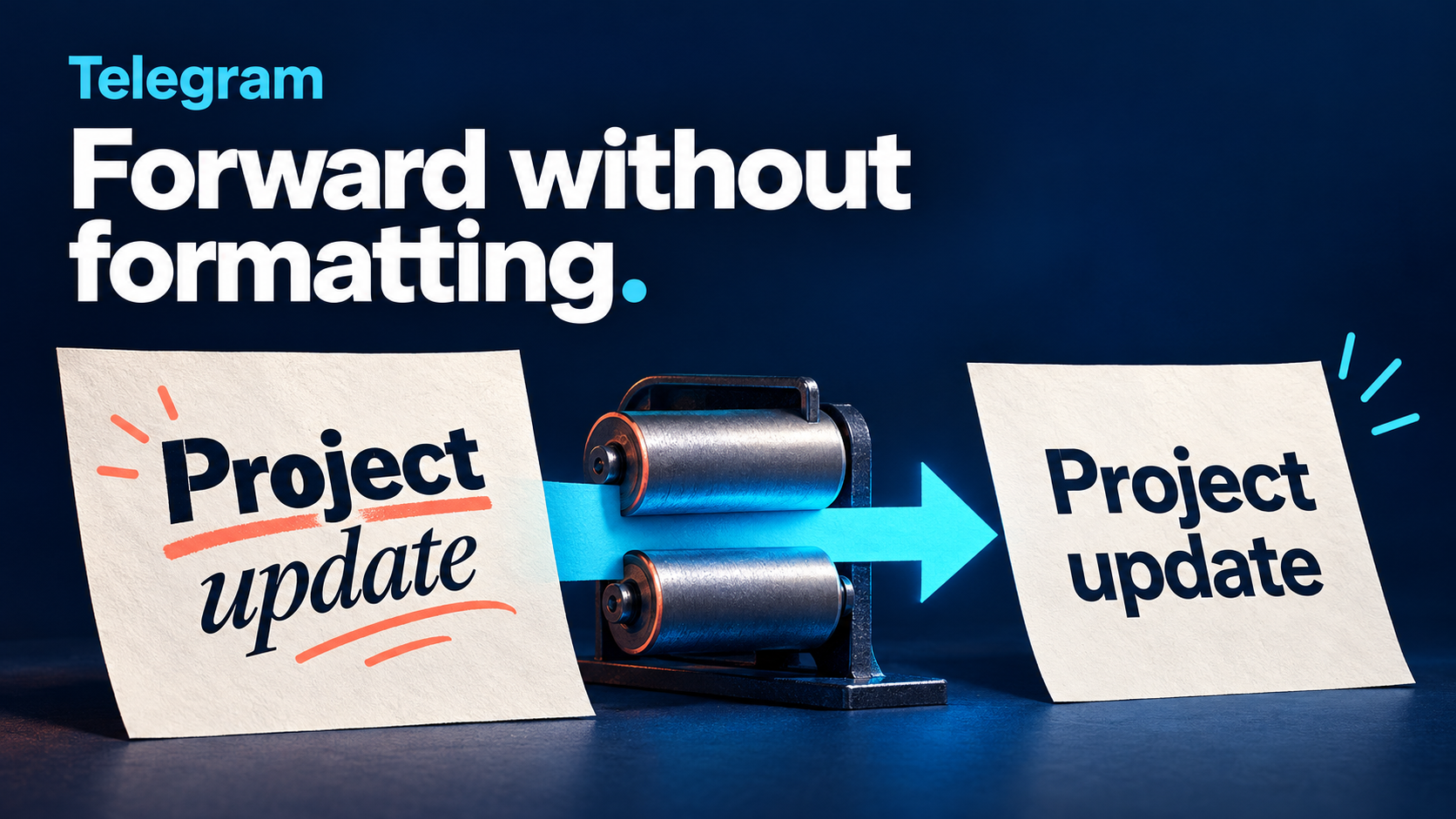
To choose when Telegram shows source attribution on delivered posts, use Show Forward Header and its Display Mode in RedFox Auto Forward Telegram (@AutoForwardNew_Bot). The documented choices are to show the header on all auto-forwarded messages, or only when the message in the source chat was already forwarded. Choose the first for a destination that consistently credits its source; choose the second when the destination should follow the source’s forwarded-message distinction.
This guide is for an editor with a working Telegram-to-Telegram route carrying both direct announcements and native reposts. You want both kinds delivered, but a deliberate policy for the “Forwarded from” header. You are not trying to exclude reposts or change which account sends the messages.
RedFox is the product team; Auto-Bot.io publishes this editorial guide and does not develop or operate the bot. The previous bot has moved to @AutoForwardNew_Bot; use this current handle. The featured image is a concept illustration, not product UI or a forwarding test.
Choose the attribution policy before changing the task
Imagine a workshop team’s source channel contains two items: an editor writes a new room-change announcement directly in that channel, then natively forwards a partner’s accessibility notice from another channel. A team bulletin should receive both. The question is what readers should see above each delivered message.
The official Forward Header guide documents these two Display Modes:
- Show on all auto-forwarded messages: show the “Forwarded from” label for each message the task sends, whether or not the source item was itself a forward. Choose this when readers should see source attribution throughout a collected bulletin.
- Show only when source message is also forwarded: show the label only for source items that were already forwarded. Choose this when direct source announcements should read without that header, while native reposts retain the forwarded distinction.
If your policy is to send without a native forward header, the separate header FAQ documents turning the task’s header control off. Do not guess the starting state: read the saved setting on your particular task before changing it.
These are presentation choices, not proof of authorship or permission. Only redistribute content you are entitled to share. Removing a header does not make someone else’s words yours; displaying one does not establish that a claim is authentic. For attribution-sensitive publishing, inspect the actual source identity shown rather than treating the presence of a label as sufficient.
Keep native attribution separate from the sender and message text
Several controls can change what a delivered message looks like, but they solve different problems:
- Forward Header: whether and when the native “Forwarded from” attribution appears. This is the setting for this article’s case.
- Sender Type: which connected personal account or Telegram bot sends the message. RedFox documents it separately in Setup Sender For Task. Keep it unchanged while checking attribution.
- Add Header / Footer: custom text added to the message body. A line you write saying “Source: Workshop team” is not the same thing as a native forward header, even if readers see both above the announcement.
- Forwards type filter: whether a message already forwarded into the source should be excluded entirely. If you want direct posts but no native reposts delivered, use the separate skip-forwarded-reposts guide instead.
Telegram’s flexible-forwarding announcement also describes previewing a manual forward and hiding sender names. That explains why forwarding and visible attribution are not inseparable. A choice made for one manual send is not evidence that an automation task’s saved setting has changed.
Set the policy on one existing task
Start with a controlled source and a private destination where you are allowed to send harmless examples. If basic delivery does not work yet, complete the existing Telegram forwarding setup first. There is no need to reconnect a working account just to choose an attribution policy.
- Record the route and current state. Open the intended task and confirm its source, target, task status and current header choice. Also note Sender Type, custom headers/footers and any active Forwards exclusion so you can interpret the result.
- Find the native-header control. The feature guide calls it Show Forward Header; the FAQ uses Show Header Forwarder and describes the Telegram-bot route as
/settings→ task → turn the control on or off. Use the task’s attribution setting, not a custom text-header field. Web and mobile navigation need not match that bot wording. - Choose whether headers are enabled. For either Display Mode comparison below, enable the header control and select the intended mode. If you want no native header, use the documented off choice instead.
- Save and read back. Complete the save or confirmation shown by your interface, reopen the same task and verify the selected state. Leave unrelated transformations and sender configuration unchanged.
- Check fresh source messages. Use the direct-post and native-forward specimens below. A saved switch alone is not proof of what readers receive.
Prefer the official Web App or the iOS app or Android app for fuller management than the limited Telegram-bot entrypoint. Choose the surface you prefer. If you cannot find Display Mode, consult the current feature guide or product support with the task context rather than changing a similarly named field.
Check a direct post and a native forward separately
The following is a reader-run check, not a result Auto-Bot.io has measured. Use content and chats you control. Both specimens must be eligible under the task’s other rules; an enabled Forwards exclusion would prevent the native-forward example from testing header display at all.
- Direct source post: compose a fresh “Workshop check A: room changed” message directly in the controlled source. Do not create it using Telegram’s Forward action.
- Native forward in the source: create a different harmless “Workshop check B: partner notice” in another chat you control, then use Telegram’s Forward action to send it into the controlled source. Leave its sender visible for this basic check.
For a header-enabled task, the documented expectations are:
| Post | All posts | Reposts only |
|---|---|---|
| A: direct post | Copy shows a forward header. | Copy has no forward header. |
| B: native forward | Copy shows a forward header. | Copy shows a forward header. |
Check delivery first, then header presence and the displayed identity. Record the source message reference, task, saved mode and actual destination result. Wait through any configured delay. Use distinct new specimen wording if comparing another mode so an unrelated duplicate rule does not confuse the comparison.
For a third boundary check, paste a harmless sentence as a newly composed source message instead of using Forward. Copied wording is not automatically a native repost, and a typed line saying “Forwarded from” is still ordinary message text. The display policy is not an originality detector.
Do not extrapolate this ordinary-text pair into a promise about hidden-sender forwards, every media type or every original profile link. If your real bulletin depends on captioned photos or another variant, check that authorized specimen too. Inspect both attribution and content survival; a correct header does not compensate for missing required words or attachments.
Diagnose the mismatch without rebuilding the route
- Both specimens arrive, but A still has a header in source-forward-only mode: reopen the exact task and read back its mode. Confirm A was composed directly, then look for a second route or a manual destination copy. Distinguish a native header from custom body text.
- B never arrives: recover delivery before judging its attribution. Inspect the Forwards exclusion, other filters, task status and configured delay. No destination message means there is no header result to evaluate.
- The header appears, but names a source you did not expect: inspect B’s original forwarding chain and the displayed identity at each stage. Preserve sanitized message references for support. Do not assume that enabling the header guarantees your chosen channel name or an unchanged original timestamp.
- The account or bot name looks different: compare Sender Type separately. Do not rotate bots or change delivery identity as a workaround for the header policy.
- Old destination copies still look the same: judge the configuration on fresh messages. This procedure does not establish retrospective rewriting of earlier copies.
If the new policy is unsuitable, pause the affected task, restore its recorded header choice, save and verify a fresh post before wider use. Do not assume pausing clears queued work or that restarting replays previously skipped messages. Keep other routes unchanged.
FAQ
Does hiding the header stop forwarded source messages?
No. Header display and excluding an entire source message are different jobs. If a native repost should not be delivered, use the documented Forwards exclusion rather than relying on its label being hidden.
Do I need a new sender bot to change attribution?
Do not change senders just for this setting. The documented native-header control belongs to the task’s attribution policy; Sender Type chooses the sending account or bot. Evaluate them separately.
Does a visible or hidden header prove privacy or authenticity?
No. Check what the destination actually displays and who can read it. A header is not an authenticity check, and removing it is not a guarantee of anonymity or permission to redistribute the content.
Give your bulletin one clear attribution policy
Open the RedFox Auto Forward Telegram overview, then review one existing route in your chosen Web or mobile interface. Use all-post headers when each delivered item should carry source attribution; use source-forward-only mode when the source’s direct-post versus native-repost distinction should remain visible. Confirm the policy with both fresh examples before applying it to a reader-facing feed.
Active tasks run in RedFox’s cloud; its runtime FAQ says your personal internet need not stay on. Closing the management interface is not a way to pause forwarding. Product documentation was checked on October 23, 2026; no connected-account forwarding test was performed for this guide.
Choose Your Telegram Attribution Policy
Review the native forward-header choice on one working task, then check a direct post and a native repost before changing a reader-facing bulletin.
Documented header modes · Controlled reader-run checks