Telegram to Discord: Mention One Role, Not Everyone

To mention a Discord role when publishing Telegram announcements, use the destination server’s Role ID in the format <@&ROLE_ID>, not a Telegram username or the role’s display name. RedFox Auto Forward Telegram (@AutoForwardNew_Bot) documents role mentions in its Discord Publish flow, including adding the mention to Header/Footer. Start with one approved announcement source, one Discord channel and a consenting test role. Check the visible message and the recipient’s notification separately.
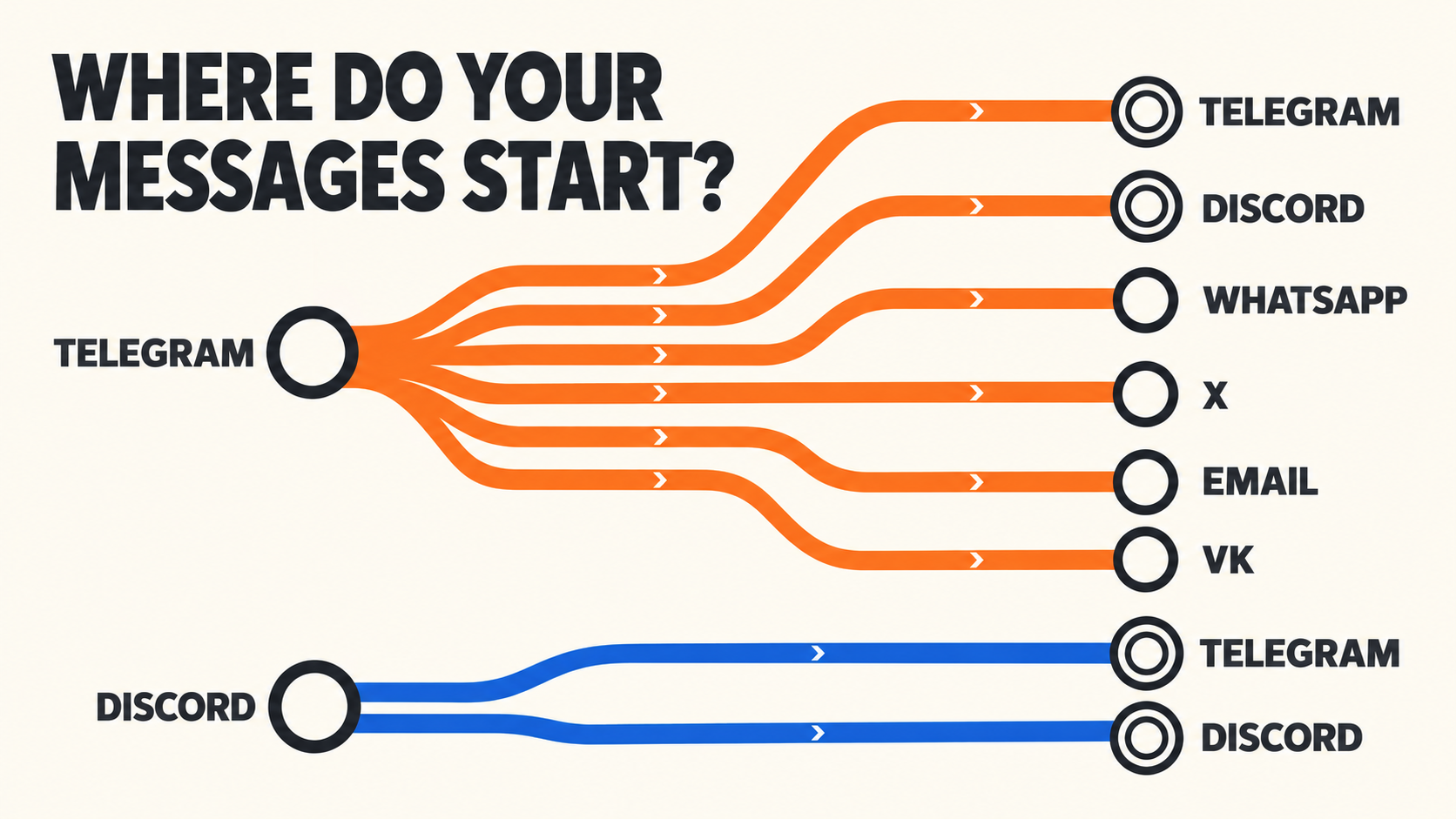
This guide is for a community manager whose Telegram-to-Discord route already delivers posts, but who wants release-alert subscribers—not the whole server—to be mentioned. RedFox is the product team behind RedFox Auto Forward Telegram. Auto-Bot.io publishes this guide; the instructions below are source-backed, not a forwarding test we performed. The hero is a concept illustration, not product UI or evidence that anyone received a notification.
Choose a notification audience, not an access rule
A role mention addresses members of a Discord role. It does not make the announcement private, add members to the role, or synchronize Telegram subscribers with Discord membership. Anyone allowed to read the destination channel may still read the message. Have your server administrator confirm who holds the intended role and who can view the channel.
For example, an opt-in Release alerts role can identify members who want new-version announcements. That role name is an editorial example, not a built-in RedFox setting. Keep routine conversation and unrelated posts outside the source used for this alert route.
- One role, one server: record the server, channel and intended role together. A similarly named role in another server is not the same identity.
- One fixed mention policy: a mention placed in a task’s Header/Footer is intended to accompany that task’s messages. Use it only when those messages should all address that role.
- No broad fallback: do not replace a failed role mention with
@everyoneor@here. That changes the audience rather than diagnosing the failure.
If the same Telegram source also contains casual updates, first prepare a separate approved announcement source or omit the fixed role mention. Do not assume the Publish Task automatically decides which posts deserve a ping.
Copy the Role ID—not the Channel ID
The RedFox Discord publishing guide describes enabling Developer Mode in Discord, opening Server Settings → Roles, right-clicking the intended role and selecting Copy Role ID. Ask an authorized server administrator to do this if you cannot access those settings.
Keep these identifiers separate:
- Channel ID: chooses where AutoForward publishes the announcement.
- Role ID: chooses which role the mention refers to inside that server.
- Bot Token: authenticates the publishing bot. It is a secret and never belongs in the announcement, Header/Footer, screenshot or support message.
Discord’s message-formatting reference specifies role syntax as <@&ROLE_ID>. Replace ROLE_ID with the copied numeric Role ID; retain the angle brackets, at sign and ampersand. Do not add quotation marks or spaces inside the mention. A plain label such as @Release alerts is not the documented ID-based format.
Add the mention to the correct Publish Task
This is the Telegram → Discord feature of RedFox Auto Forward Telegram, not the separate Discord-to-Telegram product. The documented Publish route requires an active External Publish addon, a connected Discord bot account and permission for that bot to post in the destination. Use the Telegram-to-Discord setup guide if the ordinary delivery route does not exist yet.
- Open the exact route. In AutoForward, go to Home → Publish and open the intended Publish Task. Confirm its Telegram source, Discord connection and destination Channel ID before editing.
- Use a controlled destination first. Prepare an authorized test source and Discord channel with consenting recipients. Treat creating or starting a task as potentially sending messages; do not experiment on a live community feed.
- Edit the task’s supported message options. The RedFox guide documents Add Header and Add Footer under Advanced Settings. It also describes role-mention configuration. For the Header/Footer approach, enter the role mention as normal message text, not inside a code block.
- Save and review the whole outgoing message. Check the source text as well as Header/Footer for other user, role,
@everyoneor@herementions. Adding one role does not establish that other mentions are suppressed. - Verify the test task’s state. When the controlled route is deliberately Running, send one new test message after task creation. This Publish flow does not automatically repost older Telegram messages.
Illustrative Header only—not a real Role ID or a sent message:
<@&ROLE_ID>
Release notice
Replace the placeholder before use. The code box is only for displaying the syntax in this article; do not copy its code-block formatting into the outgoing message. Choose one placement so the same mention is not added independently to both Header and Footer.
Need to publish to several servers? Begin with a separately reviewed route for each server’s role identity. The product supports multiple destination Channel IDs, but that does not establish automatic translation of one role into equivalent roles in other servers.
Check mention permission without opening every role
According to Discord’s current allowed-mentions documentation, notifying role members requires the role to be mentionable or the bot to have the MENTION_EVERYONE permission. The send’s allowed-mentions configuration also matters. These are separate from permission to view the channel and send ordinary text.
Have the server administrator choose an appropriate permission policy. Making a role mentionable affects who else can mention it; granting the bot broad mention permission has a wider scope than this one announcement. Do not grant Administrator or make every role mentionable as a troubleshooting shortcut.
AutoForward documents role mentions, but this guide does not assume a particular hidden API payload or an exposed allowed-mentions switch. If correct syntax and administrator-reviewed permissions still fail, ask RedFox support to inspect the actual send rather than inventing a setting or treating a webhook tutorial as interchangeable with this bot-based route.
Test delivery, role recognition and notification separately
Use one unique, harmless marker in a new source post, such as Role alert check — [your date and time]. Arrange the test with the intended recipients first. The following is a reader-run acceptance checklist, not a result observed for this article:
- Delivery: open the configured Discord channel and locate the exact new message. Record its message link. If it is absent, use the publishing failure guide; a missing message is not yet a role-notification diagnosis.
- Identity: inspect whether the mention resolves to the intended role in that server, rather than remaining literal characters or identifying a different role.
- Membership and access: confirm that a consenting tester actually holds that role and can read the destination channel.
- Notification: ask the tester what happened: visible role mention, notification badge, desktop alert or mobile push. Record only the observed result; these are not equivalent outcomes.
- Unintended mentions: inspect the complete message for broader pings. Correct the source or task text before deliberately activating the production route.
A historical Discord API community report from March 2020 described a bot message displaying a role’s color without notifying its members. The available reply pointed to a legacy-mention deprecation, and the issue is closed. It is not evidence of a current RedFox bug; it illustrates why appearance alone is a poor notification test. Use current Discord documentation, not the old incident, to decide today’s permission requirements.
If the message arrives but the alert does not
- Literal mention text: recheck the numeric Role ID, exact
<@&ROLE_ID>syntax and whether the outgoing message rendered it as code. Preserve the actual output for support if it still does not resolve. - Wrong role: verify the role belongs to the destination server. Copying a Channel ID or using another server’s role is not repaired by changing the display name.
- Role resolves, but tester sees no alert: confirm membership and administrator-reviewed mention permissions, then examine the tester’s own notification settings.
- Badge but no push: Discord explicitly says allowed mentions do not guarantee push notifications. User preferences and message notification flags can affect the result; do not claim RedFox sent a particular flag without evidence.
Discord’s notification-settings guide includes Suppress All Role @mentions and channel notification overrides. Ask the consenting tester to inspect their own preferences; do not ask an entire community to disable its preferences to make a test look successful.
Do not repeatedly resend a delivered announcement just to provoke a notification. Keep the destination link, task label, test time and timezone, intended role, observed rendering and tester result. Share only the identifiers support genuinely needs through an appropriate private support channel; omit tokens and unrelated private source content.
FAQ
Can I use a Telegram username as the Discord role mention?
No. This workflow uses the Discord destination server’s numeric Role ID and Discord role syntax. It does not establish a mapping from Telegram usernames or subscriptions to Discord roles.
Will a Header mention address the role on every post?
Plan a fixed task Header/Footer as text that accompanies that route’s messages. Use a dedicated approved source when each post should address the role. Do not assume the task chooses urgent posts automatically, and inspect the resulting test message before relying on the configuration.
Does mentioning one role hide the message from other members?
No. Channel access controls who can read the message. A role mention is a notification mechanism, not a privacy boundary or a membership-management feature.
Does a correctly rendered role guarantee a mobile push?
No. Discord documents permission, allowed-mentions and notification-setting conditions. Check the actual recipient result separately from message delivery and role rendering.
Start with one opt-in role and one controlled announcement
Open RedFox Web, or choose the official iOS app or Android app. Web/App is the recommended visual-management path; the Telegram bot is another entry point. Active tasks run in RedFox’s cloud without keeping the management interface open; source access and destination permissions must remain valid.
Your next action: select one authorized announcement route, obtain its destination role’s ID, and complete the separate delivery, role and notification checks with consenting testers. Explore RedFox Auto Forward Telegram for the owning product; keep the broader setup and missing-message procedures in their linked guides.
Address the Right Discord Role
Review one announcement route, add its destination role mention, and check delivery and recipient notifications separately with consenting testers.
Documented Discord publishing · Controlled reader-run checks