Telegram: Forward One User, Not the Whole Group
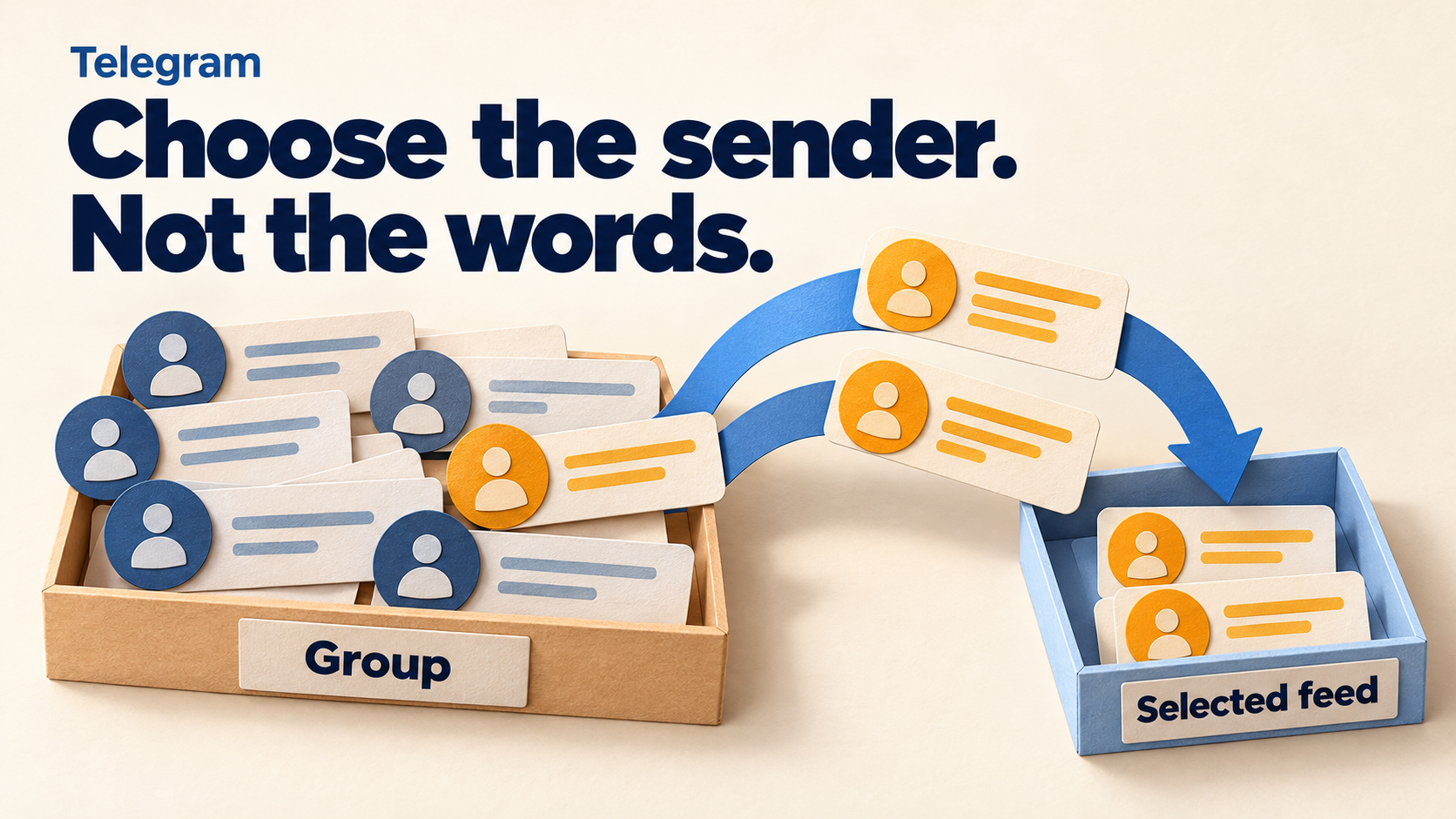
To forward messages from one person in a Telegram group, use a sender whitelist—not a keyword containing their name. In RedFox Auto Forward Telegram (@AutoForwardNew_Bot), the documented Whitelist By User rule selects messages by User ID or username. The Users Filter guide marks user filtering as Platinum-only.
This guide is for a group-to-feed task that already works but copies too much conversation. You want one contributor’s ordinary group posts, whatever words they use—not every message that mentions them. The previous bot has moved to @AutoForwardNew_Bot; use this current handle to access the product.
Choose the person, not a phrase
Imagine a project discussion group where a coordinator posts useful delivery updates among everyone else’s conversation. Your private reading feed should carry that coordinator’s messages without requiring them to begin every post with RELEASE or UPDATE.
- Selected sender, ordinary wording: “The review meeting has moved.” This should remain eligible under a sender-only policy.
- Another sender, similar wording: “The review meeting has moved, right?” This should not qualify merely because it uses the same words.
- Another sender mentions the coordinator: a name or @mention in the message body is not the message’s sender identity.
These are illustrative cases, not recorded customer results. Start with direct messages written by identifiable personal accounts inside the source group. Do not assume this recipe also identifies the person behind a channel post, an anonymous-admin post, or a message forwarded from elsewhere. Those are different sender/origin cases and need their own documented behavior and checks.
Choose a destination whose members are allowed to receive the selected person’s posts. Access to a group is not blanket permission to redistribute its conversations. Sender filtering also does not judge whether a message is accurate, approved, confidential or useful: every qualifying post by that person can still be relevant to the rule.
Keep three different controls separate
The word “user” can refer to different parts of a forwarding workflow. Before editing, write down which question you are answering.
- Whitelist By User: whose source messages should be eligible? This is the control for this guide.
- A content whitelist: which words should a source message contain? Use the keyword-filter guide if your requirement is about wording instead.
- The outgoing sender: which connected account or bot publishes the destination copy? Changing that identity does not select the author you want to read in the source.
A rule containing the text @coordinator in Basic keyword mode is not the same as choosing Whitelist By User and entering that account’s username. The rule type matters. Likewise, a blacklist that excludes one disruptive person is not an allowlist that selects only one contributor; it would leave other people eligible.
Record the task and identify the actual author
Open the existing route in the RedFox Web App or official mobile app. Confirm the source group, target feed, task label, active state and existing rules. Save the previous user-rule content and task associations privately before making a change. Do not repurpose a shared rule that another feed still uses.
Check Platinum access before configuring the user rule. Basic forwarding access does not mean every selection feature is included. This guide does not quote a price or promise an available trial.
Next, identify the person from an actual, ordinary post they wrote in the source. RedFox’s Whitelist Users guide accepts either a numeric User ID or a username. Do not substitute a display name, a source group ID, a task ID or a destination chat ID.
- Numeric ID: confirm that the returned value belongs to the intended person, not the chat or the account making the lookup. Keep it exactly as returned; do not apply a chat-ID conversion to a user value.
- Username: verify the actual account username rather than typing its display name. The app guide illustrates
@trusted_user; the command guide uses username examples without @. Follow the form for the surface you use rather than guessing that every input format is interchangeable. - No confirmed identifier: stop before activating the rule. The guide documents
/getidfrom a connected account and the Users Filter page also describes a helper-bot lookup. If you use a helper, use only a harmless message you are authorized to share, and inspect whose identifier it actually returns. A successful lookup is not enough if it identifies the wrong entity.
You do not need to send confidential group history to an external helper. If the intended sender cannot be identified from an authorized harmless specimen, ask product support about that specific source case instead of testing a guessed number on a live feed.
Create a user rule and associate only one task
For the app workflow, the official Whitelist Users guide documents these steps:
- Open Dashboard → Whitelist → Add New.
- Choose Whitelist By User as Whitelist Type. Give the rule a clear label, such as
coordinator_feed. - Enter the confirmed User ID or username in Content Whitelist. The official documentation image shows separate inputs for separate users; begin with just the one account this feed needs.
- Choose Create Whitelist to save it. Creation alone is not proof that the intended task uses the rule.
- Open the saved whitelist’s task associations and apply it only to your controlled task. The Users Filter guide documents applying or removing a user whitelist for selected tasks; the whitelist management guide distinguishes selecting a task from applying to all tasks.
- Reopen the rule and task. Verify the saved type, identifier and association before allowing messages into the intended feed. Keep unrelated tasks unchanged.
Web and mobile layouts can differ. If your interface does not match that navigation, use the documented rule type and saved task association as your checkpoints, not an invented equivalent button. The task-settings guide also identifies Filter Users in the Telegram-bot task menu.
Command alternative: the _user suffix matters
If you prefer the Telegram-bot entrypoint, the Users Filter guide documents this command form:
/whitelist add [LABEL]_user [USER_ID]Replace both bracketed placeholders before sending anything: use a recognizable label ending in _user and the actual confirmed numeric ID. The suffix belongs to this documented command syntax; it is not an instruction to rename an ordinary Basic content rule and expect it to become a user filter. After creation, select the intended task from the association list and verify its saved state. Do not apply the rule to every task for a one-feed change.
If the task already has a keyword whitelist or several user rules, do not assume the new rule overrides them or that separate rules automatically combine the way you want. Preserve existing protections and isolate this sender-only check on an authorized test task. Resolve the existing policy before changing the production association map.
Reader-run check: change the author, then the words
Use a test source and private target you control, with two consenting personal accounts: one selected and one not selected. Keep other settings fixed. The following are expected decisions under the sender rule, not forwarding results we observed. Other task rules and delivery conditions still apply.
- Selected author, first message: have the selected account write a fresh harmless post, such as “Sender check A: meeting moved.” Expected: eligible under the user whitelist. Confirm the actual target copy.
- Other author, comparable wording: have the other account write “Sender check B: meeting moved.” Expected: ineligible under this sender rule. The similar wording should not make that author eligible.
- Selected author, different wording: have the selected account write “Sender check C: documents are ready.” Expected: still eligible even without the earlier words.
- Other author, mention: have the other account write a harmless new post mentioning the selected person. Expected: ineligible under this sender rule; a body mention does not turn it into the selected person’s post.
Use distinct specimen labels so duplicate-message controls do not obscure the author comparison. Record who posted each specimen, its source link or timestamp, the saved identifier, task, intended decision and actual destination result. Allow for configured route delays before treating absence as exclusion. If neither selected-author post arrives, the check has not demonstrated a working selective route.
Only test replies, photos, albums or forwarded-origin posts if those are part of your intended feed, and record them separately. A successful direct-text check is not evidence for every message type or origin. Avoid repeatedly sending diagnostic material to a real audience.
If the wrong person arrives—or nothing arrives
- Both authors arrive: check that the saved type is Whitelist By User, that the rule is active for this exact task, and that another unfiltered task is not posting to the same target. A label containing “user” is not enough.
- Only messages mentioning the person arrive: inspect whether you created a content rule rather than a sender rule. Compare the saved type and value, not just the rule’s title.
- The selected author never arrives: verify the identifier against the author, the source group, route state and task association. Review other active filters and destination posting access. Do not fix an unconfirmed identity by disabling every filter.
- Only some selected-author posts arrive: compare message types, keyword restrictions and other task conditions. Selecting a sender does not remove those separate constraints.
- Another feed changes: check whether you edited a shared rule or used an all-tasks action. Restore only the association or value you deliberately changed, using the recorded baseline.
If you cannot explain the result, leave the production configuration unchanged or coordinate a pause of the affected route before restoring its previous associations. Do not delete a shared rule to undo one task’s change. For support, provide a redacted specimen, rule type, identifier type, task scope and expected versus actual result—not login codes, tokens or private conversation history.
This is a new-message selection workflow. Changing an allowlist does not establish that earlier skipped messages will replay or that unwanted copies already in the destination will disappear.
Build a reading feed around the contributor you need
Review RedFox Auto Forward Telegram, confirm Platinum user-filter access, and configure one sender rule on one controlled task. Choose the Web App, iOS app or Android app as you prefer. Web/App management is recommended for fuller rule and task management than the limited Telegram-bot entrypoint.
The service FAQ says you do not need to keep your internet on for forwarding to run. Active tasks run in RedFox’s cloud; closing the management screen is not a way to stop a task.
Your next action: confirm one author identifier, save one user-type rule, verify one task association, then check both authors and different wording. For first-time connectivity, use the source-to-target setup guide. For a group bulletin selected by announcement words instead, use the private-group update workflow.
Frequently asked questions
Can I select someone without a public username?
The documentation accepts a numeric User ID as well as a username. Confirm that it belongs to the intended sender; do not replace a missing username with their display name or the group’s ID.
Will a message mentioning the selected person qualify?
Not merely because of the mention under this sender-only policy. The selected account must be the sender for the ordinary group-post case covered here. Use the reader-run mention check to distinguish that from content keyword matching.
Does the rule select only that person’s important posts?
No. It selects by identity, not importance. If you also need a topic or announcement condition, define that separate policy before combining rules; do not assume an untested interaction between existing whitelists.
Auto-Bot.io is an editorial publisher, not the developer or operator of RedFox Auto Forward Telegram. Product instructions are based on the linked documentation retrieved October 23, 2026. The example and checks are editorial guidance, not an executed account test. The featured image is a concept illustration, not product UI.
Follow the Contributor, Not the Whole Group
Review user filtering in Auto Forward Telegram, confirm Platinum access and test one sender rule on one controlled task.
Documented user rules · Reader-run checks