Telegram Monthly Reminder Missing? Check Day 31
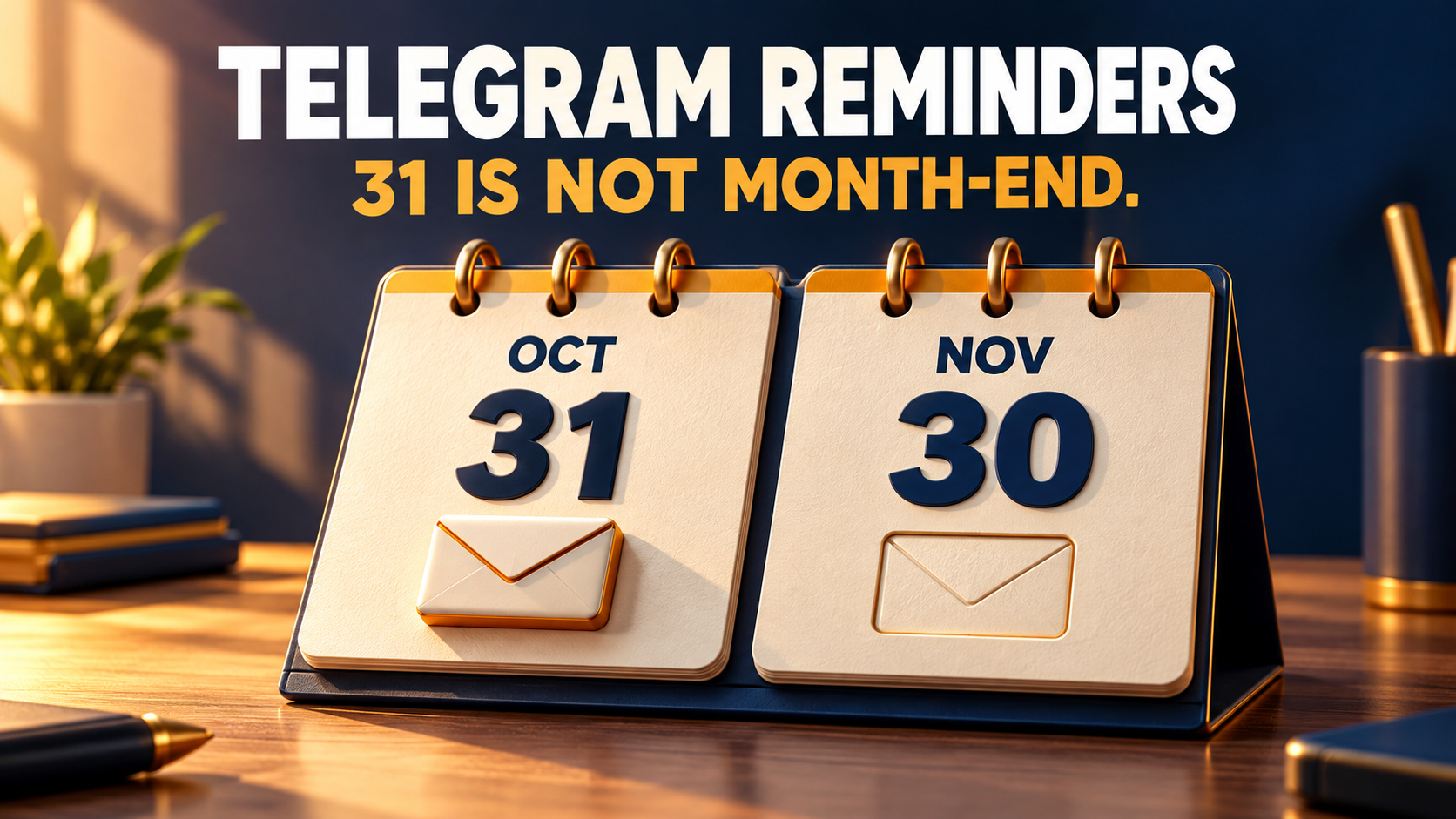
A Monthly repeat set to day 31 is not a “last day of every month” rule. RedFox Auto Forward Telegram documents that months without the selected day are skipped. A reminder that runs on October 31 can therefore have no November occurrence under that rule. Check the saved repeat day and account timezone before treating the missing post as a broken forwarding route.
This guide is for an operator whose recurring Telegram notice works in some months but disappears in shorter ones. It covers RedFox Auto Forward Telegram (@AutoForwardNew_Bot), not the separate Discord to Telegram product. RedFox develops and operates the product; Auto-Bot.io publishes this guide. The previous bot, @Auto_Forward_Messages_Bot, has moved to @AutoForwardNew_Bot.
Product documentation checked October 30, 2026. The calendar examples and private acceptance procedure below are editorial planning aids, not a scheduling test we executed. The featured image is a concept illustration, not product UI or evidence of delivery.
Day 31 and month-end are different requirements
The official Auto Post Scheduler guide describes Repeat → Monthly with a selected day from 1 to 31. It explicitly says day 31 skips February, April, June, September and November. Its limits section also warns that days 29, 30 and 31 can be skipped in some months.
Imagine an owned community notice: “Please review your membership details before the monthly close.” You schedule it for the 31st because that was the last day of the month when you created it. The reminder's business purpose is monthly, but the configured rule names a specific date. Those are not interchangeable.
- Day 31: an occurrence only in months that have a 31st, subject to the task's other conditions.
- Last calendar day: the 28th, 29th, 30th or 31st, depending on the month and year.
- Last business day: a separate policy that also depends on weekends and the applicable holiday calendar.
Do not assume a skipped date is moved to the previous day or deferred to the next month. The documented behavior is a skip, not a substitute date. A scheduled occurrence is also not a delivery guarantee: access, saved state and sending errors still matter.
Read the rule across a short-month boundary
Here is a calendar expectation example for a Monthly day-31 rule, not observed output. Keep the same posting time and account timezone while comparing dates:
| Month | Does day 31 exist? | Calendar expectation for this rule |
|---|---|---|
| October 2026 | Yes | October 31 is an eligible date; actual delivery still needs checking. |
| November 2026 | No | No day-31 occurrence. Do not expect an automatic November 30 replacement. |
| December 2026 | Yes | December 31 is an eligible date; it is not proof that November's notice was sent. |
| February 2027 | No | No day-31 occurrence. Leap years would not create a February 31 either. |
This is a familiar calendar-design trap beyond Telegram. In a public Fossify calendar discussion, a reader distinguished a last-day reminder from simply selecting May 31. A reply suggested a calendar-specific day-before reminder. That is an adjacent user question, not a RedFox incident or evidence that RedFox has the same offset control. Use RedFox's own documented rules for this task.
Inspect the saved rule before changing the account
- Open the exact affected task. Record its source, target, intended audience and the month that appears missing. Check whether the destination already contains the notice before sending anything again.
- Inspect Auto Post Scheduler. Confirm the feature is enabled, Schedule Type is Repeat, Repeat Type is Monthly, and record the selected day, time and Message ID. A task name such as “month-end” does not establish these saved values.
- Check the account timezone. The scheduler guide says it uses the timezone configured in your account, not the phone or computer timezone. Compare the expected calendar date in that zone. Do not change an account-wide timezone to fix one task without considering other schedules.
- Verify the selected source message. Open it in a source chat already assigned to this task. For a stable monthly notice, use the intended explicit Message ID. In its Interval and Fixed Time instructions, the guide uses ID 0 to fetch the latest source message, a separate content-selection decision; our Message ID 0 guide covers that case.
- Separate calendar eligibility from delivery. Check that the task and bot are active, access is valid for the configured feature, the source remains readable and the target remains writable. Review any visible error and posting history. If the selected date exists but no copy arrived, the missing-day explanation is not enough.
The separate Scheduler Power On/Off guide covers task operating hours. Do not mistake that control for the Monthly repeat's day-of-month selector. Likewise, do not reset all configuration, reconnect the account or recreate the route just because November has no 31st.
Choose the policy your readers actually need
Resolve the publishing requirement first, then choose a supported schedule. These are alternative designs, not instructions to enable several overlapping notices:
- A predictable date every month: choose a day from 1 through 28 that suits the notice. These dates exist in every month. A day-28 notice is not necessarily a month-end notice; label it honestly.
- A notice at the start of the next period: Monthly day 1 may suit “Review last month's summary.” This changes the editorial deadline. It is not a way to send on the previous evening.
- The exact last calendar day: use individually planned Fixed Time entries with the actual date and time, following the documented Fixed Time workflow. Verify each saved date and keep an owner responsible for adding future entries; one-off entries do not create an automatic month-end recurrence.
- The last business day: identify the relevant business calendar, have an owner approve the dates, and use explicitly dated entries where appropriate. Do not translate “business day” into day 30 or a fixed weekday without checking the calendar.
Each task uses one scheduling mode: Interval, Fixed Time or Repeat. The official guide states this explicitly. Before replacing Repeat with Fixed Time, preserve the old configuration and review the new entries. If you choose separate tasks instead, ensure their source, target and dates do not overlap. Do not leave both designs active for the same notice.
Custom Days means a fixed number of days between repetitions, not a calendar-month rule. Replacing “monthly” with “every 30 days” changes the requirement and can drift relative to month-end. Nor does this guide establish support for cron expressions, a last-day shortcut, holiday rules or a negative reminder offset inside RedFox; do not paste another tool's syntax into the day selector.
Validate the replacement without replaying the missed month
This is a proposed reader-run acceptance procedure. Use a private source and destination you control, a harmless notice and a dedicated test task. Do not advance a production device clock, alter the account timezone or send billing, legal or customer deadline notices just to simulate the boundary.
- Record the intended calendar. Write down the next relevant long-month and short-month dates, the chosen policy and account timezone. Compute the dates from a real calendar, including February. This checks the design, not the scheduler runtime.
- Prepare one small private delivery. In the chosen mode, use a valid explicit source Message ID and a safe upcoming time supported by that mode. Use the documented confirmation control: Done for Fixed Time; Add to create a Repeat schedule; Update when editing an existing Repeat schedule. Then reopen the task to inspect the saved values.
- Observe the actual result. Record the source link, target link, saved date/time/zone, arrival observation and any error. Confirm the exact text reached the intended destination once. A saved rule or a preview is not a delivered post.
- Keep the boundary check separate. A near-term Fixed Time delivery does not prove Monthly behavior across November or February. Mark future boundary delivery unobserved until it actually occurs; the documented skip rule remains the planning basis meanwhile.
- Cut over deliberately. Before activating the replacement on the live destination, stop the superseded schedule, inspect already delivered or pending work and verify the new saved entries. Stopping a task does not by itself prove that every previously queued action was cancelled.
If you need a makeup notice, check destination history and the audience's current need first. One deliberate, clearly worded makeup is different from replaying an archive or enabling duplicate schedules. Do not promise that a missed day will be backfilled automatically.
If the selected day exists but the notice is still missing
Keep the investigation scoped to the failing layer. Record the exact task, saved mode and day, account timezone, intended source Message ID, destination, expected occurrence and observed error. Share privacy-safe evidence with RedFox support, not login tokens or private customer messages.
If the wrong notice arrived, inspect source selection rather than the calendar. If an ordinary forward also fails, start with the existing forwarding setup guide. If the date does not exist, fix the scheduling policy before changing filters or sender identity. Preserve working tasks while you investigate.
Monthly reminder FAQ
Will Monthly day 30 run in February?
February has no day 30, so it falls under the documented missing-date skip behavior. Day 29 also needs a leap-year check. Use a day from 1 through 28 if your requirement is one fixed date that exists every month.
Does day 31 mean the last day of each month?
No. RedFox's scheduler guide explicitly says months without day 31 are skipped. If the requirement is the actual last calendar day, plan the relevant dated entries instead of assuming a replacement date.
Can moving my phone's timezone repair the missing date?
The guide says schedules follow the configured account timezone, not the device timezone. A timezone check can explain a date or hour mismatch; it cannot create November 31.
Should I repost the missing notice immediately?
Check the exact destination history and any pending work first. Decide whether the audience still needs a makeup, and ensure the replacement schedule cannot send a second copy. A skipped calendar date does not prove an automatic catch-up exists.
Review one monthly rule in the official management surface
Choose the RedFox Web app, iOS app or Android app. Web/App is recommended for fuller management than the limited Telegram-bot entry point. RedFox confirms that active tasks run in its cloud without keeping the management interface open; leaving your phone online does not repair an invalid monthly date.
Your next step: open the affected task's Auto Post Scheduler and decide whether you need a fixed monthly date or actual month-end. Preserve the existing rule, choose one replacement policy and inspect its saved state before the next real occurrence. The Auto Forward Telegram overview and official scheduler documentation are the appropriate product and configuration destinations.
Review One Monthly Telegram Rule
Check the saved repeat day and choose a fixed monthly date or explicitly planned month-end notice.
Manage on Web, iOS or Android