Release a Telegram Course in Order, Without a Repeating Loop
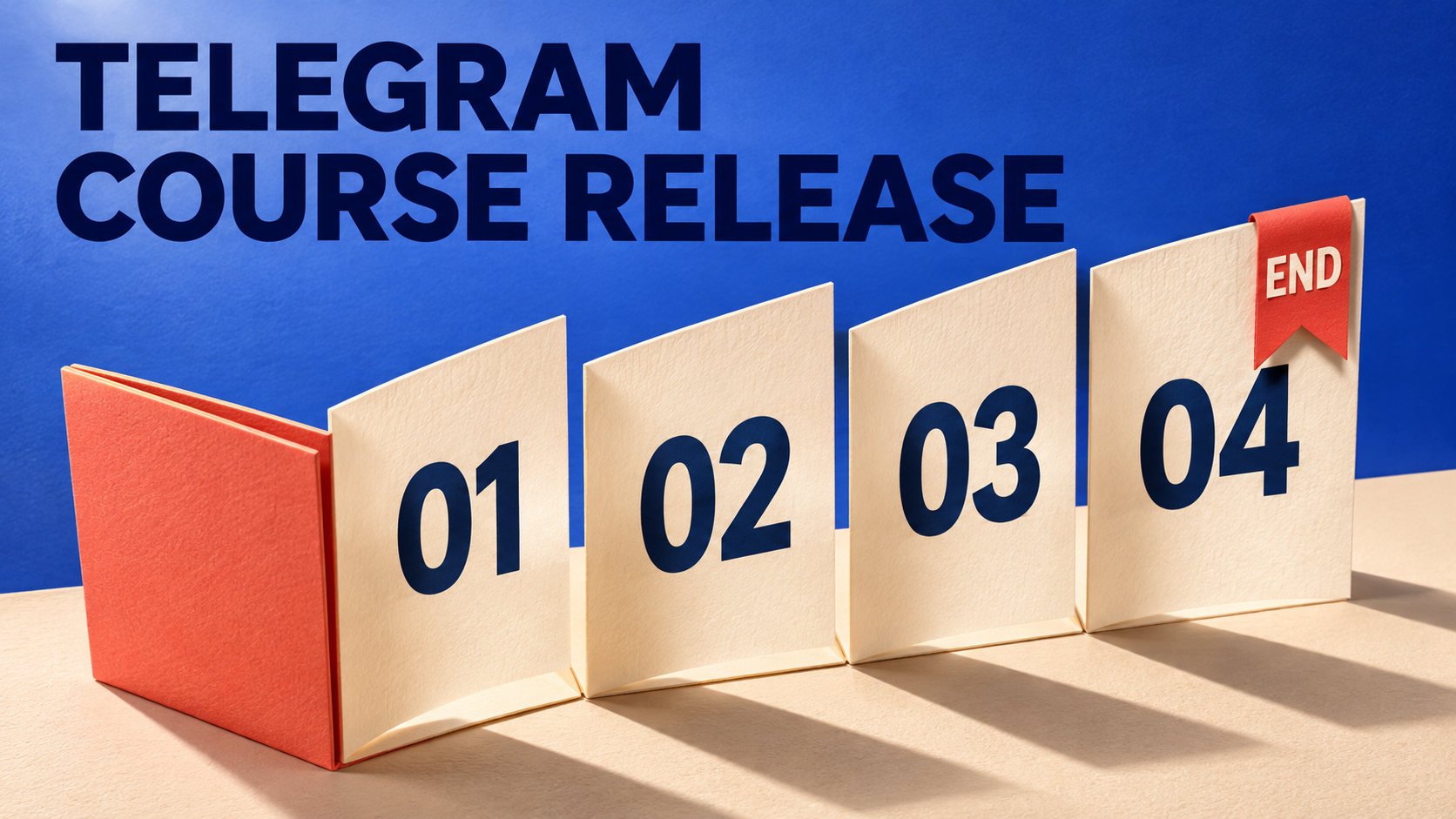
To release a Telegram course to one cohort on a shared calendar, give each lesson its own dated Fixed Time entry in RedFox Auto Forward Telegram (@AutoForwardNew_Bot). Pair each slot with one explicit source Message ID. Do not use an Interval list with Sequential order when the series should finish: Sequential cycles back to the beginning. A finite set of dated entries gives you a planned last lesson without building a repeating content loop.
This is for a workshop or short course whose members receive the same releases together. It is not a per-member drip sequence triggered by joining, an enrollment system or a learning-progress tracker. RedFox develops the product; Auto-Bot.io publishes this guide. The previous bot, @Auto_Forward_Messages_Bot, has moved to @AutoForwardNew_Bot. Use this current handle to access RedFox Auto Forward Telegram.
Choose a course release, not a rotating library
Imagine you already have four approved teaching posts in a source channel: an orientation, a worked example, an exercise and a self-check. You want to reuse them for the next cohort without manually opening Telegram at every release time—or accidentally sending the orientation again after the final exercise.
The official Auto Post Scheduler guide, checked November 5, 2026, distinguishes three modes. Interval posts on an elapsed-minute cadence; its Sequential order cycles through the selected list and repeats. Repeat creates recurring calendar schedules. Fixed Time pairs selected messages with particular dates and times. Use the last of these for this finite release plan, not a recurring rule that someone must remember to interrupt mid-cycle.
Each task uses one scheduling mode. The scheduler overview is the broader entry point. For intentionally daily or weekly repetition, choose Repeat; see the recurring scheduling guide's Repeat-mode section. For this course, the organizing unit is a lesson tied to a dated slot—not a position in a never-ending list.
Telegram itself also supports native scheduled messages. If composing and scheduling a few posts directly in the receiving chat is enough, that may be the simpler choice. This RedFox workflow is useful when the course already exists as source posts and you want to manage their scheduled source-to-target release within a forwarding task.
Write the release map before opening the scheduler
Choose the learning order first. An archive's message IDs need not be consecutive, and a higher ID does not necessarily mean “the next lesson.” For each release, record the source chat, the actual post link and ID, its teaching purpose, the intended date/time and the destination.
Worked planning example: this fictional workshop helps a cohort write a first client brief. The IDs are illustrative, not values to paste into your task. All four entries use the same approved source channel and one cohort destination, with the account configured as GMT+7.
| Release slot · GMT+7 | Source post and lesson |
|---|---|
| 16 Nov 2026 09:00 | ID 412 — Orientation: the finished brief's purpose and the course path. |
| 17 Nov 2026 09:00 | ID 587 — Worked example: one annotated brief with its explanation. |
| 19 Nov 2026 09:00 | ID 633 — Practice: the worksheet with complete instructions in its caption. |
| 20 Nov 2026 09:00 | ID 810 — Self-check: the rubric, finish line and where to ask questions. |
The gap before practice is deliberate study time. The order comes from the dates you assign, not from entering 412,587,633,810 into an Interval field. If an explanation and attachment live in separate posts, give each required item its own planned slot or prepare a self-contained approved post first. Do not assume a selected ID will reconstruct surrounding context or a whole album.
Use the account's saved timezone, not your phone clock. The scheduler documentation says Auto Post Scheduler follows the timezone configured for the connected account. Write that zone on the release map and verify every full date, especially for international cohorts. Use the account-timezone guide for a conversion problem; do not change an account-wide zone casually when other schedules depend on it.
Prepare a stable source and a dedicated course task
Use material you own or may redistribute to this cohort. The connected account must be able to read the selected source posts, and the configured sending identity needs permission to post in the target. Check current Auto Post Scheduler access on your account before committing to the course calendar.
- Keep the source approved-only. Exclude staff notes, unpublished solutions and unrelated announcements. Keep selected posts available and unchanged through their releases: an ID identifies a post, not a frozen version. If a selected post is missing or unreadable, do not assume the slot is skipped; a different source post could be sent instead. That is why the source must contain only approved material.
- Use one source for this task. Message IDs are local to a chat. Record the source together with every ID rather than mixing numbers from different archives.
- Start with one controlled destination. A private rehearsal channel keeps test releases away from members. Confirm the actual target before enabling anything.
- Review inherited content settings. Filters, Cleaner, replacements, translation and headers/footers can change what arrives. For a preservation-first course, remove unwanted exclusions or transformations from this task, not from every task in the account.
If no route exists, follow RedFox's task-creation instructions for source, target and label. Creation activates a task, so use the controlled target initially and pause the task while configuring it. The task-settings guide documents editing source/target and opening Advanced Configuration. Do not repurpose an unrelated live announcement task.
Give each lesson one dated Fixed Time entry
- Open the course task's Auto Post Scheduler. Choose the Web App or an official mobile app for fuller management than the limited Telegram-bot entrypoint, @AutoForwardNew_Bot.
- Enable Auto Posting and choose Fixed Time. Use the date-and-time selection for the intended occurrence. Do not replace a dated release with a Daily repeat or with Scheduler Power On/Off, which controls task operating hours.
- Add one lesson. Use Add Schedule, set its full date and time in the account zone, and enter that lesson's explicit Message ID. To find the ID, copy the actual Telegram post link and take the final message-number segment, then open the link to confirm the post.
- Add the remaining entries separately. Match every saved date/ID pair to the release map. Keep one ID per slot; this design does not depend on Random, Sequential or All selecting from a multi-message list.
- Review real-time forwarding controls. Enable Pause Real-Time Forwarding for the scheduled course route and inspect Resume Real-Time Forwarding After Schedule Ends. These controls manage overlap; they do not permanently turn the task into a schedule-only publisher. Keep the source quiet until the dedicated task is stopped; real-time forwarding can resume after scheduled posts complete.
- Save with Done, then reopen the task. Verify the mode, all dates, IDs, source, target and pause/resume choices. Enable the task only when the intended upcoming slots are still in the future and the rehearsal or audience destination is correct.
Do not enter 0 for a named lesson. The documented meaning of 0 is “fetch the latest source message,” not “the lesson that was latest when I saved.” The Message ID 0 guide covers that selection trap. Also, do not leave a slot active after its selected post has been deleted or become unreadable: restore a verified source or remove the affected slot before it runs.
The dated entries are individual scheduled occurrences, not an automatic restart of the course. That does not guarantee delivery to the second, exactly-once output or automatic recovery after an outage. Leave useful space between related releases, and check the actual destination when a lesson is due. Multiple targets can also introduce configured spacing between deliveries; the first rehearsal should keep the route simple.
Rehearse the sequence and its ending
Before members rely on the calendar, run a small rehearsal with harmless approved posts and near-term future slots on the controlled target. Keep the same source-selection approach and relevant content settings as the course.
- Pick two distinguishable posts. Give them meaningful identifiers such as “Practice example” and “Practice self-check.” Record their actual source IDs and arrange two different future Fixed Time slots in the intended order.
- Inspect the saved plan. Reopen the task after saving. Confirm both full dates, account zone, IDs and private target. Make sure another task or ordinary live route cannot produce confusing extra copies.
- Read the delivered lessons. Check the actual first post, then the second. Compare the content, caption, file, links and their learning order with the plan. A scheduler confirmation or completion label is not enough.
- Observe beyond the final slot. Confirm there is no further course slot saved and no first-lesson restart in the observation period. Keep observing past the same clock time on the following day; no rehearsal post should arrive again. Record the period you actually watched; a short check is not proof against every future duplicate.
- Stop the temporary route and reconcile. Keep accepted target links and note missing or extra items before changing anything. Remove rehearsal entries before preparing the real calendar. If you reuse the task for the cohort, pause it before changing the target and verify the source still matches every ID.
Accept the release only when content, order and absence of unexplained copies agree. The worksheet must open with enough instructions to use it; the self-check must refer to the exercise already received. A perfectly timed but context-free attachment is not a successful lesson.
If a post is missing or unexpected, pause the affected course task and check destination history, the exact source ID's existence/access, saved mode/date/zone, task status and visible errors. An unavailable selected post could result in a different source post being sent, not a skipped slot. Do not assume a past Fixed Time entry will catch up automatically. Resolve what already arrived before adding a new future slot; replaying the whole course can duplicate lessons that were delivered correctly.
Give the final lesson an owner, not another cycle
The final rubric should tell members what “finished” means and where legitimate questions belong. After that release, the course owner should compare the full map with the destination, confirm any corrections separately, and stop the dedicated task once the intended work has settled. Do not infer course completion from the clock alone, and do not treat stopping a task as proof that every action already in flight was cancelled.
Keep the release record: approved source references, saved schedule, actual destination links and unresolved issues. Any next cohort needs a deliberately reviewed set of new dates. Reusing the material does not mean leaving a recurring schedule active forever.
If the members instead need all selected material available immediately, use the new-member starter-pack workflow. That guide copies chosen history and builds an index. This guide releases lessons to a shared cohort over time; it does not automatically restart the path for each newcomer.
Course-release questions
Why not use Sequential order for a four-lesson course?
Sequential preserves list order in a continuing rotation, then cycles back. That suits evergreen libraries. For a course with a planned last release, assign individual dated Fixed Time entries instead; do not rely on remembering to stop a repeating list at exactly the right moment.
Will a new member automatically start with lesson one?
No per-member enrollment trigger is established by this workflow. All members of the receiving cohort chat see the same calendar releases. Handle late arrivals with your own instructions or a separately prepared starter index.
Does my phone need to stay online?
RedFox's scheduler FAQ says configured scheduling runs without keeping your phone or computer online. Active tasks run in RedFox's cloud; you can close the management interface. The connected service, task, access and current feature entitlement still need to remain valid.
Plan the next cohort's first release
Explore RedFox Auto Forward Telegram, then write one complete release map before enabling the course task. Choose the Web App, iOS app or Android app, whichever you prefer. Start with a controlled rehearsal, keep one verified ID per dated slot and assign someone to close the series after the final result is checked. The useful outcome is a course members can follow—not a content loop they must learn to ignore.
Build a course release with a clear finish
Plan the lessons, check current scheduler access and rehearse one dated source-to-target sequence.
Choose Web, iOS or Android for fuller task management