Move Protected Telegram History, Then Keep New Posts Flowing
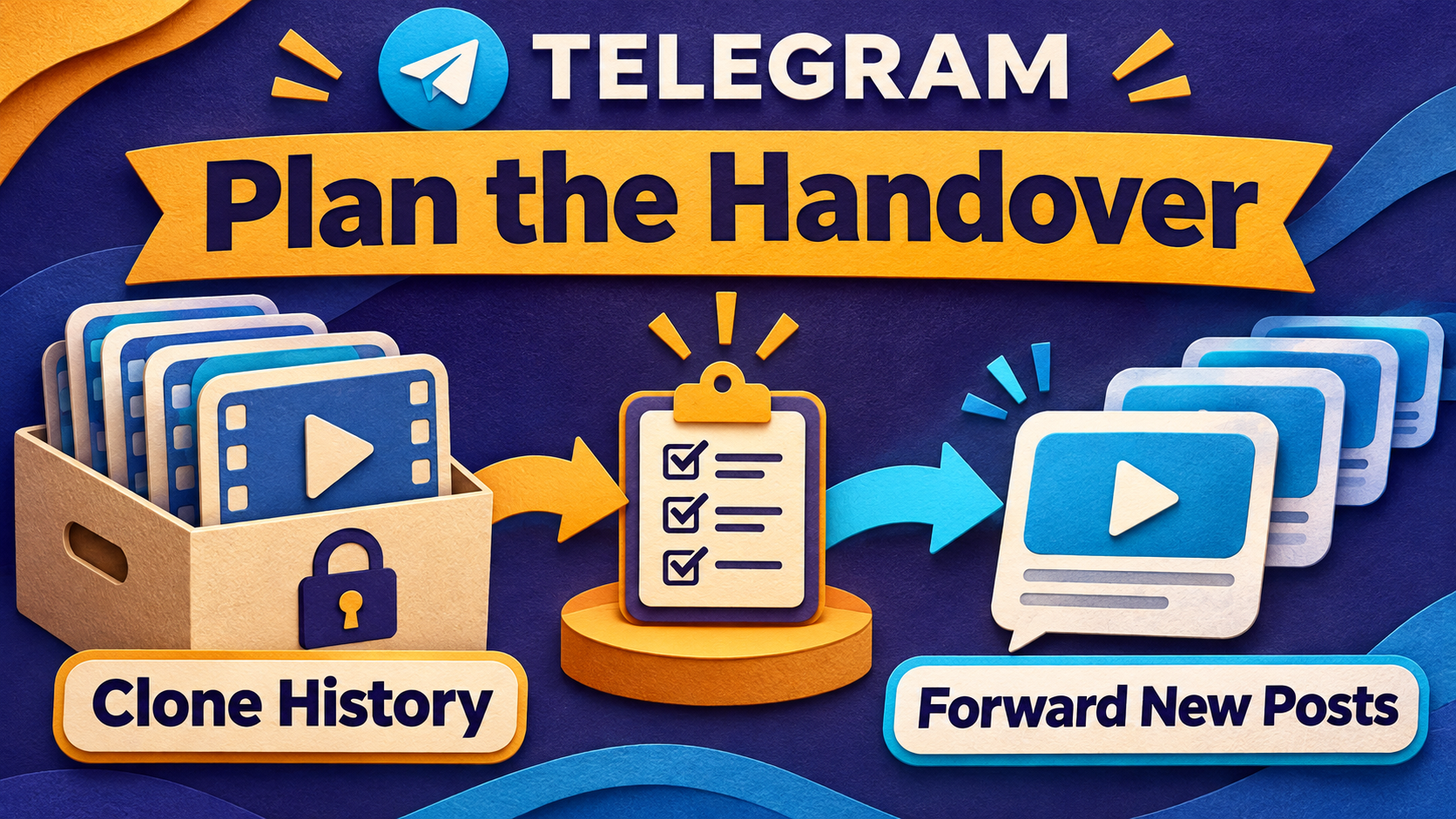
Moving a protected Telegram channel is two jobs: copy the history you need with Clone, then keep future posts arriving through a regular forwarding task. RedFox Auto Forward Telegram supports both workflows, including accessible private and Protect Content sources. Plan the handover between them before starting a large archive, so you can account for posts published while the move is in progress.
For a course creator, that means bringing the lesson library to a new member channel without returning to manual reposting for every new lesson. For a community operator, it means keeping the archive and tomorrow’s updates in one working plan—not assuming a completed historical copy is a permanent live connection.
RedFox develops the product; Auto-Bot.io publishes this guide. The instructions below use RedFox’s current Clone documentation and forwarding-task guide, checked November 2, 2026.
Bring the library, then keep the channel useful
Clone selects older source messages for a historical copy. A regular forwarding task handles the continuing source-to-target route. Setting up one is not proof that the other is configured, and neither status alone proves that every required post reached the right audience.
RedFox confirms that ordinary protected-source forwarding is built in on every plan, including Free. It also confirms Clone from private or ordinary Protect Content channels and groups the connected account has joined. These capabilities remove the need to treat a disabled Telegram Forward button as a reason to copy an authorized library by hand.
The entitlements remain separate: RedFox’s product repository describes history cloning as Premium. Check your current Clone allowance and selection limits before the move. Free protected forwarding does not mean a large-history Clone is Free or unlimited, and standard Protect Content is not by itself a reason to purchase the specialized Anti-Repasse add-on.
RedFox reports customers cloning hundreds of private/protected channels and groups containing millions of videos. That is reported customer-use scale—not a per-account allowance, a simultaneous-processing claim or a completion-time estimate. At that scale, the useful unit of control is still one identifiable source, destination, historical selection and handover record.
Check access and choose the receiving audience
Use an account that can read the source and content you own or may redistribute to the destination’s members. RedFox’s private-channel FAQ requires the connected user to have joined a private source. Reading membership, reuse rights and target posting permission are three different checks; paying to join a channel does not itself grant permission to republish it.
Before running anything, write down the exact source and target, selected sending identity, required message types, intended audience and existing copies in the target. Keep credentials, bot tokens and private invitations out of that record. For several channels, use a separate line for each source-to-target pair rather than relying on similar display names.
Decide how members should browse the history. Date-wise Clone can add original-day headings, but it does not restore old native Telegram sending timestamps. This is a useful presentation choice; it is not the handover boundary between old and new posts.
Choose a quiet window or an active-source handover
The easiest migration boundary is a source that is not receiving new posts. If you control publishing there, arrange a quiet window long enough to finish and verify the selected history, create the live route and check its first new posts. Pausing source publishing is your editorial operation, not a promised AutoForward migration switch. Do not change a community’s permissions or stop someone else’s publishing without authority.
If the source must remain active, plan for a catch-up interval: posts created after your historical endpoint but before the new live task is activated. Those posts were not selected for the initial Clone and predate the new live route. Keep their source links or IDs and compare them with the destination. Posts published after activation belong in a separate live-delivery check; the first copy you observe does not prove that all earlier posts arrived or were missed.
Also decide whether mixing fresh updates with an unfinished archive would confuse members. When it would, consider an authorized archive destination separate from the ongoing-update destination, with clear reader links between them. That is a channel-design choice, not an automatic merge feature. Do not promise seamless chronological insertion of old posts around messages already sent.
Bound the historical copy before starting it
- Open Home → Clone. Use a one-time run, or create a saved Clone Profile for a setup you need to revisit. Confirm Source Chat Clone and Target Chat Clone against your record.
- Choose the historical selection. In ID range mode, enter Start From Message ID and End ID (included). Record the endpoint as the boundary of this selection, not as an automatic cutoff for a future forwarding task.
- Keep albums whole. RedFox says an album crossing the selected boundary is skipped as a whole. Inspect a complete album at the edge before choosing a cutover point. Do not divide one grouped lesson between the history selection and your catch-up list.
- Review content rules and sender. Make sure the historical selection includes the videos, captions and other material you actually need. A live task’s settings are not evidence of the Clone Profile’s configuration.
- Validate a small selection first. In a private destination you control, compare selected source posts with actual copies, including video playback, captions and complete albums. Record which posts arrived before asking for more.
The current Clone guide permits an ID range of up to 100,000 source IDs. That is a selection bound, not a guaranteed number of copied videos or a total archive ceiling. Deleted, filtered and skipped messages can reduce the result. Plan further selections only after reconciling the previous one and keeping their boundaries unambiguous.
Only one clone operation can run for an account at a time. Wait for the accepted operation to settle before starting the next. The older bot-command Clone guide warns that cloning can delay existing forwarding setups and trigger temporary Telegram sending limits. Do not promise uninterrupted live delivery alongside a bulk clone or repeatedly restart to overcome a reported limit.
Keep the sender decision explicit
Clone Profiles use the Personal Telegram Account by default. If you need Clone Bot Sender, the current sender guide requires paid Platinum, a saved bot and permission for it to send in the target. Platinum Trial, Gold, Diamond, Free and expired plans cannot enable that option. Albums still use the Personal Telegram Account even with Bot Sender enabled.
If a personal-account send would be unacceptable, resolve that album exception before launching the archive. The separate Clone sender and album guide covers that decision. Do not assume that choosing a sender for a future live task changes how a historical Clone sends.
Create the continuing route at the planned handover
When you are ready for new posts to start reaching the intended destination, use the regular task flow. The documented task activates when created; do not click Create Task on the assumption that another Start step will protect the audience.
- Open Forwarding List → Create Task +.
- Under Select Source Forward, choose the exact Channel or Group, then Next Step. All displays the available source types; it does not mean every chat is selected.
- Under Select Target Forward, choose the authorized destination and continue. Verify the audience and selected sender’s posting permissions before finishing.
- Use a recognizable label, such as
course_updates, review the source/target pair and select Create Task. - Inspect a new post published after activation. Compare its actual destination copy, not only the task’s active status. Include the media-with-caption type your real updates use.
For the fuller initial setup, use the protected-source forwarding guide. A new regular route is not an automatic import of all posts published during your migration. Keep the historical endpoint, the route’s activation and the first observed live deliveries in the same handover record.
Account for the boundary before declaring the move finished
For example, imagine a licensed training library that continues publishing while you copy its older lessons. Keep three groups in your record: the bounded historical selection, posts published during the handover and new posts whose live delivery you have observed. These are operating categories you maintain, not three AutoForward settings.
- History: compare the required source items with copies and review the Clone summary. A selected source ID is not itself proof of a delivered post.
- Handover: inspect every required post in the catch-up interval against the target. Mark it present, intentionally excluded, missing or unresolved. Keep complete albums together.
- New posts: confirm fresh eligible posts reach the exact continuing destination. A delayed post is unresolved until you inspect its outcome; an activation time does not prove delivery.
Close the pre-activation gap deliberately. After the main Clone has settled, identify the required posts in that catch-up interval that are actually absent from the destination. Copy that small selection with a separately bounded ID-range Clone, checking complete albums at both edges and excluding anything already present. If the needed posts are not one clean range, do not widen the selection over existing copies; reconcile smaller selections or ask RedFox support to resolve the case.
Record the live task’s activation and the source IDs of fresh posts whose delivery you observe. For an absent post published after activation, check the route and any in-flight processing before sending another copy. If you cannot establish whether an item is already covered or still processing, keep it unresolved rather than treating it as a safe catch-up send. Retry Missing applies only to unsuccessful, still-retryable items inside a Clone selection; it does not add posts you never selected.
Schedule a catch-up Clone only when a possible live-delivery delay is acceptable. RedFox’s bot-command guide explicitly warns that a current setup cannot send new messages until that /clone finishes, and other setups may be delayed. Check new-post delivery again after the catch-up settles. Do not assume a regular task’s duplicate filter makes a Clone rerun harmless, or promise uninterrupted delivery while bulk copying.
Clone Again starts a brand-new operation from the beginning. It is not a handover repair button. The missing-message and ID-range guide owns detailed recovery; keep a successful archive intact instead of recreating everything to fix one boundary item.
Keep the originals and source access until your required historical selection, handover interval and continuing delivery have been checked. A successful sample is not a complete account backup, an exactly-once guarantee or a reason to delete the only original library.
Frequently asked questions
Does a saved Clone Profile keep copying new posts forever?
Use a regular forwarding task for the continuing route. The Clone Profile saves the historical setup and lets you run or manage clone operations; do not treat its completion as proof that future-post forwarding is active.
Must I keep the phone or browser open after the handover?
RedFox runs active forwarding tasks in its cloud without keeping the management interface open. For an accepted Clone, the documentation says putting the app in the background does not intentionally stop it, though live progress may pause. Refresh the profile’s status before deciding it needs another run.
What if I cannot pause publishing in the source?
Use a bounded historical endpoint and an explicit catch-up interval, then compare individual posts with the target. If the destination must stay strictly chronological, do not assume simultaneous history and live delivery will provide that result; decide on separate archive/update destinations or resolve a supported handover with RedFox before launch.
Move the archive with a plan for the next post
Start with one source-to-target pair in RedFox Auto Forward Telegram. Choose the historical endpoint, decide how new posts will be handled during the move and validate a small copy. Expand only when both the archive and the continuing route have clear acceptance checks.
Manage the workflow on the Web App, iOS or Android, choosing the surface you prefer. Web and the apps provide fuller management than the limited Telegram-bot entrypoint. The current bot is @AutoForwardNew_Bot; the previous @Auto_Forward_Messages_Bot has moved there.
Bring the Archive. Plan the Next Post.
Choose one historical selection, account for the handover interval and verify the continuing source-to-target route.
Manage on Web, iOS or Android