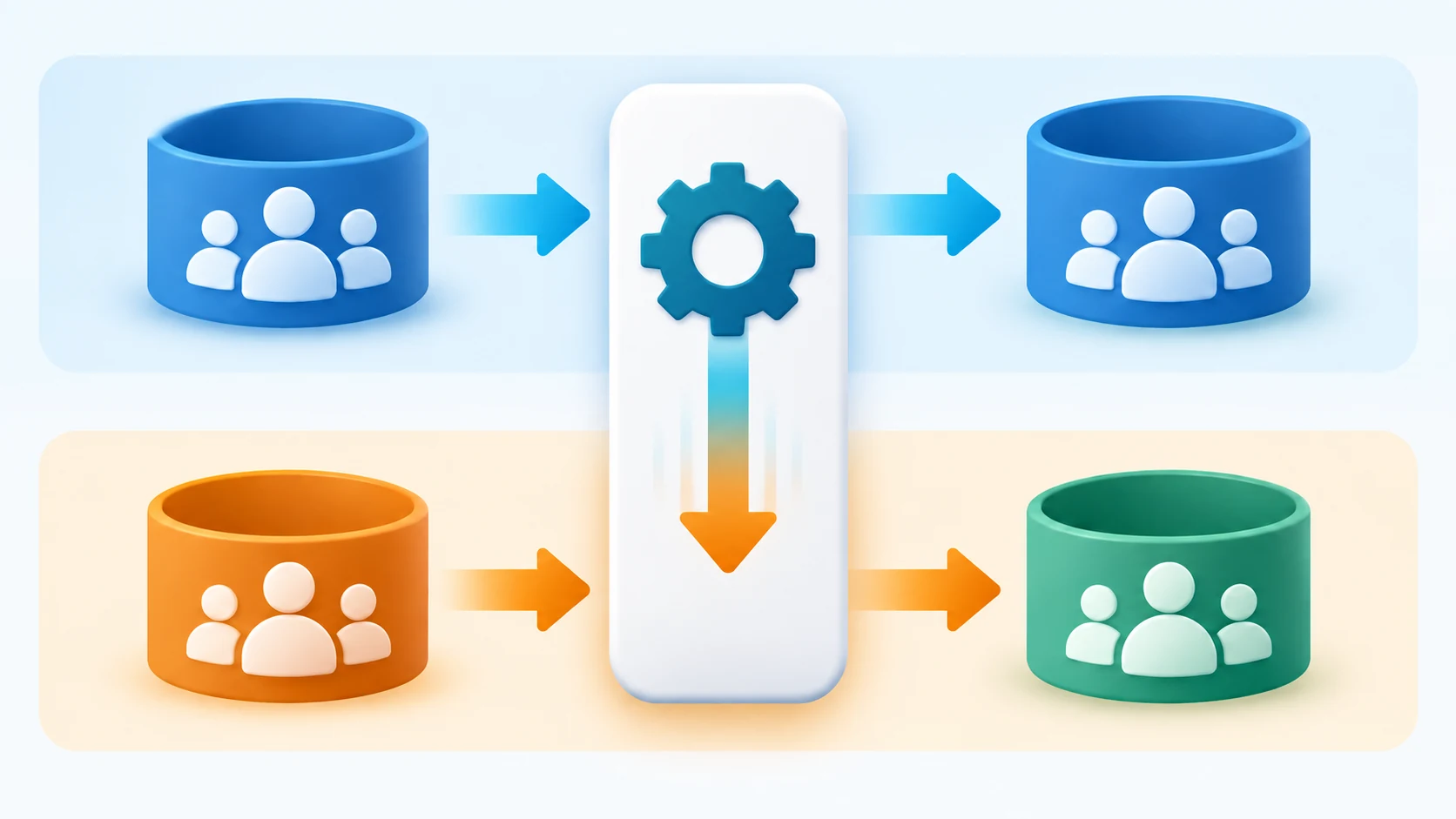
Switching from Junction Bot? Start with two private Telegram channels you control. Set up RedFox Auto Forward Telegram (@AutoForwardNew_Bot) from a Test Source to a Test Target, try the route without touching your live audience, and then edit Source and Target on that same task when you are ready. You can keep your existing Junction route running during the isolated test. Auto Forward gives you near-instant forwarding, cloud operation and Web, iOS and Android management; you do not have to keep a phone or browser open for an active task.
This guide walks you through switching one route; it is not a second feature-by-feature comparison. If you are still choosing a service, read our RedFox Auto Forward Telegram (@AutoForwardNew_Bot) vs Junction Bot comparison first. RedFox is the product team; Auto-Bot.io is a separate editorial website, not the bot operator.
The idea: one task, two stages
Keep the task's rules while changing its endpoints. First, all sample traffic stays between channels you own. Later, pause the task, select the real source and destination, check access and settings, and deliberately start it at your cutover time. Until cutover, neither endpoint of the new task should be a production endpoint. This is much easier to reason about than experimenting on a channel with subscribers.

We checked the actual Android flow on September 24, 2026: a private Test Source message appeared in the private Test Target through a running Auto Forward task. We then stopped that same task, changed its Source and Target to other demo channels, and restored the original pair. The screenshots below show the current app controls. That one route check demonstrates this workflow; it is not a speed benchmark or a test of every possible filter.
1. Write down your existing Junction route
Before touching the live rule, record only the settings you actually use. Junction's forwarding description identifies a source, destination, filtering and publication parameters; this worksheet makes those choices explicit so you can recreate them rather than guessing.
- Source and access: which channel/group supplies new messages, and which connected Telegram identity may read them?
- Destination and sender: where should new messages land, and will the sender be a connected personal account or a bot with permission to post?
- Presentation: preserve a forwarded header or publish a copy? Note the actual text, links, captions, photo/video and albums you expect.
- Rules: keyword inclusion/exclusion, text replacement, schedule/delay, replies or topics—only if your current route uses them. Map each Junction behavior to the corresponding Auto Forward setting and mark anything you have not tested yet.
- Acceptance and rollback: one message that must pass, one that must not, one formatting check, and the action to pause the new route and resume the old one.
Recreate the needed behavior manually. This guide does not promise an automatic Junction configuration import, identical rule names, or historical-message migration. For a basic first route, start with new messages and add advanced controls only where your actual use case calls for them.
2. Make your own Test Source and Test Target
In Telegram, create two private channels—for example, Test Source and Test Target—under an account you control. Keep real subscribers out of them. As the owner, you can post test messages, inspect what arrives and remove samples without disrupting the live destination. Sign in to Auto Forward and connect the same Telegram account that owns both test channels so it can access the source and send to the target; if you choose bot sender mode, give that bot the required posting rights on the target. The official sender guide explains the two modes.
Why both endpoints should be yours: a private test target alone can receive a copy of a real source, but posting test data into an active Junction source could still reach its production audience. Two owned test channels make the trial genuinely separate. Keep the Junction production route as it is during this stage.
3. Create the Auto Forward test task
Before you tap Create Task: it starts forwarding immediately; it does not save an inert draft. Pick only your private Test Source and Test Target at this stage, never the live source or audience.
- Open the Auto Forward Web App or the Android app / iOS app. In the Android walkthrough, Home → Create Task opened the source picker; the official task guide also describes the Forwarding List entrypoint.
- Select Test Source, tap NEXT STEP, then select Test Target and tap NEXT STEP again. If a newly created channel is missing, check the connected identity and use the picker’s Reload control to sync the chat list.
- Give the task a recognizable label, review the two endpoint cards, and tap Create Task. Our demo label was
af_route_lab_b.
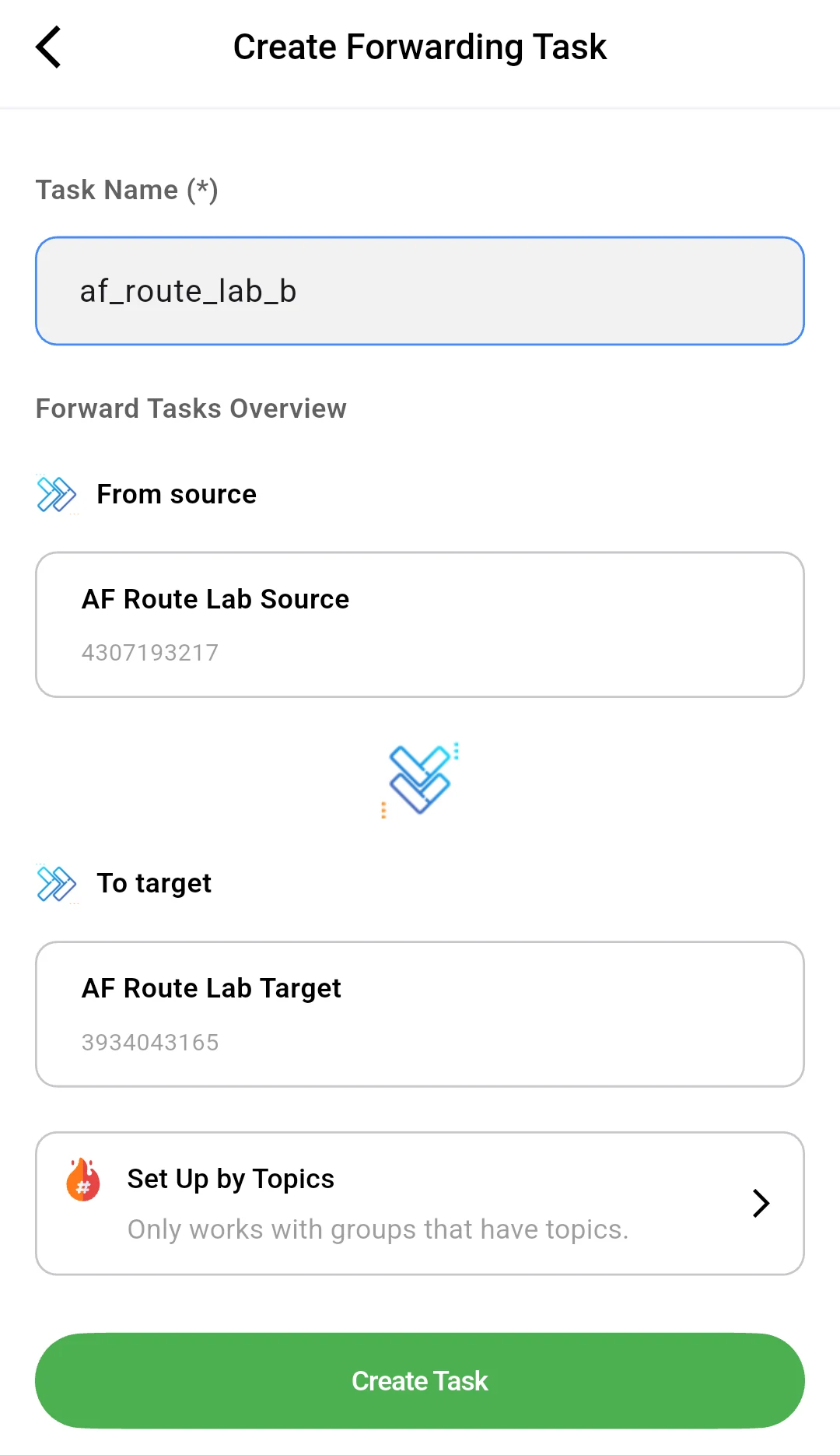
Because both endpoints are private test channels, the first forwarded messages stay in your lab. After creation, you can pause the task while adding rules.
4. Test a message and the rules you actually need
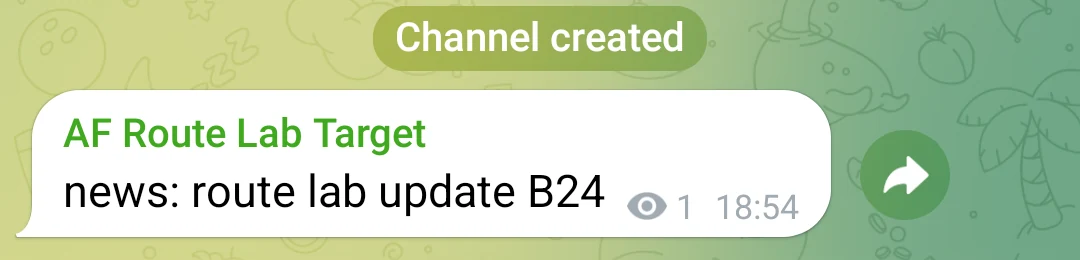
If you paused the task to add rules, use Start/Stop Task and confirm RUNNING before sending a fresh test message. Begin with basic routing: post a fresh message such as news: test update in Test Source and confirm that Test Target receives the expected text. In our phone check, news: route lab update B24 appeared in the private target while the task was RUNNING.
Your own pass/fail check: compare the test target against the worksheet before calling the route ready. Try one ordinary text post; if relevant, a photo/video, an album, a link and caption, a post that should be excluded, a replacement that should change text, sender appearance, replies/topics and scheduled or delayed posts. If your source can publish several posts close together, include that case too. Only the basic text route was run in our Android demo; these additional cases are for you to test if you use them. Record which passed and which still need work rather than assuming the simple sample covers your Junction setup.
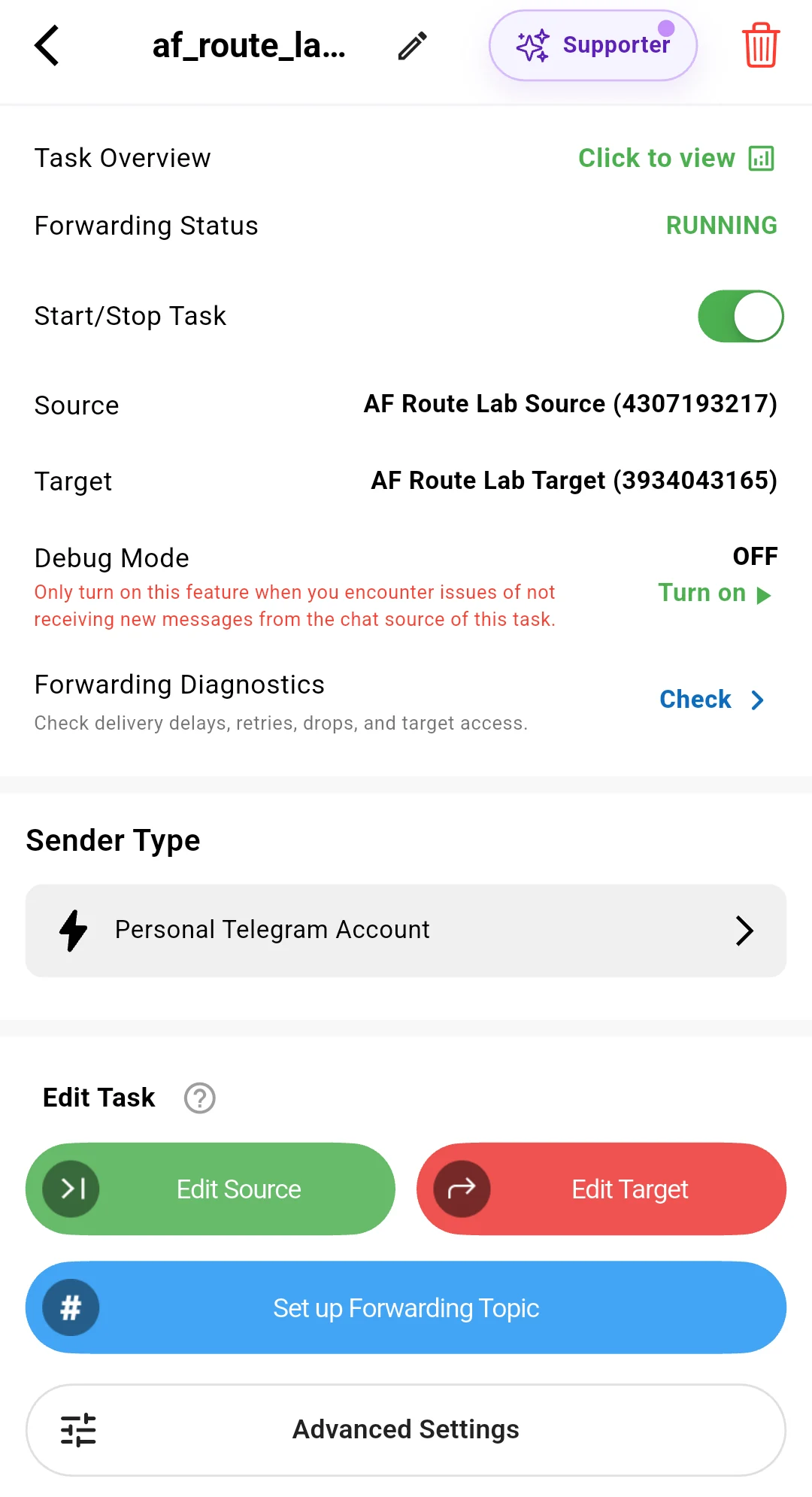
If you need content selection, try a Basic Whitelist for news on this test task. Then post news: test update and general chat to the test source: the intended result is that the first passes and the second does not. If you also use a Basic Replace rule, change test update to team update while leaving news intact, then inspect what actually lands. This is a recipe for your own test, not a claim that we ran those two advanced-rule cases in the phone check. Select the test task in each rule's Apply For Task setting; an unscoped Replace rule can apply to all tasks. Do not choose Apply For All Tasks for an isolated experiment.
Plan fit: the $0 Free plan includes three active regular tasks, three sources and three targets for basic routing. Whitelist and Replace are advanced controls: use an eligible five-day Trial Platinum or a plan that includes them (the official plan page recommends Diamond for advanced rules). You do not need to upgrade just to prove the basic two-channel route.
5. Keep the task; edit both endpoints for the real route
Once the test output meets your checklist, pause the Auto Forward task. On the Android task screen, the Edit Source and Edit Target controls let you change the endpoints on the same named task. Select the real source and real destination, save each change with Update Task, and read the saved endpoint names back on the task screen. We performed both edits on the stopped demo task and saw its name persist; we did not point it at a real customer channel.
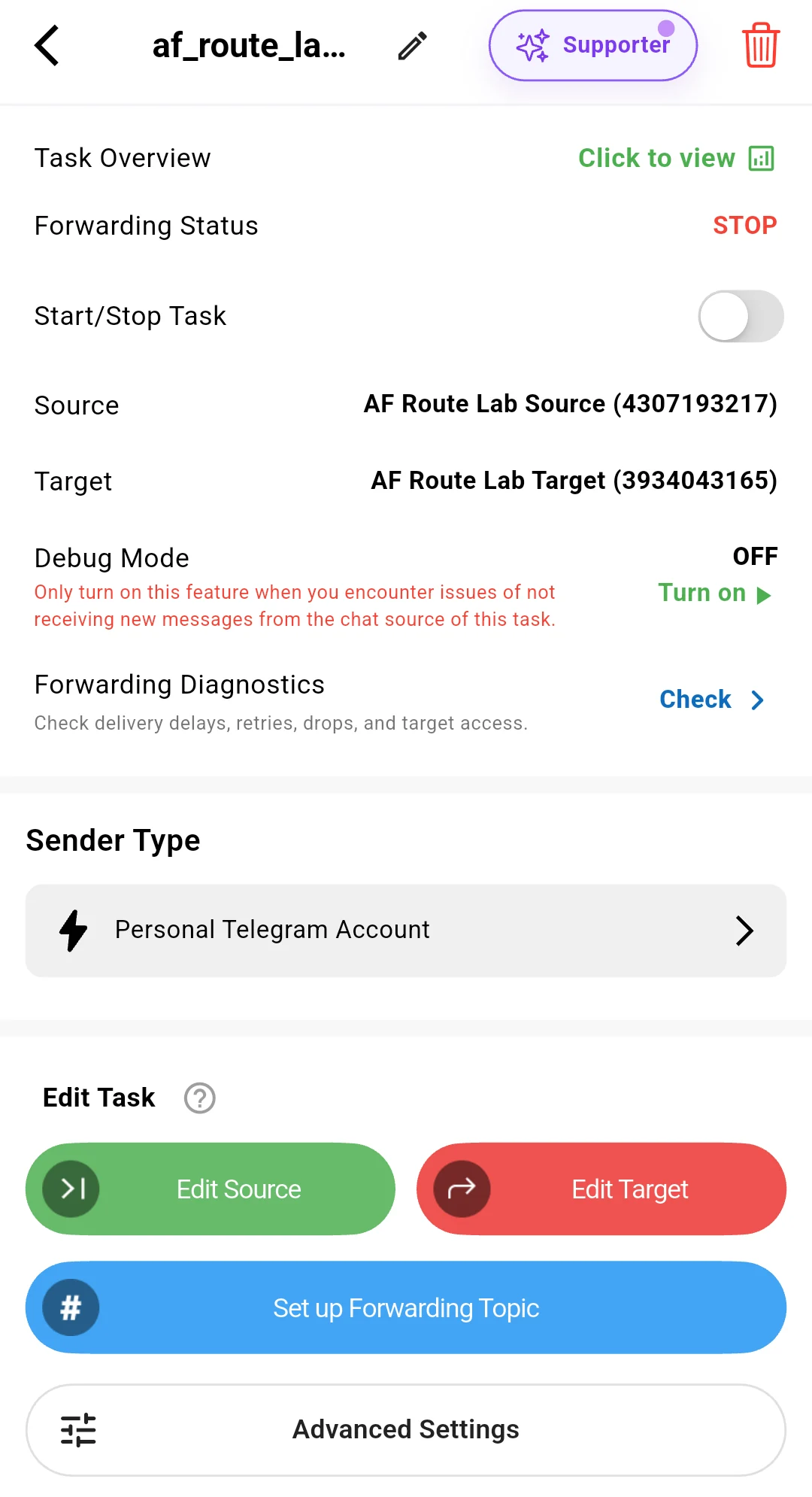
Double-check the real account's source access, target posting permission, sender identity, and every rule attached to this task. Confirm you are authorized to republish the source content to the destination. The private channels were yours, so testing there was easy; their permissions do not automatically carry over to the real chats. Choose a switch window, pause the existing Junction forwarding rule for the same destination, then start the Auto Forward task. This avoids intentionally running two delivery routes into the same audience. Do not delete the old rule until you are satisfied with the result.
Record the last source post successfully delivered by Junction (its link or timestamp) before pausing that route. After starting Auto Forward, record its first successfully delivered source post. Check the source feed between those two posts against the destination, and manually reconcile anything missing or duplicated during the pause. This procedure does not promise zero downtime, automatic replay, or transfer of old history. Compare the first new output with your worksheet for selection, sender, formatting, links and media. If it fails any must-have check: stop Auto Forward before resuming Junction. Keep Auto Forward STOP, change both Source and Target back to your two private test channels, verify the saved endpoints, fix and retest there, then repeat the deliberate cutover. Never resume the experimental task while it still points at the real audience.
Quick answers before you switch
Do I need to recreate the task after testing?
No. Edit Source and Edit Target on the existing Auto Forward task. We checked that both endpoint changes can be saved under the same task name in the Android app. Pause first, confirm the saved route, then deliberately start it.
Can I try this on the Free plan?
Yes for a basic source-to-target test within the Free limits of three active regular tasks, three sources and three targets. Advanced Whitelist/Replace examples need the eligible trial or the appropriate paid tier; they are not part of the basic Free entitlement.
Will my Junction rules and old messages move automatically?
This guide maps the settings you need manually and tests new messages. It does not instruct an automatic import or historical backfill. Keep a record of any special rule you rely on and check its Auto Forward configuration before cutover.
What if I need private sources or Telegram topics?
Check access and sender rights for the actual source and target. Read our private-channel walkthrough or topic-forwarding guide for those distinct setups; do not assume a private demo channel's permissions or a simple channel route automatically cover them.
Your next move
Set up your two private channels, create a basic route, and check one fresh message. RedFox Auto Forward Telegram (@AutoForwardNew_Bot) gives you a clear path from a safe trial to a live, near-instant cloud route without rebuilding the task you just tested. Start in the Web App → or use Android / iOS. The historical @Auto_Forward_Messages_Bot has moved to the current @AutoForwardNew_Bot entrypoint; use the current handle.
Want the broader tool decision instead? See our five-tool Telegram forwarding comparison or the focused Junction comparison. For product options beyond this Telegram route, see our Auto Forward overview.