Discord Bot Missing from Your Server? Check the Install
If your Discord bot exists in the Developer Portal or appears under your personal Authorized Apps, but is absent from the server, check the installation destination before changing its token. Creating an application, adding an app to your account and installing a bot in a server are different actions. For a Discord-to-Discord route in RedFox Discord to Telegram (D2T Auto Forward), the documented bot-based setup requires the bot in both the source and destination servers.
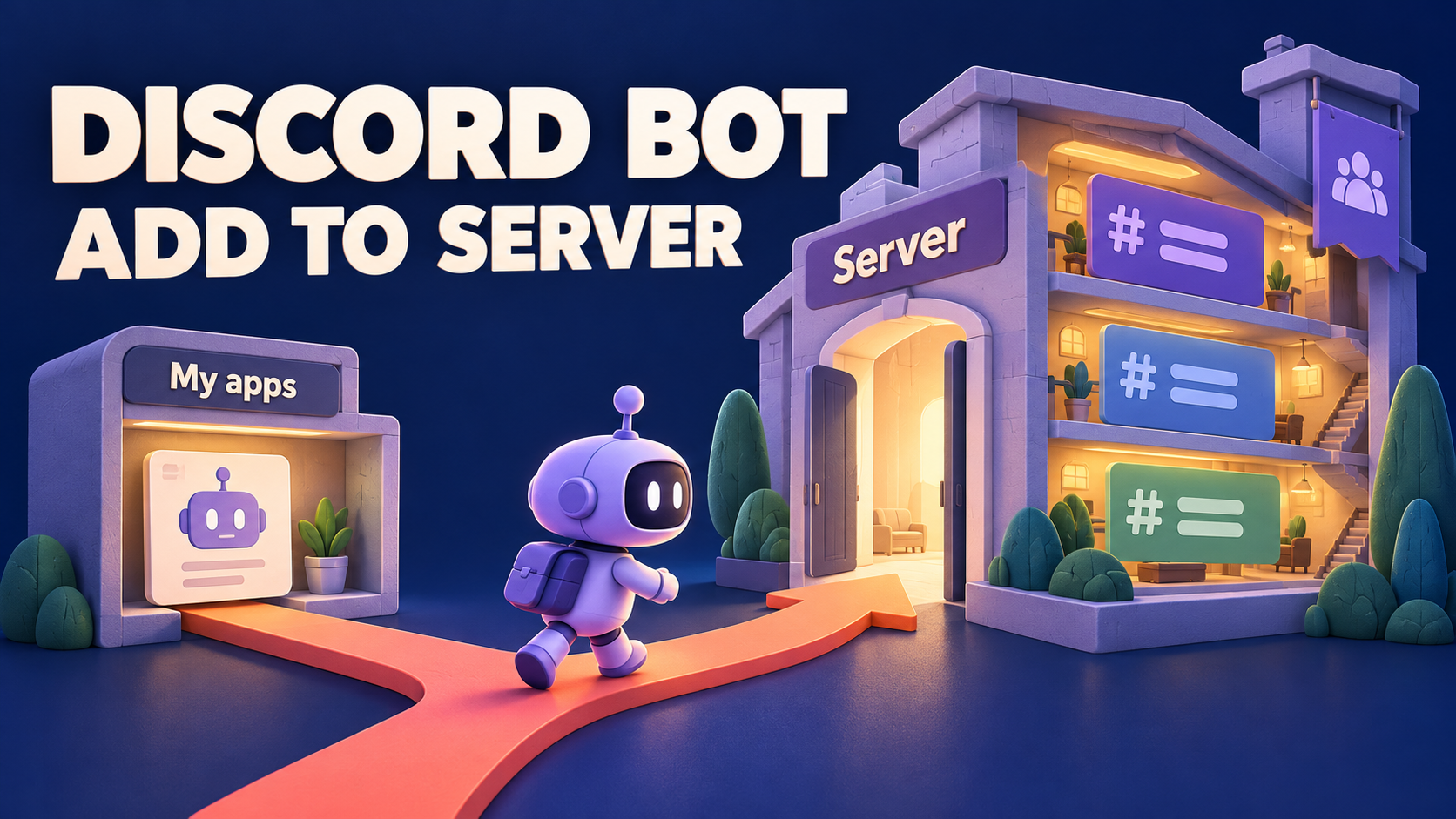
This guide is for the operator who has prepared a bot but cannot confirm that it joined the intended server. The outcome is a verified server installation, ready for the existing task setup guide—not a new routing design or a promise that messages already forward. The hero is a concept illustration, not a Discord screen or an installation result.
1. Separate the three actions that look like setup
Discord’s first-app guide distinguishes creating an app from selecting its installation contexts and installing it. Its current guide says newly created apps have a bot user enabled by default. You do not need to recreate the application merely because it is missing from a server.
- Application created: you can open its configuration in the Developer Portal. That alone does not confirm installation in your community.
- App added to your account: you selected the personal installation route. Discord places account-added apps under your user settings’ Authorized Apps. This is not the same as a bot joining a server.
- App added to the server: you selected the server installation route and authorized it for that server. Discord’s app guide says a server-added app appears in the server Member List and Server Settings → Integrations → Bots and Apps.
Start by looking for the same application in those locations. A personal authorization is not proof of server membership; a server membership is not proof of permission to read every channel or send a message.
2. Complete one deliberate server installation
Use the application you intended to connect to D2T, not a similarly named bot. Keep any existing forwarding task unchanged while you resolve this prerequisite. The following steps use Discord’s current installation instructions; RedFox also documents an OAuth2 URL Generator route for adding a bot.
- Confirm who can authorize the server. Discord requires the server owner or a member with Manage Server permission to add an app. If you cannot authorize it, ask the appropriate administrator to review the installation. Being a moderator or seeing the channel is not enough to establish that permission.
- Open the intended application in the Developer Portal. Check its identity before changing installation settings. Do not paste a bot token into an invite URL, a message or a support screenshot.
- Check the server installation context. In Discord’s current guide, Installation → Installation Contexts includes Guild Install for the server context. A personal User Install is a different context. You do not need to add a personal installation to complete this server-side job.
- Review the server install settings. Discord’s example adds the bot and applications.commands scopes under Guild Install. The bot scope is the relevant scope for installing the bot user; applications.commands concerns application commands. Select permissions for the actual route rather than copying the example’s minimal Send Messages setting as a complete forwarding configuration.
- Use the application’s install link. Copy it from the Installation page, open it and choose Add to server, not Add to my apps. Select the intended server, review the requested access and complete Discord’s authorization prompts.
- Read back the result in the server. Check the Member List and Integrations → Bots and Apps for that application. Record the server and application identity without recording credentials.
For the alternative OAuth2 URL Generator path, RedFox’s guide says to select the bot scope, choose the needed permissions, copy the generated URL and open it to authorize the chosen server. Selecting boxes in the generator is not the final server authorization action. Use one installation path deliberately; do not create replacement applications to compensate for an uncompleted invite.
3. If the server is missing, check authority before credentials
If the intended server cannot be selected, first check which Discord account is open in the authorization browser and whether that account owns the server or has Manage Server there. The permission requirement comes from Discord’s app documentation. Check the target server, not your role in a different community.
- You manage the source but not the destination: coordinate the destination installation with its administrator. D2T’s bot-forwarding guide requires the bot in both servers for a cross-server pair.
- You added the app only to your account: return to its installation link and select the server route if the app supports it. Do not treat the personal Authorized Apps entry as the server-side completion check.
- You cannot find a server-install option for an application you control: review Guild Install in the application’s Installation settings against Discord’s guide. If the application belongs to someone else, ask its owner about the supported installation rather than changing an unrelated app.
- The bot is already a member: stop repeating installation. Continue to the channel-access checkpoint below; installation and effective channel permissions are separate layers.
Do not reset a working token merely because a server is absent from a picker. Discord treats the bot token as a sensitive credential, not an invitation link. Keep tokens out of all evidence you share.
4. Hand off from membership to one channel pair
Once you can confirm server membership, use RedFox’s Discord-to-Discord setup guide for the task itself. Its documented route connects a Discord source to a Discord destination, in the same server or across servers. No Telegram destination is needed for this direction.
Before enabling your pair, review the actual channel permissions. RedFox’s bot-based guide lists View Channel and Read Message History at the source, plus Send Messages at the destination; it also lists Embed Links and Attach Files for richer content. Discord’s permission reference explains channel overwrites and that Administrator bypasses them. Do not grant Administrator to avoid checking a narrow channel pair.
Connection boundary: use the documented bot-account route for the complete connection. D2T’s older account guide also contains a user-token flow, but Discord prohibits automating normal user accounts outside its OAuth2/bot API. If your current screen only offers a normal user-token field, stop and ask RedFox support for the supported bot connection. A bot visible at the destination does not establish how a different connection reads the source.
For the broader editorial design, keep the existing one-way partner announcement runbook as the owner of route topology and duplicate-path checks. If your existing system is native Discord Follow rather than a D2T bot task, use the Follow missing-announcement guide; its publish and destination checks are a different diagnosis.
5. Record a small, reader-run acceptance check
Consider a fictional operator with a bot application ready for a training server and a separate partner test server. The app appears in the operator’s personal Authorized Apps, but not in the partner server’s membership list. The next action is to obtain the partner administrator’s authorization for that server—not create a second forwarding task.
Use this checkpoint on servers and channels you are authorized to connect. It is an acceptance plan for you to run, not a test Auto-Bot.io executed:
- Membership: confirm the same bot application in the relevant server Member List and Integrations page. For different source and destination servers, confirm each separately.
- Access: inspect the source and destination channel permissions for that bot. Do not use a real confidential channel as a test specimen.
- Task: continue through the official D2T guide with one authorized source and one intended destination. Check the resulting channel identities before activation.
- Observation: send one harmless, recognizable plain-text notice to your test source and inspect the exact destination. Record what actually arrived and any visible error before changing another setting.
“Installed in the correct server” closes the installation question. It does not establish attachment delivery, edit synchronization or every future message’s arrival. If membership is confirmed but the test fails, preserve that completed checkpoint and investigate channel access or the task with product support rather than restarting the installation loop.
Frequently asked questions
Does adding a Discord app to my account add its bot to a server?
No. Discord documents personal and server installation as separate contexts. Check the server Member List and Integrations → Bots and Apps to confirm the server-side installation.
Will copying the bot token invite it to the server?
No. RedFox’s bot setup separates connecting the token from inviting the bot to servers. Complete the server authorization flow and verify membership; keep the token private.
Do I install twice if both channels are in one server?
The prerequisite is membership in the server containing each channel. A same-server pair shares that server; a cross-server pair requires membership in both. Check permissions on both selected channels either way.
Should I give the bot Administrator permission?
Not as an installation shortcut. RedFox’s bot-forwarding guide says Administrator is not required. Review the documented permissions for the actual source and destination channels.
Confirm the installation, then build the route
Auto-Bot.io publishes this independent guide; RedFox supplies D2T Auto Forward. Product and platform instructions were checked on October 24, 2026. This is source-backed guidance, not a live account or forwarding test.
Explore RedFox Discord to Telegram, then use its documented Discord-to-Discord direction after the bot is installed in the correct server. Choose the official Web dashboard, iOS app or Android app for management. Prefer Web/App for reviewing the complete task settings. Active forwarding runs in the service’s cloud without keeping the management screen open; the runtime FAQ says your internet connection does not need to remain on.
Your next action: verify one application’s membership in the intended server, with the appropriate administrator. Only then move on to the channel pair and one controlled forwarding check.
Confirm Your Bot’s Server Installation
Explore RedFox D2T and its documented Discord-to-Discord route. Verify the intended bot in the server before creating a channel pair.
Documented bot setup · Verify membership before task setup