Telegram Topic Copy Says Partial? Check the Failed Topics

If Copy existing topic structure finishes as Partial, keep the topics that succeeded and investigate the failed part before sending another copy request. RedFox Auto Forward Telegram defines Partial as some topics copied and some failed. Read the created, already-existed and failed counts, confirm the exact source and target groups, then check Topics and the bot’s create/rename permissions in each affected target.
This guide is for an operator who has already requested a Telegram topic-structure copy and now sees a mixed result. The goal is to finish the intended structure without deleting useful topics, confusing reused topics with failures, or treating a background job as a message-history migration.
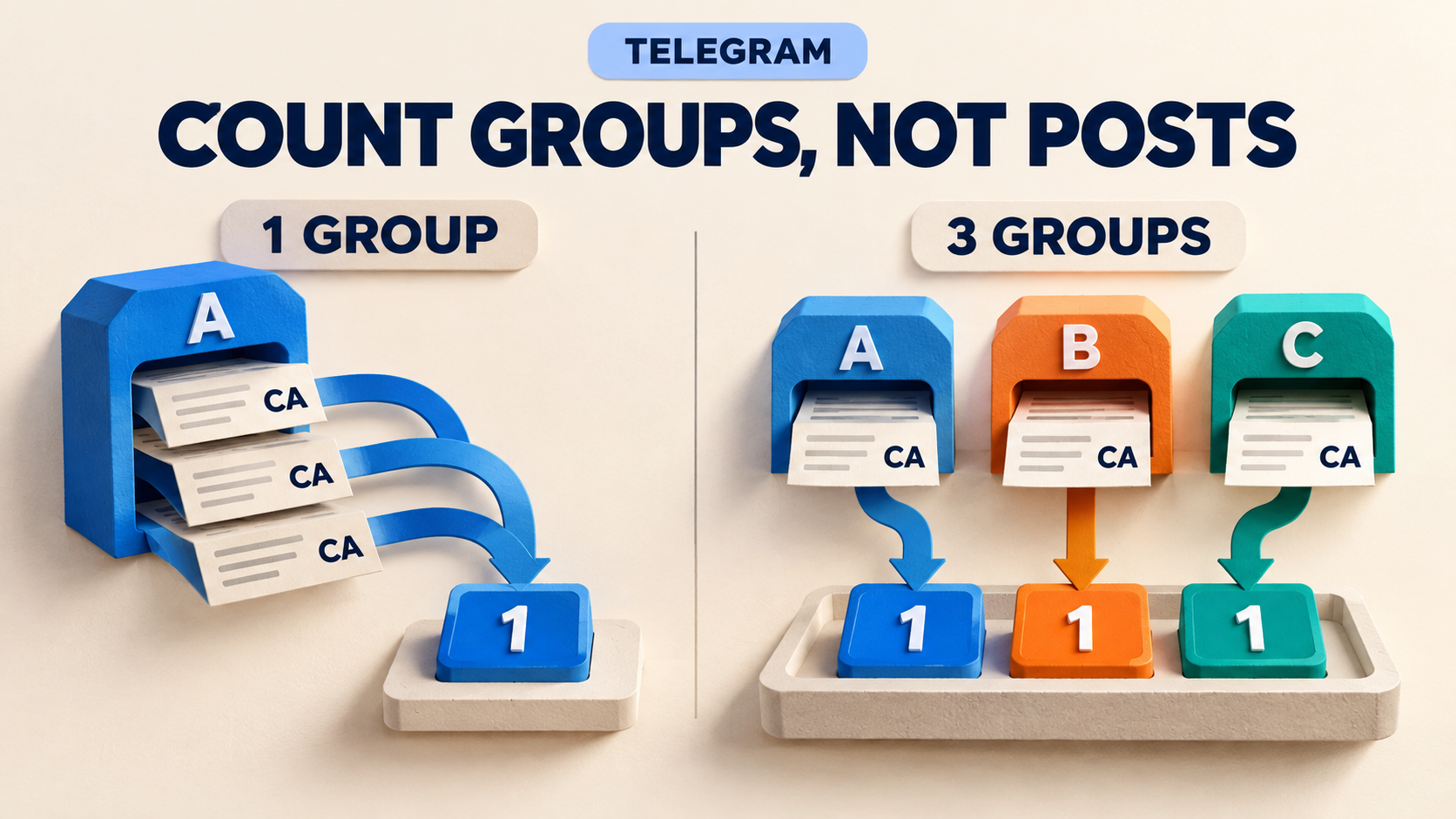
RedFox is the product team; Auto-Bot.io publishes this guide. The instructions are based on the official topic setup documentation, checked November 2, 2026. The reconciliation example and featured image are conceptual aids, not screenshots or a copy operation we executed.
Read the status before deciding to retry
A slow job and a mixed completed result need different responses. RedFox documents these states for the background copy:
- Queued: waiting for the bot to start. Keep the task saved and check again later; do not stack requests because the first one has not started.
- Processing: the copy is running. Wait for its result before deciding what remains.
- Completed: all topics were processed successfully. Check the intended target structure; this status is not evidence that historical messages were copied.
- Partial: some topics copied and some failed. Preserve the successful part and inspect the summary.
- Failed: the copy could not be completed. RedFox directs users to check target-group permissions before trying again.
The documentation supplies no completion-time guarantee. Record when you requested the copy and when you last checked it instead of inventing a timeout after which the task must be broken. A prolonged queue is a reason to ask support about that request, not to delete the task.
Reconcile created, reused and failed topics
The summary separates topics that were created, already existed, or failed. Already existed is not the same as failed: the official guide says an existing target topic with the same name is reused. You should not expect a duplicate topic just to prove that the copy ran.
For a manageable set, write down the topics present when the copy began and inspect the exact target group. Keep each group’s identity beside its topic names; an Updates topic in the wrong group is not the destination you intended.
Illustrative example: you selected five source topics. The summary reports two created, two already existed and one failed. Those counts account for five topics, but you still need to identify which topic is unresolved. Do not treat “only two created” as “three failures.”
- Announcements and Events — created: find these in the selected target and leave them intact.
- Support and Resources — already existed: confirm the reused topics are the ones your team intends to use. Their existing messages and audience still matter.
- Releases — failed or missing: keep it on the unresolved list. If the summary gives only counts, reconcile the names by inspecting the source and target; do not pretend the interface supplied a per-topic error that you cannot see.
This example is a planning worksheet, not a documented output format. With several selected source or target groups, retain the grouping shown by the actual summary. Do not assume one group’s count describes every destination or that the product counts every possible source-target pair the same way.
A matching name explains documented reuse; it does not verify the topic’s purpose, message routing or historical contents. If the target already has a same-name topic used for a different purpose, stop before broadening the copy. Resolve that destination decision with its administrator rather than renaming or deleting a working topic to force a clean count.
Check the affected target, not every setting
RedFox’s prerequisites are specific: Topics must be enabled in every target group, and the bot must have permission to create and rename topics there. A successful copy into one destination does not establish that another destination has the same permissions.
- Confirm the saved task and group selection. Record the task label and the exact source and target groups used for this request. Check that the missing topic belonged to the source when you started the copy. A topic created afterward is a future-change case, not evidence that this snapshot omitted it.
- Open the affected target in Telegram. Confirm that it is the intended group and has Topics enabled. Ask the responsible administrator to verify the bot’s create/rename permission there. Being able to read the group or post a message is not the same check as being allowed to manage topics.
- Correct only a confirmed prerequisite. Have the administrator grant the relevant topic-management permission if it is missing and appropriate for this group. Do not grant every administrator capability as a troubleshooting shortcut, change the connected account, or reconnect a working route just to test a guess.
- Refresh a stale selection list separately. The topic guide documents Reload for a group whose topic list is out of date, and Add Topic with the topic ID and name when Telegram does not return a known topic. These are selection-list tools, not proof that a failed background copy has recovered. After selecting topics, use Done and then Save on the setup screen.
Telegram’s forum reference treats topic creation, modification and deletion as topic-management operations. That supports checking the relevant authority, not assuming that permission to deliver an ordinary message proves permission to build the structure. Use the product’s stated create/rename requirement for this workflow.
Retry deliberately, then compare the new result
Before another request, confirm that the earlier copy is no longer Queued or Processing, preserve its summary, and record what you checked or changed. If Topics and the bot’s create/rename permission are confirmed in every affected target and no other cause is visible, one recorded retry is consistent with RedFox’s check-permissions-then-try-again guidance for a failed copy. Partial alone does not identify a permissions error, so do not change permissions without a confirmed gap.
The topic-copy guide does not describe a Retry Missing button for this operation. Do not borrow that action from Clone Profiles: Clone Again and Retry Missing apply to message-clone operations, which are a different workflow.
For that one retry, after a confirmed correction or verified prerequisites, use the documented Copy existing topic structure flow:
- Open the forwarding task and its Forward Topics settings.
- Choose Copy existing topic structure.
- Select the intended source group or groups and target group or groups again. Keep the scope to the affected groups where the interface permits; do not assume there is a failed-topics-only selector.
- Confirm one copy request. Save the task if you are creating a new task; also save any task-setting changes you made.
- Wait for the new result and inspect the exact destination topics. Reconcile the remaining failed count with the target, retaining the earlier summary for comparison.
RedFox documents same-name reuse, so existing successful topics need not be removed before another copy. That is not a blanket guarantee about every collision, manual edit or concurrent administrator change. Keep the group structure stable during the retry, and stop if the observed result differs from the intended destinations.
Accept a structure recovery only when the intended topics are accounted for, the selected destination is correct, and the latest result has no unexplained failures. If a retry still reports Partial, retain both summaries and what you checked or changed, then contact support. Do not keep retrying, broaden permissions again, or delete the successful topics.
Verify message routing as a separate outcome
Recovering topic structure is useful, but it is not the same as confirming that new messages reach the intended topic. After the structure is correct, inspect the task’s topic mapping. The topic forwarding setup guide owns the broader choice between manual mapping, one-time copying and Topic Sync; use it rather than recreating the route from scratch.
If you need a delivery check, use a private source and target you control, not an active customer destination. Keep the relevant mapping, sender, keyword and message-type rules comparable, and send one harmless eligible specimen. Confirm its exact target topic, not merely that something reached the group. If no copy arrives, distinguish exclusion, schedule/delay and access before attributing it to the structure copy. This is a reader-run check, not a result established by this article.
Do not use a real announcement as a disposable test or change a live destination just to obtain one. A private equivalent can validate that equivalent’s behavior; it does not prove that every existing route or topic recovered.
Decide how future changes should work
Copy existing topic structure includes only topics present when the request starts. If today’s copied structure is now correct but tomorrow’s new source topic is absent, repeatedly copying the structure is not the only available option.
RedFox documents Auto-sync topics for new source topics and renames. Enable it under Forward Topics and tap Save when that ongoing behavior is what you want. Auto-sync starts after the task is saved; it does not turn the earlier snapshot into proof of success.
Manual mapping can coexist with Topic Sync when a source topic needs a specific destination. Review those exceptions before enabling automatic changes. Also keep the documented limit explicit: deleting a source topic does not delete the target topic. Do not delete a source topic as a cleanup test; Telegram’s API reference notes that deleting a topic deletes its messages.
Give support a useful, secret-free record
If the failed part remains unexplained, use the official RedFox contact route and provide:
- The task label, request time and timezone, and exact selected source and target groups.
- The original and latest statuses, with created, already-existed and failed counts as actually displayed.
- The topic names and destination identities you could reconcile, plus what remains unknown.
- Whether Topics is enabled and what create/rename permission was checked for the bot in the affected target.
- The prerequisite checked or changed before a retry and the observed result afterward.
Share private group identifiers only through the authorized support conversation, not a public issue. Remove customer messages and unrelated account details from screenshots. Never send login codes, passwords or bot tokens. A sanitized summary is more useful than a new series of unrecorded copy requests.
FAQ
Why did the copy create fewer topics than I selected?
Some may already exist and be reused by name. Read all three summary categories before concluding that a lower created count means failure. Inspect the actual target when the counts alone do not identify the missing topics.
Will retrying the structure copy bring over old messages?
The documented operation copies topic structure; do not treat its status as a message-history result. Historical message cloning is a separate feature with its own selected source, destination and range. Do not launch a large clone just to resolve a Partial topic-copy status.
Must I keep the management app open while it copies?
The topic guide says the copy runs in the background and advises keeping the task saved while a request is queued. Active forwarding tasks run in RedFox’s cloud; its runtime FAQ says your own internet need not remain on. Closing a settings screen is not a substitute for task control, and reopening it is not proof that a request restarted.
Finish the missing structure, preserve what worked
Open the RedFox Auto Forward Telegram overview, then inspect the saved copy summary in your preferred Web app, iOS app or Android app. Web/App provides a fuller management surface than the limited Telegram-bot entrypoint. If using the bot, verify @AutoForwardNew_Bot, the current handle after migration from @Auto_Forward_Messages_Bot.
Your next useful result is a reconciled topic list and one explained recovery decision—not another untracked copy request. Keep successful and reused topics, verify the prerequisites, and make at most one recorded retry before asking support about an unresolved result.
Recover the Missing Topic Structure
Reconcile the copy summary, inspect the affected target and preserve the topics that already worked before another request.
Manage on Web, iOS or Android