Telegram Forward Limit Reached? Count Every Target Delivery
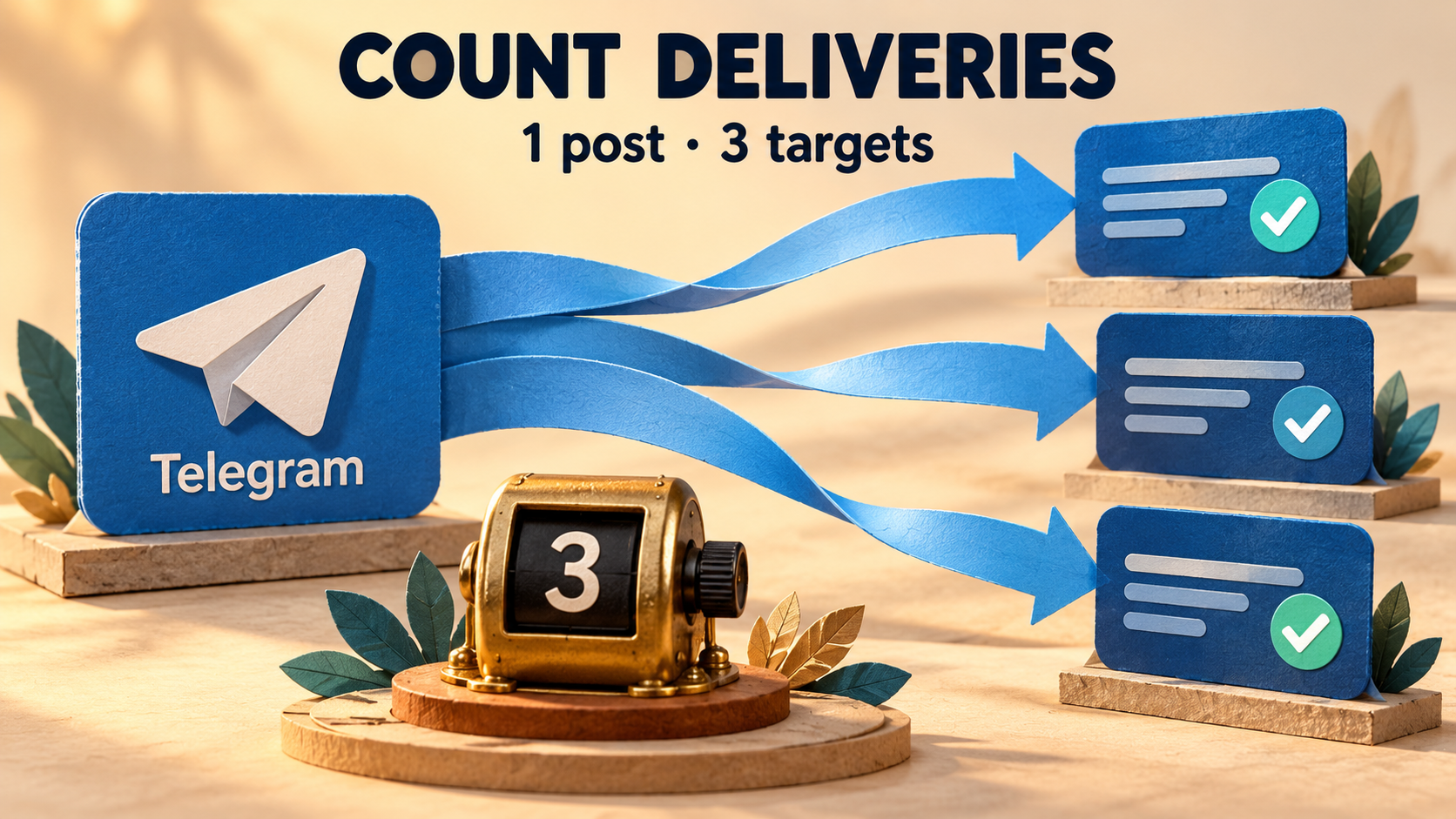
A task that forwards to several Telegram chats can reach its Forward Rate Limit after surprisingly few source posts: count successful deliveries to targets, not just posts entering the task. In RedFox Auto Forward Telegram (@AutoForwardNew_Bot), the official add-on documentation says only successful forwards count and each target counts as one forward. One eligible post delivered successfully to three targets therefore contributes three forwards—not one.
This guide is for an existing Telegram-to-Telegram task that works, then pauses sooner than its operator expects. Reconcile the task’s output before raising its cap, disabling a safeguard or resending anything. A task quota is not Telegram’s own sending restriction, and a cap is not a promise of protection from spam flags.
The previous bot has moved to @AutoForwardNew_Bot. Use this current handle to access RedFox Auto Forward Telegram. RedFox supplies the product; Auto-Bot.io publishes this guide. Documentation was checked October 27, 2026. The examples below are editorial reader-run exercises, not an executed forwarding test; the featured artwork is a concept illustration, not product UI.
1. Recount the completed target deliveries
The Forward Rate Limit guide describes a maximum number of forwards within an hourly, daily or custom window, with a task pause at the limit. Its FAQ excludes failed or skipped forwards from the count; its multiple-target section says each target counts as one forward.
Imagine a workshop operator forwarding approved notices to three private team chats. These are illustrative completed outcomes within one known counting period, starting from zero:
- Notice A: successfully delivered to North, Central and South—three deliveries.
- Notice B: successfully delivered to the same three targets—six deliveries in total.
- Notice C: successfully delivered to the same three targets—nine deliveries in total.
- Notice D: successfully delivered to all three—twelve deliveries in total.
Four source posts have produced twelve successful forwards. If you were comparing that output with an illustrative cap of twelve, counting only four source posts would make the pause look premature. Twelve is an explanation aid, not a recommended Telegram-safe allowance or a guaranteed exact enforcement boundary under concurrent delivery.
Use multiplication only when every counted post actually reached every listed target. For an imperfect run, add the successful source-post/target pairs you can establish. A configured target is not a completed delivery; a missing copy does not by itself prove a failed send. Filters, task associations, pending work and another route can all complicate the comparison. Do not count the same output twice because two views display it.
2. Identify which control stopped the route
Read the selected task’s state and visible error before touching its settings. These controls solve different problems:
- Forward Rate Limit: a per-task quantity cap and window. Check its enabled state, maximum, current count if shown, warning configuration and Auto-Resume choice.
- Delay for Target: spacing one source post across several destinations. The target-delay instructions document a delay in seconds; spacing does not change three successful target deliveries into one counted forward.
- Source delay: how incoming posts wait or are spaced. If the symptom is a burst rather than a quota pause, use the Delay versus Spread guide.
- Task operating hours: an on/off schedule, covered in the task-hours guide, not a delivery-count budget.
- Telegram FLOOD_WAIT_X: a platform response. Telegram’s API error reference says a wait of X seconds is required. Respect that wait; increasing the RedFox cap or changing Auto-Resume does not override it.
A task may have more than one relevant condition. If its counter does not explain the stop, keep the exact error and investigate that condition instead of assuming every pause is a quota event. Do not split tasks, switch accounts or retry repeatedly to work around limits or restrictions.
3. Preserve the affected task’s starting state
Choose the Web App, iOS app or Android app you prefer. Web and the mobile apps provide fuller management than the limited Telegram-bot entrypoint. Active tasks run in RedFox’s cloud; closing the interface does not stop forwarding.
Identify the task label, exact source chats, all target chats and any topics. Check whether another task or scheduler also sends to those destinations. Preserve the original settings before a change, and pause the affected task if further delivery needs to stop. A pause is not proof that queued work has been cancelled or the counter has reset.
The task-settings guide documents selecting a task through /settings or /forward, then Manage Forwarding Tasks or Show ALL. Verify the endpoints on that selected task—not just a familiar display name.
4. Inspect the quota without removing the safeguard
The feature guide lists an active forwarding task and an unlocked Forward Rate Limit add-on as prerequisites. Its documented access path is Menu → My Addons → Forward Rate Limit → Unlock, then the task’s Forward Rate Limit section and Enable Rate Limit. If you already own it, check that access remains active; a missing or expired entitlement is not a reason to alter unrelated routes. This guide does not ask you to buy anything to diagnose an existing pause.
- Reopen the selected task’s saved configuration. Record the enabled state, maximum and time window. Do not infer them from an old screenshot or a different task.
- Check the output ledger. Match fresh source labels or links to actual copies in each target, retaining the task/target identity. Compare the successful-delivery total with the available counter for the same observed period.
- Inspect warnings. The docs describe an optional percentage threshold with in-app or Telegram notifications. A warning is an opportunity to review volume, not evidence that all remaining target sends are guaranteed.
- Read Auto-Resume separately. With it ON, the docs describe resumption when the add-on’s window resets. With it OFF, the task stays paused until manually resumed. Neither choice resolves a platform wait, missing permission or manual stop.
Do not promise a reset at local midnight, the next clock hour or a fixed time after pressing Resume. The feature page mixes clock-based reset examples, server-timezone advice and a manual-pause timer explanation. That does not settle an exact reset clock for your task. Record what the interface actually shows; ask support if the period cannot be established. Also check manual-stop state and add-on expiry when expected resumption does not occur.
5. Verify one private equivalent before a live change
Use an already available private test route you control, with no live audience and only harmless authorized content. If you do not have one, stop at the read-only reconciliation and arrange an appropriate test separately. Do not temporarily repoint a busy production task and assume its queued messages will follow safely.
- Establish a clean observable starting condition. Identify the private source, each private target and the selected task. Account for pending work, competing routes, schedules and the observed counter period. Do not assume a pause or toggle clears the queue or resets usage. If that cannot be established, the count experiment is inconclusive.
- Preserve eligibility and safeguards. Retain relevant keyword/sender rules, exclusions and task associations. Use fresh simple text posts that genuinely match the allowed rules, plus a clearly excluded control. Do not disable filters to make the experiment pass.
- Observe the baseline. Keep the original quota configuration. Send one fresh allowed specimen at a time and record every completed task/source-post/target pair, task state and count change if available. Check that the excluded control remains excluded. Stop at an unexpected result; do not push extra posts through a platform warning.
- Test only a justified change. If delivery counts explain the pause and a different cap or window is genuinely needed, choose one change consistent with audience rules and the intended volume—not a supposed universal safe number. Keep timing controls, eligibility and endpoints unchanged. Reopen the setting to verify it saved.
- Compare fresh evidence. Use new, comparably eligible posts and the same excluded control in an established period. Require successful allowed deliveries before and after, a count reconciliation and retained exclusions. A missing target copy or unclear period means no pass; restore the unexplained change instead of stacking changes.
- Finish deliberately. Preserve observations, stop the private test as intended and account for remaining work. Only consider the live change after the before/after and retained-safeguard checks succeed; inspect the real task’s pending work before resumption and confirm its first intended outputs afterward.
This checks one narrow task configuration, not every media type, concurrency pattern or enforcement boundary. Reducing unwanted eligible content or reconsidering unnecessary destinations may be preferable to increasing volume. Do not remove a destination without the operator’s approval, and do not split the route to evade its cap.
6. If only some targets received the last post, do not resend blindly
The documentation does not specify target ordering or exactly how a cap boundary allocates a partially completed multi-target post. It also does not establish that replaying a source post will send only to the destinations still missing it.
Record the last source post and every target that did or did not receive it, along with task state, timing and errors. A missing copy could be pending, excluded or unsuccessful; do not assign it a cause from absence alone. Check actual arrivals and available task information before any retry. If the boundary remains unclear, ask support rather than replaying the post to all targets and creating duplicates.
Include the saved cap/window, observed count, Auto-Resume and manual-stop state, source labels, target-by-target outcomes and any platform error in a support report. Keep login codes, passwords and private content out of public reports. The feature guide lists Menu → Help & Support and [email protected].
FAQ
Does one source post count three times with three targets?
If it successfully reaches all three, yes: the docs say each target counts as one forward and only successful forwards count. Three configured targets alone do not prove three completed deliveries.
Will a longer target delay give me more quota?
No counting change is documented. Target delay spaces delivery; the task’s quantity cap and window remain separate. Slower delivery may change when you observe copies, so reconcile completed deliveries rather than assuming missing means failed.
Can Auto-Resume remove a Telegram restriction?
No. It is a per-task add-on setting for resuming after its own window resets. Telegram’s FLOOD_WAIT requires the specified wait, and no cap or delay value guarantees freedom from platform limits.
Make the next decision from deliveries, not source-post totals
Explore RedFox Auto Forward Telegram, then inspect the affected task’s target list, Forward Rate Limit and Auto-Resume setting in your preferred management app. Keep its safeguards while you reconcile successful deliveries. Change only what the private evidence justifies; if a partial target set or reset period remains unexplained, preserve it for support instead of resending to your audience.
Understand One Task’s Delivery Budget
Inspect the selected task’s targets, Forward Rate Limit and Auto-Resume, then verify any justified change privately before returning to your audience.
Task-level controls · Web, iOS and Android