Pause One Project’s Telegram Task Folder, Restore Only What Was On

To pause one project’s Telegram forwarding for maintenance while leaving deliberately paused tasks alone, record each task’s starting state, pause the active tasks, and restore only the ones that were active before. RedFox’s Folder List Task guide documents grouping tasks by purpose and switching all tasks inside a folder on or off. For a folder with a mix of active and paused tasks, this guide uses individual task controls and a written state ledger so the intended exceptions stay explicit.
This guide is for an operator who already runs several projects in RedFox Auto Forward Telegram (@AutoForwardNew_Bot), keeps each project’s tasks in its own folder, and needs one project quiet for a short window. Another project must keep running, and one or two tasks in the paused project were switched off on purpose and must stay that way. It is not a first-setup guide, a recurring-hours guide or a restore-from-backup guide; section 1 sends those jobs to their own pages.
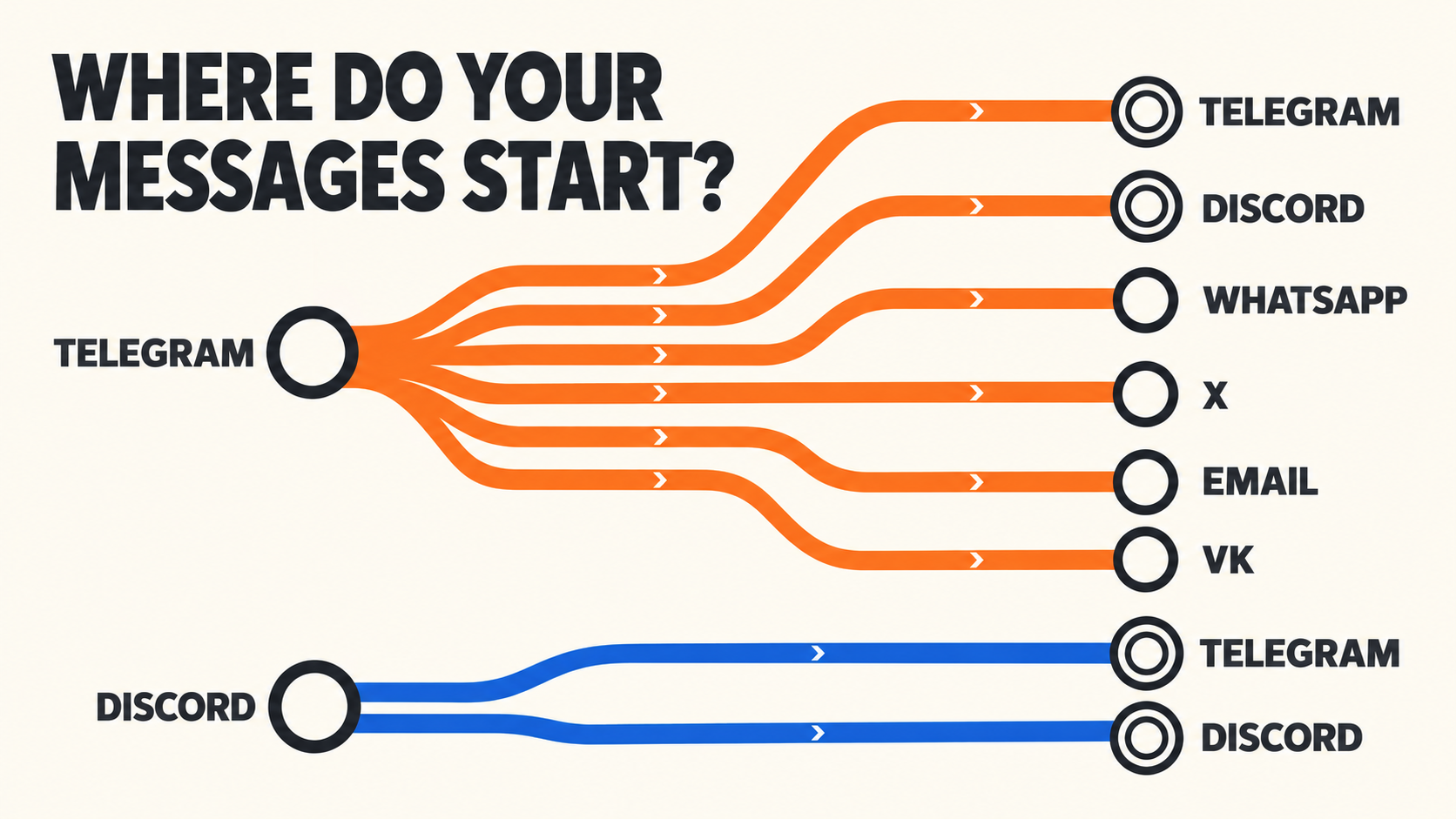
The previous bot has moved to @AutoForwardNew_Bot. Use this current handle to access RedFox Auto Forward Telegram. RedFox supplies the product; Auto-Bot.io publishes this guide. Documentation was checked on October 27, 2026. The rehearsal in section 8 is a reader-run plan, not a test we performed, and the featured artwork is a concept illustration, not product UI.
1. Pick the control that matches the job
- Quiet one project, keep another running, keep some tasks paused: use this guide’s state ledger plus each task’s own pause control. One task at a time. The documentation names the pause action but gives no screen-by-screen path, so find it on a rehearsal task first.
- Switch off a folder whose tasks are all active: Toggle All Tasks. On mobile, open the Folders tab and long-press the folder; on Web, open the folder management section and right-click it. The documented scope is all tasks inside that folder. Check their resulting states before maintenance.
- Give one route set opening and closing times: Scheduler Power On/Off. It is a per-task time range, not a one-off pause for a whole project.
- Stop every task on the account: Stop BOT in System Settings. The documentation says it stops all your forwarding tasks, including the project you meant to keep running.
- Remove a route for good: Delete Task. Removing a task is a different action from pausing it.
Folders make related tasks easier to find and manage together. That organizational scope does not by itself establish access-control isolation or remove dependencies between routes. Check membership and shared endpoints below. Confirm that Folders are available in your account; the page names no plan requirement. For folder naming and structure, see the Folder Tasks guide.
2. The worked example: Alpha pauses, Beta keeps running
Illustrative scenario, not a recorded customer incident. An operator runs two projects. The Alpha folder holds four tasks and the Beta folder holds two. This evening the operator will change a sender and edit filters on several Alpha tasks, and does not want half-edited routes posting to Alpha’s audience meanwhile. Beta must keep forwarding. One Alpha task, a seasonal promotion route, was paused weeks ago on purpose.
- alpha_news_to_team (Alpha): active before; pause, then restore.
- alpha_alerts_to_public (Alpha): active before; pause, then restore.
- alpha_digest_to_archive (Alpha): active before, with a Scheduler Power On/Off window; pause, then restore after checking the window.
- alpha_promo_to_public (Alpha): paused on purpose; KEEP PAUSED.
- beta_news_to_members (Beta): active; do not touch, and use it as the control.
- beta_updates_to_archive (Beta): active; do not touch.
The labels follow the task-label rule in RedFox’s create-task guide: letters, numbers and underscores. Alpha’s promotion route is an intentional exception, not a forgotten task to restart.
3. Confirm the project boundary before you pause
- Compare the folder with the full task list. Open the Alpha folder (the Folders tab in the mobile app, or the Web app’s folder management section) and then the complete Forwarding List. An Alpha task outside the folder, or a Beta task filed inside it, means the folder is not the boundary you think. The documentation I read does not say every task must sit in a folder, so check rather than assume.
- Look for shared endpoints. A Beta task that posts to the same target as an Alpha task shares an audience with it, so pausing Alpha changes what that audience sees. A Beta task that reads from an Alpha target depends on Alpha’s delivery, so pausing Alpha can starve it. RedFox’s product README describes A → B → C forwarding chains, so check whether any Beta task is fed by an Alpha destination.
- Look for timers. Inspect Scheduler Power On/Off and Auto Post Scheduler on every affected task. The scheduler documentation describes an on/off time range, not its precedence over a manual pause. For Alpha tasks that must stay quiet, use a verified window with no schedule transition or automatic send; if you cannot establish one, defer their maintenance until you resolve that interaction. Do not simply omit an affected task from the check. The operating-hours guide covers the time-range control.
- Freeze other editors. Ask anyone else with access to leave both folders alone during the window, so the ledger stays true.
4. Write the state ledger and baseline the other project
Before you change anything, make a private, non-secret ledger. The ledger, not memory and not how the folder looks afterward, decides what gets restored.
- For every Alpha and Beta task: label, folder, source and target, state (active or paused), and why it is paused if it is. Keep chat identifiers in a private note rather than a shared channel.
- Flag the exceptions: write KEEP PAUSED beside any task that was off on purpose, and note any timer settings.
- Add two blank fields: “State after pause” and “State after restore”. You will fill them in as you go.
- Keep a second record: a private screenshot of the folder list showing each task’s state.
Then baseline the project that must keep running. Pick one Beta task as an unchanged control. Record its timers, the last eligible source post and when that post reached the target. “Eligible” means a post that Beta’s own filters would let through. Observe ordinary eligible posts before, during and after the maintenance window where available, recording source and arrival times and the task’s state. Do not send artificial messages to a live audience. If no eligible post occurs during maintenance, write “in-window delivery unobserved”; unchanged settings and a before/after pair do not prove continuous delivery during the gap.
5. Pause Alpha one task at a time
- Pause each task the ledger marks Active, using that task’s own control. RedFox’s create-task guide says existing tasks can be edited, paused or deleted, but it does not show where the pause control sits, so locate it on a rehearsal task before the real window.
- Leave the KEEP PAUSED task alone.
- Read the state after each change by reopening the task or the folder list, and fill in “State after pause”.
- Compare when you finish: every previously active Alpha task is paused, the promotion task is still paused, and the Beta tasks are untouched.
Toggle All Tasks offers bulk control when the whole folder should share one state. The page does not describe how it resolves an active/paused mix or restores a saved pre-pause mix, so use individual controls for Alpha’s exceptions. For a uniform folder, select the intended action once and read every member afterward. If the result differs from your intention, reconcile each task with the ledger rather than pressing again blindly. Do not treat a folder action as an atomic transaction.
6. Do the maintenance, and decide about missed posts first
- Edit the existing tasks. RedFox’s task settings page lists Edit Source Chat, Edit Target Chat, Edit Delay and Advanced Configuration. Delete Task removes a task, which is not a pause, and your ledger would then describe tasks that no longer exist. If the change you plan is a different sending bot, the single-bot sender guide covers that setting.
- Do not use Stop BOT as a shortcut. It is an account-wide control.
- Decide what the audience should see. The documentation does not say what happens to a post that appears in a source while its task is paused, whether it is skipped, delivered later or handled some other way. It also does not say whether anything queued at the moment of the pause is cancelled or sent. If every post matters, note the last source post before the pause and review the source afterward. Treat any gap as its own reconciliation; restoring a task is not a promise that missed posts return. Our configuration-restore guide makes the same separation between settings and message history.
7. Restore selectively from the ledger
- Check the maintenance result first. Reopen each edited task and confirm its source, target and settings before it resumes.
- Resume only the tasks the ledger lists as Active before, one at a time, each with its own control. Read the state, then fill in “State after restore”. Begin with the route whose output is least visible, for example the archive task, and watch it before resuming the public-facing ones.
- Leave the promotion task paused. The ledger records why.
- Check any timer. For the digest task, read its Scheduler Power On/Off window and next boundary. Do not assume a manual resume overrides the schedule, or the reverse.
- Watch the first minutes. For each restored task, check the first ordinary eligible post. Look for duplicate copies of the same source item and for older posts arriving later; record exact item identities and times rather than assuming why they appeared. Resume during a quiet period.
- Close the loop. Compare both folders’ intended active/paused states with the ledger, confirm the approved maintenance changes, and record Beta’s before/during/after observations. Keep any missed-post or pending-output reconciliation separate; matching task states alone does not close those questions.
8. Rehearse once with throwaway tasks
This is a reader-run plan, not a test we performed. Use private chats you control and content you own. Record your account surface, app version, timestamps and timezone. The result applies only to the task mix, settings and observation window you inspect. Three disposable tasks are enough:
- Folder Rehearse_A: task a1 and task a2; first prove both work, then leave a2 paused on purpose.
- Folder Rehearse_B: task b1 (active).
- Setup: give each task its own private source chat and a private target. Make the specimens distinct plain text, identifying their task and round. Confirm the test sender and text are eligible for each task’s filters. On these disposable tasks only, remove or neutralize content transformations, delay/spread, schedules and other automatic sends; verify no overlapping route also carries the specimens. Do not change live routes to create this laboratory.
- Prove every route while active. Send BASE a1, BASE a2 and BASE b1 once to their respective sources. Require all three exact specimens to arrive at their intended targets before proceeding; otherwise repair that disposable route first. Record source/arrival times, states and saved timing settings. Declare a finite observation window for each later round that accommodates those known settings and observed baseline timing; if delivery is still uncertain, extend the observation or stop rather than calling silence a pass.
- Establish the intended mix. Pause a2 individually, verify its paused state, then send fresh MIX a1, MIX a2 and MIX b1 specimens. Expect a1 and b1 to arrive, with MIX a2 not observed in the declared window. Keep the same sender/content eligibility and other settings in subsequent rounds.
- After pausing a1 only. Read all three states and send PAUSED a1, PAUSED a2 and PAUSED b1. Expect only b1 to arrive within the declared window; log any other arrival and its exact specimen identity instead of assuming its cause.
- After restoring a1 only. Read all three states and send RESTORED a1, RESTORED a2 and RESTORED b1. Expect a1 and b1 to arrive, with a2 still paused and its specimen not observed within the window.
Record what actually appears and when, not what you expected. Watch specifically for the earlier PAUSED a1 specimen after resuming. If it arrives later, retain its identity and timing as a later-arrival observation; investigate before calling it automatic catch-up. If it does not arrive before the observation ends, write “not observed within this window,” not “discarded forever.” Reposts, other routes and timing changes invalidate a clean attribution. A rehearsal pass does not establish behavior on a different live route.
Optional, and only on these throwaway folders: with a1 active and a2 paused, press Toggle All Tasks on Rehearse_A once, read both tasks, and write down the result as an observation about your account and app version that day. Then repair both tasks from the ledger instead of pressing the control again. End by deleting the rehearsal tasks or leaving them paused, and record which.
9. If the record and the screen disagree
- A KEEP PAUSED task is active: set it back individually and note when you found it. Check whether someone used the folder control or whether a timer changed it. Do not repeat the folder control.
- Beta missed a post: compare with the baseline, then check Beta’s own timers, filters and the shared endpoints from section 3. The Alpha pause is one possible cause, not the assumed one.
- A restored task is silent: check its state, source and target access, filters and timers in that order. Do not toggle it repeatedly.
- Duplicates appear: identify the same source item and each target copy with timestamps, then check whether more than one route covers that same eligible item and destination. A shared target alone is not duplicate coverage. Inspect saved settings before pausing a genuinely redundant route; keep pending or reposted content as separate observations, not an assumed diagnosis.
- The state is unclear: read each task individually, then contact support. RedFox’s contact page lists @RedFoxHelp and @redf0x1. Send task labels, what you recorded, what you expected and timestamps with a timezone. Keep login codes, passwords and private chat content out of the report.
FAQ
Does pausing one folder stop my other folders?
The documented Toggle All Tasks scope is the tasks inside the selected folder; Stop BOT is the account-wide control. Still check folder membership and shared source/target dependencies: another project can depend on posts produced by the paused routes even when its own tasks remain active. Use the Beta observations in section 4 to record what actually continued.
Can Toggle All Tasks bring back only the tasks that were active?
The page does not describe restoring a saved pre-pause mix of active and paused tasks. For that job, use the ledger and each task’s own control rather than assuming a whole-folder toggle remembers the old mix.
Does pausing delete my settings?
The documentation lists pausing and deleting as separate actions for an existing task. Use pause, then confirm each task’s source, target and settings after you restore it.
Do I need to keep the app open during maintenance?
No. RedFox describes the product as cloud-based, and its runtime FAQ says you do not need to keep your internet on. The apps and Web are for managing tasks. Closing one is not a pause.
Rehearse the pause before you need it
Explore RedFox Auto Forward Telegram, create two private folders with three throwaway tasks, and practice one pause and one selective restore before you pause a project people depend on. Manage them on the Web App, the iOS app or the Android app, as you prefer; RedFox recommends Web or the mobile apps for the best management experience, offers the Telegram bot for quick command-based access, and runs active tasks in its cloud. Finish with the intended active/paused states restored, approved maintenance settings checked, and any delivery gap or pending output recorded separately. If you are still setting up your first route, start with the five-minute setup guide.
Rehearse One Folder Pause First
Record each task’s state, pause one throwaway folder task by task, then restore only what was on before you touch a live project.
Manage on Web, iOS or Android