Discord to Telegram Quiet? Check the Source Channel ID
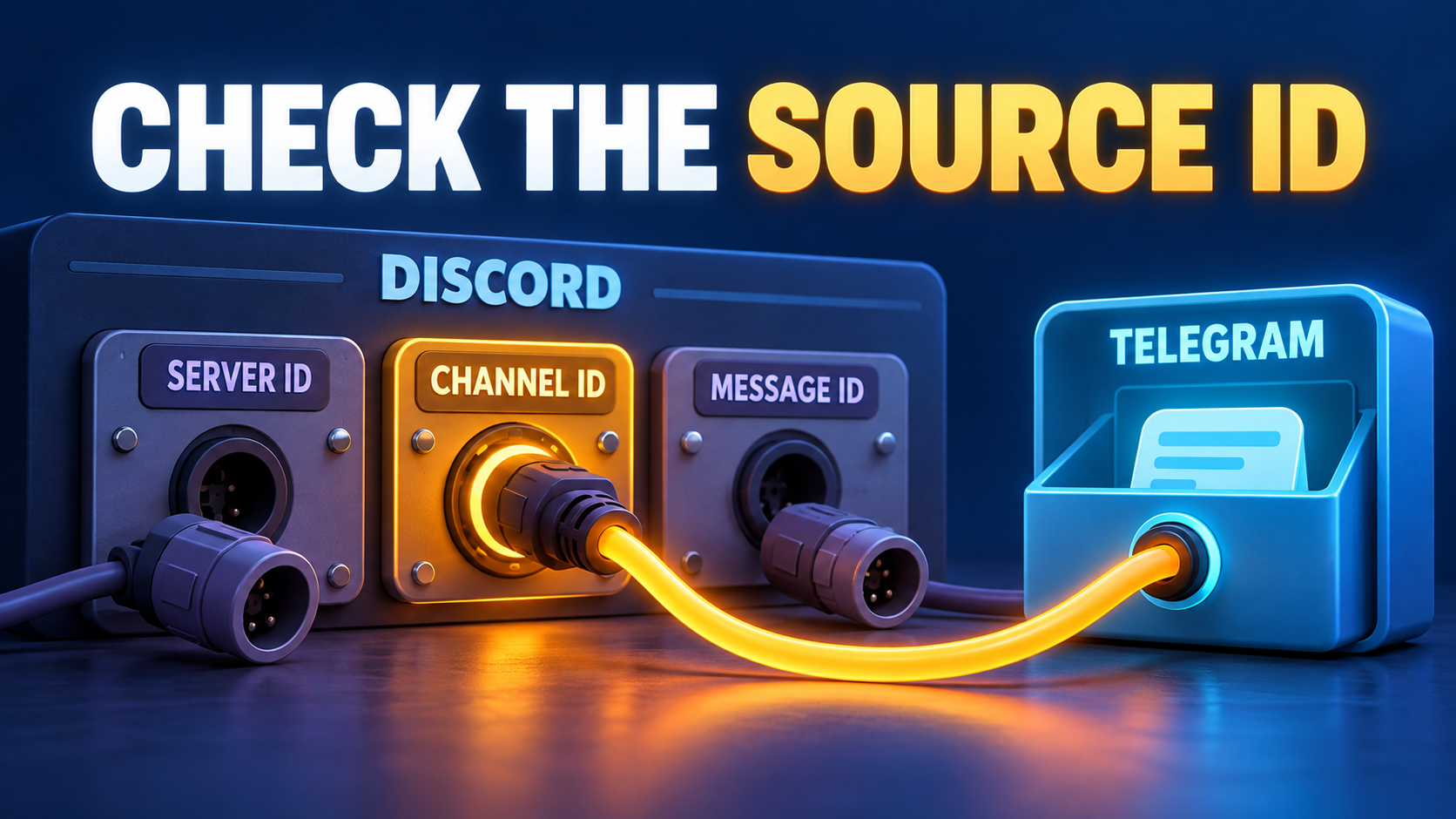
If your Discord-to-Telegram task was configured from a copied message link, check whether Source contains the channel ID or the message ID at the end. A Discord server message link identifies three different objects: the server, the channel and one message. D2T needs the source channel. Copying the final number from a message link does not select that channel.
This guide is for an existing RedFox Discord to Telegram / D2T Auto Forward customer checking a quiet route from an ordinary Discord server text channel. You have already connected the service; the question is which source was saved, not how to create new bots or replace tokens. Correcting an identifier can repair a confirmed source mismatch, but it does not by itself prove bot access or successful delivery.
Auto-Bot.io publishes this editorial guide; RedFox is the product team. The instructions are based on documentation checked November 1, 2026, not an executed forwarding test. The featured image is a concept illustration, not product UI.
1. Identify what you copied before changing the task
Suppose your community has a Discord channel named release-notices and a Telegram review chat. You copied a link from one release message, took its last number and entered that as the source. The text looks like a plausible Discord ID, but its role matters more than its length.
Discord’s official message-location reference gives the server/channel/message order. These are explanatory placeholders, not usable links or real IDs:
https://discord.com/channels/SERVER_ID/CHANNEL_IDdescribes the channel-link shape used in the D2T guide. The channel is the last segment in this shape.https://discord.com/channels/SERVER_ID/CHANNEL_ID/MESSAGE_IDincludes an individual message. The channel is the segment before the message, not the final segment.
The D2T identifier guide says to take the last number from its example of a channel link. That instruction is not a rule for every Discord URL. If you used Copy Message Link, you copied a different object. Do not paste the full URL, a server ID or a message ID into a field asking for the Discord Channel ID.
Do not guess an ID by counting digits or trying nearby numbers. Discord’s Message Object reference distinguishes id, the message’s identity, from channel_id, the channel where it was sent. A number can have the right appearance while identifying the wrong kind of object.
2. Copy Channel ID from the exact source channel
The least ambiguous repair check is to copy the channel’s own ID and compare it with the saved Source. First open the intended server and channel. A familiar channel name alone is insufficient if multiple servers use the same name.
According to Discord’s ID guide, enable Developer Mode under Settings → Advanced if the ID-copy option is unavailable. Then use the control for the channel itself:
- Desktop: right-click the channel and choose Copy Channel ID.
- Mobile: long-press the channel, scroll through its menu and choose Copy Channel ID.
Those are documentation-backed instructions, not screenshots of a current D2T or Discord app session. The important distinction is the selected object: the channel menu, not the message menu or server icon. Recopy from that object if you are uncertain rather than editing an unidentified number.
D2T also documents /getid in the source Discord channel after both service tokens have been configured. That is an alternative way to obtain the channel information. If the command is unavailable, the documented manual ID route avoids treating a failed command as proof that the channel cannot be used. Neither method grants the service’s configured connection permission to read the channel.
3. Compare the saved Source, not just the task label
Open the existing task. The D2T task-settings guide separates Source (Discord Channel ID), Target (Telegram Chat ID), Target Topic and Forwarding Status. A RUNNING label is not a confirmation that Source identifies the channel you intended.
- Record the current route privately. Keep the task label, saved Source, Target, optional Target Topic, status and applicable inclusion/exclusion rules. Preserve the before-state so an unexplained change can be reversed.
- Compare Source character for character with the channel ID copied from the intended Discord channel. Keep the full identifier intact; do not shorten it or replace part of it.
- If they match, leave Source alone. The source-ID hypothesis is not supported by that comparison. Continue to access, task-state and eligibility checks instead.
- If they differ, identify the mismatch. Compare the old value with the server/message segments of your original link. If the link or intended channel is unclear, confirm it with the channel administrator before changing anything.
A matching identifier establishes the selected channel’s identity, not that the service’s configured connection can read it. Your own Discord account opening a link does not establish access for a separately connected bot. Keep channel identity and the connection’s access separate; if you discover a normal user-token setup, follow the connection-policy branch below rather than treating it as a supported repair.
4. Correct only a confirmed source mismatch
When a task might copy the wrong source into a real audience, use its documented Stop Forward control while you investigate. Pausing is not deleting; the same task-settings guide describes Delete Task as permanent. Do not delete the task, reconnect all accounts or reset tokens just to correct one source identifier.
Use Edit Source for a confirmed mismatch, complete the change and reopen the task to read back the saved Source. Keep Target, Target Topic, filters and content changes as they were unless a separate finding justifies changing them. If the correct channel contains a different audience’s content, obtain permission for that route before resuming.
Do not automatically resume an old task into a public destination as a test. If the intended destination is already an authorized private review chat, verify there. Otherwise, use a separately authorized test environment or coordinate with the destination owner. The bridge setup guide owns initial connection and task creation; this repair does not require rebuilding that setup.
5. Verify new eligible posts without weakening the rules
The following is a reader-run acceptance plan, not a delivery result we observed. Use harmless content you are allowed to redistribute. Identify overlapping tasks or integrations first so that a copy from another route cannot be mistaken for success.
- Choose a positive specimen. Prepare a new distinguishable source post that satisfies the task’s current whitelist, sender and message-type conditions and avoids its blacklist. A convenient test sentence that fails those rules is not a valid delivery control.
- Record the before-state. If safe and authorized in your private environment, reproduce the original failure with a qualifying post before changing Source. Otherwise retain the original symptom and mark the causal comparison incomplete.
- Make the one confirmed change. Correct Source, read it back and resume only after destination and audience are authorized. Send a fresh equivalent qualifying post; keep its eligibility comparable with the before specimen.
- Inspect the exact destination copy. Compare the new source post with the Telegram message, its sender and the expected chat/topic. Record both message references privately. Seeing some other post arrive does not close this check.
- Retain an exclusion control. Where an existing rule deliberately rejects a harmless near-miss, confirm that a new comparable near-miss stays out. Keep the original rule unchanged. Do not remove a production filter to make the positive post pass.
A successful one-change before/after with the exclusion retained supports using that correction on the intended route. A missing after-copy is inconclusive: source access, destination permission or another rule may still be involved. Do not stack changes. Restore an unexplained change when appropriate and keep the sanitized observations for support.
This test concerns new messages. Do not assume that correcting Source retrieves the message whose link you copied, replays previously missed posts or removes old copies from an unintended destination. Historical recovery is a separate job to confirm with the product’s documentation or support.
When Source is correct, follow the remaining failure branch
- No messages arrive: check the task’s actual status, the configured connection’s access to that exact Discord channel, Telegram destination permissions and the existing filter rules. Follow the official D2T not-forwarding guide. Where it suggests disabling rules, do that only with the affected route paused or in its separate clean test setup, then restore the rules before resuming a real audience. Do not interpret a numeric-ID match as a complete health check.
- A copy reaches the right Telegram group but the wrong topic: investigate the destination pair using the Target and Target Topic guide. Changing the Discord source cannot repair a confirmed Telegram topic mismatch.
- Your source is a DM, forum post or thread: stop applying this ordinary-server-text-channel example. Confirm that exact source type, access requirements and product support before substituting a parent-channel ID. A link shape alone does not establish D2T thread coverage.
- The problem needs a new connection: use D2T’s Discord bot-token guide, not a normal user token. Discord prohibits automating normal user accounts outside its OAuth2/bot API. D2T’s account-connection guide still shows a Discord User Token field; if that is what your screen requires, ask RedFox support to confirm the compliant bot connection instead of supplying a user token. This ID check is not a reason to reset an otherwise working bot token. Never expose tokens in a support screenshot.
Keep a short private support note: intended server/channel, saved Source before and after, task status, qualifying specimen, expected Telegram destination, actual result and exact error text. Remove tokens, account secrets and private message content before sharing it. The broader alert-routing workflow covers ongoing ownership and filter design; this guide isolates the source identity first.
Frequently asked questions
Is the last number in a Discord link always the Channel ID?
No. In the channel-link shape it can be the channel; in a server message link, the final segment identifies the message. Prefer Copy Channel ID from the intended channel and compare that exact value with Source.
Does RUNNING prove that D2T selected the correct channel?
No. Forwarding Status and Source are separate documented fields. Confirm the saved channel identifier, then inspect a new qualifying message at the destination.
Will correcting Source forward the old linked message?
Do not rely on it. This recovery verifies fresh messages after the change. It does not establish automatic history replay or movement of copies already delivered.
Check one source before rebuilding the bridge
Review the Discord to Telegram product overview, then open your existing task in the Web dashboard, official iOS app or Android app. Choose your preferred surface; Web/App provides the management controls used in this workflow. The service FAQ says forwarding works independently without keeping your own internet connection on, so leaving the management interface open is not a remedy for a wrong Source.
Your next action: copy the intended channel’s own ID, compare it with the saved Source and correct only a demonstrated mismatch. Keep the destination and rules intact, then verify one new eligible copy before relying on the route.
Verify the Source Before Rebuilding the Bridge
Compare the channel ID with Source on one existing task, keep its destination and rules intact, then inspect a new eligible copy.
Manage on Web, iOS or Android