Discord to Discord: Text Arrives, but Attachments Are Missing
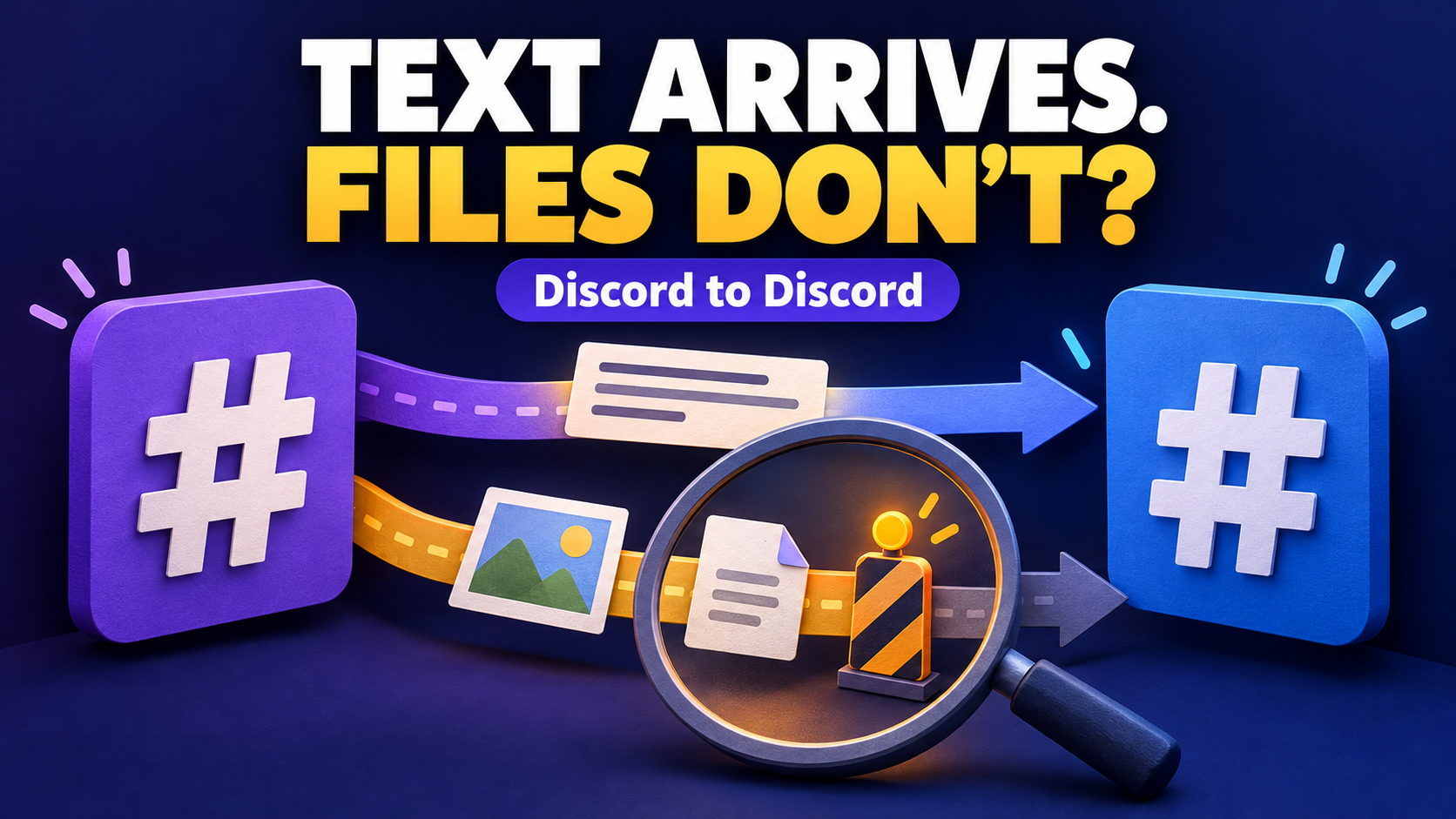
If a Discord-to-Discord route delivers text but not an uploaded image or file, check the destination bot’s Attach Files permission and the task’s attachment setting before rebuilding the connection. A missing website preview is a different symptom: inspect Embed Links separately. Text delivery alone does not prove that either kind of media can reach the receiving channel.
RedFox Auto Forward Discord To Telegram (D2T) documents a Discord-to-Discord route as well as its Telegram destination. RedFox is the product team; its official news channel is @Auto_Forward_Discord_Telegram. This guide is for an operator whose existing bot-account route already sends ordinary text to the correct Discord channel, but leaves readers without an expected attachment.
Keep the first diagnosis in ordinary text channels. Threads, forum posts, native Channel Following and a Telegram destination have different requirements. If you are still designing the route, start with the one-way partner announcement guide; do not add a second relay to repair one missing file.
Identify what is actually missing
Imagine a release notice containing a short explanation and an uploaded diagram. The destination receives the explanation, but the diagram is absent. That is an attachment problem. A notice that retains its release-notes URL but loses the website card is a preview problem. The pictures can look similar while requiring different checks.
- Uploaded image or document missing: inspect the source’s actual attachment and the destination’s file entry. Check Attach Files on the receiving channel, then the task’s attachment configuration.
- URL present, website card missing: check Embed Links and the route’s handling of embeds or previews. Do not enable unrelated file permissions merely to produce a card.
- File entry present, thumbnail missing: try opening the harmless test attachment. A file that opens is not the same failure as an attachment that never arrived. Record the client and display behavior separately.
- The entire media-bearing post is absent: inspect message eligibility, task errors and media settings. A skipped or failed message is not evidence that only its image was removed.
Discord’s permission reference defines Attach Files as permission to upload images and files, while Embed Links allows links to be automatically embedded. Its message reference also distinguishes attachments from embedded content. Neither permission alone guarantees that a particular forwarded post will succeed.
Confirm the route before changing it
Open the D2T Web dashboard and select the existing Discord-to-Discord task. You can also choose the official iOS app or Android app for management. Prefer Web or the app for reviewing the complete task configuration, using the interface available to your account.
- Record the exact endpoints. Note the source server/channel, receiving server/channel and connected bot identity. Similar channel names are not enough.
- Keep a failing pair. Save the source message link and the destination message link if a copy exists. Record whether the file, caption, URL or entire post is missing.
- Preserve the settings. Note the current attachment option, active exclusions and relevant destination permissions before changing one thing.
- Choose a controlled check. Use channels and harmless files you are authorized to share. Do not relax a live feed’s intentional restrictions just to make a test pass.
This procedure assumes a supported bot-account connection. Discord prohibits automating normal user accounts outside its OAuth2/bot API. If your connection asks for a normal user token, resolve the supported route with the provider rather than using that token to work around access limits.
Check the receiving channel, not just the server role
D2T’s bot-based forwarding guide specifically identifies text arriving without media as a reason to inspect destination Attach Files and Embed Links. It lists source View Channel and Read Message History separately from destination posting permissions.
- View Channel and Send Messages: the bot must be able to access and post in the actual destination. A successful fresh text specimen is useful evidence for that specific channel, not every channel in the server.
- Attach Files: verify this for the connected bot in the receiving channel when uploaded images, videos or documents matter.
- Embed Links: verify this separately when the missing element is a rich link preview or embed.
- Channel overwrites: inspect the channel’s permissions as well as the bot’s server role. Discord supports role and member overwrites at channel level; a server-wide permission is not the whole result.
Ask the destination administrator to check the bot’s effective access, including applicable role and member overwrites. If one destination works and another does not, compare those exact channels rather than assuming the account connection is broken everywhere. Category permission syncing can also matter: a channel with its own changed permissions may no longer follow later category changes.
Do not grant Administrator as a shortcut. Discord documents that it bypasses channel overwrites, which would hide the narrow permission question and grant much more access than an attachment route needs. Likewise, do not reset a working bot token solely because a file is missing.
A missing permission is a candidate cause, not a diagnosis from appearance alone. Depending on the attempted send, a media problem may prevent the whole message rather than leave a text-only copy. The next step is a fresh, controlled specimen after the relevant permission has been checked.
Check the task’s attachment choice and exclusions
The D2T Discord-to-Discord setup guide documents an Attachments option for images, videos and files. Review the existing task’s media-forwarding option and enable it only when the intended feed should carry those attachments. Reopen the task to confirm the saved state; do not create another task with the same endpoints.
Also review the saved Blacklist, Whitelist and other content rules that actually apply to this route. If an entire image-bearing post disappears while plain text arrives, an exclusion is a different possibility from an upload failure. Keep intentional production rules intact. Isolate a disputed rule on a controlled route, changing one setting at a time so the result remains interpretable.
Do not transfer a fix from the separate Discord-to-Telegram preview-removal guide: that workflow deliberately removes a website card while keeping its URL. Here, the goal is to deliver an uploaded file to another Discord channel. The destination, missing object and relevant permissions are different.
Verify text, an upload and a preview separately
The following is a reader-run check, not a test executed by Auto-Bot.io. Use fresh posts in the same source channel and inspect the same receiving channel. Keep normal source posts separate from bot mentions or slash-command responses, so you are checking the route’s ordinary message flow.
- Text control: send a harmless, distinctive message such as “MEDIA CHECK A — plain text.” Confirm that this new post arrives in the intended destination.
- Actual upload: upload a small, harmless PNG or JPG with a new marker such as “MEDIA CHECK B — image attached.” Do not paste an image URL as a substitute. Check both the accompanying text and the actual attachment in the destination; open the image to confirm it is usable.
- Link-preview control: send a permitted public URL that is known to generate a preview in your controlled setup, with “MEDIA CHECK C — public link.” Record URL delivery and card appearance independently. A URL that never produced a preview cannot demonstrate a lost preview.
- Representative file: if the feed needs documents or videos, repeat the upload check with one small example of that type. A working photo does not establish every format, size or multi-attachment combination.
Record the task, bot, exact channels, changed setting, source and destination message references, file type and size, and what actually arrived. Use the actual upload outcome, not only a familiar filename or a RUNNING label, as the acceptance evidence.
The attachment check passes only when the fresh, permitted upload reaches the intended destination and opens correctly. Preview appearance is a separate result. If one check fails, preserve that distinction instead of declaring the whole route fixed or broken.
If attachments are still missing
- Small image works; another file fails: record the failing type and size, source availability and any error. Confirm the current route and platform limits with support; do not assume one universal upload allowance or buy a plan based on a guessed limit.
- Only one receiving channel fails: return to that channel’s bot permissions and task configuration. A successful neighboring channel does not prove its overwrites match.
- Only commands or bot-mentioned messages work: revisit source message access with the bot owner. Discord’s message documentation says Message Content Intent affects content, embeds and attachments; channel permissions and that intent are separate controls.
- No fresh text arrives either: leave this narrow media diagnosis and review the base route: task state, bot membership, source access and destination posting access.
- Fresh uploads work; old copies remain incomplete: handle earlier messages as a separate correction. Changing a permission or task option is not proof that historical copies will be repaired or replayed.
If the documented settings and controlled result still disagree, send support a compact, non-sensitive record of the failed specimen and the settings checked. Use harmless reproduction files, redact credentials and avoid posting private server content publicly. There is no need to paste a bot token into a support report.
Frequently asked questions
Does a successful text forward prove the bot can upload files?
No. Send Messages, Attach Files and Embed Links are distinct permissions. Check the connected bot’s effective access in the exact destination, then verify a fresh upload.
Will enabling Embed Links restore an uploaded document?
Not by itself. Embed Links concerns embedded links; Attach Files concerns uploads. First establish whether the source contained an uploaded document, a URL preview or some other embed.
Should I duplicate the task or reconnect both servers?
Not as the first response to one missing attachment. Preserve the working route, check its media setting and destination access, and change one relevant condition at a time. A second route can create duplicate text without explaining the missing file.
Check one Discord-to-Discord attachment route
Open the RedFox Discord to Telegram product overview and follow its documented Discord-to-Discord direction. Your next action is specific: identify one missing upload, verify Attach Files for the receiving bot and channel, review the task’s attachment option, then compare one fresh source-and-destination pair.
The service’s runtime FAQ says forwarding does not require keeping your internet connection on. Active tasks run in the service’s cloud; leaving the management screen open is not a media-repair step.
Auto-Bot.io publishes this editorial guide; RedFox supplies the product. Product instructions and Discord platform references were checked on October 22, 2026. The specimen sequence is proposed verification guidance, not a measured delivery result. The featured image is a concept illustration, not product UI.
Check Your Discord-to-Discord Media Route
Review the documented D2T route, inspect the receiving channel and verify one fresh attachment before changing a working feed.
Documented route · Reader-run verification