Discord to Telegram: Label Each Source in a Shared Feed
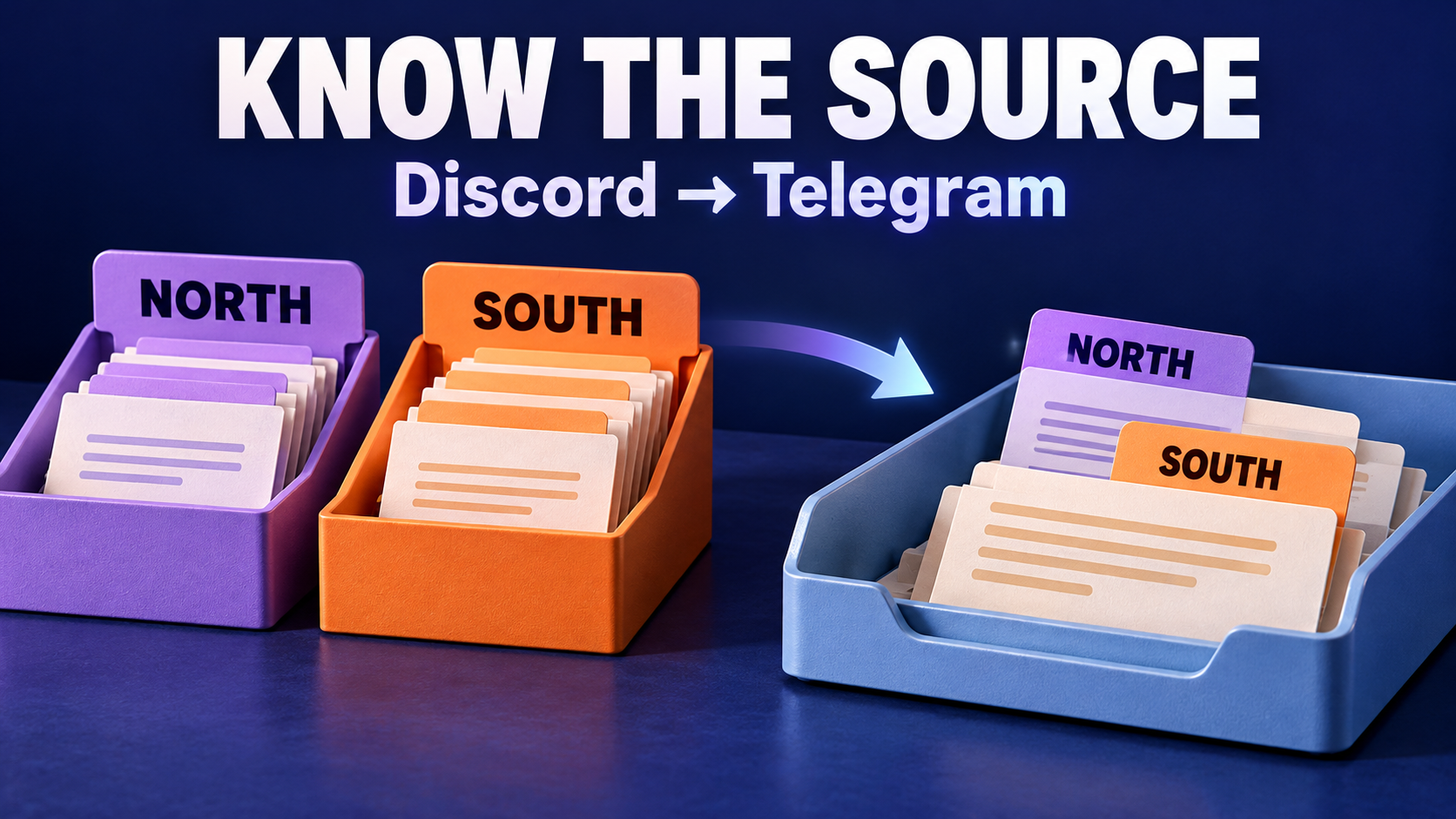
When several Discord channels feed one Telegram destination, put a source-specific header on each forwarding task. In RedFox Auto Forward Discord To Telegram (D2T), Add Header adds your chosen text to forwarded messages. Match that text to the task’s actual Discord source, then check a fresh copy from every source. A shared destination should not make two different publishers look like one.
This guide is for a community operator whose existing Discord-to-Telegram routes already deliver messages, but whose Telegram readers cannot tell which project or channel an update came from. The goal is readable attribution, not a new bridge, a different destination topic or a reconstructed conversation.
Choose a label that stays true for the whole task
A short announcement such as “Maintenance is complete” can be clear inside its original Discord server and ambiguous in a combined Telegram feed. Adding “From Discord” names the platform but still does not identify the project. Adding only “#announcements” is not enough if several servers use that channel name.
Use an approved project or server name plus the source channel’s purpose. For example, North Project — announcements distinguishes a notice from South Project — announcements. Keep event details in the source message; the header supplies stable context.
The D2T header/footer guide explicitly describes adding a title, channel name or introduction. It says the saved header/footer applies to forwarded messages. Our recommendation is to make each task’s fixed wording true for every message eligible to pass through that task.
- Name the source, not an assumed author. A project’s announcement channel can contain posts from several people. A fixed header should not claim they were all written by one person.
- Keep status out of the header. “Urgent outage” or “Maintenance resolved” can become false on the next post. Put changing status in the announcement itself.
- Use names the destination audience understands. An internal task code is useful to the operator, but not necessarily to Telegram readers.
- Label only authorized material. Adding attribution does not grant permission to redistribute private Discord content.
This is a static-header workflow. It does not depend on automatic source-name detection. Do not paste a placeholder such as {source_name} from another product or an older tutorial and assume D2T will expand it; confirm any dynamic syntax in current D2T guidance before using it.
Check the existing source-to-task mapping first
Open the task responsible for a delivered copy. The official task-settings guide identifies Source as the Discord channel ID, Target as the Telegram chat ID, and Target Topic as the specific Telegram topic. Compare those fields with the route you intend to label.
Do not change the target just because the source is unclear. If the copy is already in the correct Telegram place, preserve that destination and repair its accompanying text. If it actually lands in another topic, use the separate Discord-to-Telegram wrong-topic guide.
For the source check, the D2T identifier guide provides a manual method: open the intended Discord channel, right-click its name and select Copy Link. In that channel link, the last numeric segment is the channel ID. Use a channel link, not a link to an individual message. Record the server name beside the channel name and ID in your private route note. Compare IDs rather than relying on two channels that happen to share a name.
Illustrative example: you manage two authorized project announcement feeds. Both already reach the same Telegram channel through separate D2T tasks. These fictional names describe the intended configuration, not an observed customer setup.
| Existing Discord source | Task to inspect | Static header to enter |
|---|---|---|
| North Project / #announcements | The task whose Source matches North’s channel ID | North Project — announcements |
| South Project / #announcements | The task whose Source matches South’s channel ID | South Project — announcements |
The Telegram Target stays the same for these two existing routes. Do not create a parallel task merely to add a label: an additional delivery path can make the check ambiguous. If a task covers sources for which one specific label would be misleading, decide the source grouping before saving that label. Use accurate shared wording or plan separately scoped routes with the existing operator; do not attach one project’s name to another project’s posts.
Add the header on one task, then verify it
First check access to the feature. The current D2T plan table lists Add Header / Footer for Diamond and Platinum, not Gold. That is a D2T feature entitlement, not a statement about the plans of RedFox Auto Forward Telegram (@AutoForwardNew_Bot).
- Choose the existing task. Confirm its Source and Target before editing content.
- Open Add Header. The task-settings guide lists it under Modify Content. The dedicated guide calls the editor feature Add Header/ Footer.
- Enter the approved source label. For the fictional North route, use
North Project — announcements. Start with plain text so the source name is easy to inspect. - Review the preview and select Done. The header/footer guide documents the preview area and the Done button that saves the change.
- Inspect a fresh forwarded message. Read the actual Telegram copy, not only the editor preview. Confirm that the header belongs to its Discord source and that the original message remains understandable.
- Repeat for the other source-specific task. Use South’s wording on South’s task, then check its own destination copy.
Add Header and Show Forward Header are different controls. D2T documents them separately: the former adds your chosen text; the latter controls display of a forward header. This procedure uses Add Header. It does not promise that a native-looking forwarding label will expose every Discord source or author, and it does not require changing an existing forwarding mode just to diagnose attribution.
A footer is optional. The same guide supports a signature, note or link, so you could add a stable instruction such as “For project discussion, use the original community.” Only add a real destination link if it is appropriate for this Telegram audience. Ask an intended recipient to check that it opens for them; your own ability to open a private source is not proof that Telegram recipients can open it.
Run a two-source attribution check
The following is an editorial acceptance procedure for you to run in an authorized test setting. We have not executed it on a connected D2T account. Use harmless messages that satisfy the existing route filters, and do not publish a real outage or confidential announcement just to test a label.
- Send a recognizable North test. For example:
Attribution check N — no action required.Record its source message link. - Send a recognizable South test. For example:
Attribution check S — no action required.Record that source link separately. - Inspect both Telegram copies. N must carry North’s label; S must carry South’s. Save the matching destination links in your private note.
- Check the body as well as the label. Confirm that each test’s distinguishing text is intact and the header is not jammed into the first sentence.
- Ask someone to identify each source from Telegram alone. If they still need the Discord server open to understand the source name, improve the wording rather than adding more technical IDs to the public message.
Passing means you observed the correct source label on each corresponding copy. It does not certify delivery speed, message order across tasks, edit synchronization or every attachment format. If your announcement feed uses captioned images, inspect one representative image separately before treating that format as checked.
The same destination bot may post both copies. Judge the source label inside each message, not just the sender avatar. Conversely, a correct label on one copy does not explain a second, unlabeled copy from another task or integration.
Fix the specific mismatch, not the whole connection
- South’s message says North. Compare the saved Source ID with the header on the task that produced the copy. Check whether someone duplicated a task’s wording or changed its source without updating the label. Correct the relevant mapping or text, then test both sources again.
- The new label is absent. Reopen the intended task and confirm the header was saved. Check that you inspected a fresh copy from that task, not an old message or another integration. If it still fails, preserve sanitized examples for product support rather than disabling unrelated filters.
- The label appears twice. Compare the source body, custom header and any footer. The announcement may already identify the project. Remove only the redundant text you control; do not strip all attribution to solve repetition.
- A project was renamed or a task was repurposed. Review the fixed header whenever its source changes. Recheck the actual Discord channel ID and the wording together.
If incorrect attribution could mislead the audience, pause the affected route while correcting it; D2T documents Stop Forward in task settings. To remove a custom header, the header/footer guide says to clear its content before saving. Do not assume changing the setting rewrites previously delivered copies. Handle any misleading old post separately with the destination administrator.
This guide assumes an existing authorized connection. It does not require reconnecting accounts or changing tokens. If a separate connection problem arises, use a supported bot-account route: Discord prohibits automating normal user accounts outside its OAuth2/bot API. Do not use a normal user token as an attribution workaround.
Frequently asked questions
Can a static header name the original person who wrote every message?
Only use a person’s name if that wording is accurate for the entire route. For a channel with multiple contributors, label the project and channel instead. A custom text label is not proof of individual authorship or identity verification.
Do I need a different Telegram topic for every Discord source?
Not for this case. You are making sources recognizable within an intentionally shared destination. Topic routing solves a different organization problem; a label does not change where the task delivers.
Will the source name update automatically after a rename?
This procedure uses wording you enter yourself. Treat that text as maintained content and review it after a rename or source change. Do not assume automatic substitution or backfilling of old copies.
Make one shared feed easier to read
Start with the RedFox Discord to Telegram product overview. Manage the existing tasks through the Web dashboard, iOS app or Android app. Choose your preferred surface; Web/App management lets you review the task settings alongside your source map. The service FAQ says you do not need to keep your internet connection on while forwarding runs; keeping a management screen open is not part of the labeling fix.
Your next action: compare one task’s Source with its intended reader-facing label, save an accurate header, and verify a fresh copy. Then do the same for the other source before calling the shared feed clearly attributed.
Auto-Bot.io publishes this editorial guide. The linked RedFox documentation supplies the product instructions, checked on October 21, 2026; the fictional example and acceptance procedure are our editorial guidance. The featured image is a concept illustration, not product UI or a delivery test.
Keep Each Discord Source Recognizable
Review the source on an existing D2T task, add an accurate header, and check the next Telegram copy.
Source-specific headers · Reader-run checks