Telegram Task Stops After a Chat Access Error? Recover One Route
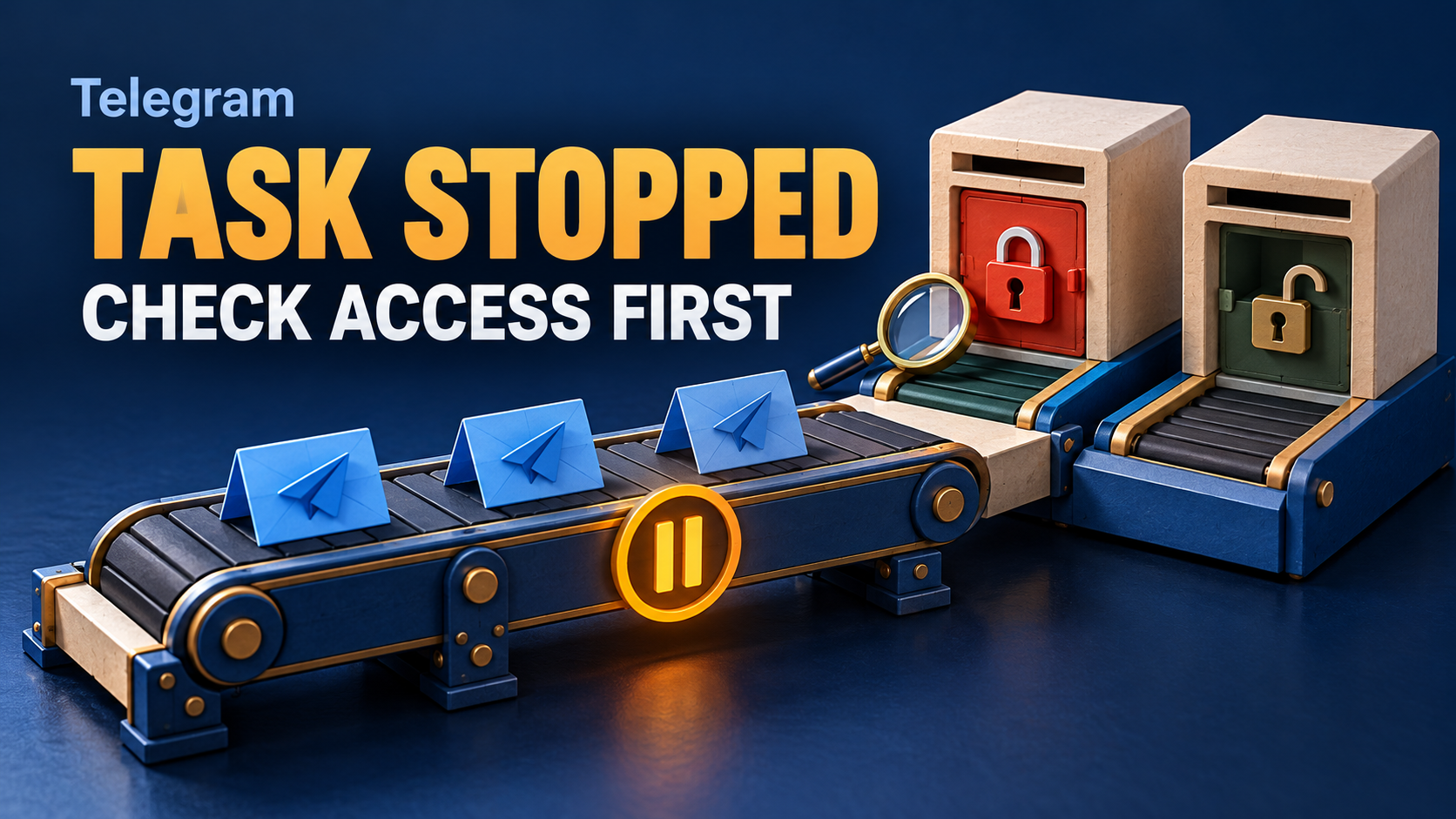
If a RedFox Telegram forwarding task stops after a chat-access alert, repair the affected source or destination access before restarting that task. RedFox documents a specific behavior for Alert: Chat Access Error: when enabled, an access problem sends an error to the bot and stops the affected forwarding task. Turning the option off suppresses that response and lets the task continue; it does not grant the missing permission or prove that every target receives messages.
This guide is for an established Telegram-to-Telegram route that was working and now shows an access error followed by a stopped task. The useful outcome is one deliberate recovery: identify the failing endpoint and sending identity, correct an authorized access gap, resume only the affected task, and verify fresh output without restarting unrelated work.
RedFox supplies RedFox Auto Forward Telegram (@AutoForwardNew_Bot); Auto-Bot.io publishes this guide. Sources were checked October 31, 2026. The workflow is a source-backed diagnostic plan, not a forwarding test or a reproduced customer incident. The featured artwork is conceptual, not product UI.
Read the stop as a clue, not a lost connection
Open the alert and the affected task before changing anything. In the System Settings reference, RedFox describes access problems such as being unable to post to a target or access it. With Alert: Chat Access Error ON, the documented response is to send an error message to the bot and stop that forwarding task. With it OFF, the system ignores the error message and continues the task.
Those are different error-handling choices, not two ways to repair a destination. The switch lives in System Settings, reached through /settings in the bot. Do not assume it is a per-task override or change it casually while investigating one route. First record its current value and the exact affected task.
- Task stopped with an access alert: follow this access-first recovery.
- Task deliberately paused: check its operator decision or schedule before resuming. The selective pause-and-restore guide owns maintenance windows and intentionally paused tasks.
- Task still active, but one message is absent: record the missing specimen, rules and any sending error. A single omission is not proof of an automatic stop.
- Every task fails or the account cannot log in: widen the investigation to the account and service; do not assume this one setting explains it.
Capture the exact failure boundary
Keep a short private incident note: task label, last known delivered source item, alert time and timezone, exact error text, current task state, source, each target, and saved Sender Type. Record which destinations already contain a copy of the last source item posted before the alert. Do not paste private post contents, login codes or tokens into a public ticket.
Illustrative case: a workshop-news task sends to a team group and an announcements channel. After an administrator changes the channel's posting rights, an access alert appears and the task is stopped. This is a possible starting condition to investigate, not proof that a rights edit always produces that sequence. One destination may already have received a copy before the stop; inspect both rather than treating the whole operation as an all-or-nothing transaction.
The task-settings guide documents /settings or /forward, then Manage Forwarding Tasks or Show ALL, then selecting a task. Use its source and target details to identify the route. Similar names and avatars are not enough; retain exact chat identifiers privately when available.
Check source access and target posting separately
Ask two separate questions. Can the connected account read the configured source? Can the identity selected to send this task post in each configured destination? Reading a channel yourself does not establish that a separate sending bot has permission to publish there.
- Verify the source. Confirm that the connected account still has authorized access to the intended chat. If admission or membership has been withdrawn, ask its administrator through the permitted route; do not seek another invite to evade a ban.
- Read the saved sender. RedFox's Sender Type reference distinguishes the personal Telegram account, Single Bot and Bot by Strategy. Inspect the actual selection, not the sender you remember configuring.
- Check every intended target for that sender. For configured bots, RedFox requires token connection, membership in the target and Admin with Send Messages permission. Telegram's rights documentation separately describes channel administrator rights and group restrictions. Follow the product requirement for your route; do not turn it into a claim that every Telegram group member must be an administrator.
- Repair only what you are authorized to change. A destination administrator can confirm the appropriate membership and posting right. If you do not control that chat, request confirmation rather than demanding broad administrator access as a shortcut. Keep unrelated rights unchanged.
Telegram's forwardMessages error reference lists distinct conditions including CHAT_WRITE_FORBIDDEN, CHAT_ADMIN_REQUIRED and CHANNEL_PRIVATE. These illustrate why writing, administration and access are separate checks. They do not prove which Telegram method RedFox used, that the product displays those exact codes, or the cause of an alert in your account. Preserve the actual error you see.
If the task rotates bots, one successful destination copy does not clear every bot-to-target pairing. Use the existing rotating-sender rights audit for that separate matrix; do not replace a shared token or switch sender strategies merely to hide an access gap.
Resume one task, not every task on the account
After the authorized access correction, reopen the destination's permissions and read them back. Then reopen the same RedFox task and confirm its source, targets and saved sender still match the intended route. Leave filters, content transformations and timing unchanged unless one of them is independently shown to be wrong.
Use that task's own resume or start control. RedFox's task-management guide says existing tasks can be edited, paused or deleted; locate the relevant control in your current interface and read the resulting state. A state change alone is not delivery proof.
Avoid Start BOT as a one-task repair. The System Settings page says Start BOT starts and restarts all forwarding tasks, while Stop BOT stops them all. That scope can disturb routes intentionally left paused. Delete Task, disconnecting the account and replacing credentials are not required steps in this access-first procedure.
Verify fresh output and keep the earlier gap separate
For a rehearsal, use private chats you control and harmless content you may redistribute. Do not deliberately revoke rights from a member-facing route to reproduce the failure. Keep the alert setting and unrelated routes unchanged. A private equivalent can validate your recovery procedure, not establish the cause of a past live incident.
- Confirm the affected task is active and the corrected permission is visible. Record the saved delays, operating window and applicable content rules.
- Use one fresh, distinctive source notice that satisfies those rules. In a live source you do not control, wait for an ordinary permitted update rather than inserting test content.
- Inspect each configured destination after its known timing conditions allow delivery. Record the matching source item and target copy, not just a familiar title.
- Check that unrelated tasks retain their intended active or paused states. If there is a pre-existing intentional exclusion, confirm it is still preserved; do not loosen filters to manufacture a successful access check.
- If the task stops again, record the new alert and stop repeating the restart. Recheck the exact endpoint and sender; a different target or bot may have its own gap.
Keep a missed-post list separate from the fresh-message result. A new notice arriving does not demonstrate that earlier missed items were replayed. Before any authorized historical copy, compare source item identities with existing target copies; partial delivery before the stop can otherwise become duplicate output. Do not clone an entire history merely to verify repaired access.
If the task stays active but the fresh notice still does not arrive, retain that as an unresolved outcome. Check eligibility, timing and current errors before trying another remedy. Debug Mode is a separate last-resort decision, with Telegram-limit and potentially missed edit/delete-event warnings; it is not a way to grant a missing posting right.
Decide the error policy after recovery
Keeping the documented alert-and-stop response makes a detected access problem visible and requires an operator to investigate that stopped task. Switching it off instead changes how the system responds to the error. It does not certify successful delivery to an inaccessible target, and the documentation does not establish the exact ordering or partial-success behavior for every multi-target failure.
If your operational policy requires healthy destinations to continue independently, evaluate that routing design separately with product support and a controlled rehearsal. Do not infer independent per-target recovery from the word “continue.” Record who owns checking errors and reconciling missing destination copies before changing this System Settings option.
FAQ
- Does turning Alert: Chat Access Error off restore permissions?
- No. RedFox documents continuing the task instead of the alert-and-stop response. Source access and destination posting rights still need their own check.
- Does a stopped task mean my Telegram account was banned?
- Not by itself. Check the actual error and affected chat. If only one chat denies access, use the single-chat access guide; account-wide login or restriction symptoms need a different recovery route.
- Should I restart all tasks after repairing one target?
- Not for this procedure. Resume the affected task and preserve intentionally paused routes. Start BOT has a documented all-tasks scope.
- Will the old missing posts return when I resume?
- Do not assume so. Verify fresh delivery, then reconcile earlier source and target items separately before any authorized replay.
Make the next restart a deliberate one
Explore RedFox Auto Forward Telegram, identify one affected task and inspect the access problem reported in its alert. The finish line is corrected authorized access, the intended task state, verified fresh copies at each target and a separate record of any earlier gap—not a quiet error screen.
Manage tasks through the official Web App, iOS app or Android app. Choose your preferred surface; Web and the mobile apps offer fuller management than the limited Telegram-bot entrypoint. Tasks can keep running without your device online, as described in the runtime FAQ; closing the interface is not a pause or a repair.
Recover the Affected Route
Read the access alert, verify the selected sender and target rights, then resume one task and inspect fresh copies.
Manage on Web, iOS or Android