Replace Telegram Photos by Caption, Keep Your Channel’s Look
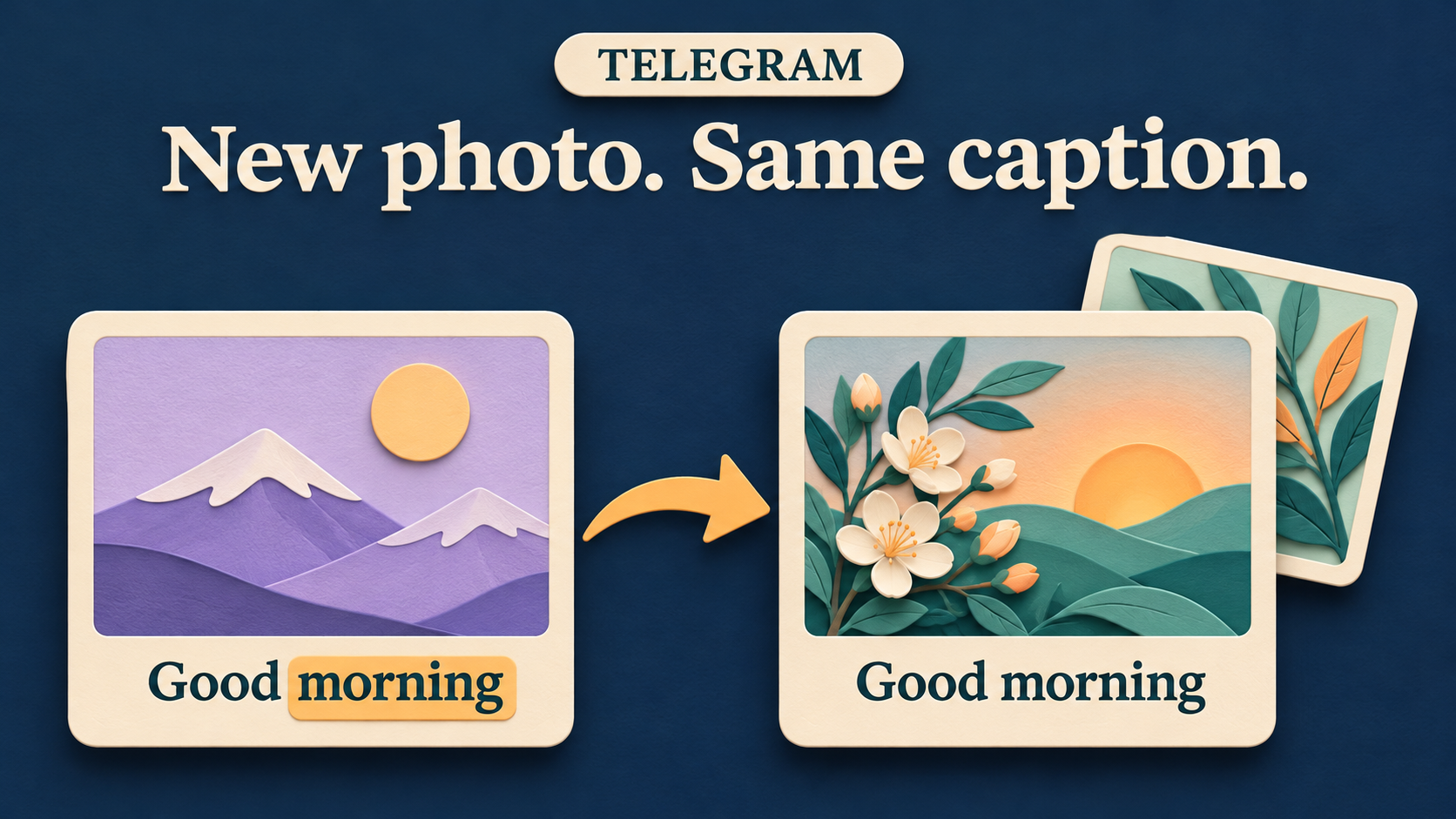
To replace a Telegram photo when its caption contains a chosen phrase, create a “Replace photo by caption” rule in RedFox Auto Forward Telegram. Give it a caption pattern, a list of your replacement photo IDs and the specific forwarding task to use it. Each matching single-photo post gets one of your chosen pictures. This rule leaves the caption text alone, so a recurring greeting can keep its words while using imagery approved for your channel.
Imagine a community channel that shares a daily “Good morning” post from an editorial source it is allowed to republish. The message fits, but the source’s picture does not fit the channel’s visual style. Instead of downloading and re-uploading a different picture each day, the operator prepares a small set of morning images and lets a caption match choose the replacement.
This guide covers RedFox Auto Forward Telegram, @AutoForwardNew_Bot. RedFox develops and operates the product; Auto-Bot.io publishes this guide. The setup and limits below follow the official photo-replacement documentation, checked November 12, 2026.
Change the picture, not the message
The trigger is the photo’s caption, not anything printed inside the picture. A matching caption tells the rule to substitute a photo from your saved list. It does not recognize flowers, read a poster or create a new image.
- Supported: single photos with captions, on a forwarding task with Platinum or Trial Platinum.
- Outside this rule: albums, photos without captions, GIFs and photos uploaded as documents. The rule does not apply to them; that does not mean the task automatically blocks them.
- Caption behavior: this rule does not replace the caption text. Other text-replacement rules still run normally, so review the combined result if your task uses them.
- Selection: use pictures in list order or choose randomly. Random selection can repeat a picture.
Use photos you own or have permission to publish. Choose decorative posts whose meaning survives the swap: replacing a generic greeting image is different from replacing a map, product photograph or safety diagram that carries information the caption does not repeat.
If you want to keep the original image and add a logo, use the destination-specific Watermark workflow. If you want no picture at all, the caption-to-text bulletin guide covers that separate job.
Prepare a small approved photo list
Start with two or three visibly different images, so you can tell which one arrives. For a morning feed, that might be a botanical drawing, a sunrise and a cup-of-tea still life. Keep the artwork suitable for every caption the pattern will match.
- Send each approved replacement photo to @FindMyIDs_Bot. Send only media suitable for sharing with that bot—not secrets or private customer material.
- Copy the returned
file_idfor each photo. Do not copyfile_unique_id, a photo URL or a bot token. - Keep the IDs in the order you want to use them, separated by commas. The form also has a How to get file_id guide.
For example, PHOTO_FILE_ID_A,PHOTO_FILE_ID_B shows the list format only. Those are placeholders, not working IDs. Obtaining an ID does not prove that it works with your forwarding task’s actual sending account or bot; that check comes before live use.
Choose a caption phrase you really mean to match
The Caption pattern (Python regex) field accepts a Python regular expression. For a focused morning rule, this simple pattern matches the phrase “good morning” without caring about capitalization:
(?i)good morning
Good morning, everyone!matches.GOOD MORNING — today’s updatematches.Good evening, everyone!does not match.Not a good morning for travelalso matches: the phrase is present, even though the meaning is different.
That last example matters. A phrase match is not an understanding of the announcement. Use a source with a consistent greeting convention, or choose a more distinctive caption marker and test it against your real posts. A bare lowercase pattern such as test is case-sensitive and matches that substring; it is not automatically a whole-word or case-insensitive rule.
The documentation’s broader example also matches “hello”:
(?i)good morning|hello
Leave that alternative out if an ordinary hello should keep its original picture.
Create the rule on a private test task
Begin with an empty private test source and a private test destination you control. The task creation guide says creating a task also activates it. Empty test endpoints let you finish the setup before adding any sample, without sending experiments to readers. Use the same sending account or bot you intend to use for the real route.
Upgraded older session? The photo-replacement guide says to use Restart Bot once before assigning that session’s first photo rule. If the session already has active tasks, coordinate a change window for them first. This is an upgrade step, not something to repeat after every rule edit; it does not call for logging out or reconnecting your account.
- Open Replaces → + → Create Replace.
- Under Replace Type, choose Replace photo by caption.
- Enter a recognizable Label, such as
morning_photos. - Set Photo selection. Start with In order if you want an easy-to-check rotation.
- Enter
(?i)good morningin Caption pattern (Python regex). - Paste your comma-separated IDs into Photo file_id list.
- Tap Select Task, choose only the intended private test task, then tap Create Replace.
Check that you chose the intended task before saving. The saved rule card shows its caption pattern, replacement photo count and selection mode. Saving a rule neither starts a stopped task nor verifies its file IDs. Confirm the test task is running before posting a sample.
Need the wider setup first? Start with the RedFox Auto Forward Telegram overview. This feature requires Platinum or Trial Platinum; eligible users can try full Platinum features for five days.
Choose a rotation, not a no-repeat promise
In order uses the photo list from first to last, then starts again at the first. With two approved images A and B, the intended rotation is A, B, A, B for successive matching selections. This is the better choice when you want a predictable visual sequence or an easy setup check.
Random picks randomly from the list, and repeats are possible—including the same image on consecutive matching posts. Choose it when variety matters more than sequence. Do not treat a repeated photo as a fault just because Random is selected.
Neither setting produces fresh artwork. You supply the finished images; the rule chooses one for an eligible matching post.
Check the result with the actual sender
Keep the task’s source, destination, sender and other content settings fixed while checking the rule. Post fresh samples to your private source and inspect the destination:
- A matching single photo: give it the caption
Good morning, everyone!. Check that the destination uses a replacement from your list and retains the caption as expected with your other task settings. - A non-matching single photo: use
Good evening, everyone!. Check that this rule does not substitute its picture. - Enough matching posts to check the list: with two IDs and In order selected, inspect three successive matching selections. Check both images and the return to the first. Use distinct sample photos so unrelated duplicate controls do not confuse the check.
If your source also uses an album, a captionless photo, a GIF or an image sent as a document, check a fresh sample of that format too. Expect no replacement from this rule, and judge delivery against the task’s other settings. This rule leaves those posts alone; your other task settings decide how they are delivered.
Do not rely on an invalid-ID fallback. The documentation explicitly says an invalid ID does not fall back to the original photo. If a matching post fails, obtain fresh IDs and test them with this task’s actual sending account or bot. A successful save, or a check with a different sender, is not enough.
If the picture does not change
Check the smallest relevant cause before widening the pattern or replacing the whole setup:
- The post arrives with its original picture: verify the rule’s task assignment, that the source item is a supported single photo with a caption, and that its exact caption matches the saved pattern.
- A matching post is missing or errors: check the actual sender and the IDs, alongside task status and other delivery controls. If no post arrives, investigate delivery before relying on the rule.
- The wrong posts change: compare their captions with your pattern. A broad phrase or the extra
helloalternative may match more than your intended greeting. - The caption also changes: inspect other text replacements on that task. Photo replacement leaves the caption text alone; it does not disable the other rules.
- Random repeats an image: that is allowed. Switch to In order if a cycle is what you need.
Do not solve a caption-matching problem by adding OCR: text inside the picture is a different input. The image-keyword filtering guide covers that separate workflow.
Update or stop one rule deliberately
Once the private check passes, coordinate a quiet change window with anyone managing the real route. Pause the intended real task while adding its rule, so matching posts do not go out before setup is complete.
- Use Replaces → + → Create Replace again, with a distinct label such as
morning_live. - Choose Replace photo by caption and copy the tested caption pattern, photo IDs and selection mode.
- Under Select Task, choose the intended real task, then tap Create Replace. Verify its sender matches the one you tested; a different sender needs its own private ID check.
- Resume the real task when ready and inspect its next approved matching post at the real destination. Check that no unexpected copies went out during the change window; pausing is not a promise that earlier in-flight work was cancelled.
- When the private rehearsal is no longer needed, remove the test rule’s task assignment. Keep the test and live rule labels distinct so you do not disable the live rule by mistake.
You can edit the caption pattern, photo IDs and selection mode later. Changes affect new photo selections; earlier messages retain the photos already selected. Do not expect a rule edit to repair old destination posts or rewrite source posts.
To stop this rule on a task, remove that task assignment. Delete that rule only when it is no longer needed. After changing the image list or the sender, repeat the private check rather than assuming the old ID result still applies.
Give the next greeting your channel’s look
Prepare a small approved image set, match one predictable caption phrase and check it on a private task with the sender you will actually use. Once the result is right, the forwarding rule handles the recurring photo swap instead of someone re-uploading each destination post.
Manage the setup from the Web app, iOS app or Android app, which provide fuller management; the Telegram bot remains an entrypoint. Active tasks run in RedFox’s cloud, and the official FAQ confirms your device does not need to stay online.
Explore RedFox Auto Forward Telegram for the product and entry points, or use the Telegram automation playbook to connect this photo rule with the rest of your channel workflow.
Give recurring posts your channel’s look
Match a caption phrase and substitute an approved photo, without re-uploading each destination post.
Manage on Web, iOS or Android