Telegram Album Delivery Modes Explained

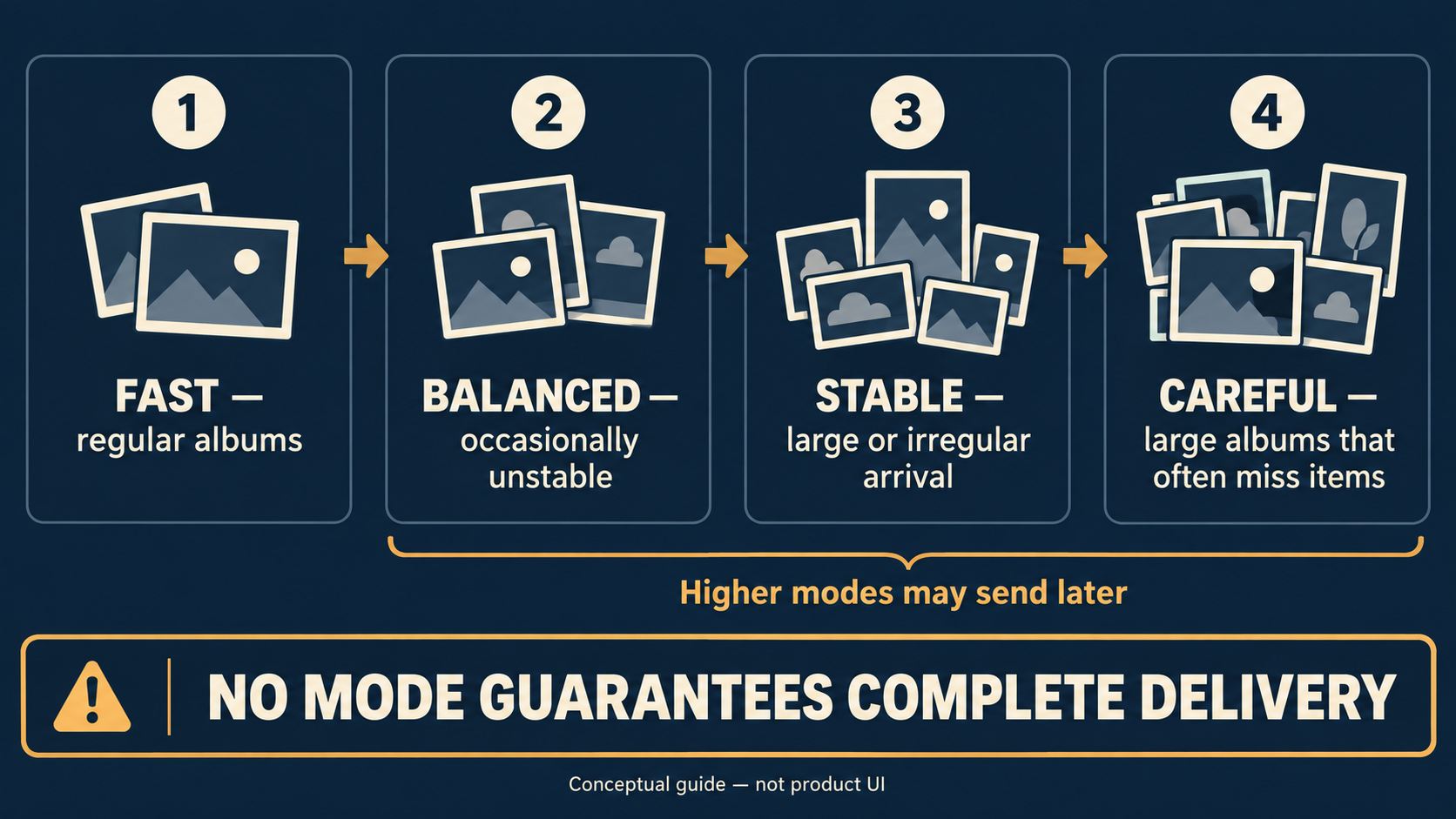
Auto Forward Telegram documents Fast for regular albums, Balanced for occasionally unstable grouping, Stable for large or irregular-arrival albums, and Careful for large albums that often miss items. Higher modes may send later; no mode guarantees complete delivery.
Auto-Bot.io is an independent editorial site; it does not develop or operate Auto Forward Telegram. Sources were checked September 14, 2026. Vendor documentation describes documented controls, not a performance benchmark.
Select a mode by the sample you need to handle
| Album pattern | Vendor-documented starting point | Vendor-documented tradeoff |
|---|---|---|
| Regular albums | Fast | Default; sends albums as quickly as possible. |
| Occasionally unstable grouping | Balanced | Balances speed with grouping ability. |
| Large or irregular-arrival albums | Stable | Better suited to this pattern; may send later. |
| Large albums that often miss items | Careful | Prioritizes careful handling; slowest mode. |
These relative speed descriptions are Auto Forward Telegram documentation, not an independent benchmark. This guide narrows its advice to choosing Auto Forward Telegram Album Delivery Mode settings; it does not prove the best general method for forwarding Telegram albums. Start at Fast unless you are reproducing a known issue; do not select Careful merely because its name sounds safer.
Run a mode-by-mode test matrix
| Test sample | Record before changing modes | Decision after the test |
|---|---|---|
| Regular album | Item count, media types, visible order, caption placement | Keep Fast if the intended result is observed. |
| Large album | Same observations plus whether the symptom repeats | Try Stable only after reproducing the problem. |
| Irregular-arrival album | The same sample pattern and the selected mode | Allow for later sending; compare only this pattern. |
Use staging chats and non-sensitive media. Change only Album Delivery Mode, then compare the same observations. A successful retest does not prove future completeness, order, caption behavior, or delivery reliability.
Change the setting and preserve a rollback
The documented path is Task Details → Edit Task → Advanced Settings → Album Delivery Mode, and selecting a mode saves automatically. Record the previous choice before a test and restore it if the change is not useful.
If a difficult sample still fails after a controlled comparison, keep a sanitized description of the media pattern and seek product support. Do not diagnose an undocumented timeout, caption rule, or hidden cause from one result.
Troubleshoot the symptom, not the label
Auto Forward Telegram documents these mode-based starting points; use the table to select a controlled retest, not to infer a delivery guarantee.
| Symptom | Least-disruptive next step |
|---|---|
| Regular album behaves as intended | Keep Fast. |
| Occasional grouping instability | Test Balanced using the same pattern. |
| Large or staggered items | Test Stable and allow for later sending. |
| Large albums often miss items | Test Careful; verify rather than assume complete delivery. |
| Problem persists | Preserve a non-sensitive sample description and escalate with evidence. |
Telegram grouped-media documentation explains the platform concept, but it does not prove product behavior. This guide therefore does not claim measured timing, ordering, caption handling, or lossless delivery.
FAQ
- Which Album Delivery Mode should I try first?
- Auto Forward Telegram documents Fast as the default for most regular albums. Treat it as a vendor-documented starting point, then compare the same sample if a reproducible symptom appears.
- Is Careful always better?
- No. Auto Forward Telegram describes Careful for large albums that often miss items and calls it the slowest mode; it is not a proven best setting.
- Does any mode guarantee every item?
- No. Auto Forward Telegram explicitly says no mode guarantees complete delivery.
- How do I change a mode without losing my prior choice?
- Use Task Details → Edit Task → Advanced Settings → Album Delivery Mode. The setting saves automatically, so note the prior mode before testing and restore it if needed.
- Must Web or the app stay open while an active task runs?
- According to product information supplied for this guide, active tasks run in Auto Forward Telegram’s cloud after activation; this is not a delivery guarantee. The Album Delivery Mode page documents the setting, not that runtime claim.
- What does Auto Forward Telegram-reported 99.99% uptime say about an album?
- It is a product-reported service-uptime metric with no supplied measurement period, not an album-completeness guarantee, per-message delivery rate, or SLA.
Manage from Web, iOS, or Android
Choose Web, iOS, or Android. Product information supplied for this guide recommends Web/App for fuller management than the Telegram-bot entrypoint. Active tasks run in Auto Forward Telegram’s cloud after activation, so you do not need to keep the management interface open.
Auto Forward Telegram reports 99.99% service uptime. Without a public measurement period, that is not an album-completeness guarantee, a per-message delivery rate, or an SLA. Verify the exact Telegram bot at @AutoForwardNew_Bot.
Open the Exact RedFox Auto Forward Telegram Bot
Verify @AutoForwardNew_Bot, then review current plans, limits, and documented destinations before connecting an account.
Check current plans and limits in the bot