CamoFox MCP Unknown Ref? Re-Snapshot Before Retrying a Click
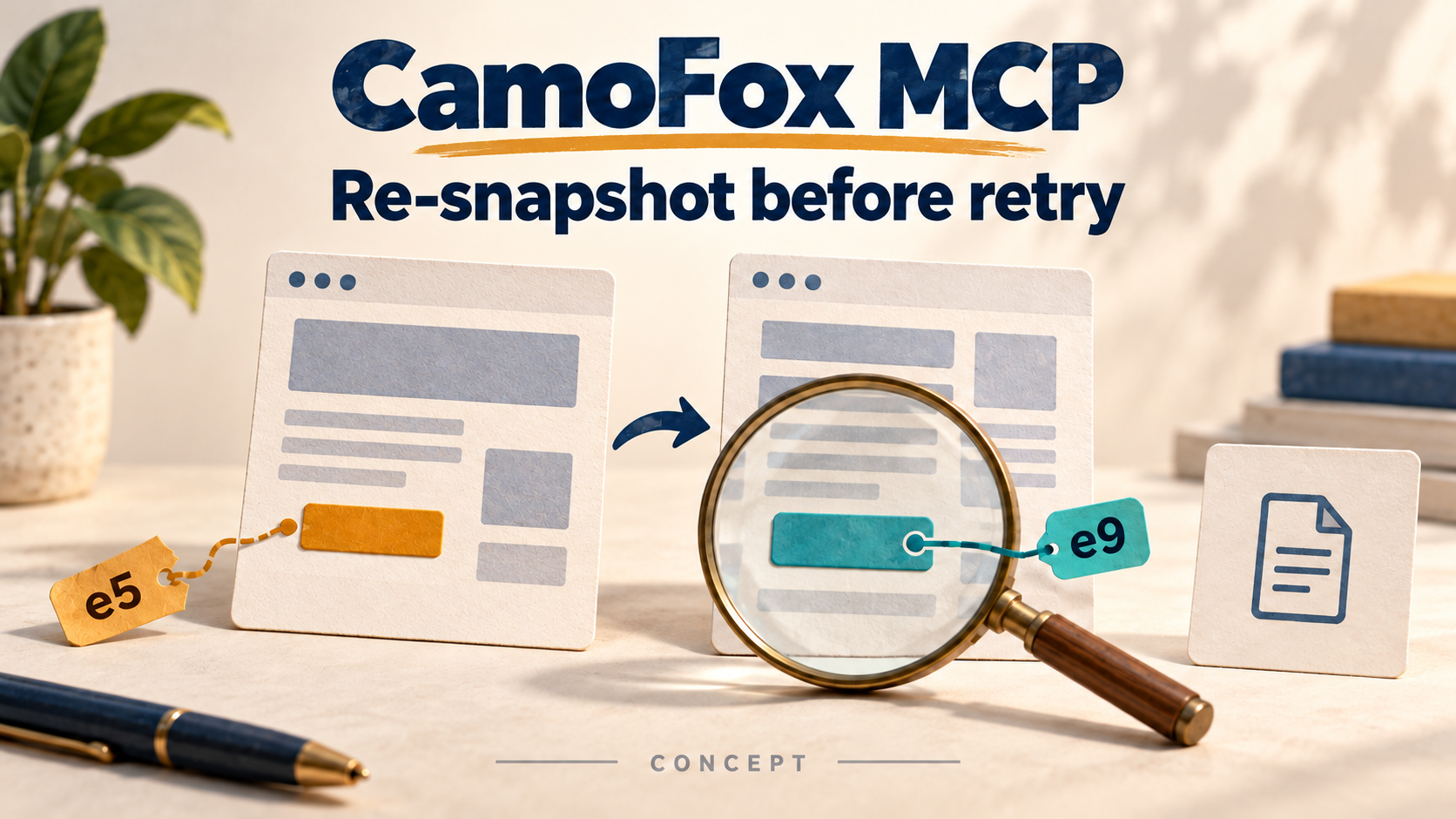
If CamoFox MCP reports an unknown or stale ref, take a new snapshot of the same tab and locate the intended control again. Do not reuse the old eN just because its number still looks valid. If the control is missing from the refreshed snapshot, inspect the rendered HTML, confirm a specific CSS selector, then act once and check the result.
This guide is for developers whose CamoFox MCP connection already works but a click fails—or opens the wrong item—after filtering, navigation or a dynamic page update. The goal is to reach the correct item, not merely get a successful tool response. For installation and the two-component architecture, start with the CamoFox MCP overview.
The workflow follows the project’s refs-versus-selectors guide and tool implementation, checked on October 15, 2026. The report-list example below is illustrative, not a captured CamoFox session or a claim that we tested your site.
Why an old ref can stop identifying your target
A ref such as e5 is a short reference assigned from a page’s accessibility snapshot. It is not the element’s HTML id, a report number or a permanent bookmark. The project documents that refs reset after navigation and can become stale after significant DOM changes.
That matters on a report list with several identical “View details” buttons. Filtering or sorting can change which rows exist and their order. A number copied before the change is not evidence that you are still targeting the same report. Even a fresh snapshot needs interpretation: match the control to the intended row, not just to a familiar button label.
Use refs first when the current snapshot clearly identifies the target. Their compact labels are useful for ordinary buttons, links and inputs. Switch to the DOM-oriented tools when the snapshot does not expose the control or does not give enough context. A missing ref does not, by itself, prove the page is broken.
Choose the next check from the symptom
- Unknown or stale ref after a page change: confirm the tab and URL, take a fresh snapshot, then re-identify the target. Do not increment the old ref number and guess.
- The snapshot is visibly truncated: follow its returned
nextOffsetwith theoffsetargument whilehasMoreis true. An omitted middle section is not proof that the control is absent. If the page changes during inspection, begin a fresh observation. - The expected control has not appeared: wait for a selector derived from the actual page, then snapshot again. Waiting longer cannot fix an incorrect selector.
- The control exists but still has no useful ref: inspect scoped rendered HTML and use a confirmed CSS selector. Custom controls can be poorly represented in the accessibility tree.
- The click returned success but the wrong item opened: stop further actions. Read the actual item identity and return to the list only when safe; re-establish the row-to-control relationship before another click.
- A save, send, purchase or delete timed out: inspect whether the effect already happened before considering a retry. Refreshing refs does not make repeating a consequential action safe.
Worked example: open the right report after filtering
Suppose you manage an authorized internal report list. You want to open report RP-104 in read-only detail view. Before a filter change, its button appeared as e5; after the change, the list is different. The numbers here are examples—you must use values actually returned for your tab.
1. Re-snapshot the current tab, not a remembered page
Call snapshot with the tab ID returned by your own workflow. Confirm the returned URL belongs to the report list. Locate RP-104 and its associated “View details” control in the new output.
{
  "tool": "snapshot",
  "arguments": { "tabId": "YOUR_TAB_ID" }
}
These are tool-call examples, not shell commands or a script to paste as one batch. The names match the CamoFox MCP source; your client may display a server prefix. If the refreshed snapshot unambiguously associates a new ref with RP-104, use that returned ref for one click. If the relationship remains unclear, inspect the DOM instead of assuming the next “View details” button is correct.
2. Inspect the row identity when labels repeat
The camofox_get_page_html tool can return one element’s rendered HTML when given a selector. Scope the inspection to a container you have identified on the actual page; do not assume every report list has id="reports".
{
  "tool": "camofox_get_page_html",
  "arguments": {
    "tabId": "YOUR_TAB_ID",
    "selector": "#reports"
  }
}
For this example only, imagine that the inspected HTML contains these two rows:
<section id="reports">
  <article data-report-id="RP-104">
    <h2>RP-104: Monthly operations</h2>
    <button data-action="view">View details</button>
  </article>
  <article data-report-id="RP-105">
    <h2>RP-105: Weekly operations</h2>
    <button data-action="view">View details</button>
  </article>
</section>
Here, button is too broad, and choosing a positional button risks depending on the current sort order. The inspected report identifier gives you a more useful selector:
[data-report-id='RP-104'] button[data-action='view']This selector is appropriate only because this example’s HTML supplies those attributes. On your page, use an actual stable identifier or another inspected relationship. Do not invent a data-report-id attribute and expect it to work.
3. Check existence, identity and ambiguity before clicking
Use camofox_query_selector to inspect the candidate element’s text, HTML and attributes. Its implementation uses document.querySelector, so finding an element does not establish that the selector has only one match.
{
  "tool": "camofox_query_selector",
  "arguments": {
    "tabId": "YOUR_TAB_ID",
    "selector": "[data-report-id='RP-104'] button[data-action='view']"
  }
}
If the page can contain duplicate or hidden copies, use a read-only count with camofox_evaluate_js:
{
  "tool": "camofox_evaluate_js",
  "arguments": {
    "tabId": "YOUR_TAB_ID",
    "expression": "document.querySelectorAll(\"[data-report-id='RP-104'] button[data-action='view']\").length"
  }
}
Proceed only after the actual result and inspected context identify one intended, usable control. A count of one is a uniqueness check, not proof of visibility, enabled state or authorization. If there are zero matches, check the URL, loading state and selector. If there are several, narrow the inspected container rather than choosing the first match blindly.
For late-rendered content, camofox_wait_for_selector accepts the tab, selector and a timeout. In the inspected implementation it polls for DOM existence—not visibility or a completed business task. After it resolves, confirm the target again; a hidden element can exist too.
4. Click once, then verify the report identity
When the target is confirmed, pass the selector explicitly to click. Use either a current ref or a selector, not both as competing instructions.
{
  "tool": "click",
  "arguments": {
    "tabId": "YOUR_TAB_ID",
    "selector": "[data-report-id='RP-104'] button[data-action='view']"
  }
}
Take another snapshot after the click. Check that the resulting detail page or modal identifies RP-104 and displays the expected report heading. Check the URL as well when the application uses a detail route. A URL alone is insufficient for a modal that leaves the list URL unchanged.
The click tool returns action-level fields such as success and navigated. Neither field says that your intended report opened. Your completion condition is the observed RP-104 detail state—not the absence of an error.
What not to reset for a targeting problem
Do not begin by deleting saved profiles, clearing cookies or rebuilding a working installation. Those actions do not explain which row an old ref represented and may discard useful session state. First establish whether this is a stale observation, incomplete snapshot, loading issue or ambiguous target.
The original March 6, 2026 ref-targeting report and its linked investigation led to documented improvements. They are historical context, not proof that current refs fail on most sites. Read the later corrections rather than copying an old installation recommendation; the current README’s compatibility guidance is the better starting point for version checks.
If a fresh snapshot and a confirmed selector still fail, keep the exact URL, tab context, expected target, sanitized error and observed result. Then use the CamoFox traces and console guide for deeper diagnosis. If the interaction works but your job is collecting a complete dataset, continue with the separate structured JSON extraction workflow.
Frequently asked questions
Does taking a new snapshot reload the page?
No. snapshot requests an accessibility observation of the current tab. The recovery step here is to refresh your evidence and refs, not automatically reload the website. Reloading is a separate action that can discard unsaved state.
Should I always use CSS selectors instead of refs?
No. The project recommends refs first when the current snapshot exposes the intended element clearly. Selectors are the fallback when refs are missing, stale or insufficiently specific. Selectors also need maintenance when a page changes.
Will a selector fix every custom widget?
No. A selector is not an access bypass, and finding a DOM node does not prove it can be interacted with. If you cannot inspect a usable target or confirm the result, keep the step unresolved instead of reporting success.
Give your next browser task a target and a finish line
Before the next interaction, write down four things: which tab, which item, which control and which observable result. Re-snapshot when the page changes, fall back to inspected selectors when necessary, and stop when the result does not match the intended item.
Explore CamoFox MCP to use this ref-first workflow with a compatible AI client. Pair it with the CamoFox Browser service, then try one authorized read-only detail-view task before expanding the automation.
Give Your Next Browser Click a Verifiable Target
Explore CamoFox MCP, connect a compatible AI client to CamoFox Browser, and try one authorized read-only task with fresh refs and an explicit result check.
Refs first · inspected selectors when needed · verify the result