Telegram Edits Arrive as New Posts? Check the Edit Setting
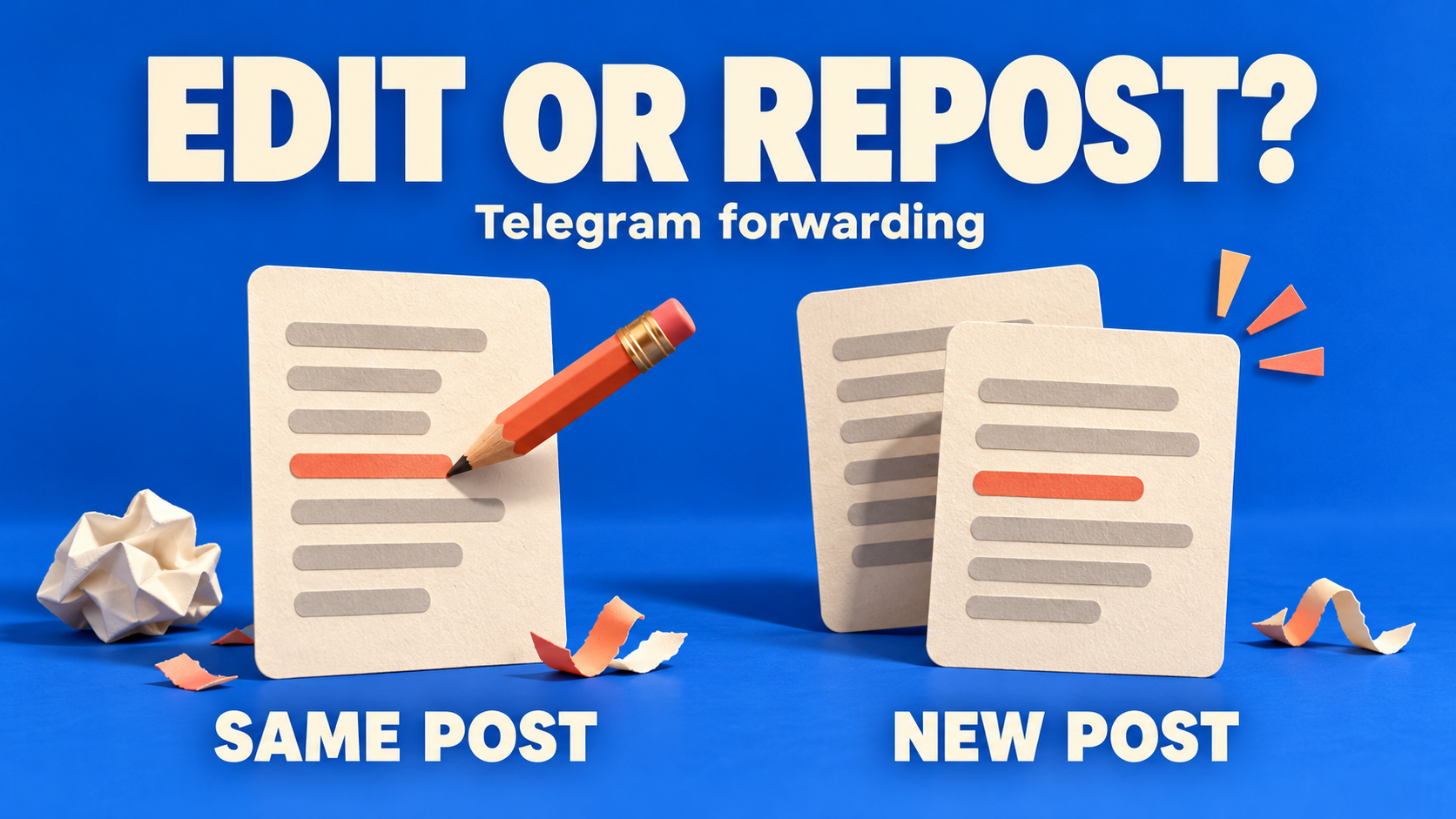
If correcting a Telegram source post creates another destination message, check the task’s Edit setting before adding a duplicate filter. RedFox Auto Forward Telegram documents two different outcomes: Edit enabled updates the target message; Edit disabled sends the source edit as a new message. For an in-place correction workflow, also review Show Header Forwarder, Max Time Edit and any active Debug Mode, then verify one fresh source-to-target message pair.
This guide is for a channel operator whose ordinary Telegram-to-Telegram forwarding already works, but a small source correction produces an extra post. The goal is to keep the intended destination post current—not to suppress legitimate corrections, rebuild the route or clean up the entire channel.
Product identity: this is RedFox Auto Forward Telegram, accessed through @AutoForwardNew_Bot. The previous bot, @Auto_Forward_Messages_Bot, has moved to this current handle. The guidance below follows official documentation checked on October 21, 2026; it is not an executed forwarding test.
1. Check whether the source was edited or posted again
Two similar destination messages do not tell you which event produced them. Open the source and the destination together, and follow one identifiable notice rather than comparing the latest text in each chat.
- The same source post was edited: the existing source message changed. This is the case the task’s Edit control addresses.
- The source published a second post: there are two source message identities, even if the words are almost identical. Do not expect an edit setting to merge separate posts.
- One source event reached the target through multiple routes: inspect the tasks and any manual reposts. A second route can leave an extra copy even when the intended task behaves correctly.
Keep the source and target message links where available, or the chat and message IDs. A message ID needs its chat context; a matching number in a different chat is not the same message. Also note the original send time, source edit time and when the second target post appeared.
If the extra copy is an unchanged repeat rather than a correction to the same source post, use the duplicate-message diagnosis guide to map overlapping routes first. Similar wording alone is not a reason to discard one of the messages.
2. Choose the intended Edit behavior
The official task-settings guide describes Edit under Advanced Configuration. When enabled, it edits target messages after the source message is edited. When disabled, the documentation says those source edits are sent as new messages instead.
- Update the same post: enable Edit with compatible task settings. Verify that the original target message changes after a source edit.
- Send another post: with Edit disabled, verify the new target message. Review the earlier copy separately.
- Stop unrelated repeats: check source events and overlapping routes. Identify which task or action created each copy.
Edit off does not mean “ignore source edits.” That distinction is the first thing to resolve when a corrected notice looks like duplicate forwarding. Repeatedly editing the source can keep exercising the very behavior you are trying to stop.
Open the exact task that produced the copy. For the documented Telegram-bot path, use /settings or /forward, choose Manage Forwarding Tasks or Show ALL, then select the task and inspect Advanced Configuration → Edit. Confirm the source and target before changing anything. Check that your account has access to the required controls; basic forwarding alone does not establish access to every synchronization feature.
For routine management, prefer the Web app or the official iOS and Android apps. Choose the surface you prefer; Web/App provides fuller management than the limited Telegram-bot entry point. Active tasks run in RedFox’s cloud, so leaving a settings screen open is not required.
3. Check the settings that can change the result
Show Header Forwarder is more than a cosmetic choice
The task-settings guide explicitly warns that enabling Show Header Forwarder prevents Edit from working. The separate Forward Header guide explains its display choices: show the forwarded label on all auto-forwarded messages, or only when the source message was itself forwarded.
Inspect the saved setting rather than deciding from whether one sample happens to show a header. If your route needs in-place corrections, use a controlled test with Show Header Forwarder off and Edit on. Do not assume a different header display mode removes the documented compatibility warning.
Removing the native forwarded label is also an attribution decision. Preserve appropriate source credit in the approved message text or a useful source link, and confirm permission to redistribute the content. A cleaner-looking copy is not permission to present someone else’s work as your own.
Max Time Edit is a separate time control
The same task guide lists Edit Max Time Edit as the maximum allowed editing time, measured in seconds. Record the task’s saved value when a quick edit behaves differently from a later correction.
The cited page does not define the timer’s starting point, a universal default or a special meaning for zero. Do not guess those details or copy a large value as a universal fix. Keep the actual source creation, source edit and destination times in your test note; ask product support to clarify the applicable window if timing remains the only difference.
Do not turn on Debug Mode as an edit-sync remedy
The dedicated Debug Mode guide says the feature is intended as a last resort when new source messages are not being received. It also warns that enabling it may prevent edited or deleted post events from being received.
If Debug Mode was left on after an earlier arrival problem, record that state. The documented off path is the task’s Detail Task screen → Debug Mode → Turn Off Feature. Coordinate with anyone currently diagnosing that task, then check normal arrival and one edit again. Do not disable a necessary live diagnostic silently, or treat Debug Mode as a harmless way to get more edit logs.
4. Test one fresh post, then edit that same post
Use a private test source and destination you control, with no customer audience or sensitive content. If you need a separate base route, follow the official task-creation guide; creating a task can begin delivery, so select the safe destination first. Keep unrelated filters, transformations and other routes out of this small check.
Illustrative test only: the following messages are fictional. They are not results from a connected account.
- Record the baseline. Note the task, source, target, Edit choice, Show Header Forwarder choice, Max Time Edit value and Debug Mode state. For the in-place test, the intended configuration is Edit on, Show Header Forwarder off and normal operation rather than Debug Mode.
- Send one fresh source post:
DEMO NOTICE A — room Cedar. Wait until it reaches the intended target. Save the identity of that exact destination message. - Edit the original source post: change only
CedartoMaple. Do not send a second source message or delete and recreate the first one. Record when you made the edit. - Reopen the original destination message. Check whether that same message now says
Maple. Then inspect nearby messages for an additional copy. Seeing the word Maple somewhere in the target is not enough. - Record the actual outcome. Same target updated, new target created, old target unchanged, or no initial arrival are different results. Stop after one clear reproduction instead of making repeated corrections that obscure the pair.
One plain-text pass supports only that tested route and message shape. If your notices use photo captions or changed attachments, check those separately before relying on them. It does not establish that old manually forwarded posts, cloned history, every media type or every destination will be updated.
Need the broader route context? The Telegram forwarding setup guide owns initial source-to-target setup. This check starts after ordinary delivery works and changes only the correction behavior.
5. Act on the result without losing the correction
- The same destination post updates: verify there is no unexpected extra copy, then repeat with a harmless example of your actual content type before applying the change more widely.
- A new post appears and Edit is off: this matches the documented new-message behavior. If your editorial policy calls for one current post, enable Edit on the controlled route, resolve the compatibility settings above, and use a fresh test pair.
- A new post appears despite the intended settings: identify which task owns each destination copy and whether the source was truly edited. Keep the saved settings and message pair for support; do not assume duplicate filtering will repair the edit path.
- The original copy stays old and no new copy appears: check header compatibility, Max Time Edit and Debug Mode, plus current task access and state. This is a different symptom from an edit deliberately sent as a new message.
- The first post never arrives: return to ordinary forwarding diagnosis. An edit-only test cannot explain a route that has not delivered its initial message.
Changing Edit is not evidence that older extra posts have been removed. Review those existing copies separately. If an outdated notice could mislead readers, arrange an authorized correction or moderation action in that destination while the task is being investigated. Do not enable Delete or remove a real source announcement merely to test edit handling.
For escalation, keep a sanitized task label, source/target references, the original and revised sample text, the message pair, observed times, saved settings and visible errors. Share only what support needs through an official channel. Never include login codes, passwords or account tokens. The official troubleshooting guide describes a clean test setup; use test channels rather than granting access to a real customer feed just to reproduce this problem.
Frequently asked questions
Does disabling Edit stop edited source messages from being forwarded?
Not according to the documented task behavior. With Edit disabled, source edits are sent as new destination messages rather than applied to the earlier copy. Check the setting on the task that actually created your messages.
Should I turn on Duplicate Filters first?
First identify the source event and the route. A deliberate source correction, a second source post and two overlapping forwarding tasks are different causes. Resolve the Edit behavior before deciding whether a separate duplicate-control workflow is relevant.
Will changing these settings fix every existing copy?
Do not assume retroactive repair. Verify a fresh source-to-target pair, then review existing stale or extra messages separately. A successful edit also does not prove deletion synchronization or that readers noticed the correction.
Make the next correction predictable
Start with one decision: should a source edit update the existing target, or arrive as another post? Open the RedFox Auto Forward Telegram overview, use the official management surface, and inspect Edit on the affected task. Check its compatible settings, then confirm the identity and text of one destination message after a source correction.
Auto-Bot.io’s editorial team publishes this guide. For product settings and support, use the official Auto Forward Telegram sources linked above. The documented behavior and the suggested acceptance check are separate: only inspecting your actual destination shows what your route did.
Choose What Happens When the Source Changes
Review the affected task’s Edit setting, then check one fresh source correction against the same destination post.
Official settings · One controlled test pair