OhMyShot Quick Markup: Annotate Without the Full Editor
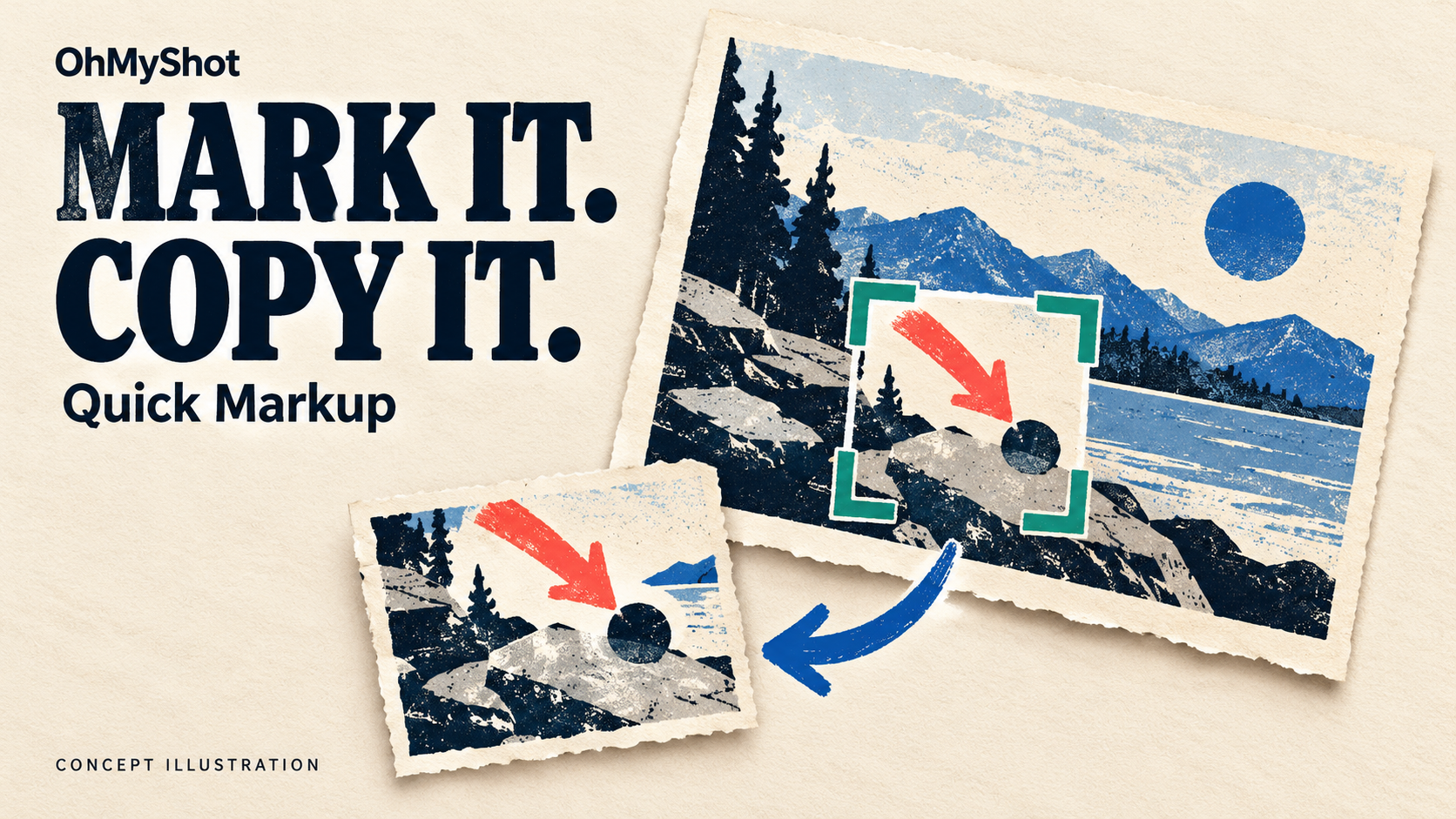
For one screenshot that needs an arrow or a short note, use OhMyShot’s Quick Markup: select an area, annotate it, then choose Save or Copy & Close without opening the full editor. Use Quick Capture when you only need the image, and OCR when you need extracted text. Choosing the right capture mode avoids reaching the clipboard with the wrong kind of result.
This guide is for support agents answering a specific “where do I click?” question. You already have the relevant screen open; you want one marked image you can inspect and paste into the intended conversation. You do not need a background, a multi-image comparison or a full presentation layout.
The workflow comes from the official Quick Markup release notes and the project README, checked on October 21, 2026. Quick Markup was introduced in v1.26.0; later release notes document capture and annotation fixes. This is a source-backed guide, not a hands-on test of your desktop build.
1. Choose the mode by what you need to deliver
OhMyShot offers several capture routes with different jobs. Do not treat every shortcut as a different way to make the same output:
| What the reply needs | Start with |
|---|---|
| An image of the selected area, with no added explanation inside it | Quick Capture |
| An image with an arrow, rectangle or short text annotation | Quick Markup |
| Text extracted from the selected area | OCR Direct Capture |
| A screenshot you want to frame, style or beautify | Capture & Beautify and the full editor |
The distinction between image and text is explicit in the v1.25.9 release notes: OCR copies extracted text, while Quick Capture copies the selected image. Quick Markup adds the annotation step before its copy or save action. For choosing crops, backgrounds and styling more generally, see our share-ready screenshot guide.
If you need Expected and Actual images together, that is a different job: use the screenshot-combining workflow. Keep this quick reply focused on one screen and one instruction.
2. Open Quick Markup, not an adjacent capture action
Prepare a non-sensitive example screen before starting. Remove unrelated notifications and customer details, and check the app’s Sharing settings if you have previously enabled upload features. Our local-export and Cloud Upload guide explains that separate output decision; using a capture mode is not a privacy guarantee.
- Confirm your installed version includes Quick Markup. It was added in v1.26.0. Use the current official release rather than installing an older build solely because a tutorial names it.
- Choose Quick Markup from the app’s tray or capture toolbar. The v1.26.0 notes document those entry points as well as a global shortcut. Use the named action when you are unsure which shortcut is assigned.
- On macOS, the documented default is Command + Option + 9. The maintainer’s Quick Markup announcement says it can be changed in Settings. Check your own assignment; do not assume that macOS combination applies to Windows or Linux.
- Select the area that answers the question. Include the relevant control and enough surrounding context to identify the screen. Inspect the selected image before annotating it.
If you end up with extracted text or an unmarked image already on the clipboard, check which action you invoked. That may be a mode-selection mistake, not a failed annotation export.
3. Mark the action without hiding it
Quick Markup’s documented tools include Select, Arrow, Rectangle, Pen, Text and Blur/Pixelate, with crop and history controls. For this support reply, start with an arrow and add text only if the arrow’s meaning is not obvious. You do not need to use every available tool.
Imagine a teammate asking where to open a report’s date filter. In a demo account, select the report heading and date control, then point one arrow toward the control without covering its label. This is an illustrative support scenario, not a captured customer incident.
- Keep the target readable. Place the arrowhead beside the control or use an outline around it. Do not cover the text the recipient must recognize.
- Make the note an instruction. “Open the date filter” is more useful than “Here.” Keep the explanation in the accompanying message too.
- Correct a misplaced mark before copying. Quick Markup includes Undo and Redo. Use them to recover a mistaken annotation instead of piling another arrow on top.
- Check the whole selected area. An annotation does not make private information safe to share. Prefer a clean demo screen or crop sensitive content out; do not rely on soft blur to hide a secret.
If you use a rectangle, inspect its interior as well as its border. The v1.26.2 notes describe a fix for rectangle and ellipse fill transparency while outlines remain visible. A visible outline is a pointing aid, not proof that the content inside it is concealed.
4. Finish with the output you actually need
Quick Markup offers Save and Copy & Close. The v1.26.0 notes say these actions flatten the current crop and annotations into the output. Treat that output as the marked image, not as a promise that another application will receive editable annotation layers.
Choose Copy & Close for a direct paste. Return to the intended conversation or ticket, paste once into its draft, and inspect the image before sending. Verify that the arrow and note are present, the right region was captured, and the picture is not a stale clipboard item. Copying is not the same as sending the reply.
Choose Save when you need a file to inspect or attach later. The release notes state that Quick Save uses the main editor’s destination and filename settings. Check those settings rather than assuming the result will land on the desktop. Reopen the actual saved file and confirm its contents before attaching it.
For the date-filter example, the completion check is simple: the pasted or reopened image shows the report heading, the date control and one clear arrow. Pair it with a sentence such as “Open the date filter beside the report heading, then choose the period you need.” The recipient should not have to infer the instruction from a shape alone.
5. Check the next capture if your shortcut stops responding
Do not assume the introduction release fixed every later capture problem. The v1.26.1 notes document a follow-up fix for shortcuts needing an extra press or becoming unavailable after a picker, Quick Markup or Copy & Close. The maintainer also recorded that follow-up in the announcement thread. These are historical fixes, not proof that every present-day shortcut problem has the same cause.
- The first image arrived, but the next shortcut does nothing: preserve the delivered image, check your installed version and shortcut assignment, then try the named Quick Markup action with harmless sample content.
- The named action works, but the shortcut does not: record that distinction. Investigate the assigned shortcut rather than treating successful capture as broken.
- A copy action appears uncertain: inspect the intended paste destination or a private draft before copying again. Do not resend an already delivered support reply just to repeat the capture.
- The problem persists on your current build: record the OS, app version, chosen action, whether the picker opened, and whether the first copy or save completed. Use the official repository’s support route with a sanitized reproduction.
You can check repeatability with two harmless captures: finish the first with the output you need, confirm it arrived, then start a second capture through the same entry point. Report the actual result rather than treating an update or a closed issue as evidence that your machine passed.
Quick Markup questions
Is Quick Markup the same as Quick Capture?
No. Quick Capture is the image-copy route; Quick Markup lets you crop and annotate a selected area before copying or saving it. OCR is the route for extracted text. Choose by the result your reply needs.
Do I need the full editor to add one arrow?
No. The documented Quick Markup workflow includes an Arrow tool and its own copy/save actions without opening the full editor. Use the fuller capture-and-beautify workflow when framing and presentation are part of the job.
Where does Quick Markup save the image?
The v1.26.0 release notes say Quick Save uses the same destination and filename settings as the main editor. Check your configured location, then reopen the actual file. Do not infer successful saving from a filename you expected to see.
Make your next support reply a one-image handoff
Open a safe example, choose Quick Markup, point out one control and inspect the copied or saved image. If the recipient can identify the target and the accompanying sentence explains the action, the image has done its job—without turning a short support answer into a design project.
Explore OhMyShot and use its official release links for the desktop app. Auto-Bot.io publishes this editorial guide; OhMyShot’s official website and release repository provide the product documentation and downloads. The featured illustration is a concept for selecting, marking and copying an image, not product UI or evidence of an executed capture.
Make One Screenshot Explain the Next Step
Use Quick Markup to select an area, add an arrow or note, then inspect the image you copy or save.
Documented workflow · Inspect the actual output