Combine Screenshots in OhMyShot for Clearer Bug Reports
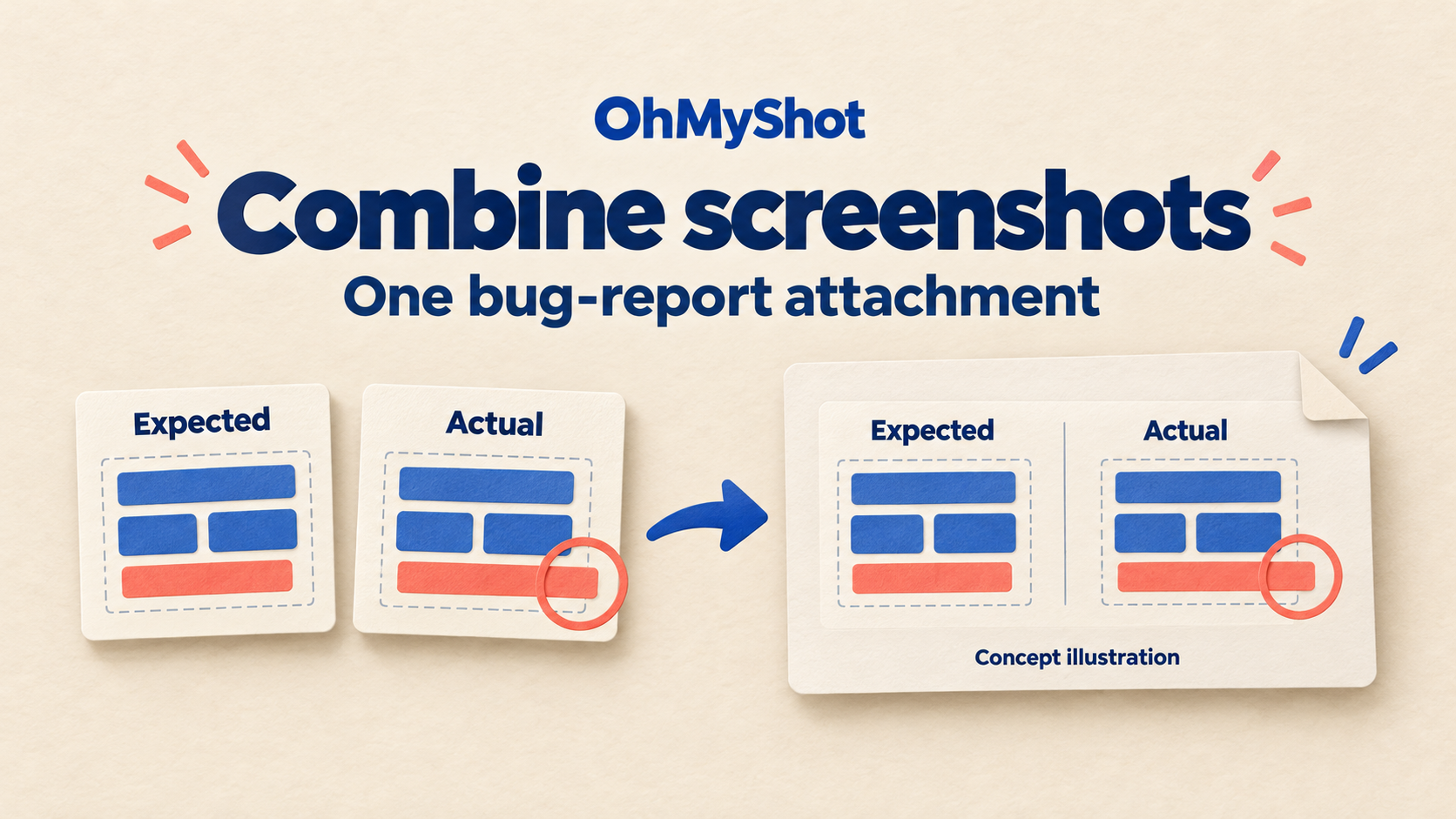
To put Expected and Actual screenshots in one bug-report attachment, use OhMyShot’s screenshot-combining controls in the Export panel: add each current screenshot to the temporary list, choose Row or Column, then create and inspect the combined image. Use Row for a side-by-side comparison when both panels stay readable; use Column when the report will be read in a narrow ticket or on a phone.
This guide is for developers, QA testers and support teams who already have two useful captures but need the difference to survive a handoff. The goal is one clear visual comparison—not a decorative collage, an automatic diagnosis or a replacement for reproduction steps. Start with the OhMyShot product overview if you need the desktop download options.
The combining workflow is documented in the official v1.25.1 release, published June 16, 2026; the current project README still lists it. We checked these sources on October 15, 2026. This is a source-backed editorial workflow, not a hands-on test of every desktop build.
1. Choose a comparable pair, not just two pictures
Suppose a checkout button extends outside its form after the browser window gets narrower. A useful comparison shows the same form and test data in two clearly identified conditions. An unrelated polished mockup beside the broken page will not tell the developer whether the difference comes from the layout, the data or the environment.
- Expected: capture a verified reference state, such as the approved design or a working build. Say which it is. A design reference is not evidence that the current software ever behaved that way.
- Actual: capture the failing state with the control, its container and enough nearby context to recognize the screen.
- Keep comparable conditions: use the same test account, content and zoom where practical. If viewport size is the variable being tested, record both widths instead of silently treating them as equal.
- Use safe examples: remove credentials, customer details, private conversations and unrelated tabs before capture. Crop sensitive areas out when possible; do not rely on a soft blur to protect a secret.
OhMyShot lists region and window capture as well as annotation tools. For choosing the right capture area and one purposeful annotation, see our single-screenshot communication guide. Here, keep both captures focused on the same comparison.
2. Choose Row or Column for the reader’s view
The release notes name three layouts: Auto, Row and Column. Choose the arrangement deliberately for a bug report rather than assuming an automatic layout will suit its eventual display size.
Row: compare the same area side by side
Use Row when two similarly sized captures let a reader compare the same control without scrolling back and forth. Put Expected first and Actual second, and label them explicitly. This is useful for the checkout example if each form remains legible at the ticket’s normal width.
If you have to zoom into each half just to read the button label, the combined attachment is doing too much. Crop more tightly without removing necessary context, choose Column, or keep separate attachments with a written comparison.
Column: keep each state wide enough to read
Use Column when the ticket is narrow, the captures contain text, or reviewers will read on a phone. Put Expected above Actual and repeat the state labels so the sequence remains clear when only one panel is visible. The trade-off is height: a long image can make the two states harder to compare at once.
Combining is not the same as scrolling capture. For two different states, visible panel boundaries are useful. For one continuous long page, OhMyShot separately lists Scrolling Screenshot Capture. Do not assume combining screenshots removes overlapping content or reconstructs a seamless page.
3. Build the attachment in the Export panel
- Open the first capture in the full editor. Check its crop and remove anything that should not enter the report. Decide which state it represents.
- Open the Export panel and add the current screenshot to the temporary combining list. The official README lists
Xas the editor shortcut for toggling the Export panel; you can also use the panel directly. - Open the second capture and add that current screenshot too. Check that the list contains the intended two states, not a stale capture from another task.
- Select Row or Column and create the combined image. Confirm that Expected and Actual appear in the intended positions. If they do not, correct the selection or arrangement before continuing.
- Inspect the resulting image, then continue editing or export it. The release notes explicitly describe continued editing, saving, copying and sharing after combination. Treat the list as temporary, not as your only archive of the originals.
These steps describe the documented workflow without assuming a particular button caption in every language or version. If your installed build has no combining controls, check its version and the official release list; the feature was introduced in v1.25.1.
Try it with one real report: get OhMyShot from its official download page, open two non-sensitive captures and make a comparison you can read without enlarging the ticket.
4. Label the states and mark one difference
Add short text labels such as Expected — approved design and Actual — narrow browser window. OhMyShot’s annotation toolkit includes text, arrows, rectangles, numbering and callouts. Use one clear marker around the checkout button’s overflow; do not cover the edge that proves the problem.
Keep presentation consistent enough that the comparison stays honest. Different padding, heavy shadows or mismatched crops can make an unchanged element appear to have moved. A plain frame is often enough for a bug report. Do not redraw, erase or move the failing control to make the attachment look cleaner.
If the expected state is a proposal rather than a working capture, put that in the label. If the actual state is intermittent, write that in the report. Combining two pictures does not prove the cause, frequency or resolution of the defect.
5. Export, reopen and add the missing context
OhMyShot supports PNG and JPEG export. PNG is a useful starting choice for interface text; reopen the actual exported file and check the text, both state labels, annotations and outer edges. Then view it at the width of the destination ticket. If either state becomes unreadable, change the layout or attach the two readable captures separately.
Save locally or copy to the clipboard if that is sufficient. Cloud Upload is optional: the README’s privacy section says enabling it uploads the screenshot to ImgBB to create a shareable link. Do not upload private material merely to get an attachment into an internal report.
Pair the image with a short written report. This illustrative template adds the information a combined screenshot cannot carry reliably:
Title: Checkout button extends outside the form in a narrow window.
Environment: affected build, browser version, operating system, viewport dimensions and zoom.
Steps: open checkout with the safe test data, resize to the recorded width, then inspect the payment button.
Expected: the button stays inside the form; attachment’s Expected panel identifies the reference used.
Actual: the button crosses the form’s right edge; attachment’s Actual panel marks that edge.
Attachments: combined comparison plus any separate, sanitized logs needed to reproduce the issue.
OhMyShot’s screenshot-combining feature does not by itself collect console errors, network traces or reproduction steps. Add those separately when they matter, after checking them for secrets. Keep sanitized source captures if reviewers may need more detail than the combined image provides.
Questions before you send the report
Should every pair of screenshots become one image?
No. Combine them when the relationship is the point and both remain readable. Keep separate files for detailed inspection, different screen sizes that need full-width display, or a long procedure that is clearer as numbered steps. One attachment is a convenience, not the acceptance criterion.
What if Copy keeps loading after adding a background?
Issue #79 reported that symptom on v1.24.0. The maintainer’s June 16, 2026 reply says v1.25.1 added a timeout and clears the loading state on export failure; the reporter also described saving to a file as a workaround. Check the current release and try a local save rather than waiting indefinitely. The thread is historical evidence, not proof that every present-day copy failure has the same cause or is fixed on your machine.
Make one readable attachment, not a smaller unreadable report
Choose a comparable pair, use Row or Column for the reader’s available width, label the reference honestly and reopen the exported result. If the difference is obvious without hiding context, the combined image is ready to accompany your reproduction steps. Explore OhMyShot’s capture and annotation workflow, then use it on the next report that genuinely benefits from two states together.
Make the Difference Clear in Your Next Bug Report
Explore OhMyShot, combine two safe captures, and check that your Expected and Actual states stay readable in the final attachment.
Desktop screenshot workflow · include reproduction steps