UI/UX Pro MCP: Make Form Errors Easier to Find and Fix
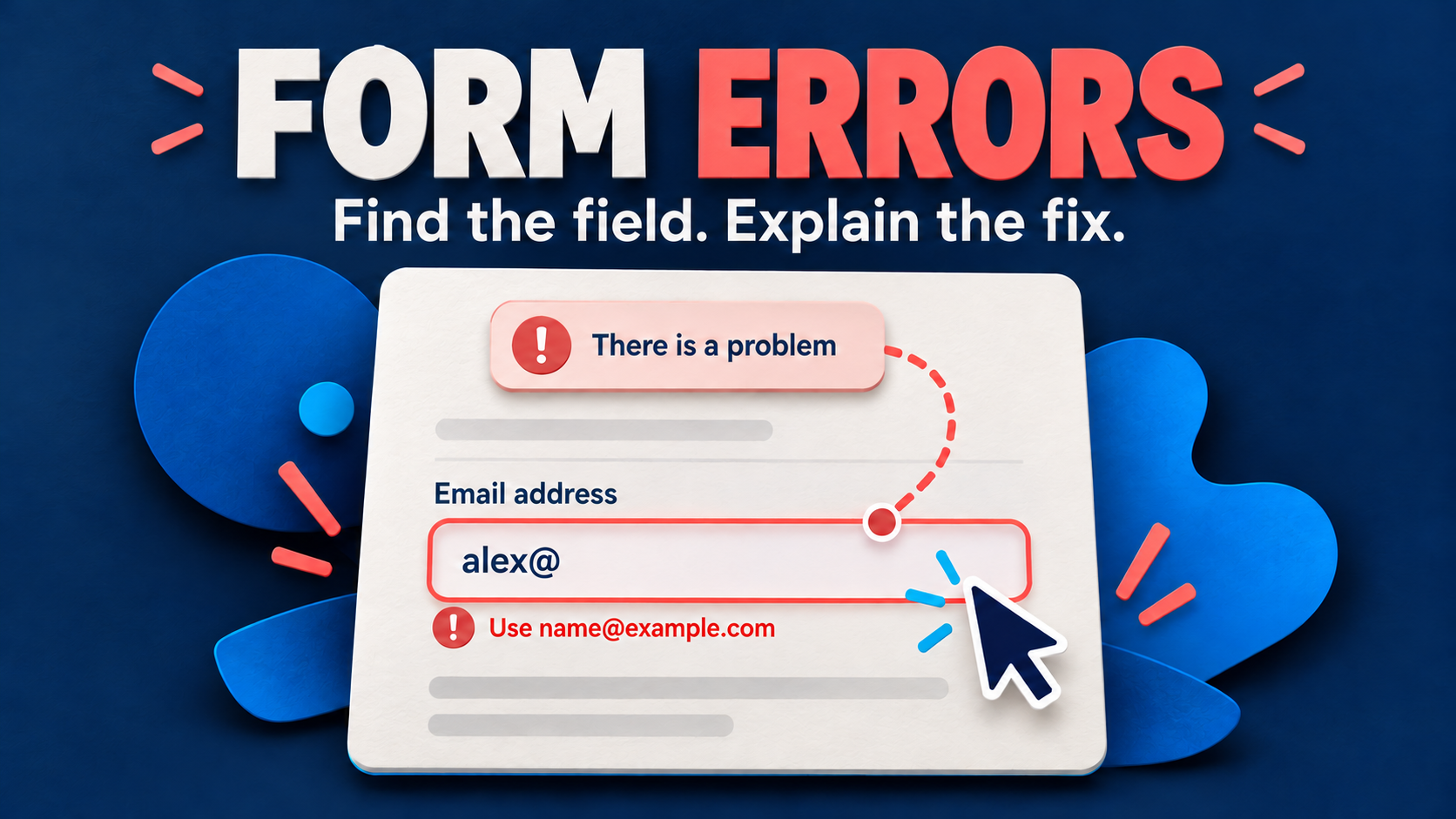
Use UI/UX Pro MCP to retrieve form-error guidance, then turn it into an explicit recovery flow: tell the user what failed, connect each message to its field, and make the next correction easy to reach. Start with search_patterns filtered to type: "ux". Review the recommendations against your form’s submission behavior and the standards below before asking a coding agent to change anything.
This guide is for a developer with UI/UX Pro MCP already connected and a web form that looks finished but leaves users hunting for errors. The worked example is a team-invitation form with an email address and a project role. The goal is a small, reviewable error-handling brief—not a new visual design system or a claim that an AI-generated form has passed an accessibility audit.
Source scope: the tool names and examples below follow the registered server schema inspected on October 19, 2026. Requests, field names and messages are illustrative. We inspected the source and guidance; we did not execute these MCP calls or test a working invitation service.
1. Describe the failed user journey, not the color
“Make the form more accessible” gives an agent too little direction. Capture the starting state and the recovery you want. For our example: someone enters an incomplete email address, leaves the role unselected and presses Send invitation. A red border appears, but it is unclear which answers need attention or how to reach them.
The first requirement is not “add more red.” WCAG’s explanation of Error Identification says an automatically detected input error must identify the affected item and describe the error in text. It does not mandate a particular layout, an error summary for every form or validation on every keystroke.
- Identify: name the field and the problem, such as “Email address: enter an address in the format [email protected].”
- Locate: help the user reach the affected control, including when it is outside the viewport.
- Recover: retain appropriate entered values and explain what to change.
- Confirm: distinguish a corrected field from an invitation actually accepted by the service.
Keep the existing component library, labels and design tokens unless the task requires a change. If the problem is that the agent selected a marketing page instead of an application screen, use the separate dashboard-intent troubleshooting guide. This tutorial starts after the page type is already correct.
2. Retrieve targeted UX guidance with the actual tool
Ask your MCP client to call search_patterns with this arguments object:
{
  "query": "form labels error feedback error placement recovery",
  "type": "ux",
  "max_results": 5
}
The pinned search handler uses the UX-guidelines index for type: "ux". That filter keeps this request focused on interaction advice rather than retrieving a new landing-page layout. If the first results miss a specific gap, run a narrower follow-up such as form labels or error placement; do not assume the example query guarantees a particular result order.
Read each returned recommendation’s category, issue, description, Do, Don’t and code example together. In the inspected UX dataset, entries cover visible labels, nearby error messages, programmatic error associations and recovery steps. They are useful inputs to a brief, not an inspection of your application’s current DOM or screen-reader output.
Check the registered schema if documentation differs. The README still includes older individual tool names such as search_ux_guidelines; the inspected server registers the consolidated search_patterns tool. Use what your installed client actually exposes. A missing tool is a connection/version question, not evidence that your form needs a redesign.
3. Resolve recommendations before turning them into requirements
Do not paste every retrieved snippet into the form. A short recommendation can omit the conditions that make it appropriate. Two decisions matter especially here.
When should validation appear?
The product dataset recommends blur validation for most fields and warns against submit-only validation. That is a design heuristic, not a universal accessibility rule. WAI’s form-notification tutorial describes after-submit, during-typing and focus-change approaches, with different use cases. The GOV.UK validation pattern instead advises waiting until users continue or submit, unless research supports earlier feedback.
For the invitation example, choose validation after a submission attempt as the initial brief. Do not mark an untouched field invalid on page load or interrupt someone halfway through entering an address. If the application already has tested inline validation, preserve that behavior unless the observed problem requires changing it. Record why any earlier validation helps this particular task.
How will users notice the error?
First distinguish a full-page response from an update inside the current page. For a server-rendered response, a meaningful page title and heading can communicate failure; the WAI tutorial discusses both. An asynchronous form must also make its new error state discoverable without relying on a page reload.
A genuine Contao community discussion illustrates why this distinction matters. The January 2026 request proposed several ARIA and focus changes; replies distinguished dynamically updated errors from initial-page content and noted that an existing autofocus template did not cover AJAX forms. The later author reply asked about a future change—it did not establish a completed fix. This is an adjacent implementation discussion, not a reported UI/UX Pro MCP defect or evidence of prevalence.
The product snippets include role="alert" and live regions, but do not treat “add an alert to every error” as a complete repair. MDN’s alert-role reference explains its dynamic, assertive behavior and warns against unnecessary alerts. Keep the team’s established, tested announcement and focus pattern; check that it works when the error actually appears.
For example, the GOV.UK error-summary component combines its own markup with JavaScript that moves focus to the summary. If you use that component, follow its complete pattern rather than transplanting one ARIA attribute into unrelated markup. For our custom invitation form, the implementation brief calls for a summary with links and deliberate focus handling after failed submission. Screen-reader review must still check for missing or unnecessarily repeated announcements.
4. Write a small state contract for the invitation form
Give the coding agent a concrete set of states. The following is an editorial example, not output claimed from an MCP call:
- Before submission: provide persistent labels, required-field instructions and useful format hints. Check that labels remain visible after typing and untouched fields do not show errors.
- Invalid submission: show a summary naming both problems, plus a message beside each affected control. Check that “Enter an email address in the format [email protected]” and “Choose a project role” identify the relevant fields.
- Correction: provide a clear route from each summary item to its control, with entered values retained. Activate the email summary link with the keyboard; check that focus reaches the email input and its hint/error association is intact.
- Submission pending: show an understandable in-progress state without a premature success message. Check that the form does not claim an invitation was sent merely because local validation passed.
- Service or permission failure: explain the actual failure instead of presenting a false email-format error. Check that a rejected permission check or unavailable service is not attached to a valid email as if the address were malformed.
- Service-confirmed success: confirm the actual accepted action. Check that this state follows the service response, not a button click or timer.
Client-side checks can help the interaction, but they do not replace server-side validation or permission checks. Preserve appropriate non-sensitive inputs after an error; do not apply that advice indiscriminately to passwords or other values your application intentionally clears for security.
Use matching wording in the summary and inline message so the user recognizes the same problem in both places. For an invalid field, keep its visible label and connect both the hint and error text. This static HTML shows the relationship only; it is not a complete validator, submission handler or announcement strategy:
<label for="invite-email">Email address (required)</label>
<p id="email-hint">Use the address of the person you want to invite.</p>
<input id="invite-email" name="email" type="email"
  value="alex@" aria-required="true" aria-invalid="true"
  aria-describedby="email-hint email-error">
<p id="email-error">
  Enter an email address in the format [email protected].
</p>
On correction, update the invalid state and remove the obsolete error association without losing the hint association. aria-required communicates a requirement; it does not implement validation. Decide whether native browser validation or a complete custom pattern owns the interaction, and test that path instead of layering two competing error interfaces.
5. Hand the agent the behavior, not just a screenshot
Use a bounded implementation brief like this after inspecting the retrieved guidance:
If the implementation has a framework-specific question, use the registered search_stack tool with your actual stack_name and a focused query. Do not switch frameworks or regenerate the whole design system to fix one error state. The UI/UX Pro MCP overview explains its broader design-reference role.
6. Review the recovery path in a local preview
Test with synthetic data and a controlled test response, not a real invitation to someone else. Review the implemented form, not just the generated screenshot or the coding agent’s checklist.
- Keyboard: reach every control, submit invalid values, locate the summary and activate each error link. Check actual focus, not only a change in scroll position.
- Field associations: inspect labels, unique IDs, invalid states and hint/error references. Correct one field and confirm the remaining error is still understandable.
- Assistive technology: use the browser and screen reader combinations your team supports. Check whether the failure is announced at the right time, the right field can be found and multiple mechanisms produce unnecessary repetition.
- Narrow viewport and enlarged text: keep the summary, messages, focused field and action readable without clipping. A red outline alone does not provide an explanation.
- Response states: exercise invalid input, pending, service failure, permission failure and success separately. Keep a valid email intact when the problem is elsewhere.
- Repeat attempt: submit again after a correction and after another failure. Old messages and broken ID references must not survive as if they were current.
Record the tool query, selected recommendations, deliberate departures, tested states and remaining gaps. A source-backed brief and DOM checks are useful evidence; they do not prove screen-reader behavior or complete WCAG conformance. If you need a precise file-edit review before applying the change, use the separate MCP Filesystem preview workflow.
FAQ
Does UI/UX Pro MCP automatically audit my form?
The tools described here retrieve design guidance. They do not inspect your form’s current behavior or certify its accessibility. Your agent can use that guidance to propose changes, but the implemented recovery path still needs review.
Should I replace inline errors with a summary?
Not for this workflow. The summary helps users locate problems; the nearby message explains the field they are correcting. Our invitation example uses both. Follow your design system’s complete pattern, and do not turn that editorial choice into a claim that WCAG requires a summary on every form.
Must every field validate while the user types?
No. Choose timing for the task and the users. The cited guidance offers different approaches, and premature feedback can interrupt incomplete answers. Start with a clear submit-time recovery path for this example; add earlier checks only for a demonstrated benefit.
Make one failed submission recoverable
Start with one existing form and one reproducible invalid submission. Retrieve focused UX guidance, resolve its context, then give the agent a state contract that can be checked in a local preview. The useful result is a user who can find the affected field and understand the correction—not merely a form with more red borders.
Explore UI/UX Pro MCP for the product overview and repository, then try the focused search_patterns request in your connected client. Keep deployment and real invitations outside the first review: accept the local recovery flow before expanding the change.
Make One Form Error Easier to Recover From
Explore the design-reference tools, then retrieve focused UX guidance for an existing form. Turn the recommendations into a local testable brief before changing a live workflow.
Focused guidance · explicit states · local review