Telegram Link Buttons Missing? Check Keyword Visibility
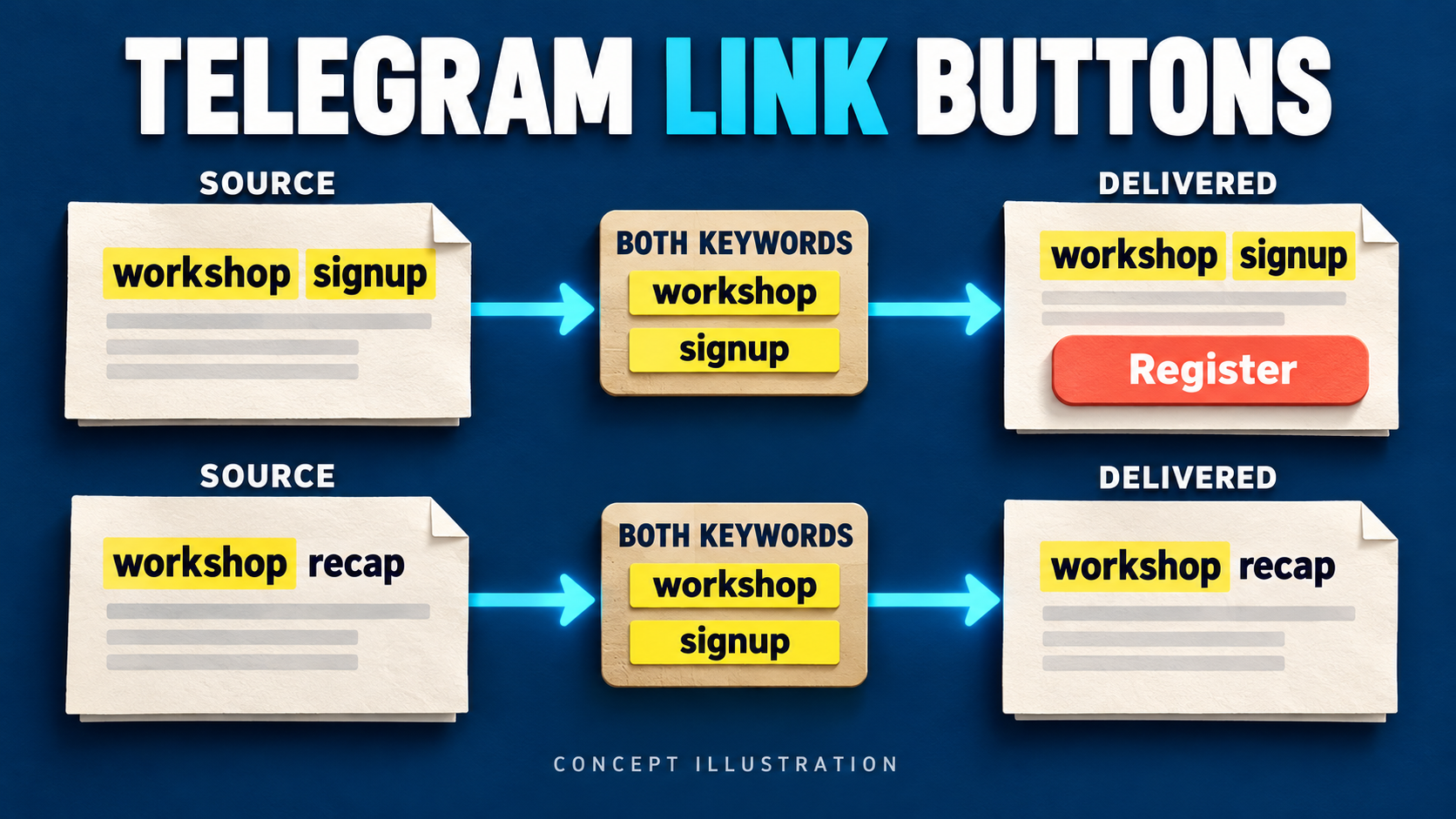
If a Telegram post arrives but its manually added Link Button is missing, check Only show when post has keyword before rebuilding the task. In RedFox Auto Forward Telegram, this setting checks the source post’s text or caption. “Match 1 keyword” accepts any configured keyword; “Match all keywords” requires every one. A matching post can still lose its button to a reply or message-type hiding rule.
This guide is for an existing route that delivers messages, with a manually configured button that appears on some posts but not others. It is not a fix for a missing entire message or for preserving another bot’s original buttons. The benefit is selective CTAs: keep a registration action on signup announcements without attaching it to every recap or conversation update.
RedFox operates Auto Forward Telegram, using @AutoForwardNew_Bot. The previous bot has moved to @AutoForwardNew_Bot. Use this current handle to access RedFox Auto Forward Telegram. Auto-Bot.io is a separate editorial publisher, not the bot operator. The instructions below follow the official Link Buttons documentation, checked October 17, 2026. The workshop example is a diagnostic plan, not a claimed live delivery test. The featured image is a concept illustration, not product UI.
First identify what is actually missing
- The entire post is absent: inspect task status, source/target access, scheduling and whole-message filters. Use the forwarding setup guide to establish a working base route first.
- The post arrives, but your configured CTA does not: continue with keyword visibility and the other Link Button hiding rules below.
- The source’s original buttons are missing: that is a cloning question. The keyword visibility setting applies only to manually configured Link Buttons, not Auto Clone Button. See the button-cloning guide instead.
Also check the task’s sender. The product’s Link Buttons feature requires Bot Sender; a connected personal account is not sufficient for creating these buttons. The sender documentation explains selecting a bot and saving the sender type. Confirm the selected bot can post to your destination. Do not switch a working production route or replace credentials just to investigate one missing CTA.
A keyword match is necessary, not always sufficient
Inside the affected task, open Link Buttons and find Only show when post has keyword. Read the saved keyword chips, match mode and Case sensitive choice together. An empty keyword list removes this keyword condition; it does not override the other button settings.
- Match 1 keyword: the source text or caption needs at least one listed keyword.
- Match all keywords: the source text or caption needs every listed keyword.
- Case sensitive enabled: uppercase and lowercase must match the configured spelling.
- No source text or caption: the post cannot satisfy the keyword condition. Text drawn inside an image is not the source caption.
The same documentation says that other Link Button filters still apply. If a post matches any selected Message Button Filter, its buttons are hidden. Hide when replying is another check; the docs describe it as enabled by default. Inspect the task’s actual saved setting rather than assuming the default is still in use.
Think of the rules as a decision aid, not a claim about the service’s internal processing order: a valid configured button + Bot Sender + the intended keyword condition + no applicable hiding rule. A positive keyword result does not cancel a negative visibility rule.
A workshop feed: signup announcements versus recaps
Suppose your source channel mixes workshop announcements, recap posts and replies. Your destination should receive those posts, but only signup announcements should carry a manually configured Register button. Use a registration URL you control and have checked; do not point a test button at an unrelated live offer.
For this example, configure two separate keyword chips: workshop and signup. Choose Match all keywords with case sensitivity off. Start with plain-text, non-reply posts in an owned test source and destination, with no matching Link Button hiding filters. Leave the production task unchanged while isolating the behavior.
| Source text | Keyword result | Expected CTA in this isolated example |
|---|---|---|
| workshop signup opens today | Both keywords present | Register button is eligible to appear. |
| workshop recap is ready | Only workshop present | No Register button. |
| signup closes Friday | Only signup present | No Register button. |
| community news this week | Neither keyword present | No Register button. |
These are expected rule outcomes, not measured results. Inspect each actual delivered post and record whether the button appeared. Keep the post text and the CTA result as separate observations: the recap should not need to disappear merely because it has no registration action.
Now change only the match mode to Match 1 keyword on the test task and save. The recap and signup-only examples now satisfy the keyword condition too. If that is too broad for your publishing goal, return to Match all keywords. Changing the layout or button label would not correct an overly broad keyword condition.
Check the source, not just the finished post
The documentation specifies source post text or caption. If your finished post contains “workshop signup” only because a header, rewrite or other transformation added those words, do not use that output as evidence that the source satisfied the condition. Compare the original source and its caption first.
For a photo, place the test words in the actual caption. A photo whose artwork says “workshop signup” but has no caption does not meet the documented text-or-caption condition. This setting is not a documented OCR switch.
Use literal test words with spaces, as in the examples above. The documented controls establish any/all and case behavior; they do not establish whole-word boundaries, stemming, regex support or punctuation normalization for this particular feature. Do not import assumptions from a separate whitelist, keyword-confirmation addon or message filter.
Then isolate case, reply and media rules
Once the baseline behaves as intended, introduce one condition at a time. Keep a known-good matching post as your control.
- Case: compare
workshop signupwithWORKSHOP SIGNUP. With case sensitivity enabled and lowercase keyword chips, the uppercase version does not satisfy that exact spelling. Decide whether this distinction is useful for your feed before keeping it. - Reply: use a matching test post sent as a reply. If its CTA is absent, check Hide when replying and any selected Reply Message Button Filter. Turning off one does not neutralize the other.
- Captioned media: try a photo with a matching caption. If the plain-text control has a CTA but the photo does not, inspect the relevant media hiding filter in Link Buttons.
- Empty keyword list: on the test task, remove all keyword chips and tap Done. That disables keyword gating only. If the CTA is still absent on a reply or selected media type, the other hiding rules remain relevant.
Do not confuse Message Button Filters inside Link Buttons with filters that reject whole messages from forwarding. If a photo arrives without its CTA, investigate the button layer. If the whole photo is missing, the photo and caption troubleshooting guide addresses that different starting condition.
Save, then verify a new post
Finish by tapping Done or Save as shown in the feature. The documentation describes the saved configuration applying to new posts created by the task. Do not judge a changed rule solely by an older destination message or assume the service will rebuild its buttons retroactively.
Before repeating a test after an unclear send, inspect the destination for the existing copy. Use a clearly labeled new test post in your owned destination when needed, rather than replaying a campaign to real subscribers. Once the intended cases behave correctly, apply only the necessary setting change to the production task and verify its next appropriate new post.
If the saved rules do not explain the result
Compare the same destination message in another current Telegram client before changing the task again. A difference confined to one client is a different clue from a button absent everywhere. Preserve the source post, destination post, client versions and the timing of any message edit; do not declare a Telegram bug from the symptom alone.
For product support, provide a small, redacted reproduction: the affected task, sender type, manual-versus-cloned button choice, source text or caption, keyword chips, match mode, case setting, hiding filters and expected versus actual output. Include timestamps and message links only where sharing them is appropriate. Never include bot tokens, Telegram login codes or two-step passwords.
FAQ
Does a matching keyword force the button to appear?
No. A reply or selected message-type hiding rule can still hide it. Check the complete Link Buttons configuration, not the keyword field alone.
Does this setting control Auto Clone Button?
No. The documented keyword visibility feature applies to manually configured Link Buttons. Use the cloning workflow for original source buttons.
Will clearing the keyword list show buttons everywhere?
It removes the keyword requirement after saving. Bot Sender, a valid configured button and the other visibility rules still matter.
Keep the CTA selective, not the diagnosis broad
Start with one valid manual button, two literal keyword chips and a small owned test route. Confirm the source text first, distinguish any from all, then test replies and media separately. Keep your existing forwarding arrangement intact until the smallest necessary correction is clear.
Open the Auto Forward Telegram product guide for the supported entrypoints. For fuller task management, use the Web App or choose the official iOS app or Android app; the Telegram bot is also available. Active tasks run in RedFox’s cloud, so leaving the management interface open is not required. For initial button creation and layout, continue with the Link Buttons setup guide; this diagnostic helps decide why the CTA should appear on one post and not another.
Put the Right CTA on the Right Post
Explore Link Buttons and task controls. Start with one owned test route, verify source keyword matches, and keep registration actions off unrelated updates.
Source-backed settings · controlled test plan