Telegram Broadcast Scheduling with Auto Post Scheduler
Summary
Telegram Broadcast Scheduling with Auto Post Scheduler is an Auto Forward Telegram workflow that should be configured from the official bot or web app, then tested against a real task before production use.
This repaired guide is anchored to official documentation, not slug inference. It uses https://docs-v2.autoforwardtelegram.com/schedules/schedule-telegram-message-posting-automatically as the source of truth and routes readers to Auto Forward Messages Telegram.
The correct product route is Auto Forward Messages Telegram. Use the official docs and product page to avoid mixing this feature with unrelated tools.
Source-Backed Facts
The following claims are the safe factual base for this article:
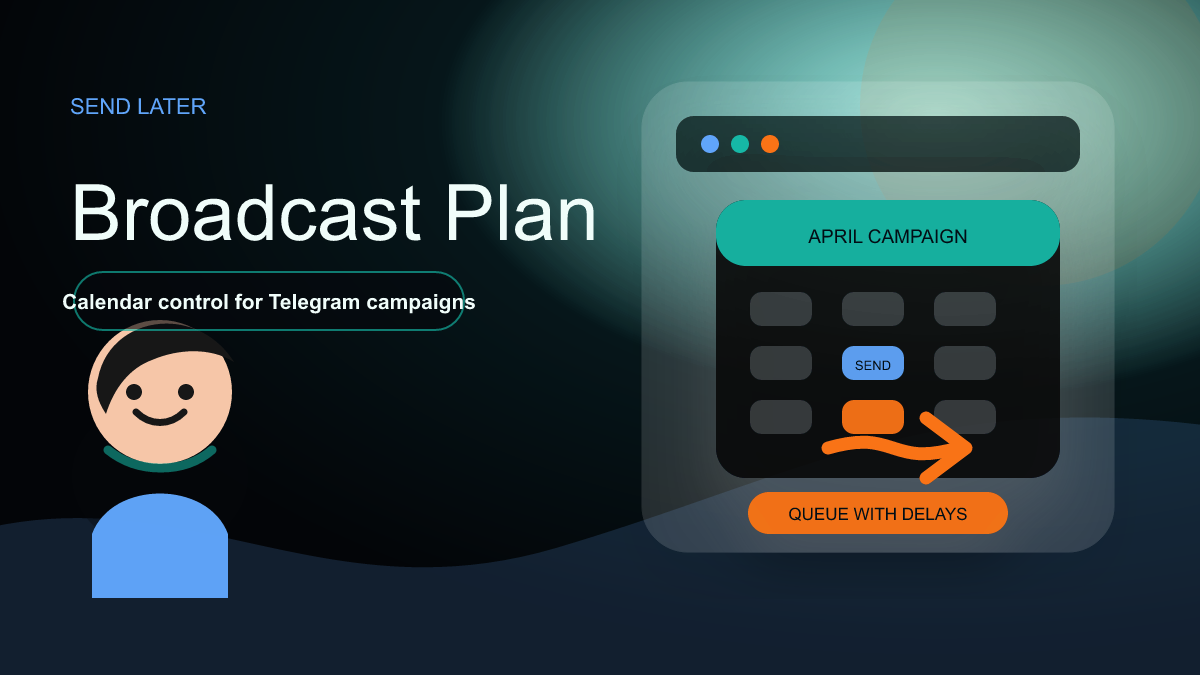
- Auto Post Scheduler can post latest or selected source messages to target chats.
- The docs describe interval mode, fixed time mode, and repeat mode.
- Message ID `0` fetches the latest message from the source chat.
- Delay between targets and pause/resume forwarding settings help avoid overlap and spam-like behavior.
- Schedules follow the timezone of the connected Telegram account, not the device timezone.
This is the article's evidence block. If a future edit adds claims outside this list, it should first check the official docs or the local product page.
Why This Workflow Matters
Automation content only converts when it is accurate. A reader who clicks from this article should know which bot, web app, or product page to open next. If the article sends a Telegram feature to a Discord product page, the CTA becomes confusing and the content loses trust.
The practical value is still speed and control: operators want to move messages, media, buttons, schedules, or affiliate links without manual copy-paste. But the workflow must be described with the same boundaries that the product actually supports.
For Google and LLM AI discovery, this matters because product-specific facts are more useful than generic automation language. The article should answer what the feature does, where to configure it, which platform owns it, and what limitation or setup requirement the operator must know.
Recommended Workflow
Use this workflow after opening the correct product: Auto Forward Messages Telegram. If you are configuring Auto Forward Telegram, start from the official bot Auto Forward Messages Bot or the Web App.
- Open the existing task: Use Auto Forward Messages Bot or Web App and select the task that owns this forwarding workflow.
- Enable the documented feature: Follow the official docs for the exact feature section and save after configuration.
- Preview with a sample: Send a controlled message to confirm the output matches the expected format.
- Check speed and layout: Review whether media processing, buttons, or scheduling affect the reader experience.
- Move to production: Only enable the workflow on real destinations after the sample output is approved.
Before expanding the workflow, run it against a private test destination. That catches wrong buttons, broken links, watermark placement issues, schedule timezone mistakes, or product mismatch before readers see the output.
Comparison Table
| Item | What It Means | Best Use |
|---|---|---|
| Official docs | Defines the feature behavior | Before writing or configuring |
| Bot/Web App | Where the operator configures the task | Production setup |
| Product page | Where users should convert | CTA and internal linking |
| Review sample | Confirms real output | Quality control |
The comparison helps separate product ownership from adjacent use cases. A workflow can involve multiple channels, but the CTA should still point to the feature owner.
Implementation Details
Start by naming the product and feature in your internal task notes. A clear label such as auto_forward_link_buttons_bot_sender or telegram_watermark_media_task is easier to maintain than a vague campaign name.
Next, keep a sample input and sample output. For content transformation features, the output should show exactly what changed: button layout, watermark position, affiliate tag insertion, contract filter behavior, or schedule timing.
Then document the limitation. Some features require Bot Sender, some can slow forwarding, some depend on plan level, and schedules follow the connected Telegram account timezone. Those details should be visible because they affect real operators.
Finally, make the CTA match the product. Use Auto Forward Telegram bot/web links for Telegram-native features, Discord-to-Telegram links for bridge features, and Trading Tools only when the article is about MT4/MT5 or MQL5 tools.
This source-first habit also improves future support quality. When readers ask how to configure a feature, the team can point to the exact bot, app, web screen, or docs page instead of explaining around an article that mixed product boundaries.
Checklist
Use this checklist before publishing or updating the article:
- Official docs page is linked.
- Correct product CTA is used.
- Feature owner is not mixed with another product.
- Sample output is reviewed.
- Unsupported claims are removed.
If any checklist item fails, keep the article in draft or update the live post before continuing to the next batch.
Where Auto-Bot Fits
The correct next step for this workflow is Auto Forward Messages Telegram. For Auto Forward Telegram features, users can start with Auto Forward Messages Bot, use the Web App, or read the official Telegram docs.
For broader automation planning, read Telegram Automation Playbook for 2026. It should be used as a navigation guide, while the official product docs remain the source of truth for feature-level claims.
FAQ
Why was this article repaired?
The product mapping needed to be stricter. Some feature topics can mention Discord as a source, but the actual feature owner is Auto Forward Telegram according to the official docs.
Can one workflow use multiple products?
Yes, but the article must say which product owns which step. For example, Discord-to-Telegram can bridge source messages, while Auto Forward Telegram owns Link Buttons, Watermark, MMO Feature, and Auto Post Scheduler documentation.
What should be measured after launch?
Track clicks to the correct CTA, support questions caused by product confusion, live output quality, and whether users can complete the documented workflow from the linked bot or web app.
Put These Tips Into Action
Start automating now — available on Telegram Bot, Web, iOS & Android.
Free to try • No credit card required