Remove Watermarks Before Forwarding Images, Not After They Go Live
Summary
Smart Image Crop is valuable because it solves a common forwarding problem at the source: watermarks, screenshot bars, and visual clutter that make reposted images look low quality.
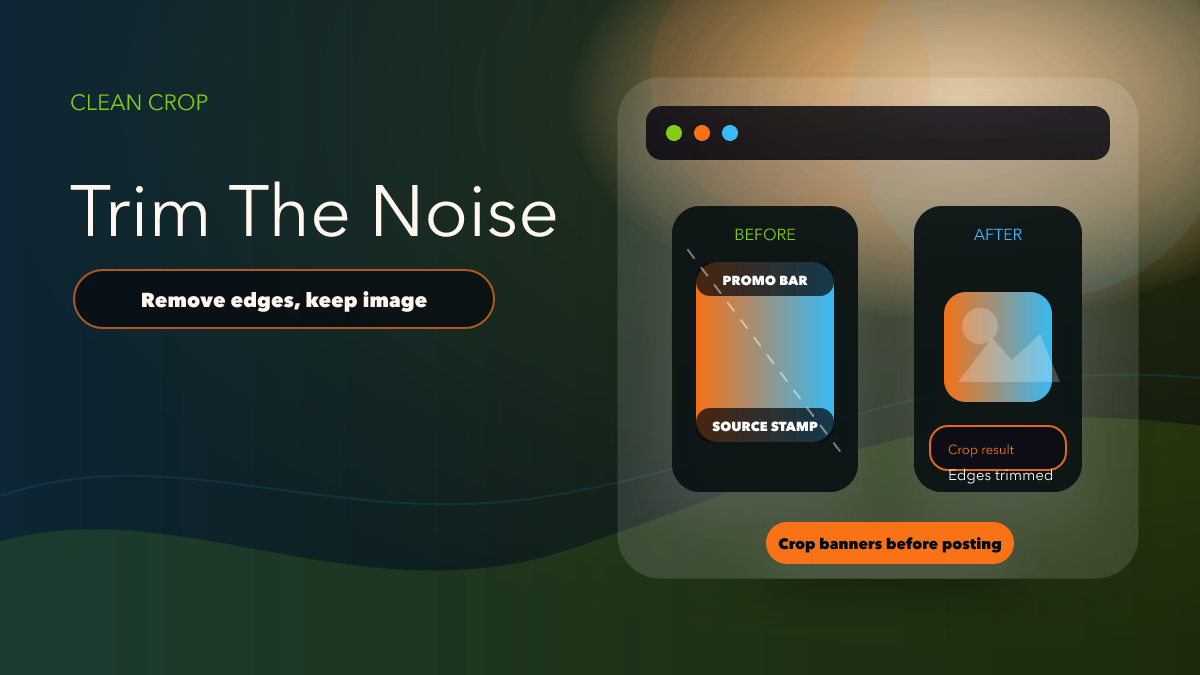
The Smart Image Crop docs are unusually practical. They do not talk in abstractions. They show exactly why the feature exists: to remove watermarks, channel stamps, promotional banners, borders, and screenshot UI before the image is forwarded. That makes this one of the easiest features to introduce in a product-first tone because the reader can immediately understand the before-and-after value.
Why Smart Image Crop Matters
Forwarded images often look cheap not because the content is bad, but because the framing is messy. Watermarks from another channel, leftover interface bars, and visual clutter make the destination post feel copied instead of curated. Smart Image Crop fixes that at the workflow level, before the image reaches the target chat.
That is a much stronger editorial angle than “remove watermarks.” The real value is that your forwarded media looks intentional and publication-ready.
What the Docs Confirm
The docs confirm pixel mode and percent mode, edge-specific crop values, preview support, and validation rules that stop invalid crop settings. They also explain the preview overlay clearly: red is what will be removed, white is what remains. And they state an important rule for percentage mode: top plus bottom must stay below 100 percent, and left plus right must stay below 100 percent.
Those details are not filler. They are the difference between a trustworthy how-to article and a vague promise.
How to Use Smart Image Crop Without Guesswork
- Choose the crop mode based on source consistency: Pixel values work well when image dimensions are stable; percent mode is useful when source sizes vary.
- Set crop values by edge: Think in terms of where the unwanted element actually sits: top, bottom, left, or right.
- Use the preview before saving: The preview overlay is there to stop bad assumptions from reaching production.
- Watch the validation rules: Invalid percent totals are not edge cases. They are common setup mistakes.
- Test on one source first: Small review beats mass cleanup after bad images have already posted.
Why Cleaner Images Improve CTR and Trust
People click cleaner visuals more readily because the image feels deliberate. A post with a leftover watermark or screenshot bar signals low care. A cropped image that keeps only the useful visual content feels more trustworthy and more aligned with the destination channel.
That makes Smart Image Crop a practical conversion feature, not just an editing convenience. The product article should say that plainly.
When Crop Beats Manual Cleanup
Manual editing looks manageable when a team is reviewing a few images a week. It becomes expensive when the route is active every day and the same visual clutter appears again and again. Smart Image Crop is valuable because it turns cleanup into a repeatable rule inside the forwarding workflow.
That means the operator can improve image quality before the content reaches the destination channel, instead of reacting after low-quality posts are already public. For teams that care about channel aesthetics, that difference matters.
Why Readers Notice Cleaner Images Immediately
Image quality shapes trust very quickly. Even when readers cannot explain why a forwarded image feels low quality, they notice screenshot bars, old watermarks, and chopped edges. Clean crops make the channel feel more intentional, which helps every later CTA on that channel work a little better.
That is why Smart Image Crop is a production feature, not just an editing trick. It improves the visual standard of the destination feed in a way readers feel instantly.
Operator Notes
Crop settings are easiest to maintain when they are tied to a recognizable source pattern. If one source channel always places a watermark at the same edge, document that in the route notes so later operators know why the crop exists. The more predictable the explanation, the less likely someone is to remove a working crop rule by accident.
This is also where the preview becomes operationally valuable. It gives teams a quick verification habit before a route starts touching public images again.
Image Crop Checklist
- The crop mode matches the source-image pattern.
- Crop values are set by edge, not by guesswork.
- The preview was checked before saving.
- Percent totals stay within the documented validation rules.
- The route points users to Auto Forward Messages Telegram, which is where the workflow lives.
Comparison Table
| Image workflow | Strong version | Weak version |
|---|---|---|
| Setup | Preview and validation are used | Crop values are guessed and pushed live |
| Outcome | Image looks curated for the destination | Image still looks copied and cluttered |
| Error handling | Percent rules are checked | Invalid crop totals break the setup |
| CTA | Point to Auto Forward Messages Telegram | Point somewhere unrelated |
Clean the Image Before It Reaches the Channel
Use Auto Forward Messages Telegram to configure Smart Image Crop where the forwarding workflow already runs. If you want the official feature setup, continue through the bot or the web app.
FAQ
What is the most useful part of the feature?
The preview overlay is extremely useful because it lets operators confirm the result before the crop goes live.
When should I use percent mode?
Use it when source-image sizes vary and fixed pixel values would be too brittle.
Why does this belong in a product-introduction article?
Because the feature solves a visible quality problem that readers understand instantly and can apply directly.
Clean Images Before They Reach Readers
Use Telegram Forward with Smart Image Crop to trim banners, borders, and source clutter before reposting.
Supports image cleanup inside the forwarding workflow