Crypto Mode Network Filter: Choose Your Blockchain Networks
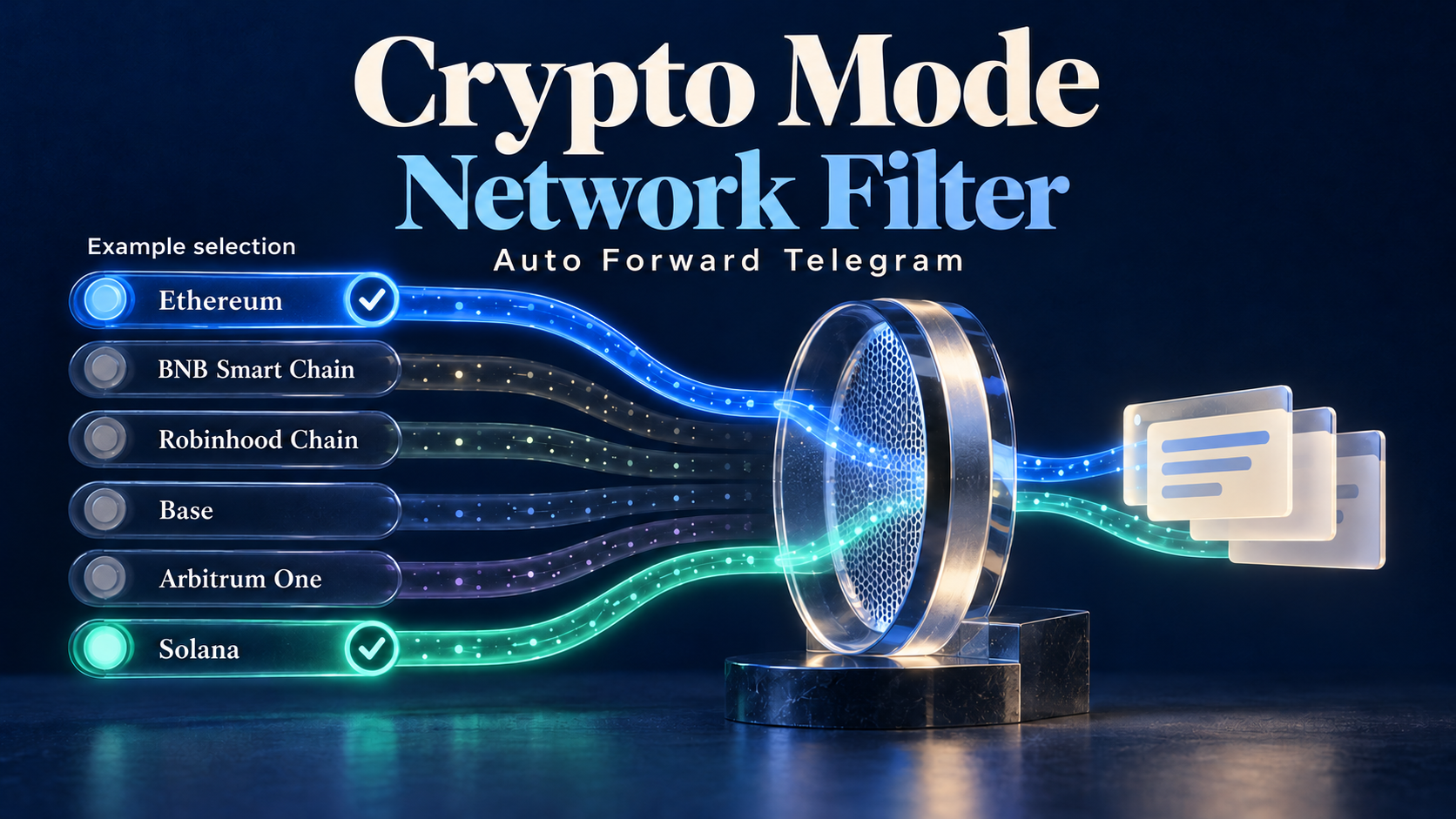
Keep a crypto channel focused on the networks its readers actually follow. RedFox Auto Forward Telegram has added Network Filter to Crypto Mode, letting you choose one or several blockchain networks for a Forward or Publish task. It supports Ethereum, BNB Smart Chain, Robinhood Chain, Base, Arbitrum One and Solana, and uses your existing Crypto access—there is no separate Network Filter purchase.
For an operator collecting contract-address updates from mixed-network sources, that means one more useful control over what belongs in the destination. Choose Ethereum and Solana for a two-network review feed, or Base and Arbitrum One for a community focused on those networks, rather than leaving the task unrestricted by network.
The feature was announced by RedFox on October 11, 2026. The official Network Filter guide, checked October 12, explains the settings and matching behavior.
Auto-Bot.io is a separate editorial publisher, not the developer or operator of RedFox Auto Forward Telegram. The featured image is a conceptual illustration, not a product screenshot; Ethereum and Solana are an example selection.
A network choice for each Crypto task
Network Filter adds a network-selection rule to Crypto Mode's contract-address processing. You can apply it to both Forward and Publish tasks, selecting a single network or a combination that matches the destination's purpose.
- Ethereum
- BNB Smart Chain
- Robinhood Chain
- Base
- Arbitrum One
- Solana
These are the six choices documented for this filter. Crypto Mode's broader address-detection capabilities should not be confused with the networks available in the Network Filter selector.
Existing Crypto users can configure the feature without buying another filter. If you do not already have Crypto access, check your current eligibility in the official product interface; the announcement is not a promise that Crypto Mode is included in every plan.
How to enable Network Filter
Use the official web app or a mobile app to manage the task. If you have not created a route yet, start with the Telegram forwarding setup guide; the steps below configure an existing task.
- Open the Forward or Publish task you want to configure.
- Go to Crypto Mode and enable Contract Address to display the Crypto options.
- Find Network Filter below Duplicate Content Checking.
- Choose one or more networks. A selected network has a blue border and a checkmark; tap it again to deselect it.
- Tap Done to save the selection.
Selecting All networks clears individual selections. Deselecting the last selected network also returns the filter to All networks. Save the change with Done. Turning Crypto off hides Network Filter but keeps its saved selection for the next time you enable it.
All networks is not the same as selecting all six
This is the setting that matters most when deciding how much content to keep. According to the first-party documentation, All networks preserves default Crypto processing without a network restriction. Specific selections require evidence identifying the address as belonging to a selected network, such as a matching blockchain explorer link.
- All networks: choose this to keep the default Crypto behavior without adding a network restriction.
- One or several selected networks: use this to focus processing on addresses with identifying evidence for those networks.
- All six individually selected: network-identifying evidence is still required. This does not restore the unrestricted All networks behavior.
An address by itself, or one with missing or conflicting network information, may be skipped when specific networks are selected. A token name or a mention of a chain is not a documented guarantee of a match. The benefit is a more focused processing rule, not guaranteed classification of every address.
Three ways to put the filter to work
The following are configuration examples, not observed delivery tests or investment recommendations. Choose the networks for the audience you serve and preserve the source's address and network evidence.
Ethereum and Solana: a shared research inbox
If your reviewers follow both ecosystems, select Ethereum and Solana on the task feeding their review destination. A contract-address update with matching evidence for either selected network can meet the network rule. An otherwise similar post without clear network evidence may be skipped. This focuses the inbox without forcing the team to choose only one ecosystem.
Base and Arbitrum One: a focused community feed
For a destination dedicated to Base and Arbitrum One updates, select those two networks. The task can then narrow contract-address processing to the community's stated scope. Keep relevant source context and links in the message; do not assume a bare address or a familiar ticker identifies the network.
BNB Smart Chain or Robinhood Chain: a single-network bulletin
A bulletin covering only BNB Smart Chain can select that network alone. A separate Robinhood Chain bulletin can select Robinhood Chain on its own task. This lets each destination use its own scope instead of inheriting the same network choices. Confirm identifying evidence in representative source messages before relying on either rule.
Network relevance and repeated content are different questions. Crypto Mode also documents duplicate detection and contract-frequency controls; those address repetition, while Network Filter addresses network scope. For the earlier feature background, read AutoForward's original Crypto Mode release coverage. Do not treat either kind of filter as a judgment that a token is safe or worth buying.
Check one route before changing every task
On a private destination you control, compare representative source messages with your intended policy: one carrying an address and clear evidence for a selected network, one for an unselected network, and one with an address but no clear network evidence. Inspect the actual result alongside the task's other enabled filters. Meeting the network rule alone does not prove the message meets every task condition.
- Network Filter is not visible: enable Contract Address inside Crypto Mode first.
- A relevant address is missing: check whether the source includes clear, consistent network evidence and whether that network is selected. Also inspect the task's other filters.
- You wanted the previous behavior: choose All networks and tap Done, rather than selecting all six individually.
- Saving fails: check the displayed error and your connection. The docs say unconfirmed selections remain on screen so you can continue editing; do not assume they were saved.
Keep source verification and editorial judgment in the workflow. Network Filter is an information-processing control, not an investment recommendation, token endorsement or safety check.
Choose your networks in the official Web or mobile app
Open the task on your preferred platform:
Web and the mobile apps are the recommended starting points for fuller task management. Active tasks run in RedFox's cloud, so you do not need to keep the management interface open. The current Telegram entrypoint is @AutoForwardNew_Bot; if an older guide mentions @Auto_Forward_Messages_Bot, use the current official bot instead.
Already using Crypto Mode? Open one task, choose the networks that belong in its destination, and tap Done. Prefer the existing unrestricted behavior? Keep All networks. For broader product guidance, see RedFox Auto Forward Telegram on Auto-Bot.io.
Choose the Networks for Your Crypto Task
Open an existing Crypto task in the official web app, choose its network scope and save with Done.
Uses existing Crypto access; no separate Network Filter purchase